How to Create Podcast of Page with Copilot in Microsoft Edge on Windows 11

The “Create Podcast” feature in Microsoft Edge uses AI to turn a webpage into spoken audio. You can listen to long articles, news stories and blog posts instead of reading them on your Windows 11 PC.
The tool converts the page text into a podcast-style audio summary, which suits a commute, a workout, or any time you want to rest your eyes. Before you begin, make sure the Copilot sidebar is turned on in your browser settings. Also check that Edge is up to date, because Microsoft rolls out Copilot features in stages and an older build may not show them.
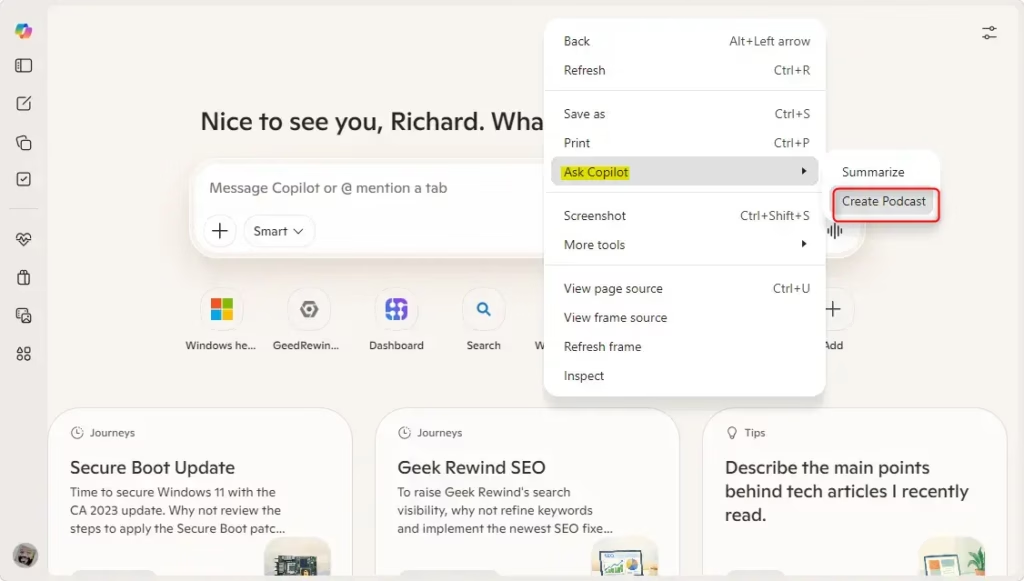
Open Microsoft Edge, go to the webpage you want to convert, right-click an empty spot on the page, and click Ask Copilot. Select Create Podcast from the sidebar menu, wait for the AI to generate the audio, then click Listen to play it.
Here’s How:
- Open Microsoft Edge.
- Go to the webpage you want to turn into a podcast. Pick a page with real article text. Pages that are mostly images, video or menus give the AI little to work with.
- Right-click an empty spot on the page. Avoid links, images and selected text, because those open a different right-click menu . On a touchscreen, press and hold on an empty area instead.
- Click or tap Ask Copilot. You should see the Copilot option in the context menu , and Copilot opens in the sidebar.
- Click or tap Create Podcast.
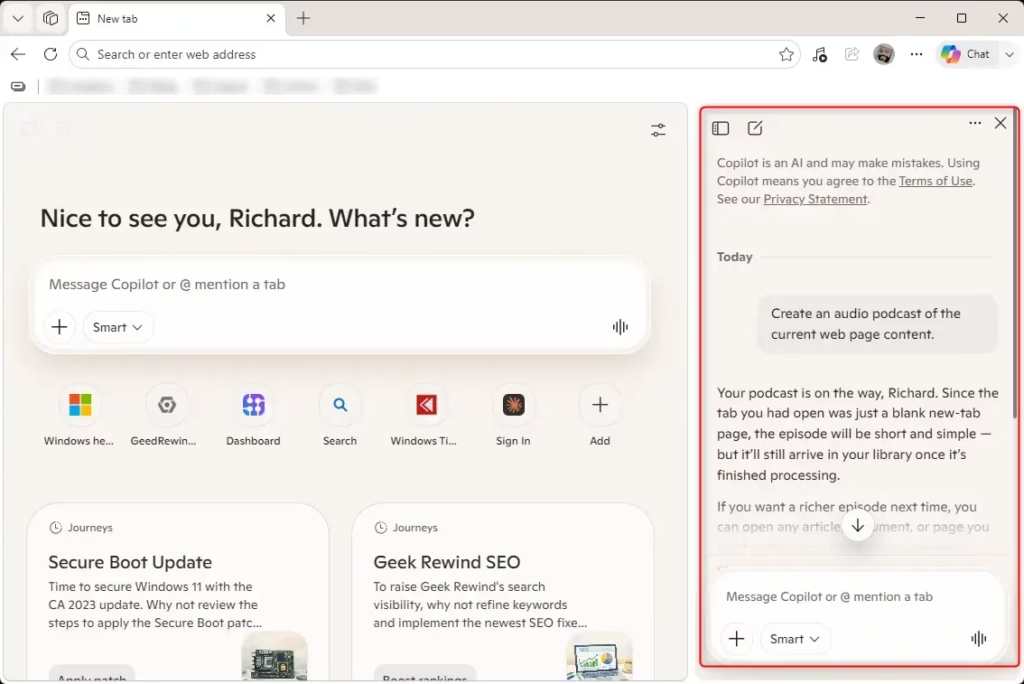
- Wait while Copilot starts creating the podcast. A progress message appears while it reads the page and builds the audio. A long article takes longer than a short one, so give it a minute.
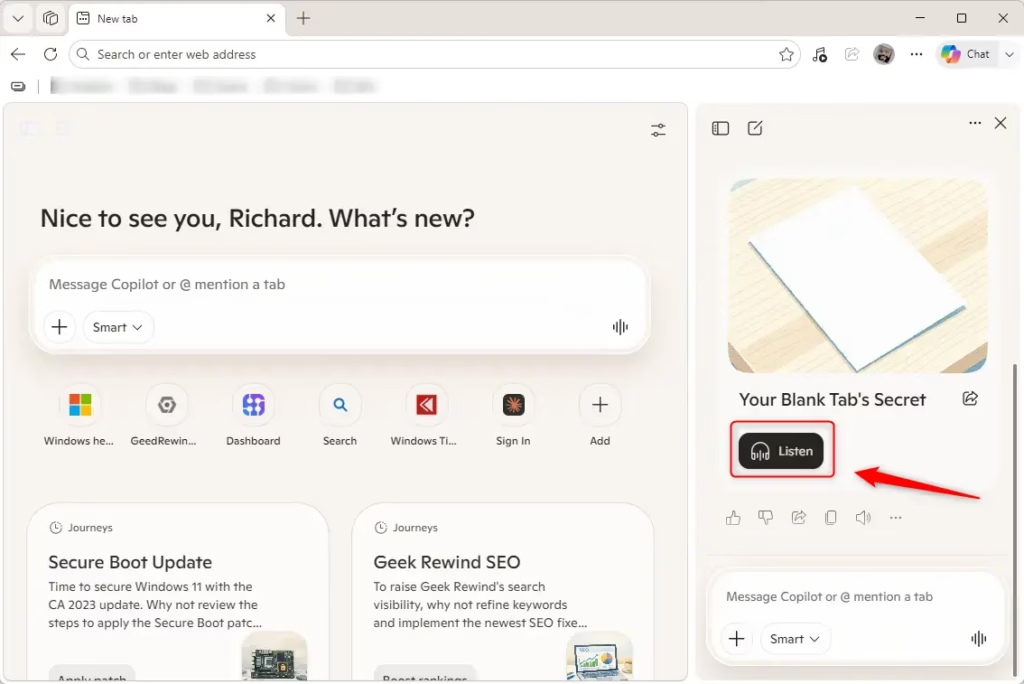
- Click or tap Listen when the podcast is ready. The audio plays and you can use the on-screen controls to pause or resume.
If Ask Copilot or Create Podcast is missing, check these things:
- Copilot may be turned off in Edge settings. Turn the Copilot sidebar back on.
- Edge may be out of date. Update it and reopen the browser.
- The feature may not have reached your account or region yet. This also applies to some work or school accounts, where an administrator may block Copilot.
- You may have right-clicked on a link, image or text instead of an empty spot.
To stop, pause the audio or close the Copilot sidebar. Nothing about your system changes, and you can run the feature again on any page.
In short, you can create podcast content in Edge straight from any webpage with the browser’s built-in features. Open Microsoft Edge, go to the page you want to convert, right-click any empty space and select Ask Copilot. From the menu that appears, choose Create Podcast and the AI generates an audio version you can listen to right away.
Podcasts in Microsoft Copilot | Microsoft Support
Summary
Web articles no longer require staring at a screen from start to finish. Queue up a long read, put your headphones on, and let Edge read it to you.
Was this guide helpful?

About the Author
Richard
Tech Writer, IT Professional
Richard is a writer at Geek Rewind who turns complex IT tasks into clear, step-by-step guides. He draws on years of hands-on experience in system administration and enterprise IT operations, focusing on Windows, Linux and WordPress: the problems people actually run into, and the fixes that work. His server and WordPress guides come from systems he runs himself. Richard builds and maintains the platform behind Geek Rewind, from its Ubuntu servers and Nginx configuration to its custom WordPress plugins. Many new tutorials start with readers' questions, and he's always glad to answer them in the comments.



No comments yet — be the first to share your thoughts!