Windows 11 Hibernate vs Sleep vs Fast Startup Explained

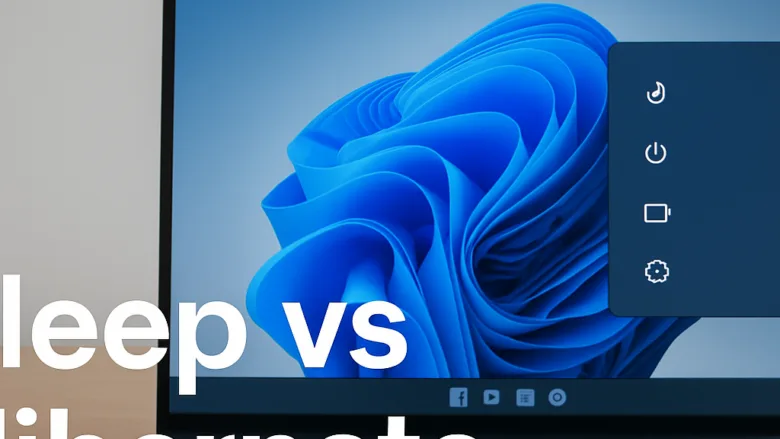
Power modes in Windows 11 like Sleep, Hibernate, and Fast Startup control how your PC saves open work and manages energy when you step away from the screen. Sleep keeps apps in temporary memory (RAM) so you can wake the computer instantly. Hibernate saves everything to your hard drive and turns the system completely off.
Fast Startup combines a standard shutdown with a small hibernation file to make Windows 11 boot faster the next time you turn it on. Each mode handles your PC hardware differently, so each one trades wake-up speed against battery or electricity savings.
This guide explains what each mode does, when to use it, and how to change the related settings. It also covers two problems that basic guides tend to skip.
Windows 11 Hibernate vs Sleep vs Fast Startup explained: Sleep puts your computer in a low power state to wake up, Hibernate saves your open work to your hard drive and turns off completely to save battery, and Fast Startup combines shutting down with a partial hibernation to make booting up faster.
What Is Sleep Mode?
Sleep is a low-power state that pauses your computer while keeping all your open apps and files in RAM (Random Access Memory, short-term computer storage). The screen turns off, the processor drops to a trickle of activity, and the RAM stays powered so nothing is lost.
Because everything is still in RAM, waking the PC takes only a second or two. Press a key, click your mouse, or open the laptop lid, and your desktop appears right where you left it.
When Should You Use Sleep Mode?
Use sleep for short breaks during the workday, such as lunch, a quick meeting, or a short errand. It saves electricity, and your files stay ready, so you do not wait for programs to reload when you return.
Sleep is also the right choice on a desktop PC that stays plugged in. There is no battery to drain, so the only cost is a few watts of power.
The Downside of Sleep Mode
Sleep still uses a small amount of battery power to keep the RAM alive. If a laptop sits asleep for days without a charger, the battery will eventually drain completely. If the battery dies while the computer is sleeping, you lose any unsaved work.
If you will be away for more than a few hours and the laptop is not plugged in, hibernate or shut down instead.
What Is Hibernate Mode?
Hibernate saves everything currently held in memory to your storage drive and then turns the device completely off. Unlike sleep, it does not keep any power flowing to the RAM, so it uses no battery while the computer is stored away.
Because your open work is safely on the drive, you can unplug the laptop, pack it away for a week, and the battery level will not drop because of the computer being on. The battery will still self-discharge very slowly, as every battery does.
When Should You Use Hibernate Mode?
Use hibernate when you travel or commute with your laptop and want to save battery without closing your work. You get the power savings of a full shutdown, and Windows remembers all your open windows and documents for the next session.
It is also a good choice when you leave a laptop unplugged overnight and want to be sure the battery is not slowly drained by sleep.
The Downside of Hibernate Mode
Hibernate has two costs. First, it wakes more slowly than sleep, because the computer must copy the saved data from the storage drive back into RAM. The delay is usually several seconds, and it grows with the amount of memory in use and the speed of the drive.
Second, it takes up drive space. Windows creates a large hibernation file on your main drive to hold your memory contents. By default this file is about 40 percent of your installed RAM, so check your free space on a small SSD.
What Is Fast Startup?
Fast Startup is a Windows 11 feature that shortens boot time by saving core system files to your storage drive when you shut down. Instead of closing everything from scratch, Windows saves the Windows kernel (the core part of the operating system that manages hardware) so it can get you back to the desktop faster.
A traditional shutdown closes everything and resets the system completely. Fast Startup signs you out and closes your personal apps, but it leaves the kernel in a hibernated state. It writes those system files to your drive before the PC turns off.
The next time you press the power button, Windows does not have to load the whole operating system from scratch. It loads the pre-saved system files, so the PC reaches the sign-in screen much faster.
Fast Startup applies only to a normal Shut down. Choosing Restart always does a full shutdown and fresh start. Fast Startup also depends on hibernation, so if hibernation is turned off, the Fast Startup option disappears.
The Catch with Fast Startup
The downside of Fast Startup is that it prevents a truly fresh start. Because core system files stay loaded between shutdowns, minor bugs and software glitches can pile up over time.
If your PC has odd problems that a shutdown does not clear, use Restart, which bypasses Fast Startup. You can also turn the feature off, as shown later in this guide. Turning it off is also commonly advised for dual-boot setups, since the hibernated state can leave the Windows drive locked from the other operating system.
Sleep vs. Hibernate vs. Fast Startup: A Direct Comparison
Sleep, hibernate, and Fast Startup differ mainly in speed, power usage, and how they handle your open files. Sleep is best for quick breaks with instant wake times. Hibernate saves all open work while using no battery power. Fast Startup speeds up boot after a full shutdown, but it does not keep your open apps.
- Speed: Sleep is the fastest to wake up. Fast Startup makes your boot time much quicker after a shutdown. Hibernate takes slightly longer than sleep because it reads data from your storage drive.
- Power Usage: Sleep uses a small amount of battery to keep RAM active. Hibernate and Fast Startup use zero power once the computer finishes turning off.
- Data Safety: Sleep risks losing data if your battery dies. Hibernate writes your open work to the drive, so nothing is lost when power drops. Fast Startup does not save your open apps at all, because it closes them first. Save your work before you shut down.
How to Manage and Configure Your Power Settings
You can change what a laptop does when you close the lid or press the power button through the Control Panel .
How to Set Up Your Power Buttons and Lid Action
This setting lets you choose whether pressing the power button or closing the lid puts the computer to sleep, hibernates it, or shuts it down. The lid options appear only on laptops and other devices with a lid. A desktop PC shows only the power button options.
- Click the Windows Start button, type Control Panel, and open it.
- Click Hardware and Sound, and then select Power Options.
- On the left side of the window, click Choose what the power buttons do or Choose what closing the lid does. Both open the same page.
- Find the rows labeled When I press the power button and When I close the lid.
- Use the drop-down menus to choose Sleep, Hibernate, or Shut down. Set one value for On battery and another for Plugged in.
- Click the Save changes button at the bottom.
The change applies right away and no restart is needed. If Hibernate is not in the drop-down list, turn hibernation on first using the steps in the next section. To undo a change, return to this page and pick the previous option.
You can also find similar controls in Settings System Power & battery under Lid, power & sleep button controls.
How to Enable or Disable Hibernate Mode
Hibernate is often missing from the Start menu power options because Windows 11 does not list it until it is switched on. Turning it on takes a few clicks in the classic Control Panel. The Settings app does not have this checkbox, so you cannot do it there.

- Open the Start menu and click Settings (the gear icon).
- Click System in the left sidebar, then click Power & battery. This page controls screen and sleep timers, but not the hibernate checkbox.
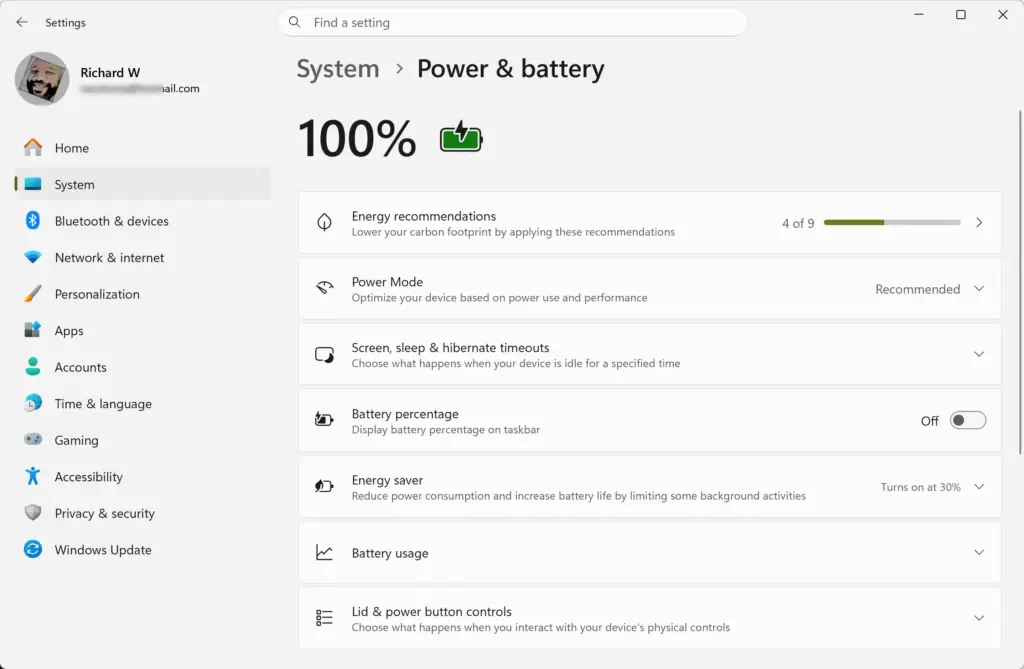
Settings › System › Power - Open the legacy Control Panel by searching for Control Panel in the Start menu.
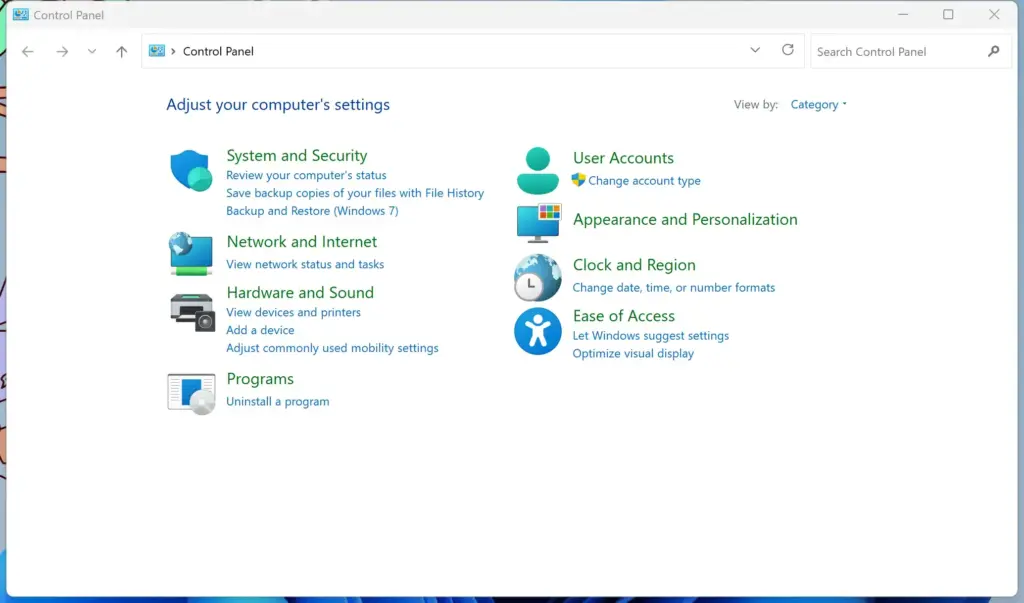
Control Panel - Go to Hardware and Sound Power Options, then click Choose what the power buttons do on the left.
- Click Change settings that are currently unavailable near the top. You need an administrator account, and you may see a User Account Control prompt. The options under Shutdown settings should no longer be greyed out.
- Check the box next to Hibernate under Shutdown settings at the bottom of the window.
- Click Save changes.
Open the Start menu, click the Power button, and you should now see Hibernate in the list. No restart is needed. To remove the option, clear the same checkbox and save. That also removes the hibernation file and frees the drive space, but it also disables Fast Startup. If the checkbox is missing entirely, an organization policy may be managing power settings on that PC.
How to Enable or Disable Fast Startup
You can turn Fast Startup on or off through the classic Control Panel. Turning it off is often the first step when you are troubleshooting shutdown problems, driver updates, or dual-boot trouble. Turning it on gives you faster boot times.
- Open the Start menu, type Control Panel, and open it.
- Select Hardware and Sound, then click Power Options.
- Click Choose what the power buttons do on the left side of the screen.
- Click the link at the top that says Change settings that are currently unavailable. Approve the User Account Control prompt if it appears.
- Look at the bottom of the window under Shutdown settings.
- Check or clear the box next to Turn on fast startup (recommended).
- Click the Save changes button.
The change takes effect at your next shutdown, with no restart required. If you do not see the Fast Startup checkbox, hibernation is probably turned off. Enable Hibernate using the steps in the previous section, then come back here. This works the same way on Windows 11 Home and Pro.
Unique Angles and Expert Power Tips
Most basic guides stop at explaining what the buttons do. Advanced users often run into hidden power management problems in Windows 11, though. Two areas that most articles miss are Modern Standby battery drain and the differences in how Fast Startup and hibernation load drivers.
The Hidden Trap of Modern Standby (S0 Low Power Idle)
Modern Standby (a low-power state that replaces traditional sleep by keeping your system connected to the internet) lets your laptop download updates and check email while the screen is off. The catch is the "hot backpack" problem. The PC wakes up inside your bag, runs background tasks, heats up, and drains the battery.
If your laptop is warm and low on battery when you pull it out of your case, Modern Standby is usually the cause. To check whether your computer supports traditional sleep or only Modern Standby, look at its power capabilities:
- Right-click the Start button and select Terminal. On some PCs the entry is named Command Prompt or Windows PowerShell. Any of them works.
- Type
powercfg /aand press Enter. The results list the sleep states your PC supports.
Read the results. If "Standby (S3)" is listed as available, your computer can use traditional deep sleep. If it lists only "Standby (S0 Low Power Idle)", your computer relies entirely on Modern Standby.
If your laptop suffers from Modern Standby battery drain, the easiest and most reliable workaround is to set the lid-close action to Hibernate instead of Sleep. Use the Control Panel steps earlier in this guide. Hibernate turns the machine fully off, so nothing can wake it in your bag.
Fast Startup vs. Wake-from-Hibernation: Technical Under-the-Hood Differences
Fast Startup and true hibernation use similar underlying technology, but Windows treats device drivers (software that lets Windows talk to your hardware components) differently when waking from each state. Hibernation restores your exact previous session. Fast Startup loads a fresh session on top of a saved kernel and drivers.
When your computer resumes from hibernate, every hardware driver must re-initialize its connection to match the state the hardware was in before. Windows reads the entire memory image back into RAM, so network cards, graphics cards, and connected USB devices must re-establish their connections based on the restored data.
Fast Startup loads a stripped-down core kernel image and runs certain hardware components through a hybrid initialization process. Because your user session logs out and closes before shutdown, user-space drivers and application hooks do not need to restore previous states. The system starts fresh user profiles while reusing core kernel data.
This is why Fast Startup boots faster than a normal shutdown. It is also why Fast Startup can occasionally cause stubborn driver conflicts, such as a network adapter or USB device that fails to come up. Only a complete, clean restart will clear those. If that happens, use Restart or turn Fast Startup off.
Summary
Understanding the differences between sleep, hibernate, and Fast Startup helps you choose the right power mode in Windows 11 to save battery, protect open files, and keep your computer running smoothly.
Have a question about this guide?
Answered by AI from this guide. Good questions may be added to this page — please don't include personal details.
Did this guide fix your problem?

About the Author
Richard
Tech Writer, IT Professional
Richard is a writer at Geek Rewind who turns complex IT tasks into clear, step-by-step guides. He draws on years of hands-on experience in system administration and enterprise IT operations, focusing on Windows, Linux and WordPress: the problems people actually run into, and the fixes that work. His server and WordPress guides come from systems he runs himself. Richard builds and maintains the platform behind Geek Rewind, from its Ubuntu servers and Nginx configuration to its custom WordPress plugins. Many new tutorials start with readers' questions, and he's always glad to answer them in the comments.
No comments yet — be the first to share your thoughts!