How to Add or Remove the Restart Button in Windows 11

Control what options appear when you power down your PC by customizing the Windows 11 Start menu . This guide shows how to show or hide the Restart button in the Start menu power options with a registry setting, and how to undo it if you change your mind.
Open Registry Editor, navigate to 🗝️HKEY_LOCAL_MACHINE\
What Does the Restart Button Do?
The restart button in Windows 11 closes all open programs and boots your computer again. A restart is often the quickest fix when the system feels sluggish, because it gives Windows a clean state to start from.
Windows rarely restores your open programs to their exact earlier state, so save your work first. Any unsaved document is lost when the PC restarts.
Why Hide or Show the Restart Button?
You may want to hide the Restart button on a shared computer. If several people use the same PC, someone can click Restart by accident and wipe out another person’s unsaved work. If you are the only user, you will probably want to keep the button visible, since it is faster.
On a multi-user PC, hiding the button helps teams avoid lost work and interruptions. If you hide it, you can still pin a shortcut to the taskbar for people who need a quick way to restart.
Hiding the button only changes what the Start menu offers. It is not a security lock, so test the other ways to restart (such as the Win+X menu) afterwards if blocking them matters to you.
How to Hide or Show the Restart Button in 🪟 Windows 11
This change is made in the Registry Editor, a built-in database that stores low-level operating system settings. A wrong edit here can cause problems, so follow the steps in order and change only what is listed. Before you start, you can back up the registry in the editor with File Export You need an administrator account, and Windows may ask you to approve the Registry Editor with a User Account Control prompt.
Step 1Open the Registry Editor
- Click the Start button.
- Type regedit and press Enter.
- If User Account Control asks for permission, click Yes.
The Registry Editor window opens, with a tree of folders (called keys) on the left. For a more in-depth guide on opening it, see this link: How to open the Registry Editor in Windows 11.
Step 2Find the Right Folder
- In the Registry Editor, go to this key by expanding the folders in the left pane:
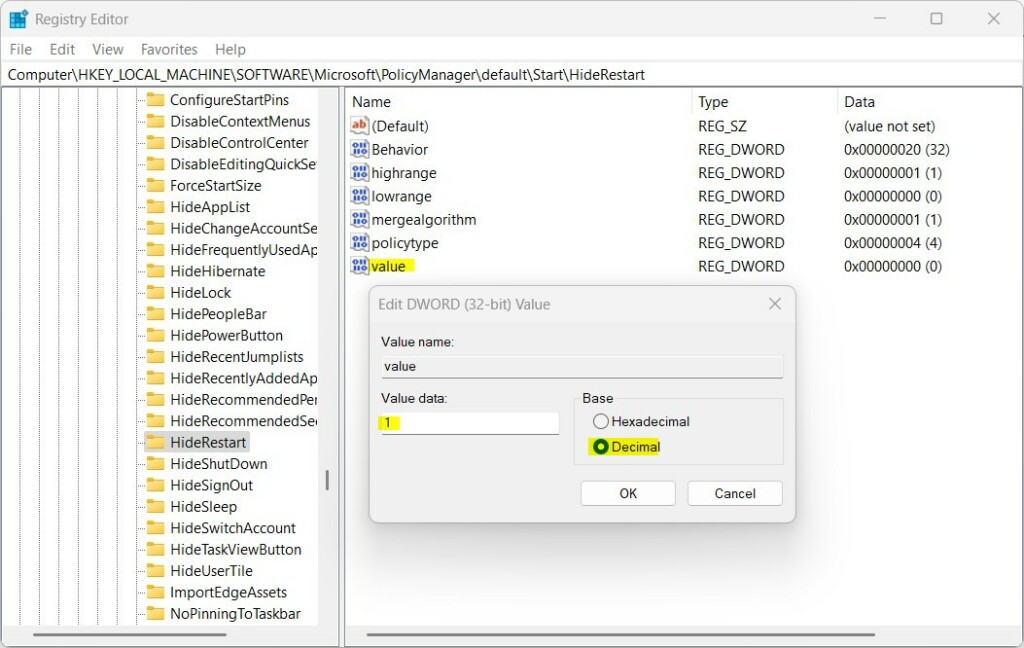
HKEY_LOCAL_MACHINE\SOFTWARE\Microsoft\PolicyManager\default\Start\HideRestart
You can also paste the path into the address bar at the top of the Registry Editor window and press Enter. When you reach it, the HideRestart key should be listed under the Start key.
- Right-click the Start folder in the left pane.
- Choose New Key
- Name the new folder HideRestart and press Enter.
The new HideRestart key now appears under Start.
Step 3Create a New Value
- Click the HideRestart folder in the left pane.
- On the right side, right-click an empty space and select New String Value
- Name this new value value, then press Enter.
The new entry now shows in the right pane with the name “value” and the type REG_SZ.
Step 4Set the Value Data
- Double-click the new value you just created.
- In the Value data box that appears, enter one of the following:
0— to show the Restart button.1— to hide the Restart button.
- Click OK.
The Data column for your value now shows what you typed.
Step 5Restart Your PC ⚠️ Admin Privileges Required
- Close the Registry Editor.
- Restart your computer to see the change.
Open Start Power afterwards to check that the Restart button is shown or hidden as you set it. To undo the change, open the value again, enter the other data from the list above, and restart. You can also delete the HideRestart key you created.
Summary
Managing the power menu configuration prevents unwanted reboots on shared machines.
For more official details, visit: Microsoft's official guide.
Have a question about this guide?
Answered by AI from this guide. Good questions may be added to this page — please don't include personal details.
Did this guide fix your problem?

About the Author
Richard
Tech Writer, IT Professional
Richard is a writer at Geek Rewind who turns complex IT tasks into clear, step-by-step guides. He draws on years of hands-on experience in system administration and enterprise IT operations, focusing on Windows, Linux and WordPress: the problems people actually run into, and the fixes that work. His server and WordPress guides come from systems he runs himself. Richard builds and maintains the platform behind Geek Rewind, from its Ubuntu servers and Nginx configuration to its custom WordPress plugins. Many new tutorials start with readers' questions, and he's always glad to answer them in the comments.
No comments yet — be the first to share your thoughts!