How to Hide Restart on Windows 11 Power Menu

Hiding the Restart option on the Windows 11 power menu removes the button from the Start menu popup, so you stop clicking it by mistake. By default, Windows 11 shows Sleep, Shut down, and Restart together. You can change that list in the Registry Editor, a built-in tool for viewing and editing system settings.
This tweak works on Windows 11 Home and Pro. You need administrator rights on your PC to save the change. The power menu still shows the other options, such as Shut down and Sleep. This is a convenience setting, not a security block, so anyone who knows another way to restart the PC (from a command line, for example) can still do it.
Modify the Group Policy Editor or Registry Editor to hide or unhide the Restart button. Access gpedit.msc for Pro/Enterprise or regedit for Home, then navigate to the specified policy or registry key to disable or enable the restart option.
Understanding the Power Menu
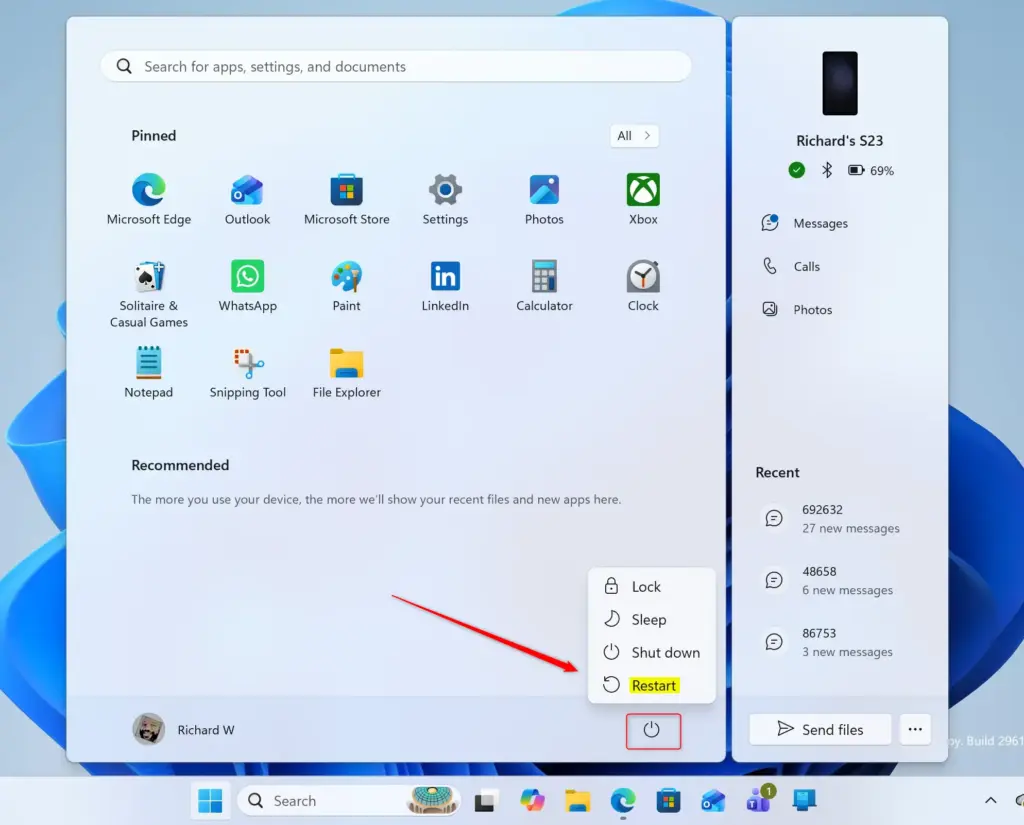
The power menu appears when you click the Start button and then the power icon. By default, Windows 11 shows the Restart option to every user. After you make the change below, the menu keeps its other entries and only Restart disappears.
Why Hide or Show Restart?
- Stop Accidental Restarts: If others use your computer, someone might click “Restart” by mistake. This can interrupt their work, or yours if you leave a long task running.
- Cleaner Menu: If you rarely restart your PC, removing the option can make the power menu less cluttered.
- System Control: In some work environments, managers might want to limit which power options users can see.
In short, hiding Restart stops other people from rebooting your computer while you are away. It also tidies the Start menu if you rarely use the feature, and it gives administrators a little more control over power options on shared computers.
How to Hide Restart from the Power Menu
To change this setting, you will use the Windows Registry Editor. The registry is the database where Windows stores its settings. A wrong edit here can cause problems, so follow the steps closely and change only the values listed in this guide.
Before you start, you can make a backup. In Registry Editor, click File, then Export, choose a location, and save the file. If something goes wrong, double-click that file later to restore the settings you exported.
Step 1Open Registry Editor
The first step is to open the Registry Editor. The quickest way is the Run box, which launches system tools directly. Windows then asks for administrator permission.
- Press the Win+R on your keyboard. The Run box appears in the lower-left corner of the screen.
- Type
regeditand press Enter or click OK. - If a User Account Control (UAC) window pops up, click Yes. The Registry Editor window opens, with a folder tree on the left and values on the right.
If the UAC prompt asks for an administrator password you don’t have, you can’t make this change from your current account.
C:\Windows.If you get an access denied message, you likely don’t have the necessary permissions.
Step 2Go to the Right Registry Location
Next, go to the registry location that controls power menu items. The path is 🗝️HKEY_LOCAL_MACHINE\
If you don’t see the HideRestart key under Start, you need to create it:
- Right-click the
Startkey. - Select New Key A new folder appears in the tree with its name highlighted.
- Type
HideRestartas the name and press Enter. - Click the new key once so it is selected. The right pane should be empty.
A typo in the path or key name could change the wrong setting or create a key that does nothing.
Step 3Change the Setting to Hide Restart
Now create the registry value that hides the button. This is a DWORD (32-bit) value, a small number setting. Setting its data to 1 tells Windows to remove Restart from the power menu.
- With the HideRestart key selected, right-click the empty space in the right pane.
- Select New DWORD (32-bit) Value. A new entry appears with its name highlighted.
- Name the value exactly
valueand press Enter. - Double-click the
valueentry. A small Edit DWORD (32-bit) Value window opens. - Find the Value data box.
- To hide “Restart,” type
1in the Value data box. - Make sure Base is set to Hexadecimal. For a value of 0 or 1, Hexadecimal and Decimal give the same result, but leave it on Hexadecimal to match this guide.
- Click OK. The entry now shows the new data in the right pane.
Explanation: Setting this value to 1 tells Windows to hide the “Restart” option. A value of 0 (which is often the default) would show it.
Step 4Restart Your Computer
Your change won’t take effect until you restart the computer. Windows doesn’t apply this setting while you are signed in.
- Close the Registry Editor.
- Click the Start button, then the Power icon.
- Choose Restart. This is the last time you will use it until you undo the change.
After your computer starts up again, click Start and then the power icon. The “Restart” option should be gone, and you should see only the remaining options, such as Sleep and Shut down.
If Restart is still there, reopen the Registry Editor and check that the key and value names are spelled exactly as shown and that the data is 1.
How to Show Restart on the Power Menu
To bring the Restart button back, reverse the registry tweak. You go back into the Registry Editor and change the value so Windows shows the standard power options again. No reinstall or repair is needed.
Step 1Open Registry Editor
If you closed the Registry Editor, open it again:
- Press Win+R.
- Type
regeditand press Enter or click OK. - Click Yes on the User Account Control prompt.
Step 2Go to the HideRestart Key
Go back to the same registry location:
HKEY_LOCAL_MACHINE\SOFTWARE\Microsoft\PolicyManager\default\Start\HideRestart
If the HideRestart key is not there, right-click the Start key, select New Key, and name it HideRestart.
Step 3Change the Setting to Show Restart
Setting the registry data back to 0 makes the Restart button visible again. You edit the same value you created earlier.
- In the right-hand pane, double-click the
valueentry. The edit window opens. - In the Value data field, type
0. - Make sure Base is set to Hexadecimal.
- Click OK.
Explanation: Setting the Value data to 0 tells Windows to show the "Restart" option on the power menu.
Important Note: If the value entry doesn't exist and you previously hid "Restart," the default setting (which shows it) is active. If "Restart" is missing and you didn't hide it yourself, there might be another cause, such as a policy set by an employer or a school. Setting the value to 0 will make sure it shows, but a managed PC can override it. You can also delete the value instead of setting it to 0 if you prefer to go back to the untouched default.
Step 4Restart Your Computer
You need to restart your PC for this change to take effect.
- Close the Registry Editor.
- Click Start, then the Power icon.
- Choose Restart.
After your computer restarts, open the power menu again. The "Restart" option should be back next to Sleep and Shut down.
Summary
Hiding or restoring Restart comes down to one registry value. Set it to 1 to remove the reboot button, or to 0 to bring it back, then restart the PC so Windows applies the change. If you export the key first, you always have a quick way to go back.
Have a question about this guide?
Answered by AI from this guide. Good questions may be added to this page — please don't include personal details.
Did this guide fix your problem?

About the Author
Richard
Tech Writer, IT Professional
Richard is a writer at Geek Rewind who turns complex IT tasks into clear, step-by-step guides. He draws on years of hands-on experience in system administration and enterprise IT operations, focusing on Windows, Linux and WordPress: the problems people actually run into, and the fixes that work. His server and WordPress guides come from systems he runs himself. Richard builds and maintains the platform behind Geek Rewind, from its Ubuntu servers and Nginx configuration to its custom WordPress plugins. Many new tutorials start with readers' questions, and he's always glad to answer them in the comments.
No comments yet — be the first to share your thoughts!