How to Add or Remove the Shutdown Button in Windows 11


The shutdown button in Windows 11 sits in the power menu on the Start menu , next to the sleep and restart options. You can add or remove it depending on who uses the PC. Hiding it on a shared family or office computer helps stop accidental shutdowns.
You can change this setting with two built-in tools: the Local Group Policy Editor or the Registry Editor. Group Policy Editor is only available in Windows 11 Pro, Enterprise and Education. Windows 11 Home does not include it. The Registry Editor works on every edition, so this tutorial uses it.
Open Registry Editor by pressing Win+R, typing regedit, and navigating to 🗝️HKEY_LOCAL_MACHINE\
How to Hide or Show the Shutdown Button
Back up the registry before you start. In Registry Editor, you can do this with File Export, which saves a copy you can double-click later to restore the old settings. Creating a System Restore point is a good second safety net.
Follow the steps carefully. Back up your registry first to prevent issues.
Steps to Hide or Show the Shutdown Button:
- Press
Win + Ron your keyboard to open the Run box. You should see a small window with a single text field in the lower-left corner of the screen. - Type
regeditand press Enter. ⚠️ Admin Required: If User Account Control asks for permission, click Yes. If you are signed in with a standard account, you will need to enter an administrator’s password. The Registry Editor window then opens. - In the Registry Editor window, use the left sidebar to find this folder path. Click the small arrow beside each folder to expand it, one level at a time. You can also paste the path into the address bar at the top of the window and press Enter.
HKEY_LOCAL_MACHINE\SOFTWARE\Microsoft\PolicyManager\default\Start - Look for a folder (key) named
HideShutDownunder that path. If it is already there, skip ahead to the next numbered step. If you don’t see it, create it:- Right-click on the
Startfolder. A context menu appears. - Choose
New > Key. A new key appears in the sidebar with its name highlighted for editing. - Name the new key
HideShutDownand press Enter. Check the spelling, because Windows ignores a key with the wrong name.
- Right-click on the
- Click the
HideShutDownfolder to select it. The right pane shows its contents. A newly created key is empty except for a default entry. - In the right side pane, right-click on an empty space and choose
New > DWORD (32-bit) Value. A new value appears in the list with its name highlighted for editing. - Name this new value
valueand press Enter. - Double-click the value you created to edit it. A small edit window opens.
- In the box labeled Value data, enter:
0to show (unhide) the shutdown button.1to hide the shutdown button.
- Click OK to save. The edit window closes and the new number appears in the Data column next to the value.
- Close the Registry Editor and restart your PC for the change to take effect. After you sign back in, open the Start menu and select the power icon to check whether the shutdown button is shown or hidden. To undo the change later, open the same value again and switch the Value data to the other number.
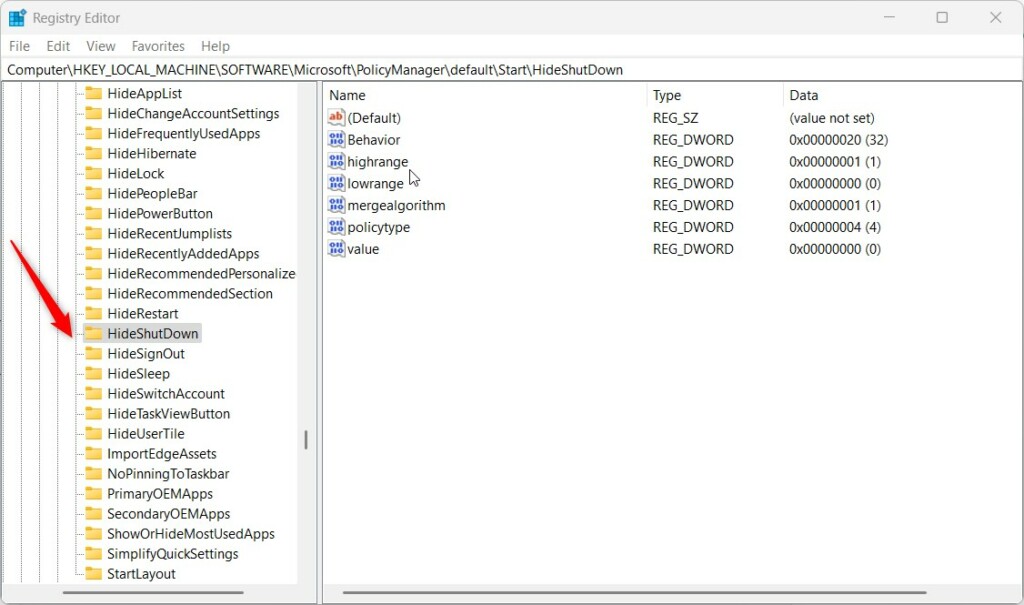
You can hide the shutdown button in Windows 11 with a quick change in the Registry Editor. The setting is a single value inside the key you create or open in the steps above. It controls whether the shutdown power option appears in the Start menu . That helps if you share your computer and want to prevent accidental power-offs. If the key or value is missing, Windows simply uses its default behavior and shows the button.
Registry Editor showing the HideShutDown key in Windows 11
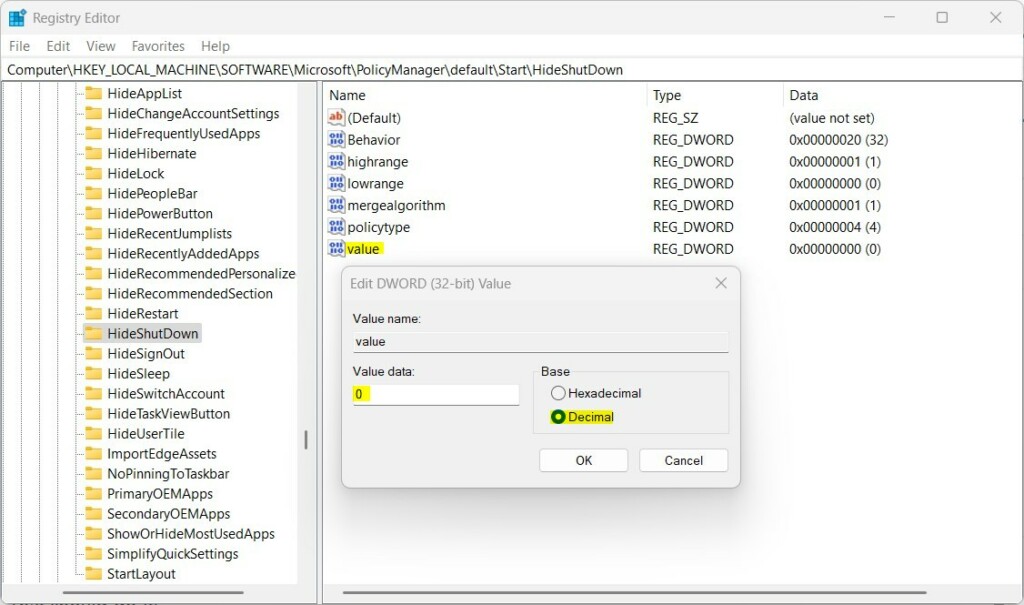
The value data decides what the Start menu shows. Enter the number for hiding the button when you want to stop accidental power-offs on a shared PC. Enter the number for showing it when you want the normal option back. Use the exact numbers listed in the steps above, and remember that the change only applies after a restart.
Setting the value data to hide (1) or show (0) the shutdown button
Summary
- You can hide or unhide the shutdown button on the Start menu by changing a registry setting. The change takes effect after you restart.
- Hiding shutdown stops others from accidentally turning off your PC if you share it. It is a convenience measure, not a security control.
- Showing shutdown keeps the normal option to turn off your PC quickly. To reverse a change, set the value back or use the exported backup.
- Always be careful when editing the registry. Back it up before making changes.
- For official info from Microsoft, check out their page here: Microsoft HideShutdown Policy
Knowing how to hide the shutdown button in Windows 11 gives you better control over your Start menu options. Changing this setting keeps shared computers safer from accidental shutdowns, while bringing the button back restores normal power options whenever you need them. Keep your registry backup handy so you can return to the original settings at any time.
Have a question about this guide?
Answered by AI from this guide. Good questions may be added to this page — please don't include personal details.
Did this guide fix your problem?

About the Author
Richard
Tech Writer, IT Professional
Richard is a writer at Geek Rewind who turns complex IT tasks into clear, step-by-step guides. He draws on years of hands-on experience in system administration and enterprise IT operations, focusing on Windows, Linux and WordPress: the problems people actually run into, and the fixes that work. His server and WordPress guides come from systems he runs himself. Richard builds and maintains the platform behind Geek Rewind, from its Ubuntu servers and Nginx configuration to its custom WordPress plugins. Many new tutorials start with readers' questions, and he's always glad to answer them in the comments.
No comments yet — be the first to share your thoughts!