How to Show All Open Windows on Taskbar on All Desktops in Windows 11


Windows 11 can show every open window on the taskbar, whichever virtual desktop it is running on. Virtual desktops split your apps into separate workspaces. By default, the taskbar only shows the apps on the desktop you are looking at. This setting changes that, so you can see all your running programs while you multitask.
The setting lives in Settings under System Multitasking. It works the same on Windows 11 Home and Pro. This tutorial covers three ways to change it: Settings, a REG file, and the Registry Editor. Settings is the easiest and applies the change straight away.
Open Settings , go to System Multitasking, click Desktops, then select “On all desktops” from the “On the taskbar , show all the open windows” dropdown. The taskbar now displays every open window from all virtual desktops.
Why This Matters
Virtual desktops let you keep each project or task in its own workspace, so one desktop can hold your email and chat while another holds a work project. That keeps your screen from filling up with windows.
An app running on another desktop does not appear, so you can lose track of it.
What Happens When Done
With this setting turned on, the taskbar lists every running app from every virtual desktop. You can jump to any open program from where you are, which saves time when you move between projects often.
The setting has two choices:
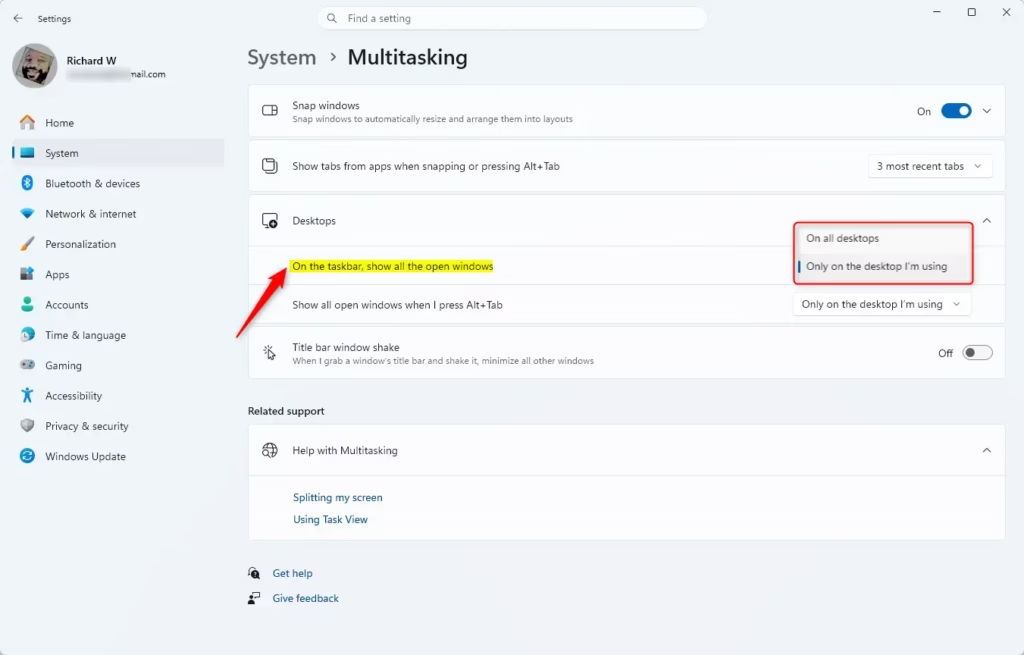
On all desktops: windows from every desktop appear on the taskbar of each desktop. Click an icon to switch to that window. If the window is on a different desktop, Windows switches to that desktop for you.
Only on the desktop I’m using: windows on other virtual desktops do not appear on your current taskbar. To reach them, press Alt+Tab, Ctrl+Alt+Tab, or open Task View with Win+Tab. This is the default.
Check the section that deals with desktops. The wording can differ slightly between Windows 11 builds.
Option One
Show All Open Windows on Taskbar Using Settings
- Open Settings (Win+I).
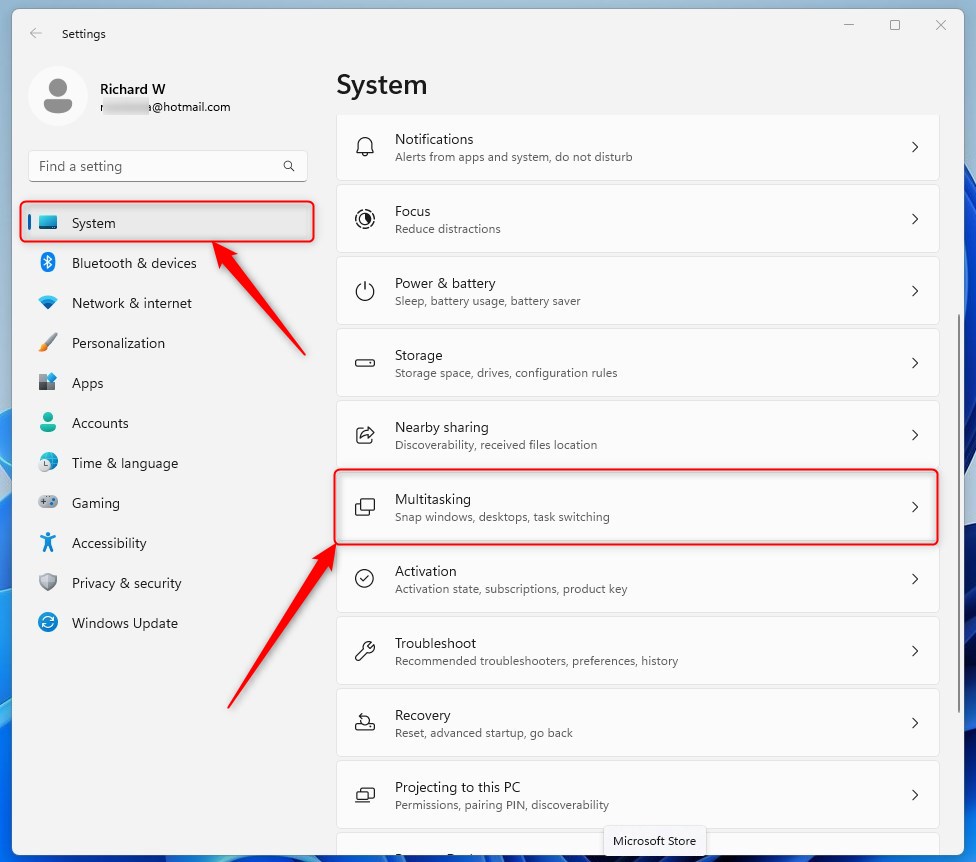
- Click on System on the left side. Then click on Multitasking on the right side.
You can configure Windows 11 taskbar virtual desktops through the main Settings app by changing a single multitasking preference. Open Settings, go to the multitasking menu, and set your desktop preferences so that all open applications appear on the taskbar no matter which workspace you are currently using.
- Click on Desktops on the right side to expand it.
- Select On all desktops or Only on the desktop I’m using (default) from the “On the taskbar , show all the open windows” dropdown menu.
- You can now close Settings if you like.
Option Two
Show All Open Windows on Taskbar Using Registry
If you prefer the command line, you can make the same change from Windows Terminal. Run the command for the option you want, then check the taskbar . It is quick, and it is useful if you need to repeat the change on several PCs.
Open Windows Terminal with administrator rights: right-click it and choose Run as administrator. Then paste the command below and press Enter.
Show All Open Windows on Taskbar “On all desktops”
reg add "HKEY_CURRENT_USER\Software\Microsoft\Windows\CurrentVersion\Explorer\Advanced" /v VirtualDesktopTaskbarFilter /t REG_DWORD /d 0 /f
Show All Open Windows on Taskbar “Only on the desktop I’m using”
This is the default setting. Use this command to go back if you change your mind.
reg add "HKEY_CURRENT_USER\Software\Microsoft\Windows\CurrentVersion\Explorer\Advanced" /v VirtualDesktopTaskbarFilter /t REG_DWORD /d 1 /f
If the taskbar does not change right away, sign out and sign back in. You can also restart Windows Explorer from Task Manager . You can always confirm the current choice on the Multitasking page in Settings.
Option Three
Show All Open Windows on Taskbar Using Registry Editor
- ⚠️ Admin Required: Open Registry Editor (regedit.exe).
- Navigate to the key location below in the left pane of Registry Editor.
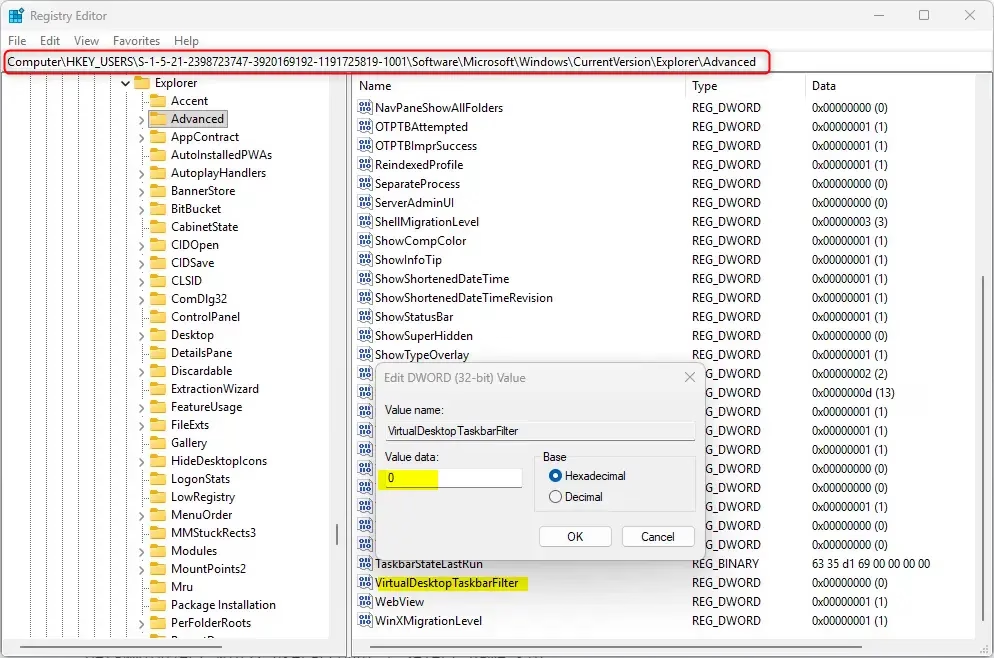
You can adjust Windows 11 taskbar virtual desktops manually by editing the Windows registry if you have administrator rights. Open the Registry Editor app, browse to the advanced explorer key, and change the correct value to make your taskbar show all open programs across every desktop.
Substitute <SID> in the key path above with the actual SID for the account you want to change. For example:
HKEY_USERS\S-1-5-21-2398723747-3920169192-1191725819-1001\Software\Microsoft\Windows\CurrentVersion\Explorer\Advanced - In the right pane of the Advanced key, double-click on
VirtualDesktopTaskbarFilterDWORD to modify it. - Enter
0(“On all desktops”) or1(“Only on the desktop I’m using” – default) for what you want. Then click OK. - Either restart the explorer process, sign out and sign in, or restart your computer to apply the change.
- You can now close Registry Editor if you like.
Some registry changes apply to a specific user account, so you may need that account’s SID. To find it, follow the steps below.
- Open PowerShell.
- Copy and paste the command below into the window and press Enter.
Get-WmiObject win32_useraccount | Select name,sid
The output lists your accounts. Find the SID (security identifier, a unique string that identifies a user account) for the account you want to configure. It looks like this: "S-1-5-21-2398723747-3920169192-1191725819-1001". Make sure you copy the SID that matches the right account name, because every account has a different one.
If that user is not signed in, their settings may not be loaded into the registry yet. In that case, sign in as that user once, or make the change while signed in as them.
Summary
Windows 11 gives you three ways to choose how the taskbar shows open windows across virtual desktops: Settings, a REG file, or the Registry Editor. Settings is the simplest. The REG file and Registry Editor methods are handy for scripting or for setting up other accounts. In every case you can return to the default, Only on the desktop I'm using, at any time.
Have a question about this guide?
Answered by AI from this guide. Good questions may be added to this page — please don't include personal details.
Did this guide fix your problem?

About the Author
Richard
Tech Writer, IT Professional
Richard is a writer at Geek Rewind who turns complex IT tasks into clear, step-by-step guides. He draws on years of hands-on experience in system administration and enterprise IT operations, focusing on Windows, Linux and WordPress: the problems people actually run into, and the fixes that work. His server and WordPress guides come from systems he runs himself. Richard builds and maintains the platform behind Geek Rewind, from its Ubuntu servers and Nginx configuration to its custom WordPress plugins. Many new tutorials start with readers' questions, and he's always glad to answer them in the comments.
No comments yet — be the first to share your thoughts!