How to Show All Windows on Alt+Tab Across Desktops


- 17 steps
- Needs administrator rights
- Includes a restart or sign-out
Showing all open windows on Alt+Tab across virtual desktops in Windows 11 lets you see every running app, whichever desktop it sits on. By default, pressing Alt+Tab lists only the apps on your active desktop. Anything you have parked on another desktop stays out of sight.
You can change this in the Settings app under System Multitasking. Once it is set, Alt+Tab displays every window from all your desktops at once. The setting works the same on Windows 11 Home and Pro, needs no restart, and takes effect as soon as you change it.
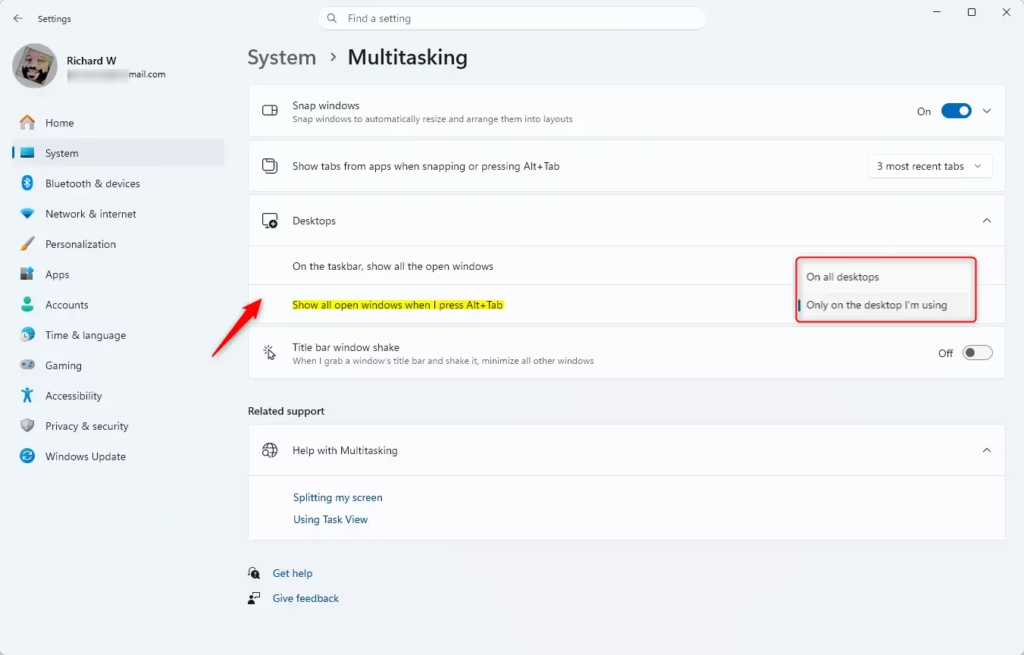
Open Settings, go to System Multitasking Desktops, and in the “Show all the open windows when I press Alt+Tab” dropdown select On all desktops. Alt+Tab now displays windows from every virtual desktop at once without restarting.
What Happens When Done
Turning on Alt+Tab for all desktops changes how task switching works. When you press the keys, Windows shows every open program from every virtual desktop on one screen. You can jump straight to any window without switching desktops first, which saves time when you have many apps running.
To change it, follow these steps:
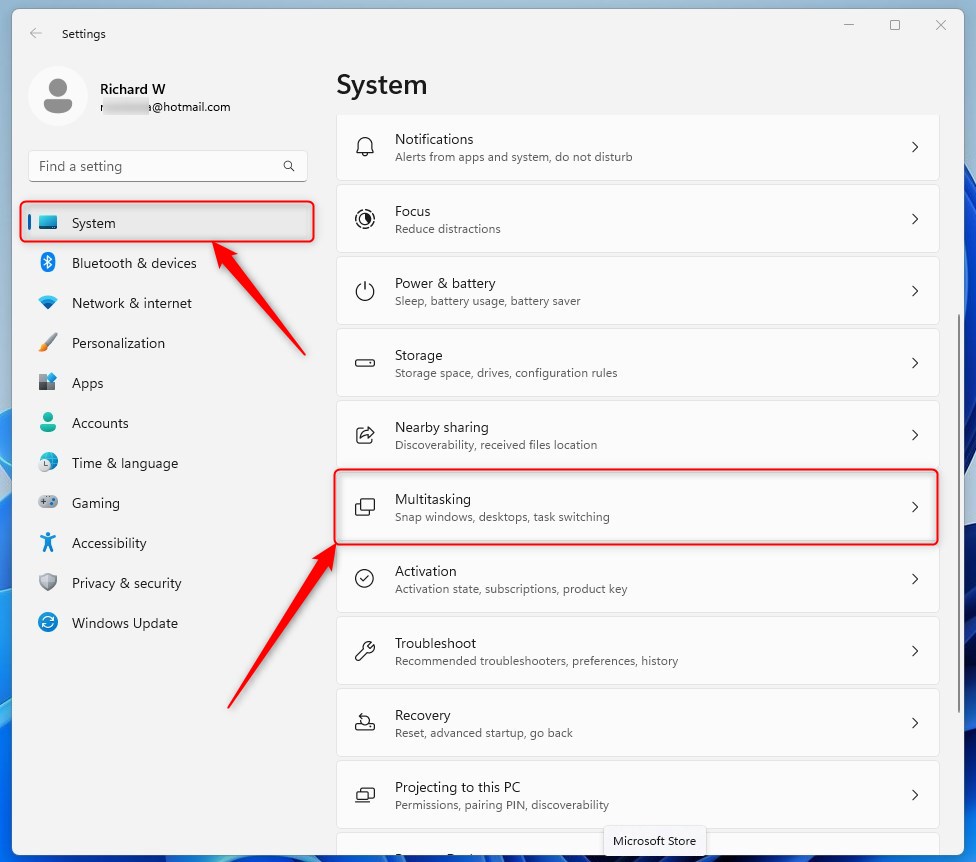
- Open Settings and select System in the left pane.
- Scroll down and click Multitasking. You should see the multitasking options, including the Alt+Tab setting and the settings for virtual desktops.
- Find the Alt+Tab setting and open its drop-down list. If you can’t find it, check that you are on a current build of Windows 11. Some older builds word these options differently.
- Choose All desktops to see windows from every desktop, or Only on the desktop I’m using to go back to the default.
- Press Alt+Tab to test it. With All desktops selected, you should see windows from your other desktops in the switcher.
To undo the change at any time, return to the same setting and pick the other option. Here is what each option does:
- All desktops = Windows open on every desktop will show. You can quickly switch to any of them. If the window is on a different desktop, Windows takes you to that desktop automatically.
- Only on the desktop I’m using = Only windows on your current desktop will show. Windows on other desktops won’t appear, so you need Task View to move between them.
If you only use one desktop, you won’t see any difference between the two options. The setting matters once you have created a second desktop and have apps open on it.
Option One
Show All Open Windows Using Settings
Option 1: Show All Open Windows Via SettingsYou can set up Alt+Tab all desktops through the main Settings app on Windows without touching any advanced tools. This built-in menu has a simple toggle that pulls every open program from all of your virtual desktops into one view when you press the shortcut keys.
- Open Settings by pressing Win+I.
- Click System on the left side. Then click Multitasking on the right side.
- Click Desktops on the right side to expand it.
- In the “Show all the open windows when I press Alt+Tab” dropdown, select On all desktops or Only on the desktop I’m using (default).
- Close Settings.
Option Two
Show All Open Windows Using Windows Terminal
Using Windows Terminal lets you enable Alt+Tab all desktops by running a quick command with administrator rights. This method works well if you prefer command-line tools over clicking through menus, though it requires full administrator access to run properly.
Open Windows Terminal as an administrator and run one of the commands below.
To show all windows on all desktops:
reg add "HKEY_CURRENT_USER\Software\Microsoft\Windows\CurrentVersion\Explorer\Advanced" /v VirtualDesktopAltTabFilter /t REG_DWORD /d 0 /f
To show only windows on your current desktop (default):
reg add "HKEY_CURRENT_USER\Software\Microsoft\Windows\CurrentVersion\Explorer\Advanced" /v VirtualDesktopAltTabFilter /t REG_DWORD /d 1 /f
Option Three
Show All Open Windows Using Registry Editor
This approach works when other settings are unavailable, but you need to follow the path carefully to avoid system errors.
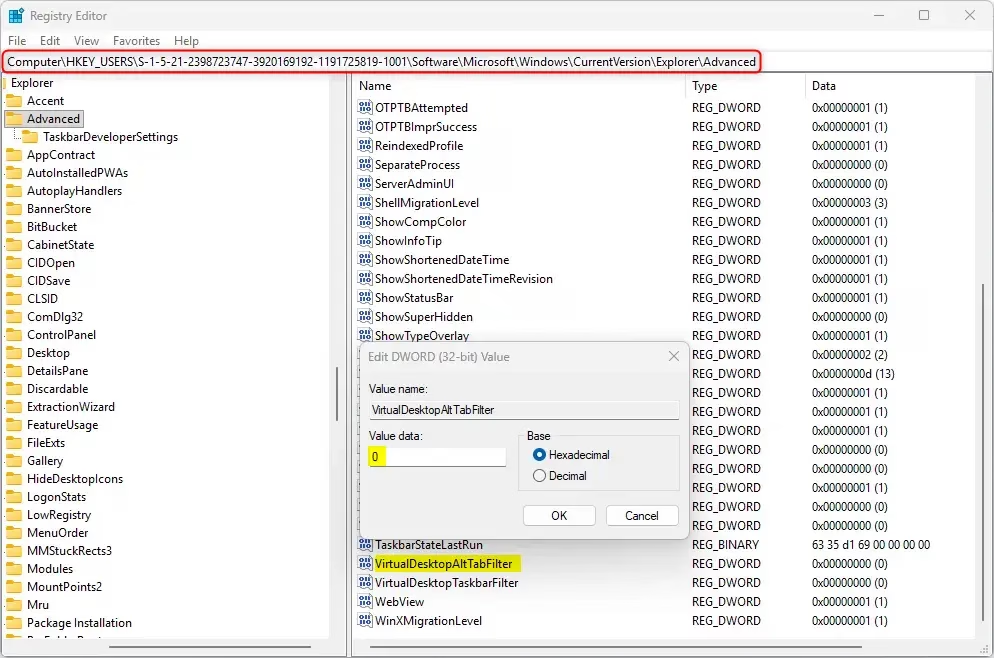
- Open Registry Editor by typing
regedit.exein your search bar . - Navigate to this location in the left pane:
HKEY_USERS\<SID>\Software\Microsoft\Windows\CurrentVersion\Explorer\AdvancedReplace
<SID>with the actual SID for your account. For example:HKEY_USERS\S-1-5-21-2398723747-3920169192-1191725819-1001\Software\Microsoft\Windows\CurrentVersion\Explorer\Advanced - In the right pane, find VirtualDesktopAltTabFilter. Double-click it to edit it.
- Enter 0 (for “On all desktops”) or 1 (for “Only on the desktop I’m using” – default). Click OK.
- Restart the explorer process, sign out and sign back in, or restart your computer to apply the changes.
- Close Registry Editor.
To find your SID, use the steps below:
Copy and paste the command below into PowerShell. Press Enter.
Get-WmiObject win32_useraccount | Select name,sid
Find the SID (example: “S-1-5-21-2398723747-3920169192-1191725819-1001”) for the account requiring configuration. Determining the SID (Security Identifier) for that account remains necessary. This unique string of numbers identifies the user profile.
Summary
Three methods now exist for controlling whether Alt+Tab displays windows from the current desktop or all desktops combined.
Have a question about this guide?
Answered by AI from this guide. Good questions may be added to this page — please don't include personal details.
Did this guide fix your problem?

About the Author
Richard
Tech Writer, IT Professional
Richard is a writer at Geek Rewind who turns complex IT tasks into clear, step-by-step guides. He draws on years of hands-on experience in system administration and enterprise IT operations, focusing on Windows, Linux and WordPress: the problems people actually run into, and the fixes that work. His server and WordPress guides come from systems he runs himself. Richard builds and maintains the platform behind Geek Rewind, from its Ubuntu servers and Nginx configuration to its custom WordPress plugins. Many new tutorials start with readers' questions, and he's always glad to answer them in the comments.
No comments yet — be the first to share your thoughts!