How to Add or Remove Xbox Mode in Task View on Windows 11


Xbox Mode in Windows 11 Task View adds a gaming button to the app switcher screen that opens when you press the Win and Tab together. It is available starting with Windows 11 build 22621.1992. It gives you quick access to your games from the open-window overview.
You can turn the button on or off in the Settings app or by editing the Windows Registry, the database that stores core system settings. Hiding the button keeps Task View clean if you do not play games through it. Showing it puts your games one click away.
Press Win+I to open Settings , click Gaming, then Xbox mode, and switch Show Xbox mode in Task View On or Off. The button appears or disappears from Task View the next time you press Win+Tab.
Why Use Xbox Mode?
Xbox mode gives you a clean, controller-friendly screen so you can switch between games without distractions. When the option is on, Task View shows a button for this gaming layout, and you can use it to jump straight back into a game session.
Xbox Mode appears in Task View by default. Task View shows your open windows and desktops. You open it with Win+Tab or with the Task View button on the taskbar . Alt+Tab is a separate window switcher. If you do not want the Xbox Mode button in Task View, you can hide it, and you can bring it back at any time.
The setting needs build 22621.1992 or later. To update, go to Settings Windows Update and install anything that is pending. Both methods in this guide work on Windows 11 Home and Pro.
How to Add or Remove Xbox Mode in Task View
Option 1Using Settings
The Settings app is the easiest method. You open Settings, go to the Gaming section, and flip one switch to show or hide the Xbox Mode button.
- Press Win+I to open Settings .
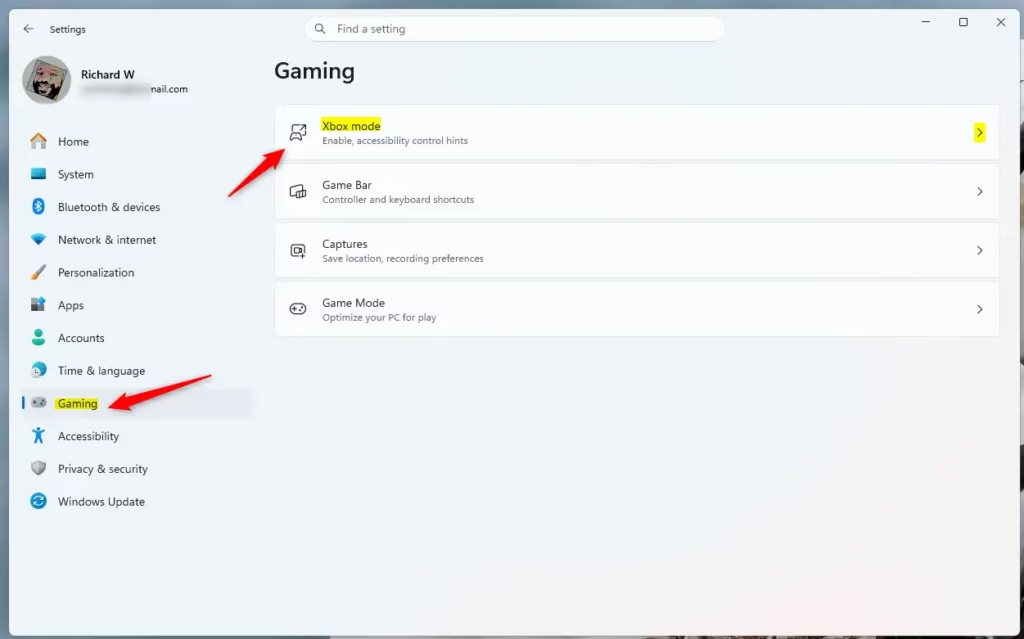
- Click Gaming on the left side. The gaming options appear on the right.
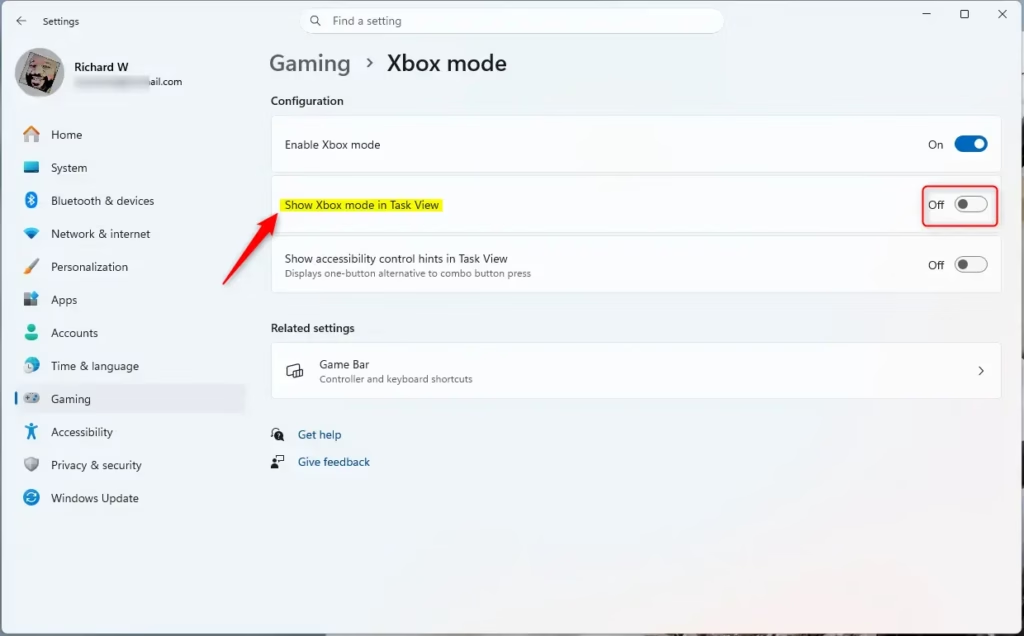
- Click Xbox mode on the right side. The Xbox mode page opens.
- Find the option Show Xbox mode in Task View. Switch it On to show the button, or switch it Off to hide it.
- Close Settings.
- Press Win+Tab to check the result. The Xbox Mode button should now be there or gone, depending on what you chose.
To undo the change, repeat the steps and set the switch back to its previous position. If the Xbox mode page or the option is missing, your build is older than 22621.1992. Install updates and look again.
Option 2Using Registry Editor
This method edits the background value that the Settings switch controls. It is useful if the Settings page is not working for you. Be careful in the Registry Editor. Change only the value described here, because a wrong edit elsewhere can cause problems.
To add Xbox Mode to Task View, start by opening the Registry Editor and going to this registry path:
- Press Win+R, type regedit, and press Enter. Click Yes if User Account Control asks for permission.
- Click the address bar at the top of the Registry Editor window.
- Go to this path by pasting it into the address bar and pressing Enter:
HKEY_CURRENT_USER\Software\Microsoft\Windows\CurrentVersion\GamingConfiguration- In the right pane, find the value ShowOnDesktopSwitcher and double-click it.
- To add Xbox Mode to Task View, set Value data to 1. To remove it, set Value data to 0.
- Click OK and close the Registry Editor.
The default Windows 11 setting is 00000001, which shows Xbox Mode in Task View. To hide it, the value must be 00000000. The change should apply the next time you open Task View. If the button does not update, sign out and back in.
You can also make the same change from Windows Terminal. Open Windows Terminal and run one of the commands below.
Enable:
reg add "HKEY_CURRENT_USER\Software\Microsoft\Windows\CurrentVersion\GamingConfiguration" /v ShowOnDesktopSwitcher /t REG_DWORD /d 1 /f
Disable:
reg add "HKEY_CURRENT_USER\Software\Microsoft\Windows\CurrentVersion\GamingConfiguration" /v ShowOnDesktopSwitcher /t REG_DWORD /d 0 /f
To undo either change, run the other command.
Summary
The Xbox Mode setting decides whether the controller-friendly gaming button appears in Task View. Leave it on if you play games often and want fast access. Turn it off if you mostly use regular desktop apps and want a cleaner screen.
For most people, the Settings app is the right choice. Go to Settings Gaming Xbox mode and use the Show Xbox mode in Task View switch. The Registry Editor and Windows Terminal methods are for advanced users, but both control the same setting and give the same result.
Have a question about this guide?
Answered by AI from this guide. Good questions may be added to this page — please don't include personal details.
Did this guide fix your problem?

About the Author
Richard
Tech Writer, IT Professional
Richard is a writer at Geek Rewind who turns complex IT tasks into clear, step-by-step guides. He draws on years of hands-on experience in system administration and enterprise IT operations, focusing on Windows, Linux and WordPress: the problems people actually run into, and the fixes that work. His server and WordPress guides come from systems he runs himself. Richard builds and maintains the platform behind Geek Rewind, from its Ubuntu servers and Nginx configuration to its custom WordPress plugins. Many new tutorials start with readers' questions, and he's always glad to answer them in the comments.
No comments yet — be the first to share your thoughts!