How to Enable or Disable Xbox Mode in Windows 11

You’ll find Xbox mode in Windows 11 under Settings Gaming Xbox mode, where one toggle turns it on or off. It turns your PC into a full-screen, console-style gaming setup that launches games quickly and cuts down on background tasks.
The built-in feature focuses system power on your current game to improve performance. Use the toggle whenever you want to switch between normal computer use and dedicated gaming. If the setting is missing on your PC, this guide also covers the Registry Editor, Terminal and ViVeTool methods, and tells you when each one is worth trying.
Open Settings with Win+I, click Gaming, then click Xbox mode and set the toggle to On or Off. The change saves as soon as you flip the switch and takes effect without a restart. Xbox mode needs Windows 11 build 26220.7271 or newer through the Dev or Beta channels, so check your build with winver first.
What is Xbox Mode?
Xbox Mode in Windows 11 is a built-in feature that transforms your computer interface into a console-like experience. When you turn it on, your PC displays a full-screen view focused entirely on your games. The layout is built for game controllers, so you can navigate from your couch without a mouse or keyboard.
Xbox Mode suits controller users best. The design supports relaxed gameplay when you sit back from the screen. You can still use a mouse and keyboard, but the interface is made for a controller. If you mostly play at your desk with a keyboard, you may find the normal desktop more convenient, and the toggle makes it easy to switch back.
What You Need
You also need the Xbox app and membership in the Xbox Insider Program. You join the program with the Xbox Insider Hub app on your PC. This gets you the feature before it rolls out to everyone.
Here is what you need before you start:
- Windows 11 build 26220.7271 or newer (Dev or Beta 25H2)
- Xbox app installed (it comes with Windows 11)
- Xbox Insider Program membership
- Xbox Insider Hub app
If you are not sure which build you have, press Win+R, type winver and press Enter. The build number is shown in the window that opens. If it is lower than the one above, the Xbox mode setting will most likely not appear, and the other methods in this guide will not help either. Check this first, because it saves a lot of time later.
To join the Xbox Insider Program:
- Open the Xbox Insider Hub app. If it is not installed, get it from the Microsoft Store first.
- Go to Previews PC Gaming Preview You should see the details of the preview.
- Select Join. Follow any prompts to finish enrolling.
Enrolment is not always instant. Updates for the preview can take a while to arrive, so check Windows Update afterwards before you try the workarounds below.
How to Enable or Disable Xbox Mode
Option 1Using Settings
Xbox Mode can be turned on directly through the Settings app if your system meets the requirements. This is the safest and easiest method, because you do not touch advanced system files. It works the same on Windows 11 Home and Pro. The steps below enable Xbox mode in Windows 11, and the same toggle turns it off again.
- Press Win+I to open Settings . The Settings window opens.
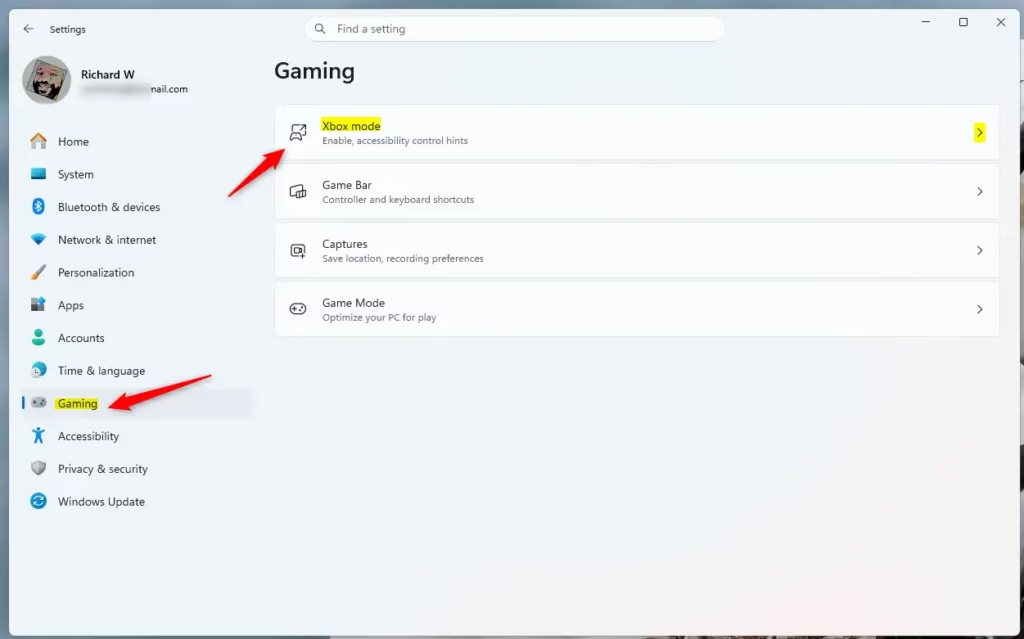
- Click Gaming on the left side. The gaming options appear on the right.
- Click Xbox mode on the right side. If you do not see it, your build or Insider enrolment is likely not ready. Check the requirements above, or try the registry or ViVeTool methods below.
- Set the toggle to On (the default) or Off. The switch should move to the position you picked.
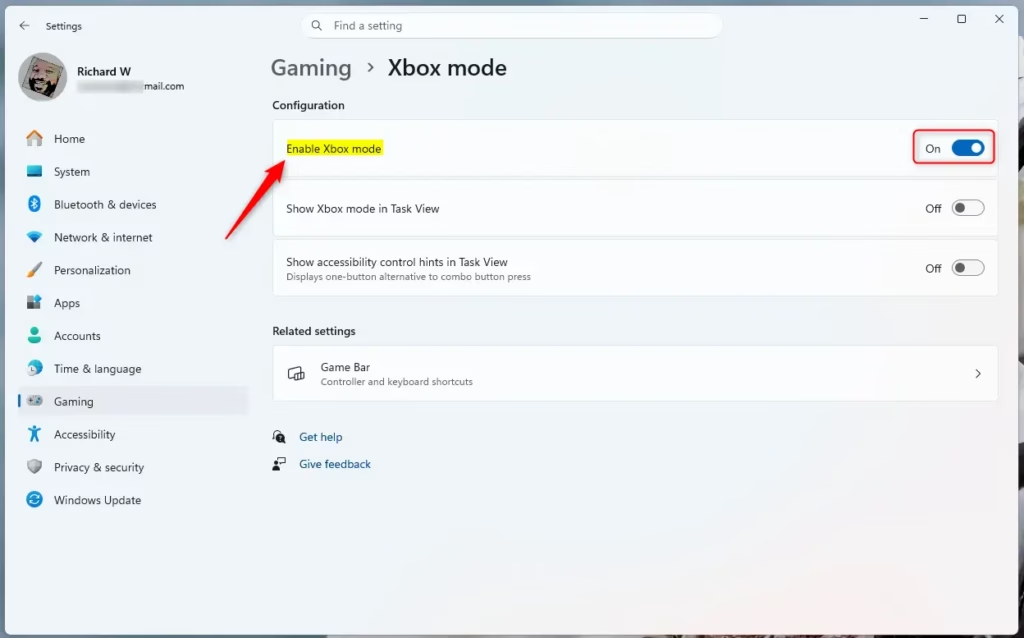
- Close Settings. Your choice is saved as soon as you change the toggle, so there is nothing to confirm. To undo it, repeat these steps and set the toggle back.
Option 2Using Registry Editor
This is an advanced method and requires administrator access. Follow the exact path shown, because a change in the wrong place can cause other problems on your PC. Back up the registry or create a restore point first if you are not sure.
⚠️ Admin Required: You need administrator privileges for this method.
To enable Xbox Mode:
- Press Win and search for “Registry Editor”. It should appear in the results.
- Right-click it and select Run as administrator. Click Yes if User Account Control asks for permission.
- Navigate to this path:
HKEY_CURRENT_USER\Software\Microsoft\Windows\CurrentVersion\GamingConfiguration. You can expand the folders on the left one by one, or paste the path into the address bar at the top of the window. - Look for the key named
GamingHomeApp. If it is not there, create it with exactly that name. - Set the value to:
Microsoft.GamingApp_8wekyb3d8bbwe!Microsoft.Xbox.App - Click OK and close Registry Editor. Check Settings Gaming to see whether Xbox mode now appears. Signing out and back in, or restarting, may be needed.
To disable Xbox Mode:
- Follow steps 1-3 above. You should be back at the same path in Registry Editor.
- Set the
GamingHomeAppvalue to nothing (leave it blank). - Click OK and close Registry Editor. Sign out and back in, or restart, if the setting does not change right away.
If you prefer the command line, you can make the same change from Windows Terminal. Open it as administrator, as with the registry method, and run the command below.
Enable:
reg add "HKEY_CURRENT_USER\Software\Microsoft\Windows\CurrentVersion\GamingConfiguration" /v GamingHomeApp /t REG_SZ /d "Microsoft.GamingApp_8wekyb3d8bbwe!Microsoft.Xbox.App" /f
Disable:
Xbox Mode allows users to enter a special gaming screen by pressing the Win and F11 together. Pressing these keys again exits Xbox Mode. This mode helps focus your computer for gaming, making your gaming experience smoother.
If You Don't See Xbox Mode Yet
Xbox Mode can be forced open using ViVeTool, a command-line tool for turning on hidden system features. Use it if the option is missing from your Windows 11 settings after you have met the requirements and installed updates. It forces the hidden feature to appear when standard updates fail to show it. You run one command in the terminal with administrator rights, then restart.
⚠️ Admin Required: This method needs administrator privileges.
- Open Windows Terminal as administrator. Right-click Start and choose the Terminal (Admin) entry, or search for Terminal and select Run as administrator. A terminal window opens.
- Run this command:
vivetool /enable /id:59765208. The tool should report that it set the feature configuration. If you get an error, check that you started the terminal as administrator and that ViVeTool is available where you run the command. - Restart your computer. The change does not take effect until you restart. Afterwards, open Settings Gaming and look for Xbox mode.
For more information, visit Full screen experience expands to more Windows 11 PC form factors, Full screen experience expands to more Windows 11 PC form factors for Windows Insiders, Starting today, Full Screen Experience for Windows 11 PCs is available for Xbox Insiders! - Xbox Wire, Windows Gaming: Full screen experience - Microsoft Support, Open Xbox mode settings.
Summary
Xbox Mode in Windows 11 helps you focus on games by creating a distraction-free, full-screen view. Start with the Settings toggle, since it is the safest option. If it is missing, check your build and Insider enrolment, and then use the Registry Editor or ViVeTool if needed.
Have a question about this guide?
Answered by AI from this guide. Good questions may be added to this page — please don't include personal details.
Did this guide fix your problem?

About the Author
Richard
Tech Writer, IT Professional
Richard is a writer at Geek Rewind who turns complex IT tasks into clear, step-by-step guides. He draws on years of hands-on experience in system administration and enterprise IT operations, focusing on Windows, Linux and WordPress: the problems people actually run into, and the fixes that work. His server and WordPress guides come from systems he runs himself. Richard builds and maintains the platform behind Geek Rewind, from its Ubuntu servers and Nginx configuration to its custom WordPress plugins. Many new tutorials start with readers' questions, and he's always glad to answer them in the comments.
No comments yet — be the first to share your thoughts!