How to Enable or Disable Task View Hints for Xbox Mode in Windows 11


This tutorial will show you how to turn accessibility control hints on or off in Task View when you’re using Xbox mode on Windows 11.
Enable or disable Task View hints for Xbox Mode in Windows 11 via Settings Gaming Xbox mode by toggling “Show accessibility control hints in Task View.” Alternatively, modify the “TaskSwitcherNexusInjectionEnabled” DWORD value to 1 (enable) or 0 (disable) at 🗝️HKEY_CURRENT_USER\
What Is Xbox Mode?
Xbox mode in Windows 11 makes your PC feel like an Xbox console, giving you a full-screen view to help you focus on games without distractions. It offers a clean look that’s great for controller gaming, letting you easily switch between games and apps.
Users press and hold the Xbox button on their controller to activate Xbox mode. Returning to the desktop keeps all running applications exactly as they were left.
Once you’re in Xbox mode, you’ll see the Xbox home screen. You can access your games from Xbox Game Pass, Xbox Play Anywhere, and other game stores.
What Are Task View Hints?
Windows 11's Task View, activated by pressing Win+Tab during Xbox mode, shows helpful hints. These hints offer one-button actions, reducing the number of button presses users need. Users can turn off these hints in Windows 11 settings, providing more control over the Xbox mode experience.
Option 1Use Settings
Enable or Disable Task View Hints for Xbox Mode in Settings
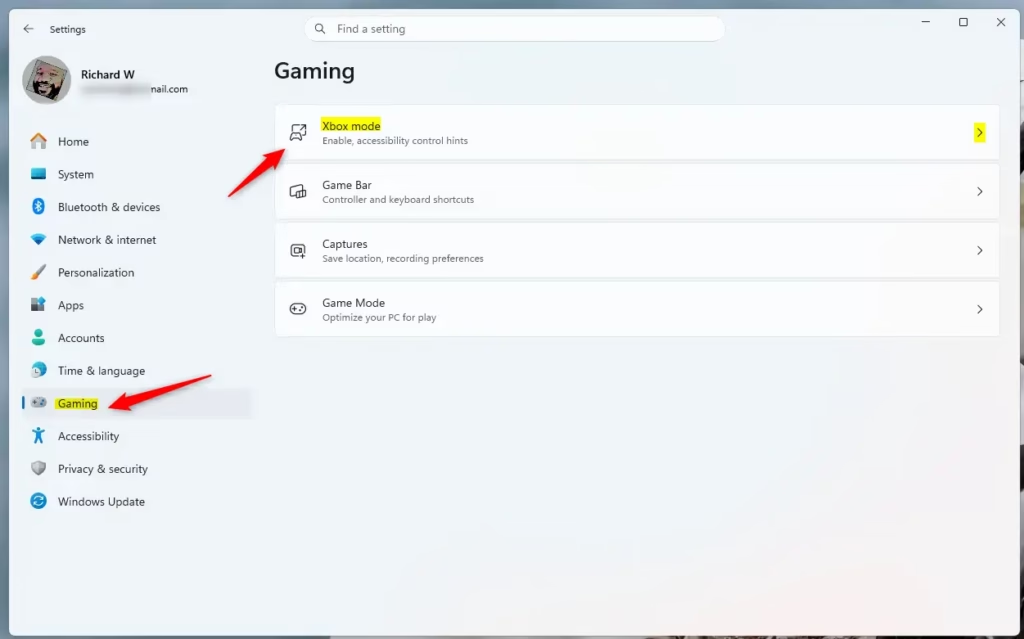
You can easily turn Xbox mode hints on or off in Windows 11 Settings to control whether Task View shows helpful tips when you’re in Xbox mode. These hints guide you through the mode’s features by default, but you can disable them if you find them distracting.- Open Settings by pressing Win+I.
- Click on Gaming on the left side.
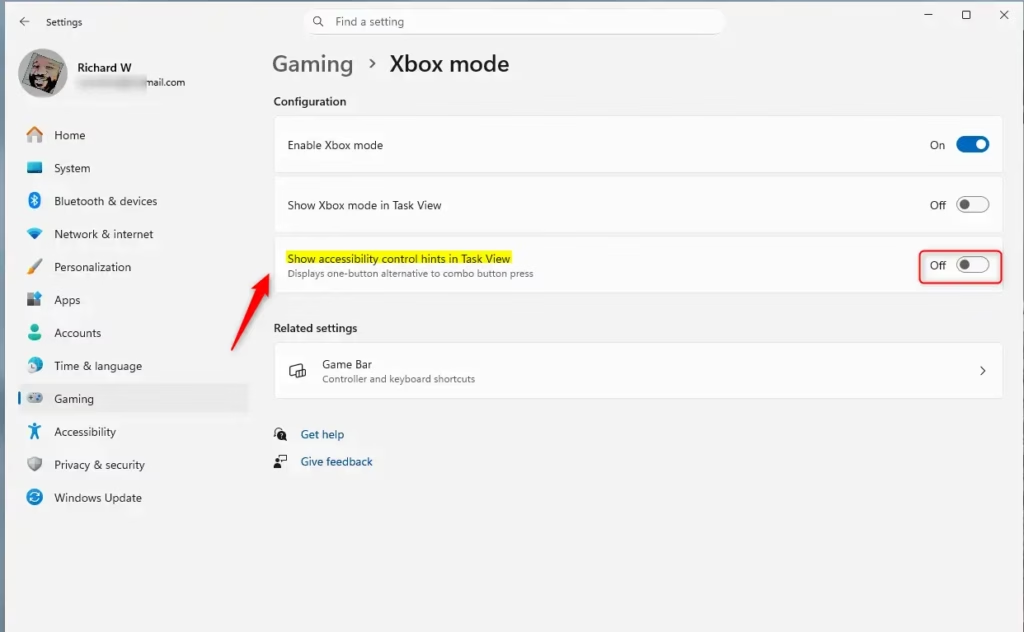
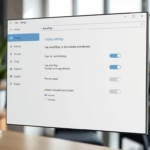
- Find the setting that says Show accessibility control hints in Task View. Turn it On (this is the default) or Off depending on what you want.
Note: This setting only works if you have Xbox mode turned on. - Close Settings when you’re done.
Option 2Use Registry Editor or Windows Terminal
If you prefer not to use the Settings app, you can change Xbox mode hints using the Windows Registry or a command in Windows Terminal. This method allows you to adjust the ‘Show accessibility control hints in Task View’ setting directly, offering an alternative way to manage these helpful visual tips.
The "Show accessibility control hints in Task View" setting for Xbox Mode in Windows 11 displays helpful visual tips by default. This setting guides users through Xbox Mode features by showing instructions within the Task View. Users can turn the accessibility control hints setting on or off to change their experience.
Find this registry path:
HKEY_CURRENT_USER\Software\Microsoft\GameBar
Set this value to:
"TaskSwitcherNexusInjectionEnabled" set the value data to 1.
To disable "Show accessibility control hints in Task View" for Xbox Mode:
Find this registry path:
HKEY_CURRENT_USER\Software\Microsoft\GameBar
Set this value to:
"TaskSwitcherNexusInjectionEnabled" set the value data to 0.
Windows Terminal
Enable:
reg add "HKEY_CURRENT_USER\Software\Microsoft\GameBar" /v TaskSwitcherNexusInjectionEnabled /t REG_DWORD /d 1 /f
Disable:
Xbox mode hints in Windows 11 Task View can be turned on or off based on your preference. You can decide if these hints help you learn the Xbox mode or if the Xbox mode hints get in your way. Change this setting through the Settings app, Registry Editor, or Windows Terminal.
Windows 11 Task View hints in Xbox mode change based on user choice. Users can choose to show or hide these hints. The easiest method involves using the Settings app. Alternatively, users preferring direct registry manipulation can use Registry Editor or Windows Terminal to make this change.
Was this guide helpful?

About the Author
Richard
Tech Writer, IT Professional
Richard is a writer at Geek Rewind who turns complex IT tasks into clear, step-by-step guides. He draws on years of hands-on experience in system administration and enterprise IT operations, focusing on Windows, Linux and WordPress: the problems people actually run into, and the fixes that work. His server and WordPress guides come from systems he runs himself. Richard builds and maintains the platform behind Geek Rewind, from its Ubuntu servers and Nginx configuration to its custom WordPress plugins. Many new tutorials start with readers' questions, and he's always glad to answer them in the comments.

No comments yet — be the first to share your thoughts!