Xbox Mode and Xbox App in Windows 11: Settings Explained

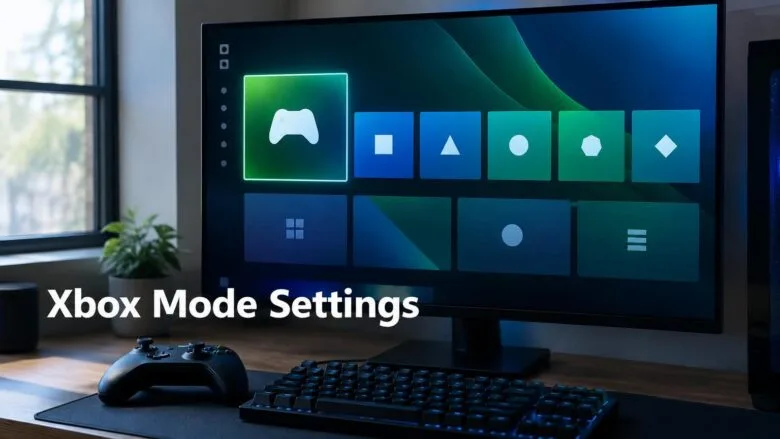
Xbox Mode is a full-screen Xbox home screen built into Windows 11, and the Xbox app is a separate program for your Xbox games and friends. Windows also includes the Xbox Game Bar, a gaming overlay, and an Xbox Controller Bar, so the names overlap and settings are easy to mix up. This page sorts the guides by what you are trying to do, from turning Xbox Mode on to fixing the Game Bar when it stops working. Start with the first guide if you want the core switch, or jump to the section that matches your problem.
Turn Xbox Mode on or off
Xbox Mode changes how your PC starts and what appears on screen, so it is worth knowing where its controls sit. These guides cover the main switch, the Task View entry point, and the tips Windows shows while you use it. Read them if the mode appears when you do not want it, or if you cannot find it at all.
 How to Enable or Disable Xbox Mode in Windows 11 Enable or disable Xbox Mode in Windows 11 for a distraction-free gaming experience. Step-by-step guide using Settings or Registry Editor.
 How to Add or Remove Xbox Mode in Task View on Windows 11 Master Xbox Mode Task View in Windows 11 with our simple guide. Enable or disable Xbox Mode in Task View using Settings or Registry Editor.
 How to Enable or Disable Task View Hints for Xbox Mode in Windows 11 Customize your gaming experience by enabling or disabling Xbox mode hints in Windows 11. Follow our guide to toggle these accessibility controls.
Control how the Xbox app behaves on your PC
The Xbox app can start with Windows and keep running in the system tray after you close its window. Both behaviours can slow sign-in or clutter the taskbar for people who do not use the app often. These guides show where to change each one.
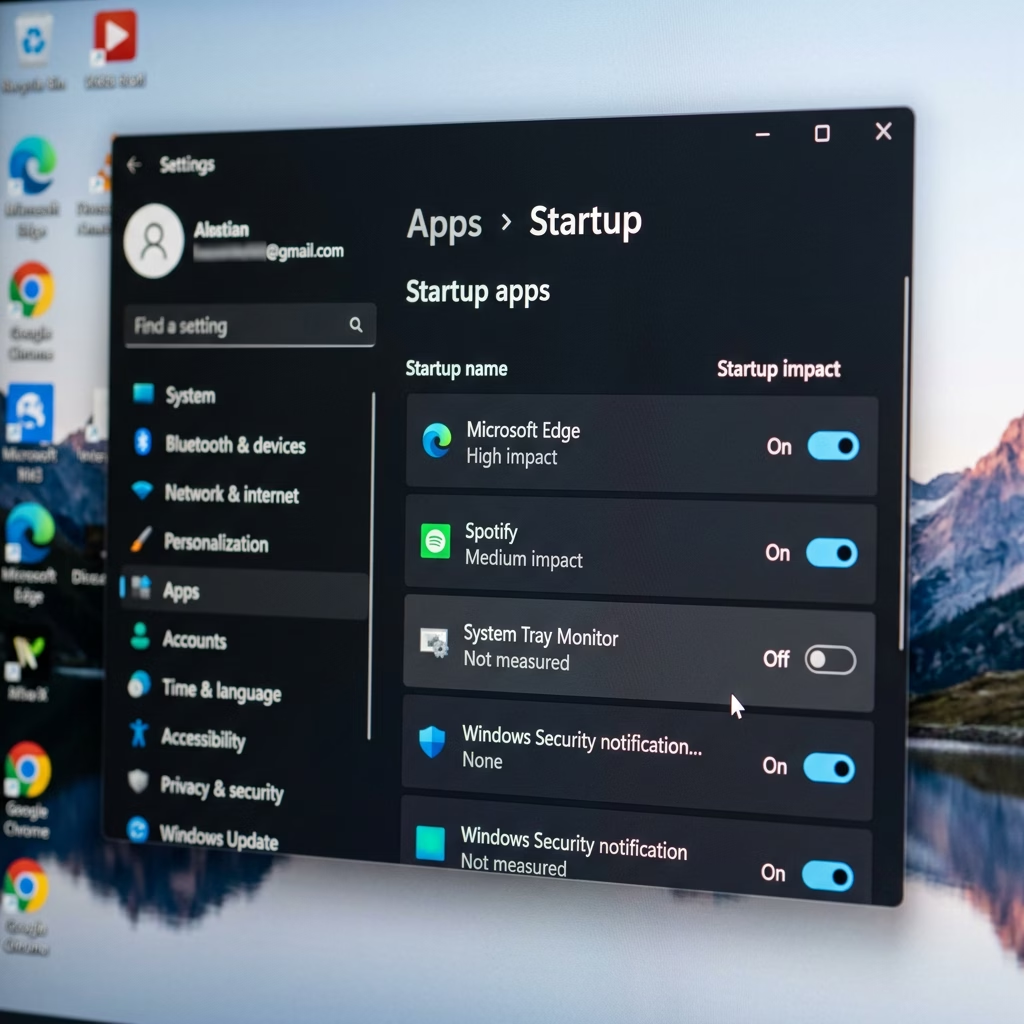 How to Enable or Disable Minimize Xbox App to Taskbar System Tray on Close in Windows 11 Keep the Xbox app running in the background for faster game access. Follow these simple steps to minimize Xbox app to the system tray on Windows 11.
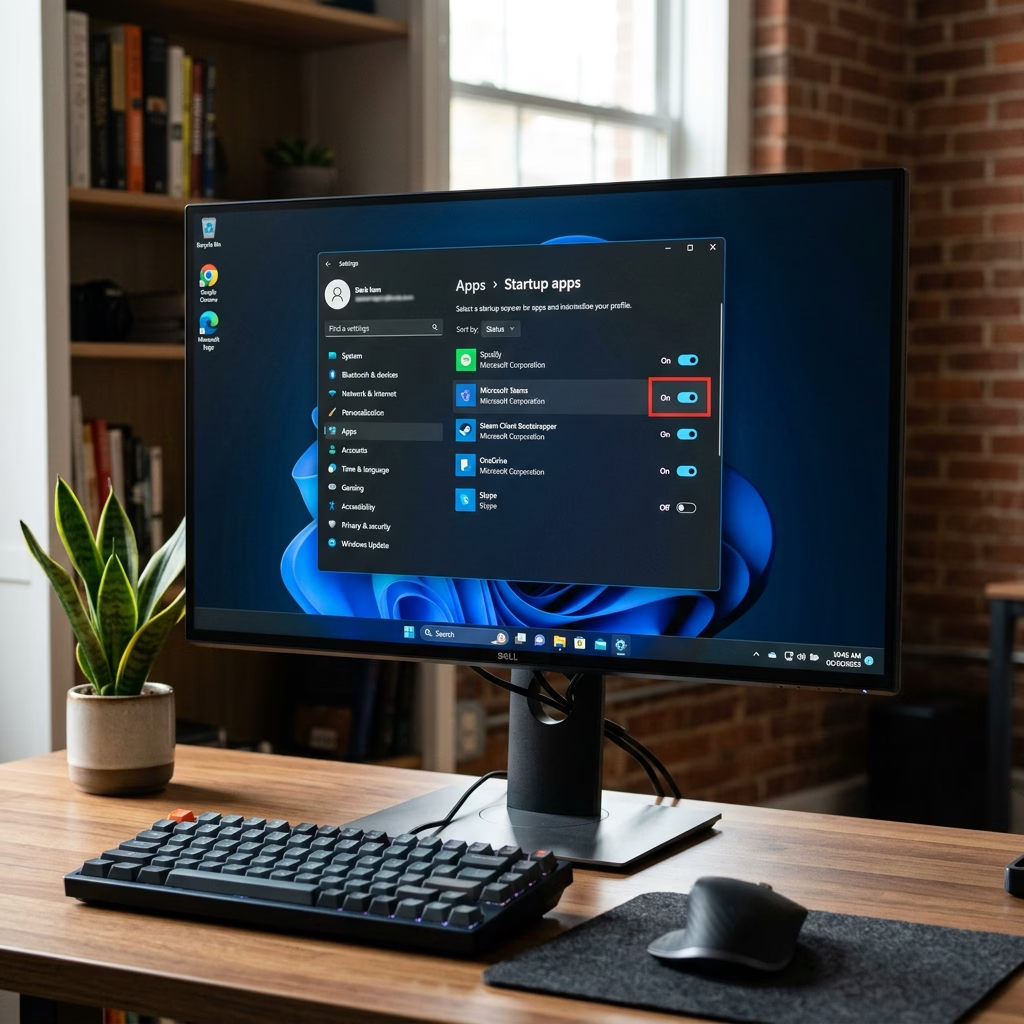 How to Enable or Disable Run at Startup for Xbox App in Windows 11 Enable or disable Xbox app startup on Windows 11. Follow our simple guide to manage your PC gaming experience and optimize your system boot time.
Connect and set up an Xbox controller
A controller works with Windows games and Xbox Mode, and the Xbox Controller Bar gives quick access to its settings during play. Use these guides once the controller is paired, or when you want the bar to open on its own. Pairing steps are covered in the separate controller connection guides linked from this page.
 How to Enable Xbox Controller Bar in Windows 11 Enable Controller Bar in Windows 11 with your Xbox controller. Access games and apps by customizing your Xbox Game Bar settings.
 How to Auto-Open Xbox Controller Bar and Xbox Mode on Windows 11 Auto-open the Xbox Controller Bar on Windows 11 for seamless gaming. Customize your experience and enhance app access with any Xbox controller.
 How to Connect Xbox Controller to Windows 11 Connect your Xbox Wireless Controller to Windows 11 using USB, Bluetooth, or built-in Xbox Wireless.
Open and personalise the Xbox Game Bar
The Xbox Game Bar is an overlay you open over a game or app to capture screenshots, check performance, and chat. You can open it from the keyboard and change its colour theme to suit your setup. These guides cover access and appearance.
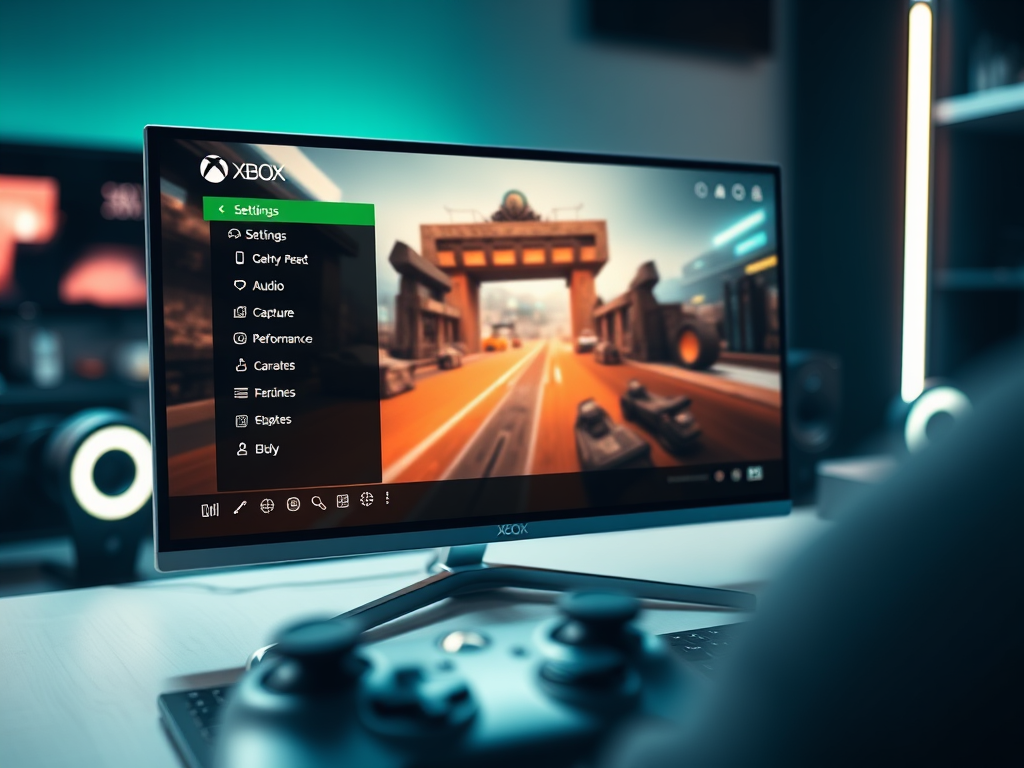 How to Access Xbox Game Bar in Windows 11 Unlock the Xbox Game Bar in Windows 11! Access gaming features, adjust settings, and enhance your gaming experience with simple steps.
 How to Change Xbox Game Bar Theme in Windows 11 Customize your Xbox Game Bar theme in Windows 11 with easy steps. Choose between Light, Dark, or Current Windows theme for a personalized gaming experience.
Fix the Game Bar when it stops working
If the Game Bar will not open or behaves strangely, removing and reinstalling it often clears the problem. Reinstalling is the last step to try after the settings guides above. Save any open work before you start, because this process closes the overlay.

Have a question about this guide?
Answered by AI from this guide. Good questions may be added to this page — please don't include personal details.

About the Author
Richard
Tech Writer, IT Professional
Richard is a writer at Geek Rewind who turns complex IT tasks into clear, step-by-step guides. He draws on years of hands-on experience in system administration and enterprise IT operations, focusing on Windows, Linux and WordPress: the problems people actually run into, and the fixes that work. His server and WordPress guides come from systems he runs himself. Richard builds and maintains the platform behind Geek Rewind, from its Ubuntu servers and Nginx configuration to its custom WordPress plugins. Many new tutorials start with readers' questions, and he's always glad to answer them in the comments.
No comments yet — be the first to share your thoughts!