How to Check If Your Windows 11 Device Is LE Audio Ready

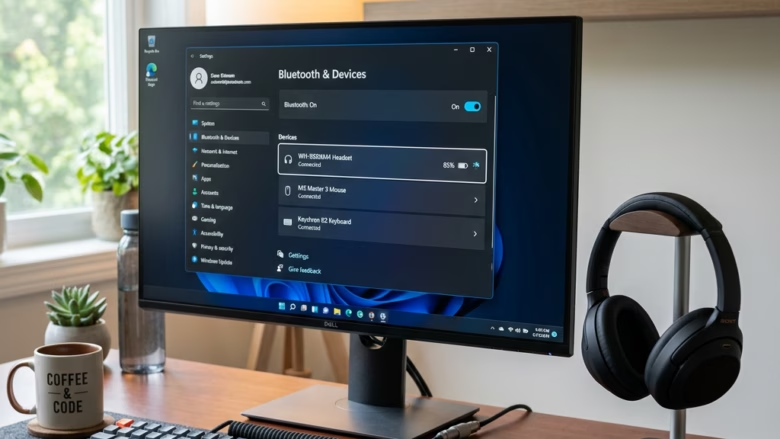
LE Audio is a modern Bluetooth standard that delivers clearer sound and longer battery life on supported headphones and speakers. Your Windows 11 PC needs Bluetooth 5.2 or newer, plus drivers that support LE Audio. Most computer hardware released since 2020 includes the necessary parts, but you should check your exact wireless adapter to be sure.
This guide covers the hardware and software you need, then shows where to look in Settings. The steps are the same on Windows 11 Home and Pro.
Press Win+I to open Settings , go to Bluetooth & devices, select Devices, then scroll down to find the Use LE Audio when available toggle. If the toggle appears and is on, your Windows 11 device is LE Audio ready.
What Your 🪟 Windows 11 PC Needs for LE Audio
All three parts have to work together. If one is missing, the PC falls back to classic Bluetooth audio.
Key hardware and software requirements include the following items:
- The Right Windows Version: You need Windows 11 version 22H2 or a newer build. Windows 10 and early Windows 11 releases such as 21H2 won’t work. Keep Windows Update current, because LE Audio support has been improved through later updates.
- Compatible Bluetooth Hardware: Your PC’s Bluetooth radio has to support LE Audio. A listing that only says “Bluetooth LE” doesn’t mean LE Audio is supported. Check the specifications from your PC or adapter maker.
- The Latest Drivers: This is a big one. You need drivers from your computer or Bluetooth adapter manufacturer that are built for LE Audio. They tell the Bluetooth radio and the audio components how to use the new technology. Generic or old drivers are a common reason the option never appears, even on new hardware.
Your headphones or earbuds matter just as much as the PC. Look for “Bluetooth LE Audio” in the product description or on the maker’s spec sheet. If it isn’t mentioned, don’t assume the device supports it.
How to Check if Your 🪟 Windows 11 Device is LE Audio Ready
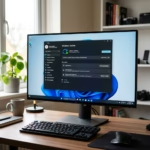
Your system settings show whether Windows 11 is set up to use LE Audio. Follow the steps below to find the relevant page.
Step 1Dive into Settings
- Press Win+I on your keyboard to open Settings. The Settings window should appear with a list of categories down the left side.
Step 2Navigate to Bluetooth & devices
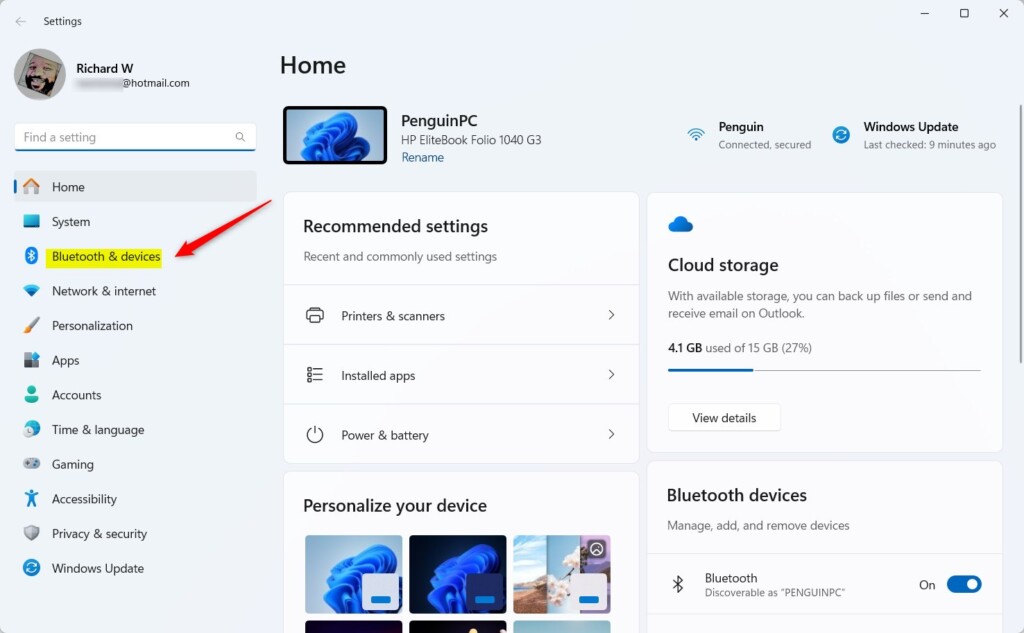
- Look at the left sidebar for Bluetooth & devices. This is the name in current Windows 11 builds. Older versions of Windows may show Devices instead. If you see that label, your Windows version is probably too old for LE Audio. Click the entry to see your connected wireless hardware.
Step 3Find the Devices Section
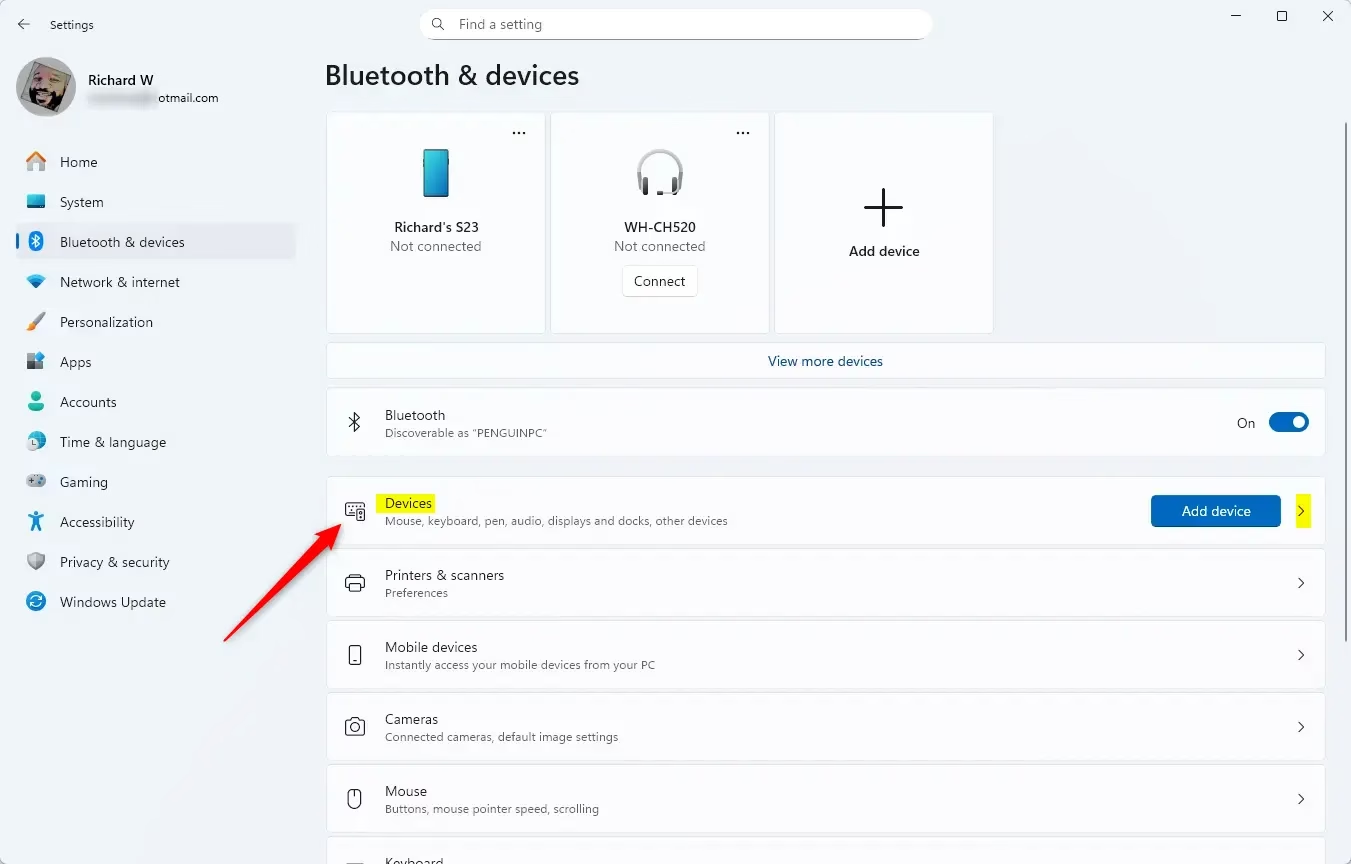
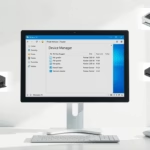
- Click Bluetooth & devices. The page lists your paired hardware. Select Devices in this area to open the detailed hardware list. This shows whether the system recognizes your modern audio devices. Make sure Bluetooth is switched on at the top of the page, or nothing will be listed.
Step 4Look for the “Use LE Audio when available” Setting
- Scroll down in the Devices window to find the settings for specific hardware.
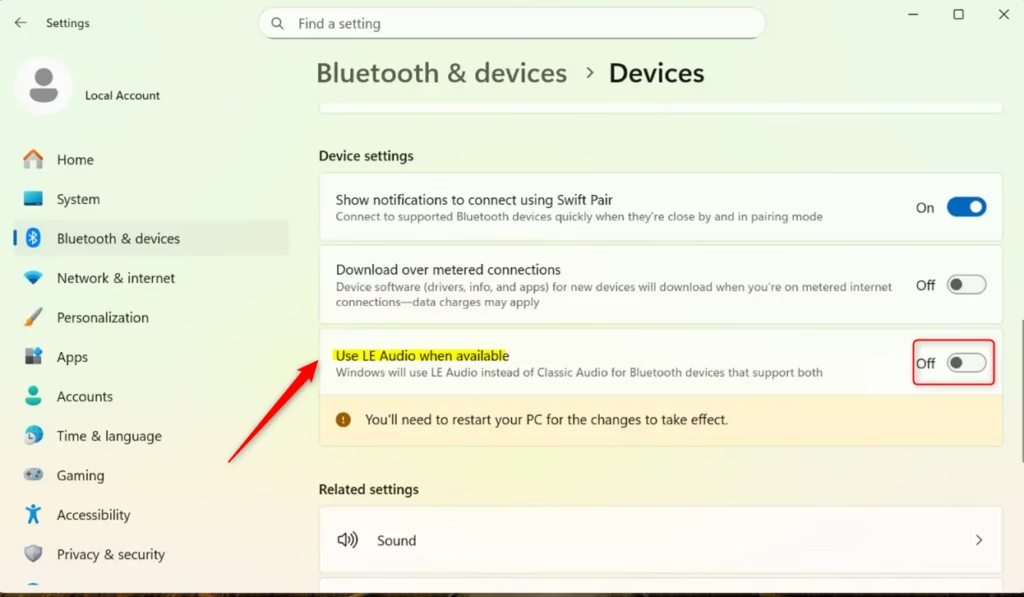
- Look for the toggle labeled Use LE Audio when available. If it is there, Windows sees your system as ready. You can switch it off later if you want to go back to standard Bluetooth audio, and a restart is not normally needed.
- If the toggle is missing, check three things in order. First, run Windows Update and install any pending updates. Second, look for a Bluetooth driver update from your PC or adapter maker. Third, confirm that your adapter really supports Bluetooth 5.2 or newer with LE Audio.
Step 5Analyze the Results
Checking whether your computer is LE Audio ready comes down to finding the LE Audio toggle in your Bluetooth settings. If you can turn this switch on, your system is fully set up to use the feature with compatible wireless headphones.- If you see the switch and it’s turned On (or you can turn it On): Congratulations! Your Windows 11 device is set up to use LE Audio, provided your headphones or earbuds also support it. You’re good to go for experiencing the benefits of this newer technology.
- If you DON’T see the “Use LE Audio when available” setting at all: This is the crucial part. If that specific option is missing, your Windows 11 device does not currently support LE Audio.
The Bottom Line
Bluetooth LE Audio offers better battery life and sound quality, and checking system readiness involves navigating the Settings app.
Was this guide helpful?
100% of readers found this helpful (1 votes)

About the Author
Richard
Tech Writer, IT Professional
Richard is a writer at Geek Rewind who turns complex IT tasks into clear, step-by-step guides. He draws on years of hands-on experience in system administration and enterprise IT operations, focusing on Windows, Linux and WordPress: the problems people actually run into, and the fixes that work. His server and WordPress guides come from systems he runs himself. Richard builds and maintains the platform behind Geek Rewind, from its Ubuntu servers and Nginx configuration to its custom WordPress plugins. Many new tutorials start with readers' questions, and he's always glad to answer them in the comments.


No comments yet — be the first to share your thoughts!