How to Rename Bluetooth Devices in Windows 11

Renaming Bluetooth devices in Windows 11 lets you replace confusing factory serial numbers with custom labels like “Living Room Speaker” or “Work Keyboard”. Bluetooth is a wireless technology that links your PC to nearby accessories over short ranges without cables.
Windows 11 often shows paired hardware with unhelpful generic titles, such as a string of letters and numbers copied from the manufacturer’s model code. Assigning a clear name stops you from guessing which item is which when you connect several pieces of audio gear or more than one mouse. The change is cosmetic. It does not affect pairing, so you will not need to pair the device again.
Open Control Panel , select Devices and Printers, right-click your Bluetooth device, click Properties, select the Bluetooth tab, type your new name in the device name box, and click OK. The device immediately shows the new label in your connected devices list.
Why rename your Bluetooth devices?
- Makes it easier to find and connect to the right device, because you pick “Desk Headphones” instead of a model code.
- Helps you tell apart devices if you have several similar ones, such as two pairs of the same earbuds or two identical mice.
- Keeps your Bluetooth devices organized and easy to manage, especially when you review the connected list later.
Steps to rename a Bluetooth device in 🪟 Windows 11
Make sure the device is already paired with your PC, and turn it on first if it has a power switch. It is easier to find in the list when it is connected.
Step 1Open the Devices and Printers window
- Click the Start button or press the Windows key on your keyboard. The Start menu opens with the search box ready for typing.
- Type
Control Paneland open it. The Control Panel window appears. This is the classic Control Panel, not the newer Settings app . - In Control Panel , select Devices and Printers. If Control Panel is in Category view, you will find it under Hardware and Sound as View devices and printers. Switching View by to large or small icons also lists Devices and Printers directly. (If you want detailed help opening Devices and Printers, click here.) A window opens showing your PC, monitors, printers and paired Bluetooth devices as icons.
Step 2Find your Bluetooth device
- Look for the device you want to rename in the list. Bluetooth items are usually under the Devices group. If you cannot tell which icon is yours, turn the device off and on and see which icon changes, or check the model code printed on the device.
- Right-click on the device icon and choose Properties. A Properties window for that device opens.
Step 3Rename your device
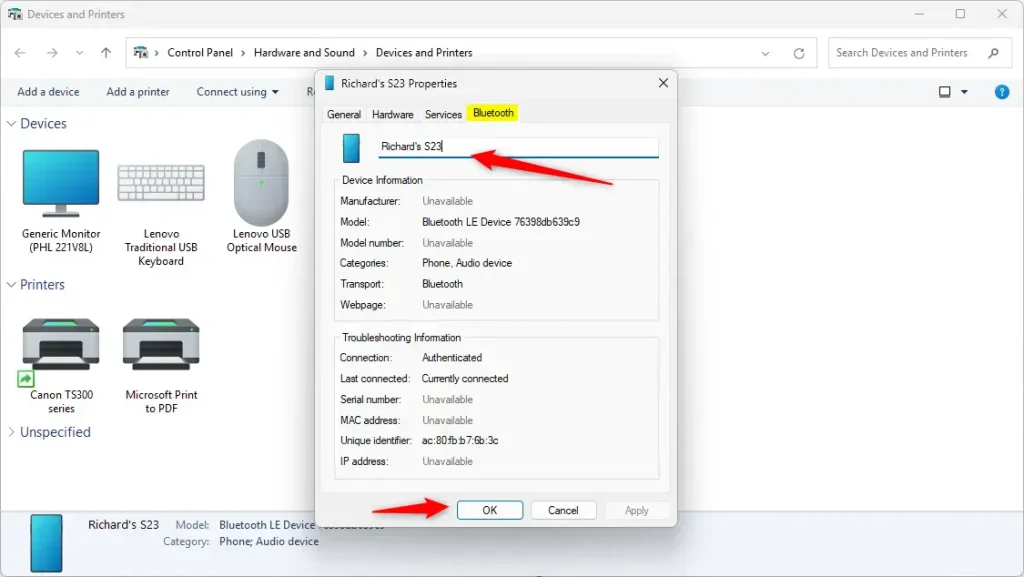
- In the Properties window, click the Bluetooth tab. Not every device shows this tab. If it is missing, the device’s driver may not expose the name setting, and you may need to try a different device entry or check the manufacturer’s software.
- You will see a box with the device’s current name. This is the label Windows is using right now.
- Click inside the box, delete the old name, and type the new name you want. Keep it short and descriptive, for example “Work Keyboard”.
- Click OK to save your changes. The window closes and the device icon should show the new name. To undo the change, repeat these steps and type the original name back in.
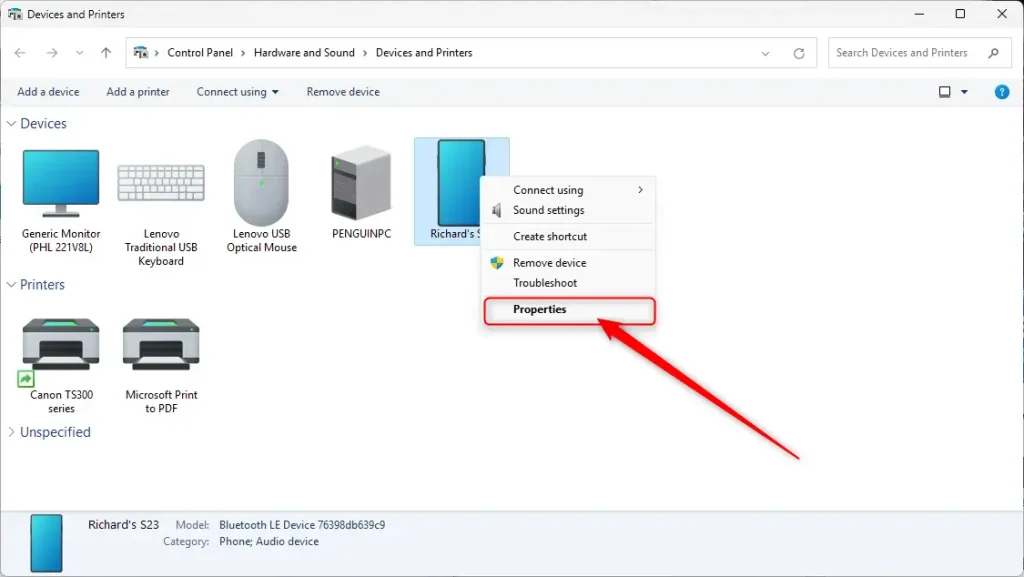
To rename a Bluetooth device in Windows 11, open the Properties window from Control Panel , click the Bluetooth tab, type your new name into the device name box, and click OK. This changes how the device appears in your connected equipment list so you can easily tell your headphones or mouse apart from other items. The new name is stored on your PC, so the device may still show its original name when you pair it with a different computer or phone.
Refreshing the connection helps the new name appear right away. Disconnecting and reconnecting the accessory usually forces Windows to pull the updated label. If the old name still shows in the Settings app or in a sound output list, close and reopen that window after reconnecting.
If needed, you can also restart your PC. A restart is rarely required, so try the reconnect first.
Summary
Refreshing the connection helps the new name appear right away. Turn the accessory off and on, or disconnect and reconnect it, and Windows usually picks up the updated label. If the old name keeps coming back, restart your PC and check the device's Properties again.
Have a question about this guide?
Answered by AI from this guide. Good questions may be added to this page — please don't include personal details.
Did this guide fix your problem?

About the Author
Richard
Tech Writer, IT Professional
Richard is a writer at Geek Rewind who turns complex IT tasks into clear, step-by-step guides. He draws on years of hands-on experience in system administration and enterprise IT operations, focusing on Windows, Linux and WordPress: the problems people actually run into, and the fixes that work. His server and WordPress guides come from systems he runs himself. Richard builds and maintains the platform behind Geek Rewind, from its Ubuntu servers and Nginx configuration to its custom WordPress plugins. Many new tutorials start with readers' questions, and he's always glad to answer them in the comments.
this process did not work at all – i am not able to edit the name through the above processes in any way. a little disappointed as this works on my laptop but not my desktop, both are running windows 11 pro.
Sorry to hear you hit a wall with this. It’s frustrating when something works on one machine but not the other, even with the same OS.
A few things worth checking: First, make sure you’re actually seeing the Bluetooth tab in the Properties window—if it’s not there, the device may not be properly recognized as Bluetooth by Windows. Also, confirm the name field isn’t grayed out or locked. Since this works on your laptop, there might be a driver difference between your two machines; updating your desktop’s Bluetooth drivers could help.
If those don’t work, you might need to try a different approach—some devices can only be renamed through the manufacturer’s own software rather than Windows settings. What specific device are you trying to rename?