Windows 11 Notification Settings: How to Control Alerts

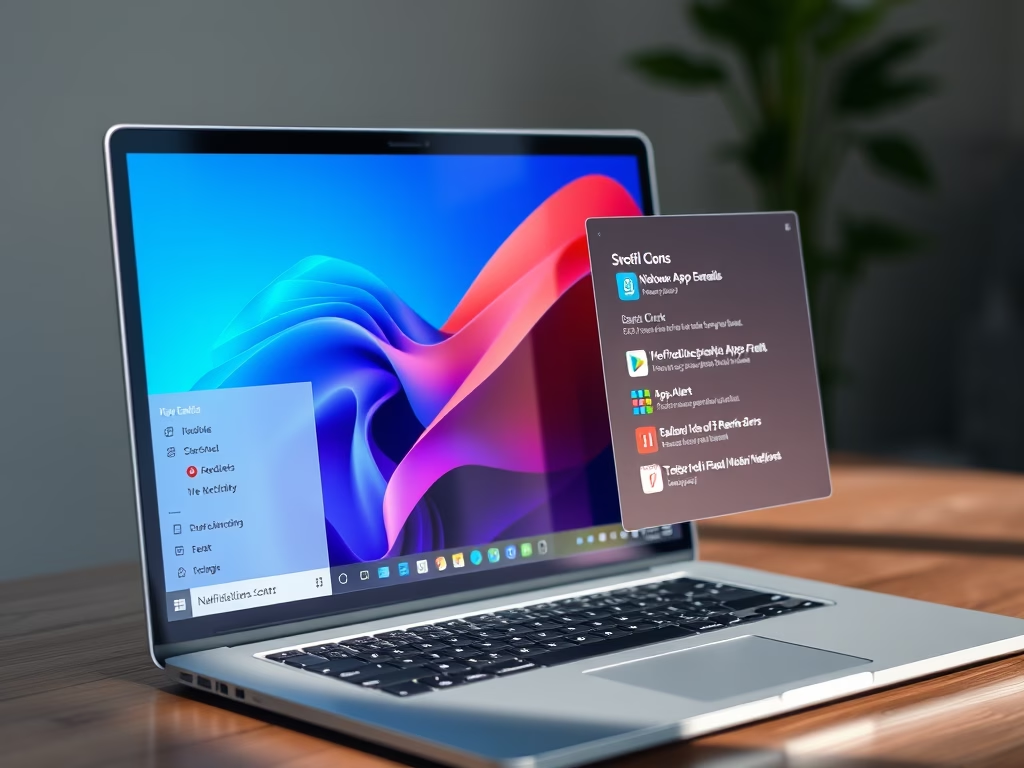
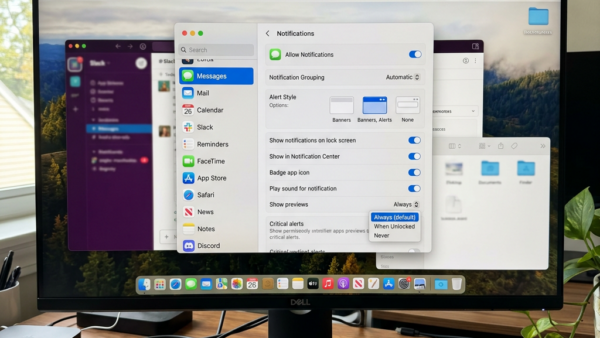
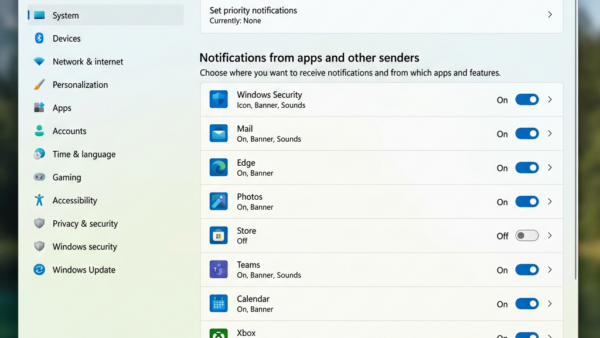
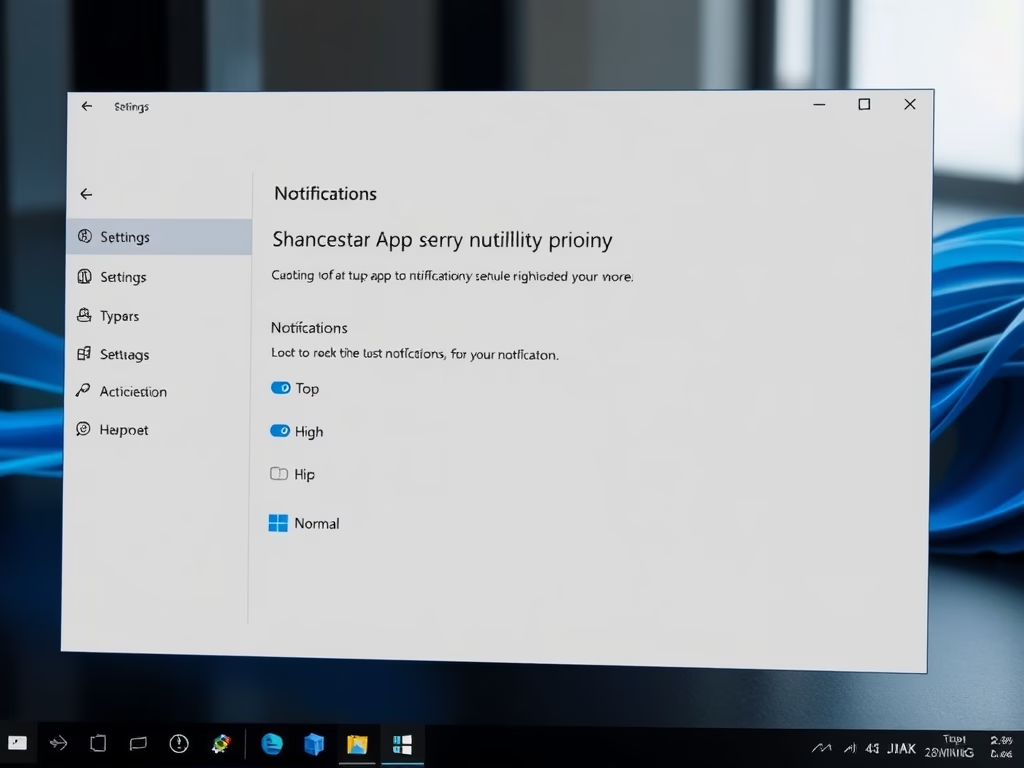
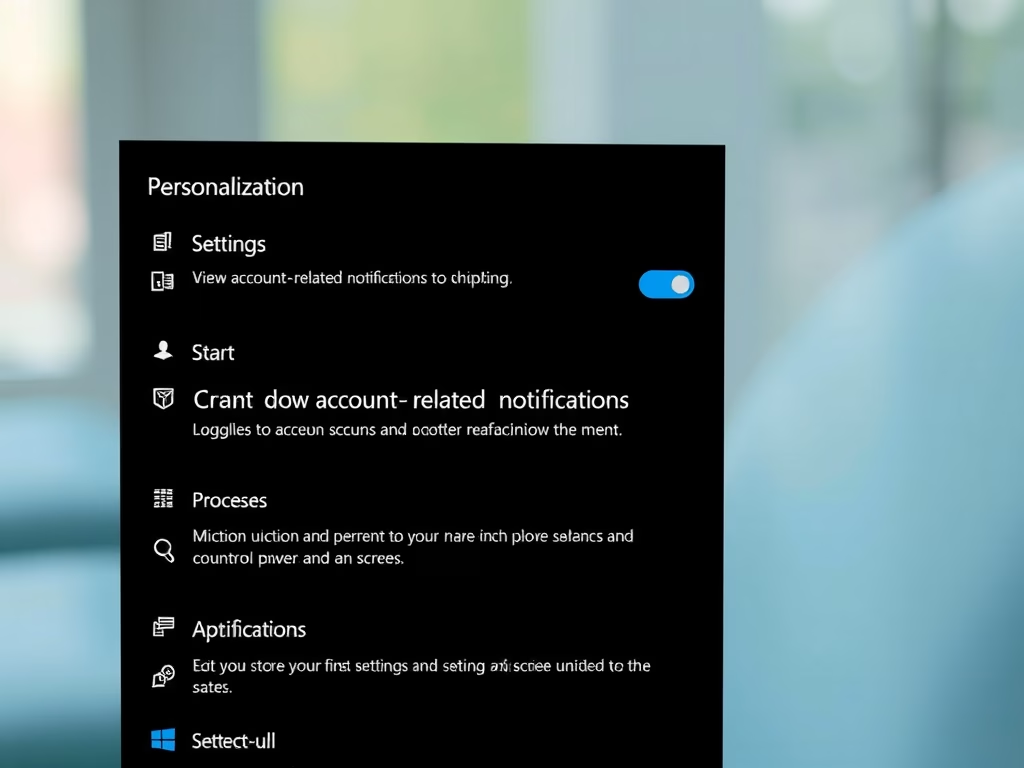
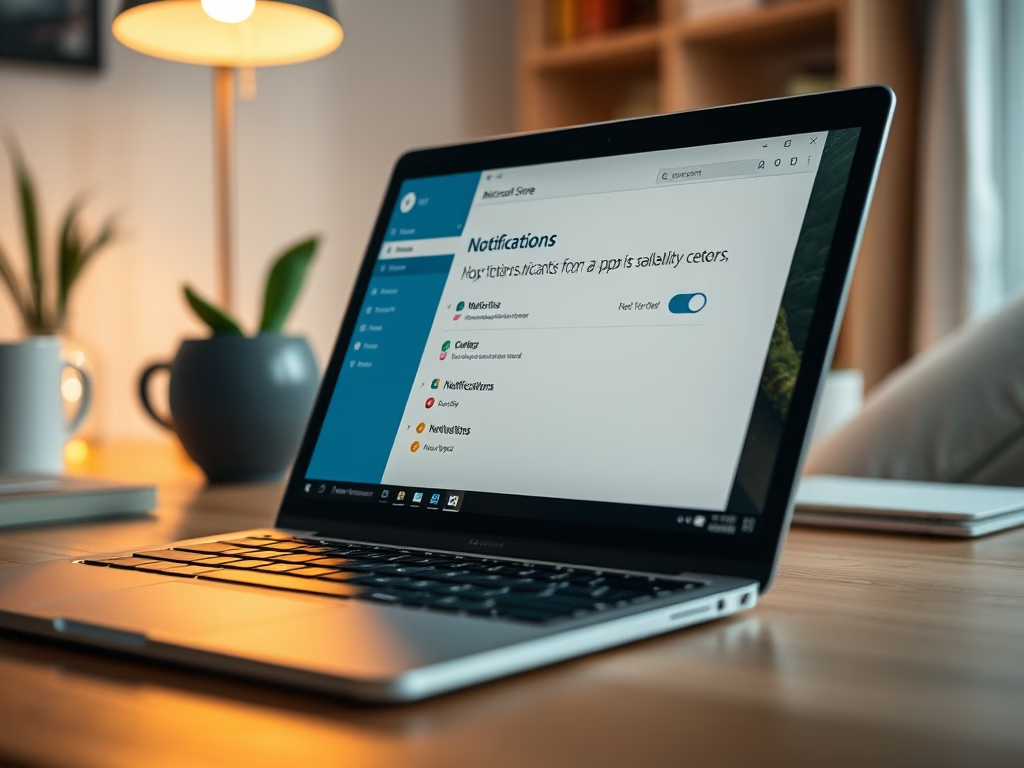
Notifications in Windows 11 are the banners, sounds and badges that apps and Windows use to get your attention. The main controls sit in Settings System Notifications, but Focus sessions, Quick Settings, the lock screen and individual apps each have their own switches. That spread is why changing one alert often seems to have no effect. This page sorts the guides by what you want to do, so you can find the right setting for each type of alert.
Find, read and hide your notifications
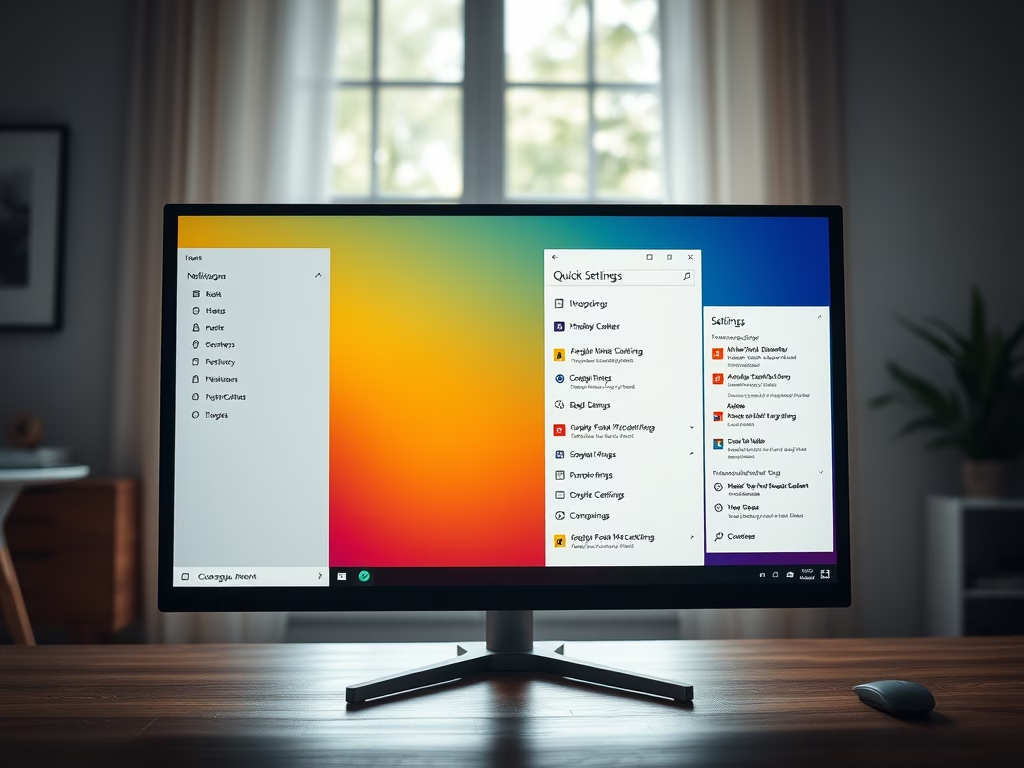
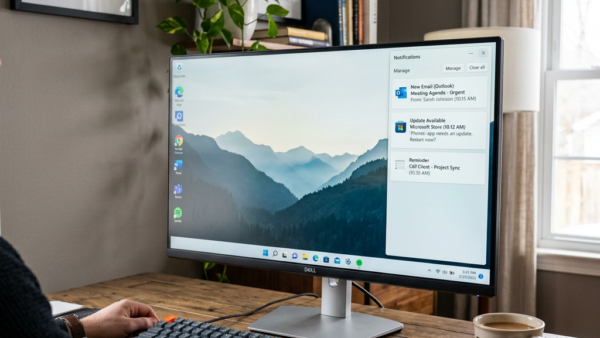
Start here if you cannot find a notification or want to stop alerts appearing on screen. These guides cover opening the Notification Center, showing or hiding notifications on the lock screen, and changing the Quick Settings panel. They also explain why the notification area sometimes seems to disappear.
Choose which apps can alert you and how
Use these guides when one app sends too many alerts, or when you want an app’s notifications to be quieter. You can turn off banners, remove an app from the Notification Center, or change its sound. Each setting affects only the app you choose, so the others keep working as before.
Limit interruptions with Focus and Do Not Disturb
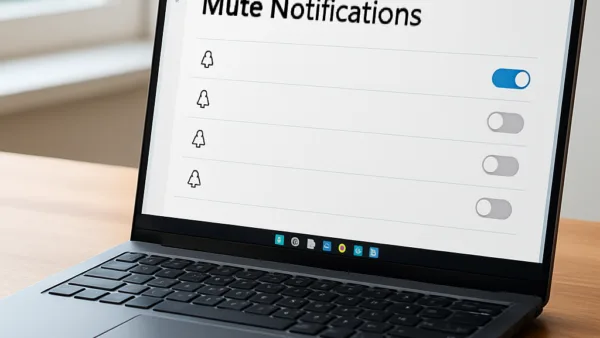
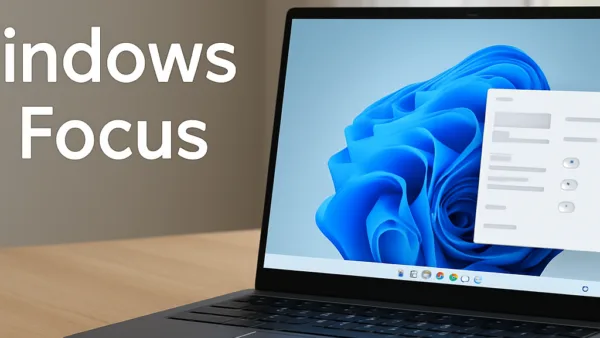
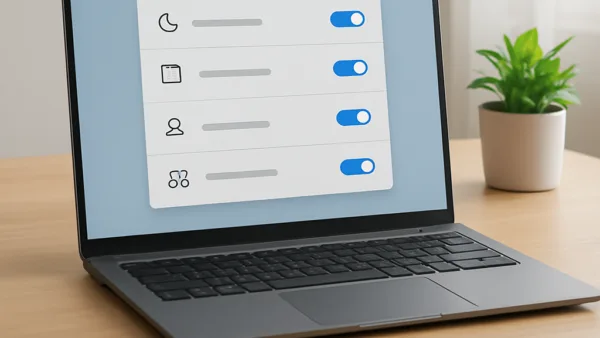
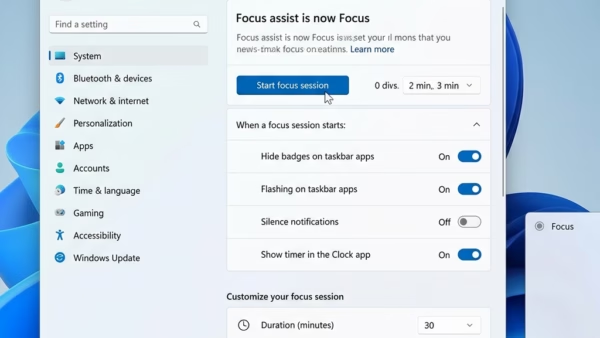
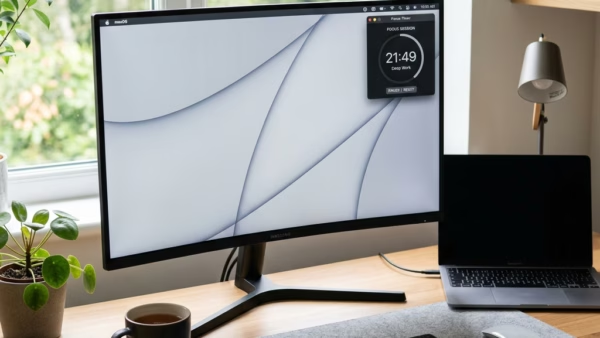
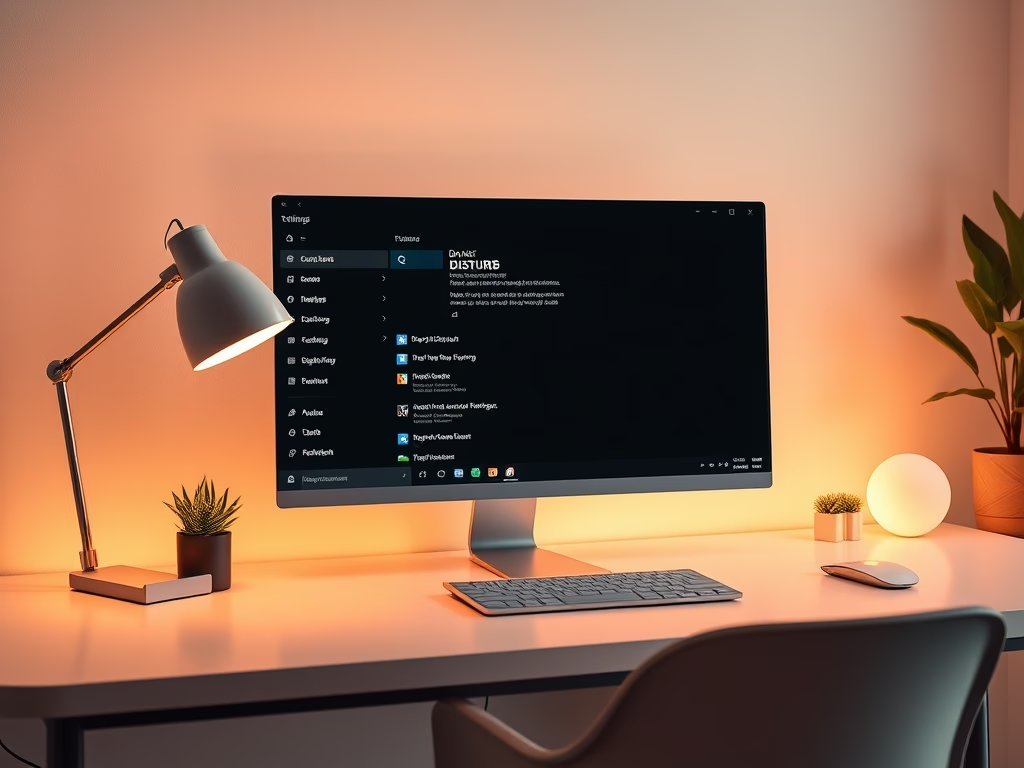
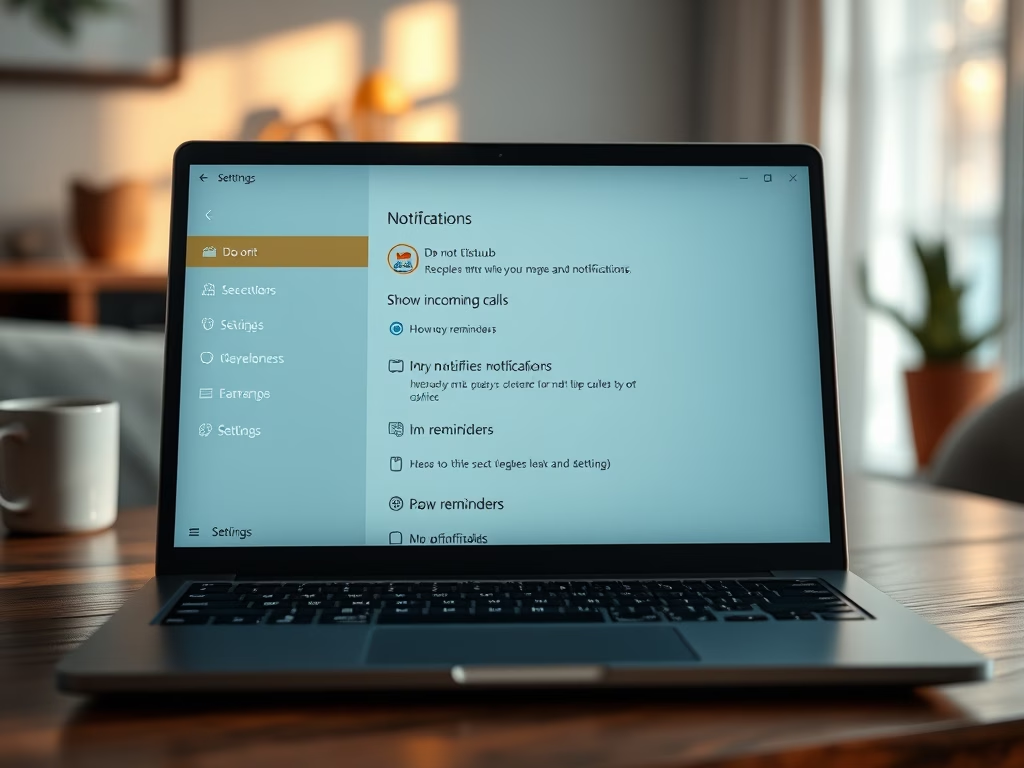
Focus sessions hold back alerts for a set period, which helps when you need to concentrate. These guides explain the timer, how taskbar flashing and badges behave during a session, and how to let priority alerts through. They also cover turning Do Not Disturb on automatically.
Stop Windows tips, security and system alerts
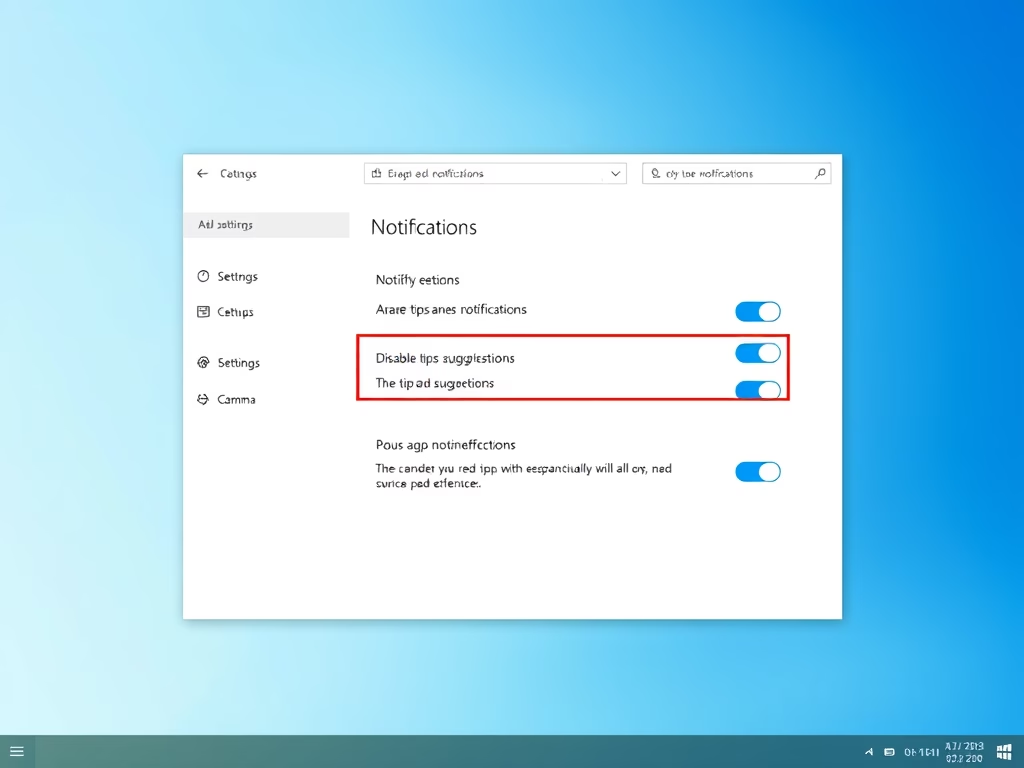
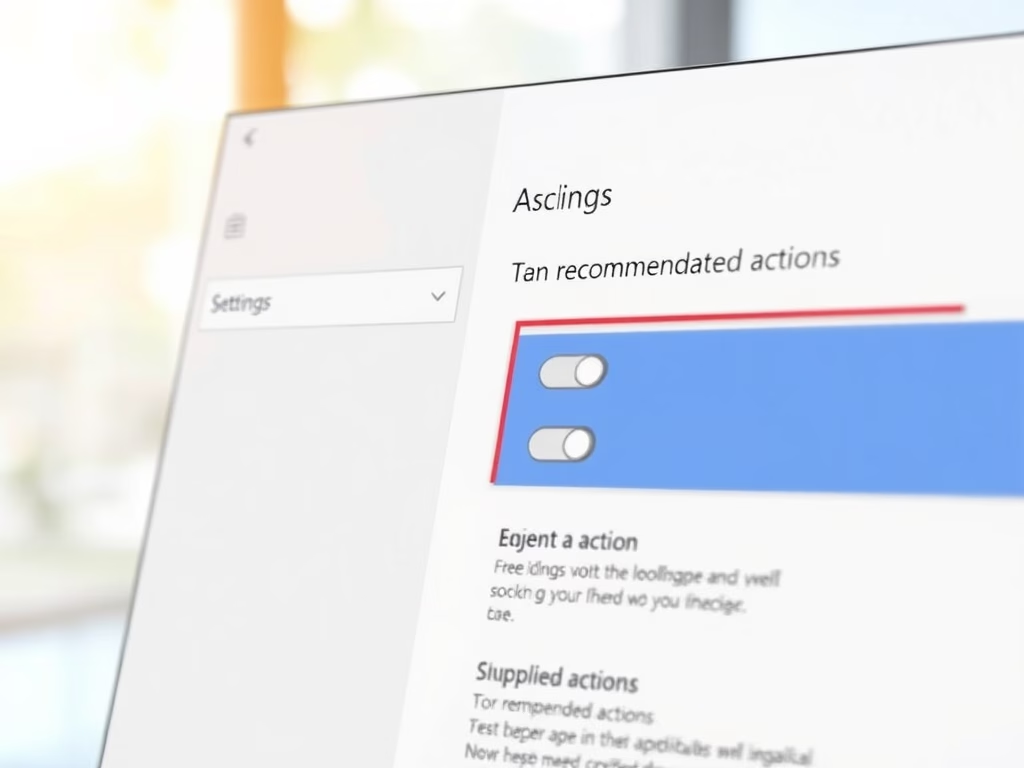
Windows sends its own notifications for security, device connections, startup apps and tips. Some of these are useful, and some you may want to remove. These guides show which switch controls each one, so you can keep the alerts you need.
Manage alerts from Microsoft accounts and apps
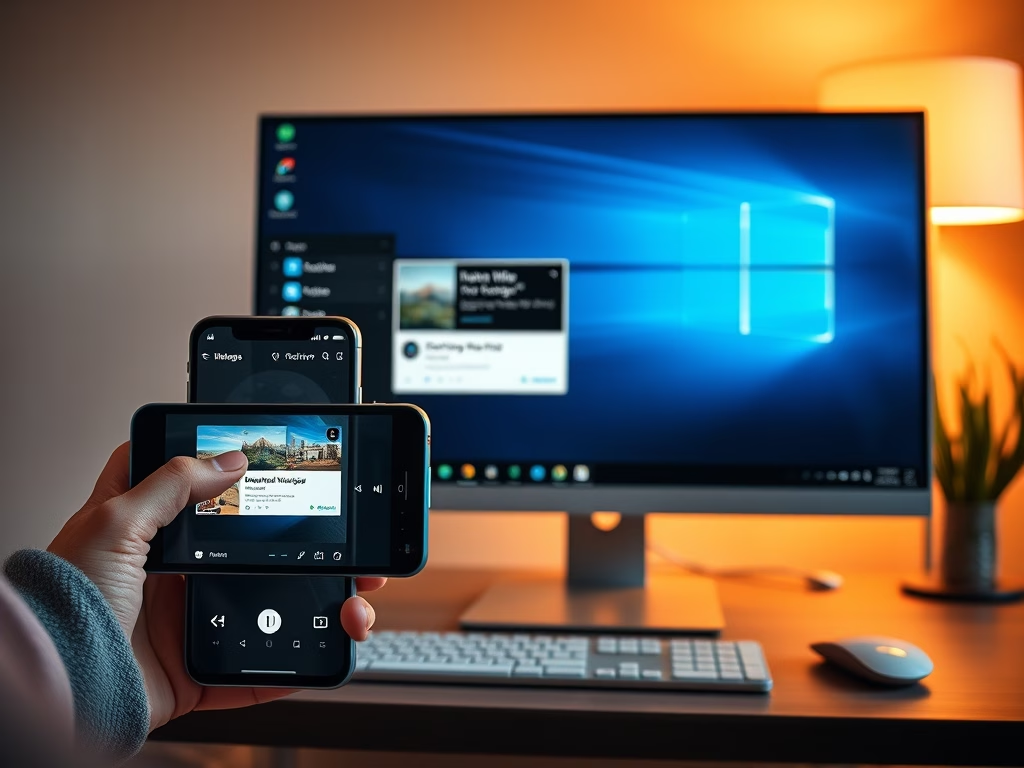
Microsoft services such as your account, the Microsoft Store, OneDrive, Outlook and Teams each send their own alerts. Their settings live in the apps themselves as well as in Windows. These guides show where to change each one, and how to get photo alerts from your phone.
Have a question about this guide?
Answered by AI from this guide. Good questions may be added to this page — please don't include personal details.

About the Author
Richard
Tech Writer, IT Professional
Richard is a writer at Geek Rewind who turns complex IT tasks into clear, step-by-step guides. He draws on years of hands-on experience in system administration and enterprise IT operations, focusing on Windows, Linux and WordPress: the problems people actually run into, and the fixes that work. His server and WordPress guides come from systems he runs himself. Richard builds and maintains the platform behind Geek Rewind, from its Ubuntu servers and Nginx configuration to its custom WordPress plugins. Many new tutorials start with readers' questions, and he's always glad to answer them in the comments.
No comments yet — be the first to share your thoughts!