Enable Photo Notifications on Windows 11

Photo notifications on Windows 11 show a live preview on your screen the moment you take a picture or screenshot on your Android phone. The feature relies on Phone Link (a utility that connects your phone to your PC) to send your latest mobile captures to your desktop without cables.
You can open, edit and save those pictures right away in the Snipping Tool (a built-in screen capture program) when the notification pops up.
To get photo notifications on Windows 11, open Settings, go to Bluetooth & devices, select Mobile devices, and click Manage devices. Select Get new photo notifications and switch it to On. Your Android phone must already be linked through Phone Link, and new photos or screenshots will then show a preview on your PC.
Turn on or off new photo notifications from mobile devices on Windows
This setting lets your PC alert you whenever you take a new picture on your linked phone. You can turn the alerts on or off in the Bluetooth & devices settings once your phone is linked to your computer.
The phone must be an Android phone. It must already be linked to your PC through Phone Link. Your PC must run a recent version of Windows 11, because the Mobile devices page is not in older builds. The steps are the same on Home and Pro, and you do not need to restart.
Enabling photo notifications takes only a few clicks.
- Press Win+I to open Settings . The Settings window opens.
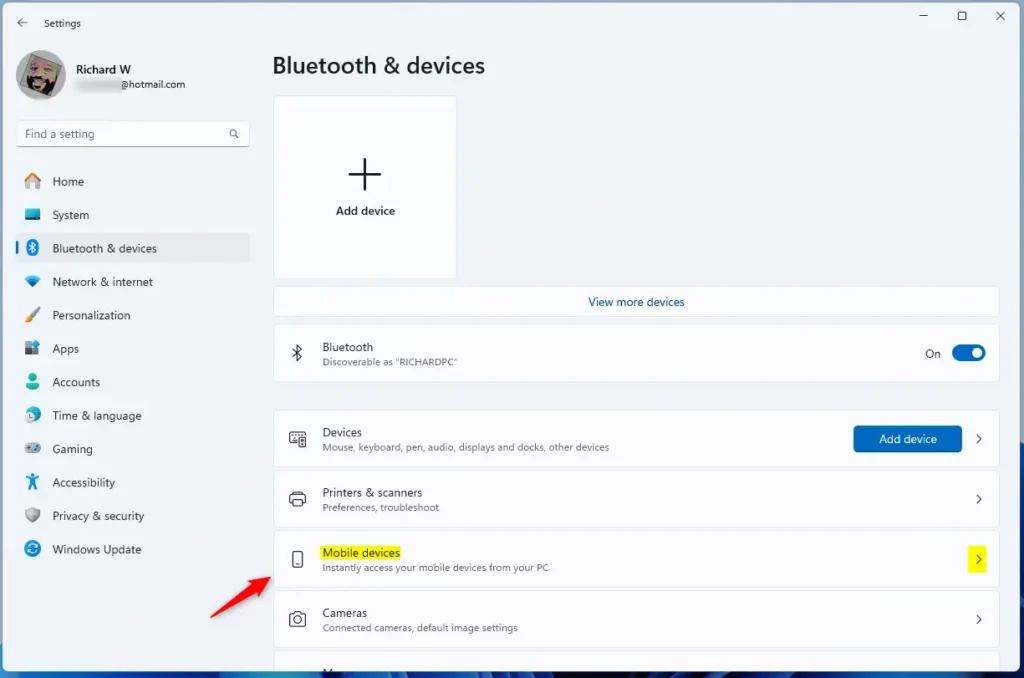
- Click Bluetooth & devices in the left menu, then select the Mobile devices tile on the right. The Mobile devices page opens.

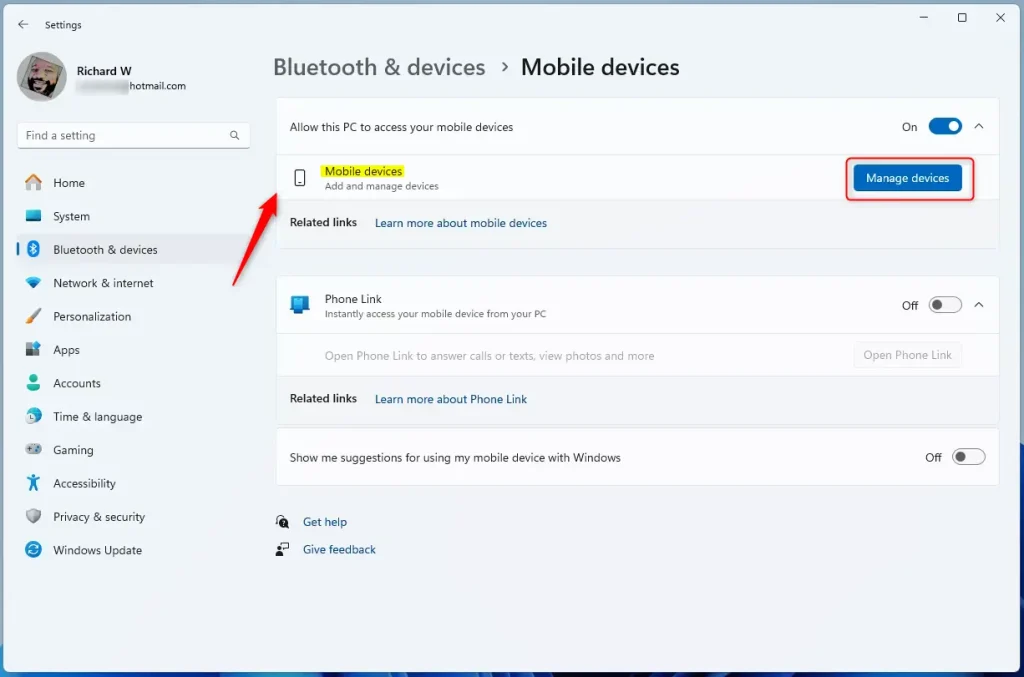
- Click the Manage devices button under Allow this PC to access your mobile device. Your linked phone appears in a list with its settings.
Turn it on first, and the button should then be available.
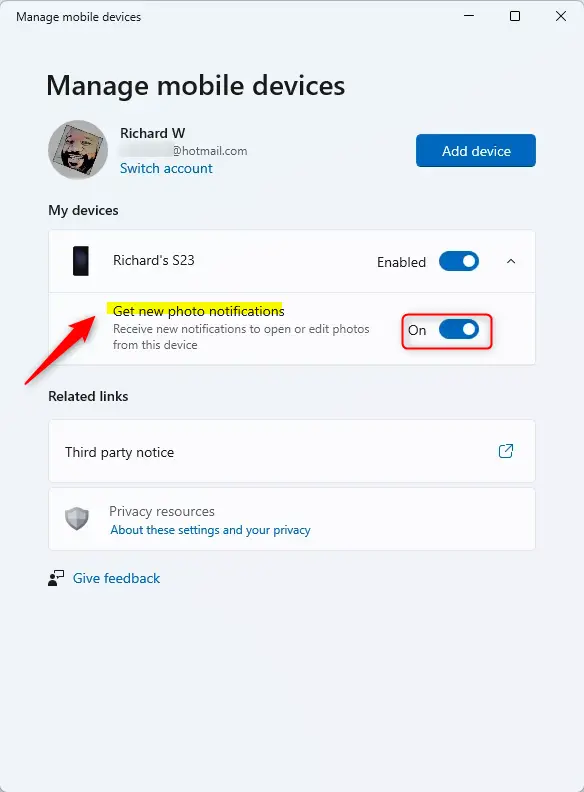
- Select the Get new photo notifications tile and flip the switch to On. The switch should now show as On.
If the tile is missing or greyed out, make sure the phone is still linked in Phone Link and that your PC is up to date. You may also need to allow Phone Link to access photos on the phone when it asks.
To turn the feature off again, return to this page and set the switch back to Off.
Alerts for new mobile captures will now appear on your display. Take a photo or screenshot on your phone to test it. A preview should show up on your PC within a few moments, and you can open it in the Snipping Tool from there.
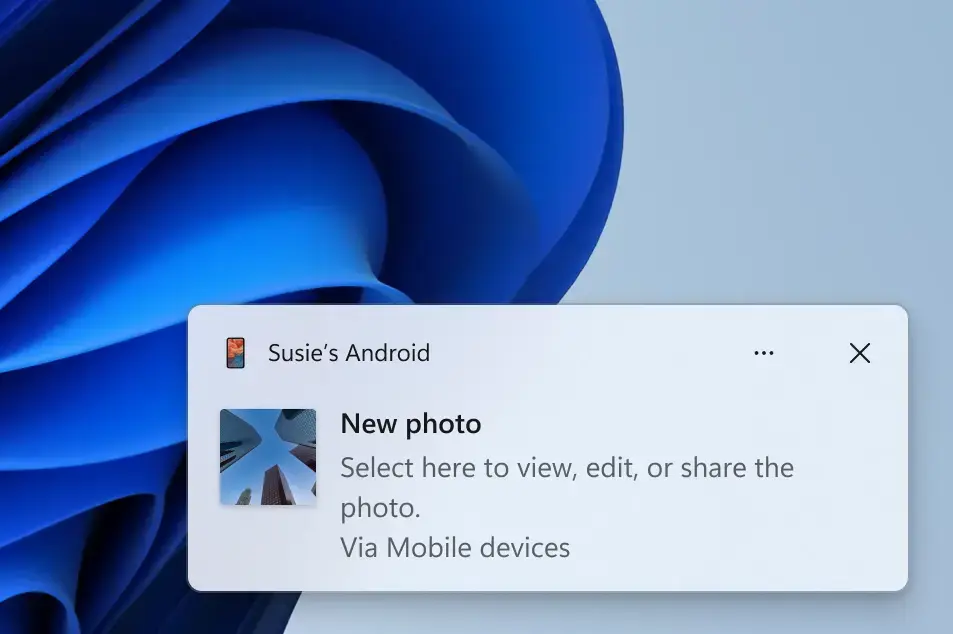
Your phone pictures will now pop up on your screen the moment you capture them.
Reference:
To turn off the feature later, go back to the same menu and flip the switch to Off.
- This article showed how to turn "Get new photo notifications" on or off for mobile devices on Windows 11.
- The feature lets you open and edit recent photos and screenshots from your Android phone in the Snipping Tool on your PC.
- You get an instant notification on your PC whenever a new photo or screenshot is captured on your Android device.
- To use this feature, go to Settings Bluetooth & devices Mobile devices and turn on the "Allow this PC to access your mobile devices" setting.
- Use the links provided for more information or to leave feedback and suggestions.
Have a question about this guide?
Answered by AI from this guide. Good questions may be added to this page — please don't include personal details.
Did this guide fix your problem?

About the Author
Richard
Tech Writer, IT Professional
Richard is a writer at Geek Rewind who turns complex IT tasks into clear, step-by-step guides. He draws on years of hands-on experience in system administration and enterprise IT operations, focusing on Windows, Linux and WordPress: the problems people actually run into, and the fixes that work. His server and WordPress guides come from systems he runs himself. Richard builds and maintains the platform behind Geek Rewind, from its Ubuntu servers and Nginx configuration to its custom WordPress plugins. Many new tutorials start with readers' questions, and he's always glad to answer them in the comments.
[…] your phone connected, you can effortlessly access and edit your most recent photos and screenshots from your Android mobile device in the Snipping Tool on your PC. To use this, you must first go […]