Manage Missed Activity Emails in Microsoft Teams

Missed activity emails in Microsoft Teams are automated messages sent to your inbox. They summarize chats, @mentions, replies and other activity you missed while you were away from the app. You control how often they arrive. The schedule runs from every 10 minutes to once a day, and you can also turn the emails off.
Changing this setting takes a few seconds and stops your inbox from filling up with alerts you do not need. Pick a schedule that fits your workday so you stay informed without drowning in mail. The steps below use the current Teams desktop app on Windows 11. The classic Teams app and Teams on the web use nearly the same menus, but a label may differ slightly.
Missed activity emails in Microsoft Teams are automated summaries of chats, @mentions, and replies you missed while away from the app.
Why use missed activity emails?
Missed activity emails help bridge the gap when you work away from the computer. If you are in a meeting, off shift or just not looking at Teams, the email tells you what is waiting. It shows a short preview of the message and who sent it, so you can tell at a glance whether it is urgent.
You can also reply straight from the email in many cases, which speeds up collaboration. You do not have to open Teams just to answer a quick question. Open the app later if the conversation needs more than a short reply.
What happens when done?
Adjusting these settings cuts down on unnecessary interruptions. Once you save a change, Teams applies the new preference to future emails. You do not need to restart Teams or sign out.
An email that is already in your inbox stays there, and one that Teams has already queued may still arrive. Give it a short while before you decide the setting is not working.
How to manage your email settings
- Open the Microsoft Teams app and sign in with your work or school account. The main Teams window should appear with your chats or activity feed.
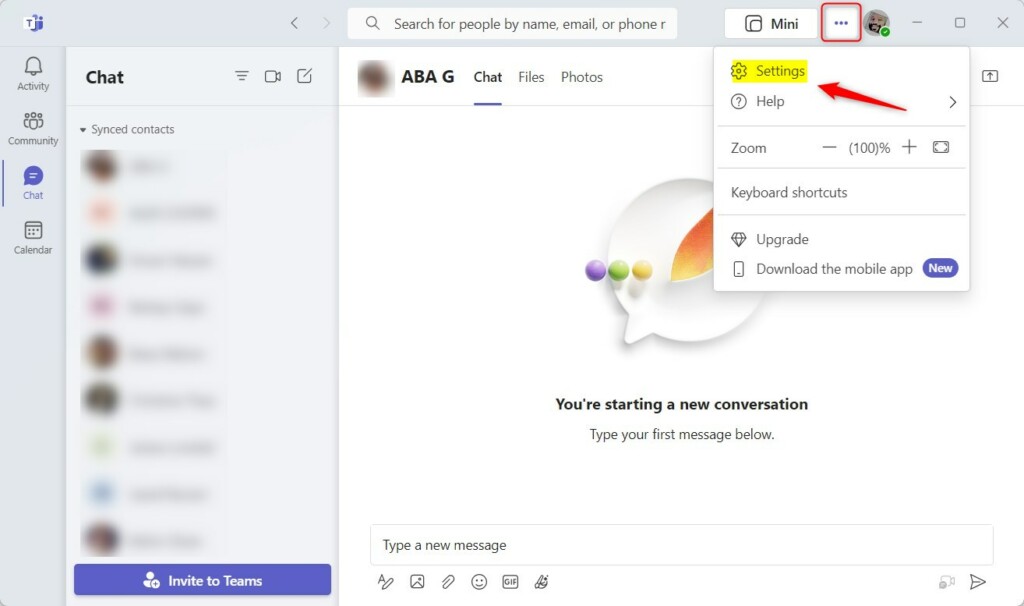
- Click the More options button (three dots) next to your profile picture at the top of the window. In some builds this button is labelled Settings and more. A menu opens below it.
- Select Settings from the menu. A Settings window or panel opens with a list of categories on the left.
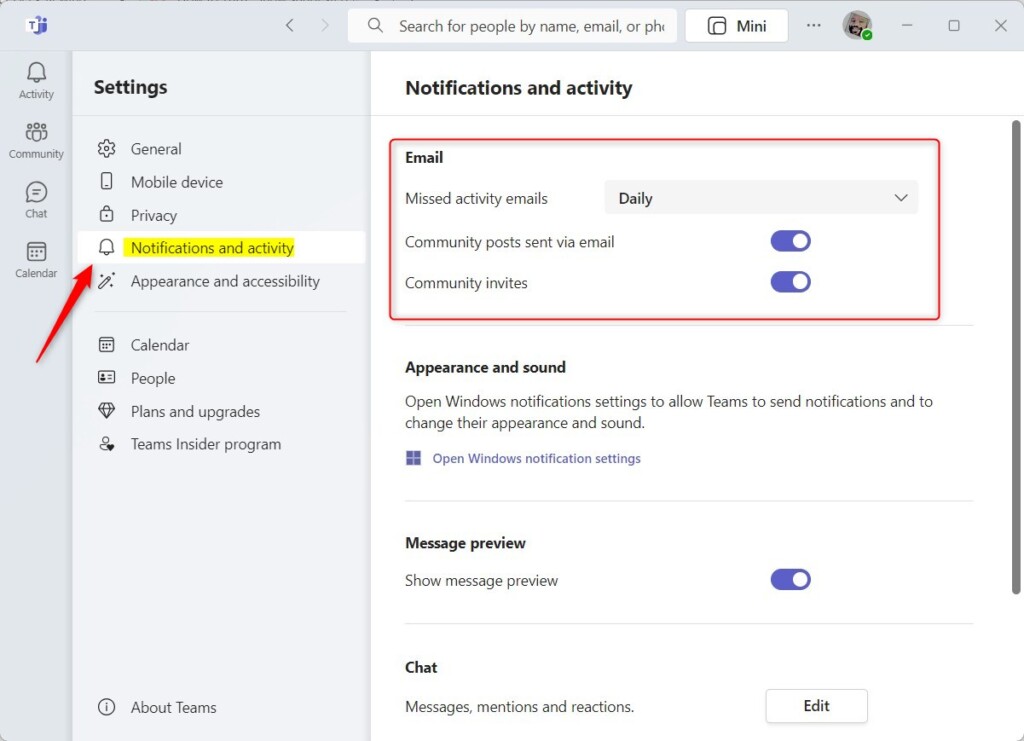
- Click the Notifications tab. In the new Teams app this tab is called Notifications and activity. The notification options appear on the right.
- Look for the Emails section and find Missed activity emails. You may need to scroll down. If you cannot find it, your organization's admin may have restricted it. In that case, ask your IT team.
- Use the drop-down menu to turn these notifications on or off, or to choose how often they arrive. The setting saves as soon as you pick a value. To undo it, open the same drop-down and choose your earlier option.
In short, you turn missed activity emails on or off from the app settings. Click your profile picture area, open the three-dot menu, choose Settings, and then open Notifications. In the Emails section, you decide whether Microsoft Teams sends you messages about what you missed while you were away.
If you sign in to more than one Teams account, each one has its own notification settings.
Customizing your notifications
The missed activity email settings let you choose how often you get updates and which kinds of activity trigger them. Summaries can arrive quickly, every few hours, or just once a day. A slower schedule keeps your inbox from filling up with too many messages. The exact choices in the drop-down can vary by version and by what your organization allows.
- Frequency: You can choose to get emails as they happen, every few hours, or just once a day. If you check Teams often during the day, a slower schedule is usually enough. If you are away from your desk a lot, choose a faster one.
- Activities: You can choose to be notified about specific things, such as community posts or invites. Turn off the types you rarely act on, so the emails you do get are worth opening.
- In the Settings window, select Notifications (or Notifications and activity) in the left sidebar. The notification options appear on the right.
- Find Missed activity emails and change it to the schedule that suits your work. Check that the setting now shows the value you picked.
Review this setting from time to time. If you start missing things, shorten the interval. If the emails feel like noise, lengthen it or turn them off.
Summary
Staying informed on key chats without being present all the time helps prevent burnout. Tuning the frequency and the type of activity keeps your inbox tidy. It also means that when a Teams email does arrive, it is worth reading.
Have a question about this guide?
Answered by AI from this guide. Good questions may be added to this page — please don't include personal details.
Did this guide fix your problem?

About the Author
Richard
Tech Writer, IT Professional
Richard is a writer at Geek Rewind who turns complex IT tasks into clear, step-by-step guides. He draws on years of hands-on experience in system administration and enterprise IT operations, focusing on Windows, Linux and WordPress: the problems people actually run into, and the fixes that work. His server and WordPress guides come from systems he runs himself. Richard builds and maintains the platform behind Geek Rewind, from its Ubuntu servers and Nginx configuration to its custom WordPress plugins. Many new tutorials start with readers' questions, and he's always glad to answer them in the comments.
No comments yet — be the first to share your thoughts!