Control Whether Your Conversations Are Used for Microsoft Copilot Model Training

Microsoft Copilot model training is a background process. It can use your chat data from Copilot on Windows 11 and Windows 10 to help train the AI assistant and improve its answers. Turning off the training settings stops Microsoft from adding your private questions and personal details to the data used to train its AI models.
You can opt out in a few clicks through your account’s privacy controls. There are two separate switches, one for typed chats and one for voice chats. Turn off both if you want a full opt out. Once they are off, Copilot no longer learns from your future chats.
To opt out of Copilot training, sign in to your Microsoft account, open your privacy settings (click your profile picture and select Privacy), then turn off both the Training on conversation activity toggle for text chats and the Training on voice conversations toggle for voice chats.
Find Your Privacy Settings
The privacy settings decide whether Microsoft Copilot uses your chats to train AI models. Every option in this guide lives in the same place, your profile’s privacy menu. How you reach that menu depends on which version of Copilot you use. Sign in with your Microsoft account first. If you are signed out, the privacy options may not appear.
Pick the route that matches how you use Copilot:
- If you use Copilot on the web (copilot.com): Go to copilot.com and click your profile picture. Then click your profile name. A menu opens with an option called Privacy.
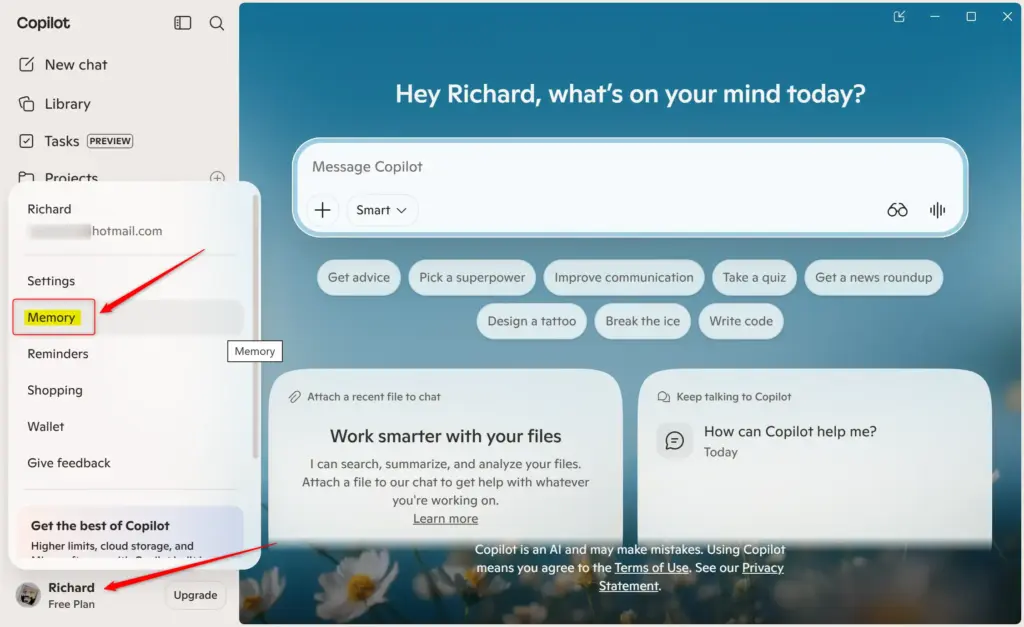
- If you use Copilot built into Windows or macOS: Open the Copilot window and click your profile picture. Choose Settings, then look for the Privacy section.
- If you use the Copilot mobile app: Open the main menu and tap your profile picture. Go to Account, then Privacy.
If you can’t find Privacy, look through the profile and settings menus for anything privacy-related. The setting is tied to your account, so you can change it from any of these routes.
Control “Training on conversation activity”
The Training on conversation activity setting controls whether Copilot uses your typed chats for AI model training. Switching it off is the opt out for text conversations.
- Open the privacy menu using one of the routes above. You should see a list of privacy options, including the training switches.
- Find the Training on conversation activity setting.
- Click or tap the toggle to set it to Off. The switch should change appearance to show it is no longer active.
- Leave the page, then come back to it. Check that the toggle is still off, so you know the change was saved.
To undo this, return to the same menu and switch the toggle back to On.
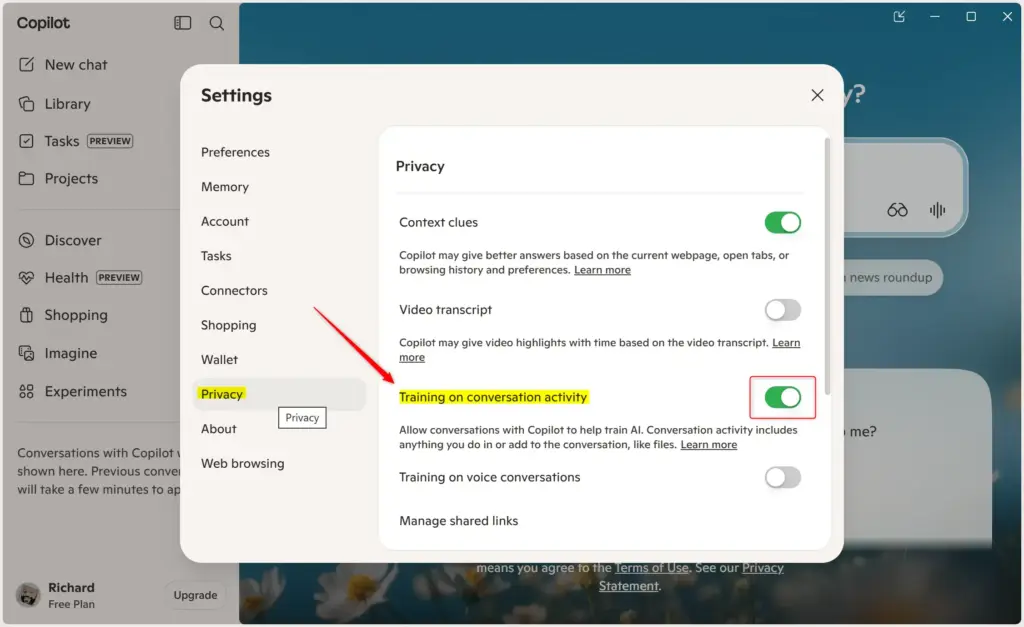
With this setting off, Copilot stops using your future chats to improve Microsoft's AI models. The change applies immediately. You don't need to restart Windows or the Copilot app.
Turning it off does not erase chats you already had. Your chat history is a separate thing, and you can manage it in Copilot's own settings.
Check "Training on voice conversations"
The Training on voice conversations setting controls whether Copilot uses your spoken input for AI training. If you talk to Copilot with voice commands, turn this one off as well. Switching off the text setting does not turn it off automatically.
- Open the privacy menu again, using the same route as before.
- Find the Training on voice conversations toggle.
- Click or tap the toggle to set it to Off.
- Check that the switch now shows as off before you close the menu.
Your voice data is excluded from future training from that point on. If you change your mind, switch the toggle back to On.
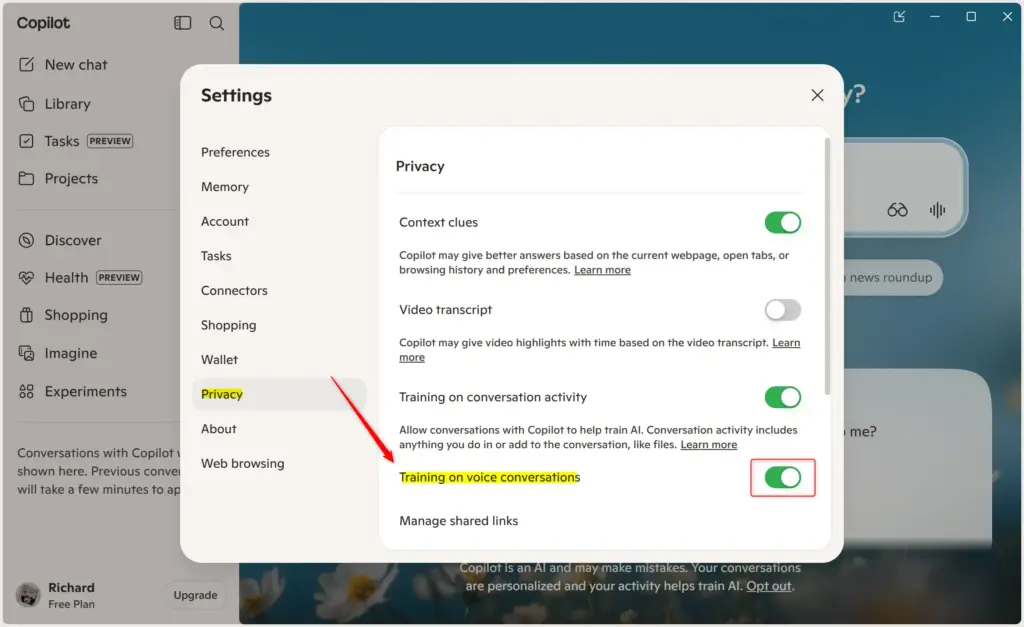
With the toggle off, your voice recordings and text transcriptions no longer help Copilot get better at understanding and answering spoken language. Your spoken queries stop being used to train the AI model.
If you use Copilot on more than one device, you don't need to repeat this on each. The settings belong to your Microsoft account. It's still worth checking once on each device that the toggles show as off.
References:
https://support.microsoft.com/en-us/microsoft-copilot/microsoft-copilot-privacy-controls
Summary
To manage whether Microsoft Copilot uses your chats for training, open your Copilot profile and go to the privacy menu. Turn off Training on conversation activity and Training on voice conversations to exclude your data. You can turn either one back on at any time from the same menu.
Have a question about this guide?
Answered by AI from this guide. Good questions may be added to this page — please don't include personal details.
Did this guide fix your problem?

About the Author
Richard
Tech Writer, IT Professional
Richard is a writer at Geek Rewind who turns complex IT tasks into clear, step-by-step guides. He draws on years of hands-on experience in system administration and enterprise IT operations, focusing on Windows, Linux and WordPress: the problems people actually run into, and the fixes that work. His server and WordPress guides come from systems he runs himself. Richard builds and maintains the platform behind Geek Rewind, from its Ubuntu servers and Nginx configuration to its custom WordPress plugins. Many new tutorials start with readers' questions, and he's always glad to answer them in the comments.
No comments yet — be the first to share your thoughts!