How to Turn On or off Lock Screen Background Motion in Windows 11


Lock screen background motion in Windows 11 adds a slow zoom effect to your sign-in picture whenever you wake up your PC. Turning off this feature stops the animation, saves battery life on laptops, and speeds up older machines.
This tutorial covers three ways to change it: the Settings app for your own account, the Local Group Policy Editor for every user, and the Registry for every user. For a single PC that only you use, Settings takes less than a minute.
Open Settings , go to Personalization, then Lock screen. Toggle the “Make the lock screen image react when I move my PC” option on or off to control background motion. Administrators can use Group Policy or Registry Editor for system-wide changes.
What is the Lock Screen?
Pressing Win+L or starting your computer brings up the lock screen first. Dismissing this view, by pressing a key, clicking, or swiping up on a touch screen, reveals the sign-in area where you enter your PIN or password.
What is Lock Screen Background Motion?
Windows 11 lock screen motion makes your background picture shift slightly whenever you move your device. An accelerometer inside your computer tracks this physical movement to create a subtle floating effect. You can turn off this Windows 11 lock screen motion if you prefer your background to stay completely still while your computer is locked.
Windows Spotlight displays dynamic backgrounds on the lock screen by default, but disabling background motion forces a static image. Changing the setting does not delete your picture or change which background you picked. It only controls the movement.
You have three options. Use the Settings app if the change is only for you. Use Local Group Policy or the Registry if you manage the PC and want the same result for every account.
Option 1Turn On or Off Lock Screen Motion for Your Account Using Settings
- Press Win + I to open Settings.
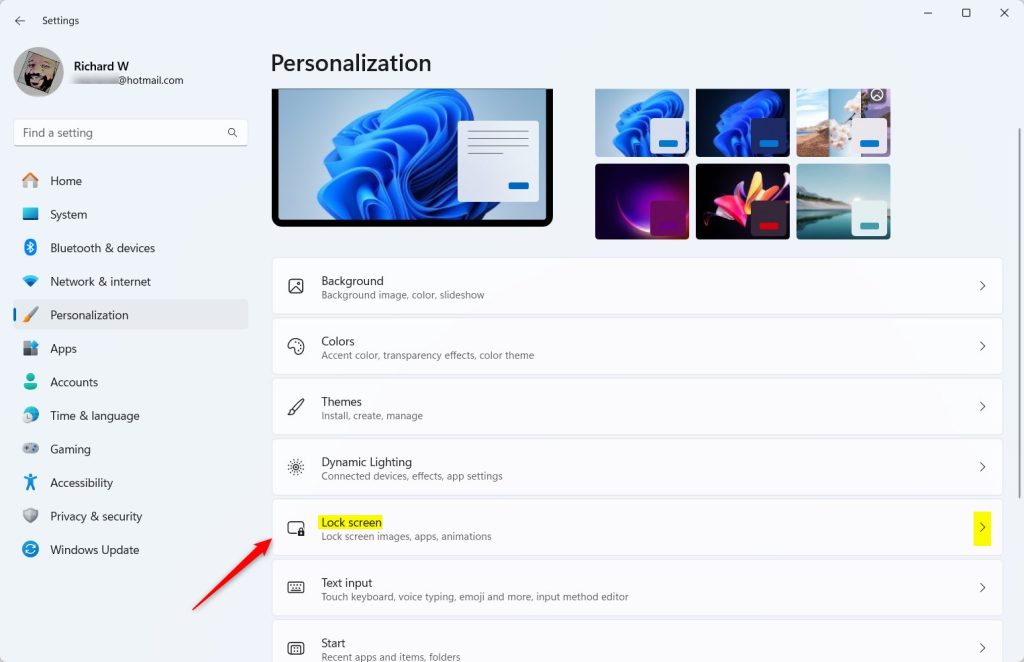
- Click Personalization in the left menu. The personalization options appear on the right.
- Select Lock screen on the right. You will see the lock screen background options and the status settings.
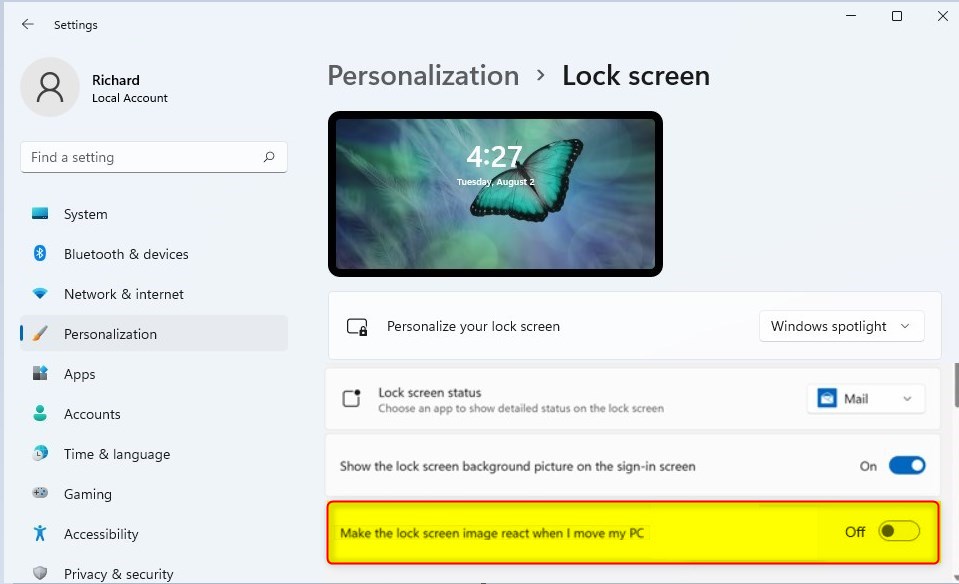
- Find the option called Make the lock screen image react when I move my PC and set the toggle to On or Off, depending on what you want. The change applies immediately, with no Save button.
- Close Settings when done.
The shortcut path is Settings Personalization Lock screen You can turn Windows 11 lock screen motion on or off for your own user account through the main Settings app. This changes the setting only for you, without affecting other people who share your computer.
If you do not see the toggle, or it is greyed out, check two things. First, your device may not have the motion sensor the feature relies on, which is common on desktop PCs. Second, a policy set by an administrator or your organization may be controlling it. To undo your change, return to the same page and flip the toggle back.
Option 2Turn On or Off Lock Screen Motion for All Users Using Group Policy Editor
Administrators can turn Windows 11 lock screen motion on or off for every user account at once using the Local Group Policy Editor. You open this tool by running gpedit.msc and navigating to the Personalization folder under Administrative Templates. This method locks the setting in place so standard users cannot change it themselves.
The Local Group Policy Editor is only included in Windows 11 Pro, Enterprise, and Education. On Windows 11 Home, gpedit.msc will not open, so use the Registry method further down instead. You also need to be signed in with an administrator account.
- Press Win + R, type
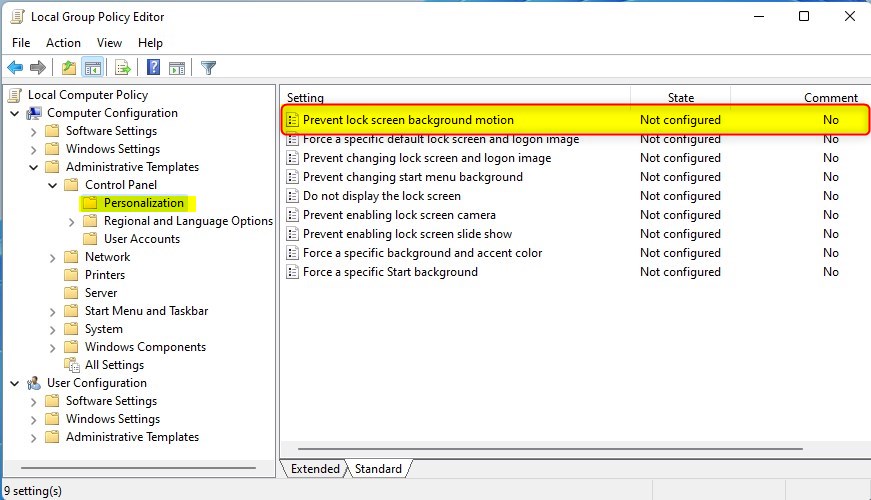
gpedit.msc, and press Enter to open the Local Group Policy Editor. If a User Account Control prompt appears, click Yes. - In the left panel, go to:
Computer Configuration > Administrative Templates > Control Panel > Personalization - In the right panel, double-click
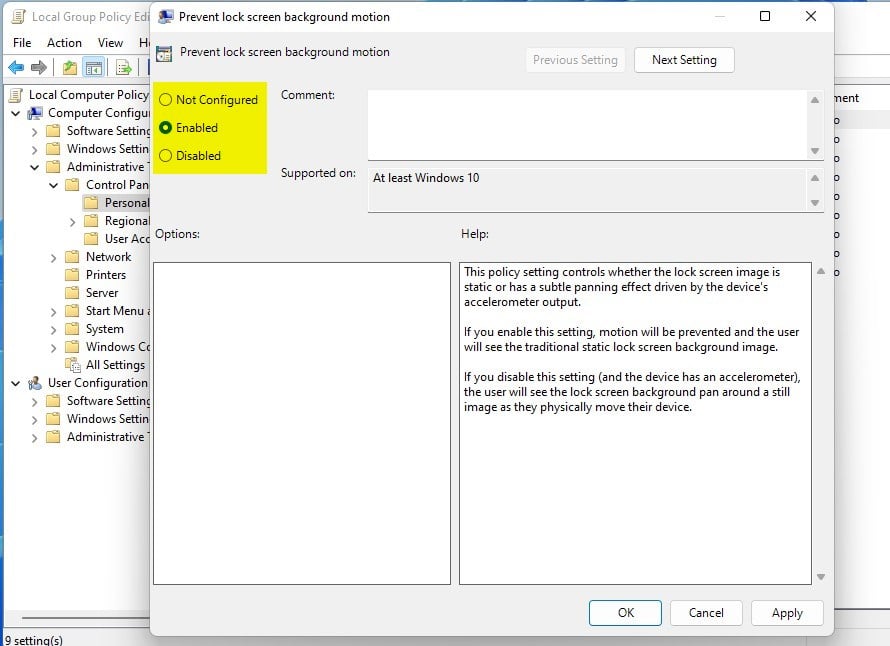
Prevent lock screen background motion. A window with the policy settings opens. - To enable motion for all users: select Not Configured or Disabled, then click OK.
- To disable motion for all users: select Enabled, then click OK.
- Close the Local Group Policy Editor.
The policy usually takes effect after users sign out and back in, or after a restart. Choosing Not Configured is the cleanest way to undo the change, because it returns control to each user's own setting in the Settings app.
Option 3Turn On or Off Lock Screen Motion for All Users Using the Registry Editor
Advanced users can turn Windows 11 lock screen motion on or off for every user account on the computer by editing the Windows Registry. You run specific command-line tweaks in Command Prompt or PowerShell to add or delete the required registry keys. Back up your registry before making changes because incorrect edits can cause system problems.
Open Command Prompt or PowerShell as an administrator first, since changes to machine-wide registry settings need elevated rights. This method works on both Home and Pro editions, which makes it the option for Home users who want a PC-wide change. Sign out or restart afterwards so the lock screen picks up the new value.
To enable motion for all users:
reg delete "HKEY_LOCAL_MACHINE\SOFTWARE\Policies\Microsoft\Windows\Personalization" /v AnimateLockScreenBackground /fTo disable motion for all users:
reg add "HKEY_LOCAL_MACHINE\SOFTWARE\Policies\Microsoft\Windows\Personalization" /v AnimateLockScreenBackground /t REG_DWORD /d 1 /fSaving text as a .reg file and double-clicking it merges the configuration into the registry. Windows asks you to confirm before it merges the file, so click Yes and then OK. Alternatively, manual modification inside the Registry Editor achieves the same outcome. To undo a change, run the opposite set of commands from the list above.
Summary
Windows 11 lock screen motion adds a gentle shifting effect to your background image whenever you tilt your computer. This feature relies on your device hardware to track movement, but you can easily turn it off using the Settings app, Group Policy, or the Registry Editor if you prefer a static picture.- The lock screen shows when you start or lock your PC.
- If your device has an accelerometer, the lock screen background can move slightly as you move your device.
- You can turn off this moving background if you prefer a still image.
- Use the Settings app to change this for just your user account.
- Administrators can use the Group Policy Editor to control this for all users.
- Advanced users can edit the Windows Registry to enable or disable this feature.
- Some options require administrator rights.
- Choose the method that works best for you to customize how your lock screen looks in Windows 11!
Have a question about this guide?
Answered by AI from this guide. Good questions may be added to this page — please don't include personal details.
Did this guide fix your problem?

About the Author
Richard
Tech Writer, IT Professional
Richard is a writer at Geek Rewind who turns complex IT tasks into clear, step-by-step guides. He draws on years of hands-on experience in system administration and enterprise IT operations, focusing on Windows, Linux and WordPress: the problems people actually run into, and the fixes that work. His server and WordPress guides come from systems he runs himself. Richard builds and maintains the platform behind Geek Rewind, from its Ubuntu servers and Nginx configuration to its custom WordPress plugins. Many new tutorials start with readers' questions, and he's always glad to answer them in the comments.
No comments yet — be the first to share your thoughts!