See System and Reserved Storage Usage in Windows 11

- 11 steps
- Needs administrator rights
- Includes a restart or sign-out
System and reserved storage in Windows 11 is the part of your drive that Windows keeps for itself. It covers system files, the page file, the hibernation file, restore points, and a block of space held back for updates. To see it, open Settings System Storage, select Show more categories, then select System & reserved.
The page shows a total and splits it into lines such as System files and Reserved storage. Reading it takes under a minute. It needs no administrator rights and no restart, and it changes nothing on your PC.
This post shows where the page is, what each line means, and what to do when the page is missing or the number looks too large.
System and reserved storage is the part of your drive that Windows keeps for itself, covering system files, the page file, hibernation file, restore points, and reserved storage for updates. To see it, open Settings, select System, then Storage, select Show more categories, and select System & reserved. The page lists a total and a line for each component.
What system and reserved storage means
Windows counts everything it needs to run, update, and recover under one label. It is not a folder you can open. It is a total of several items, some of which are hidden from File Explorer by default.
These are the items you will usually see:
- System filesthe Windows installation itself, including core files, drivers, and the component store (the folder where Windows keeps copies of its own files for updates and repairs).
- Reserved storagespace Windows sets aside so updates, temporary files, and system caches have room even when your drive is nearly full.
- Virtual memorythe page file (pagefile.sys), which Windows uses as overflow when your physical memory fills up.
- Hibernation filehiberfil.sys, a copy of memory written to disk when the PC hibernates. This line appears only when hibernation is turned on.
- System Restorerestore points, which are snapshots Windows can roll back to if an update or driver causes trouble.
The exact list depends on your hardware and settings. A desktop with hibernation off will not show the hibernation line, for example.
What reserved storage does
Reserved storage is a fixed block of drive space that ordinary files cannot use. Windows holds it so a feature update or cumulative update can always install. A feature update is a larger yearly upgrade, and cumulative updates are the regular fixes. When free space runs low, Windows draws on this block for update files and clears temporary data from it.
Microsoft introduced the feature in Windows 10 version 1903, and Windows 11 carries it forward. It is usually on for PCs that shipped with Windows 11 and for clean installs. Its size varies. Adding optional features or extra display languages can make it larger.
You cannot free this space by deleting files, and Storage Sense does not shrink it. If you need the full detail on checking it, see how to check reserved storage in Windows 11.
See system and reserved storage in Settings
These steps show how much system and reserved storage Windows 11 is using, and which items make up the total. The labels match current Windows 11 releases. Older builds may order categories differently.
- Open Settings. Press Win+I. You can also right-click Start and select Settings. The Settings window opens with a list of categories on the left.

Start Menu - Select System. It is the first item in the left pane. The right pane shows display, sound, and other system options.
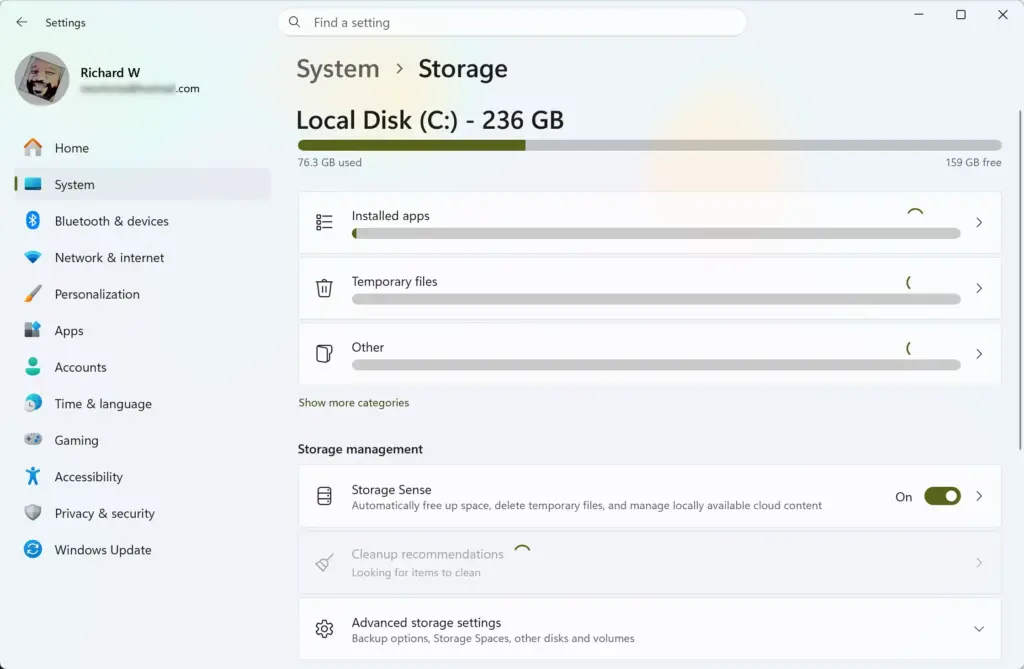
Settings › System › Storage - Select Storage. Scroll down the right pane if you do not see it. Windows scans your drive and shows a bar with the used and free space for your C: drive. The scan can take a few seconds, and the category numbers fill in as it finishes.
- Wait for the scan to finish. The category list below the bar shows a few entries, such as Apps & features and Temporary files. Selecting anything before the numbers settle can show an incomplete list.
- Select Show more categories. The link sits just under the short category list. The list expands to include entries that were hidden, such as System & reserved.
- Select System & reserved. The entry shows a size on the right. A page opens with a total at the top and a line for each component.
- Read each line. Compare System files, Reserved storage, Virtual memory, Hibernation file, and System Restore. The biggest number is where your space goes.
- Select the back arrow to leave. It sits at the top left of the page. Nothing was changed, so there is nothing to save or undo.
How to read the numbers
System files is normally the largest line on a healthy PC. It grows over time as updates add new component versions. A moderate size is normal and not a sign of a problem.
Next, check the smaller lines more closely. A large one there is a better clue to a problem. A hibernation file can take up a large share of drive space on a PC with plenty of RAM. The file is roughly as big as the RAM you have.
A restore point store can grow if System Restore has plenty of room to use. A large page file often means Windows has run short of memory and is leaning on the drive to make up the gap.
The numbers on this page are a snapshot. They change after a Windows update, after you install a large app, and after hibernation settings change. Check again after your next cumulative update (the regular bundle of Windows fixes) if you want to see how much the total moves.
Check whether reserved storage is turned on
- Right-click Start. A menu of system tools opens.
- Select Terminal (Admin). A User Account Control prompt appears. Select Yes. If you are not signed in as an administrator, Windows asks for an administrator password.
- Type the command below and press Enter. It asks Windows to report the current state.
DISM.exe /Online /Get-ReservedStorageStateThe output says that reserved storage is either enabled or disabled. This command only reads the state. It does not change it.
If System & reserved is missing or looks wrong
Several things can make the page behave differently than the steps above describe. Work through these in order.
The category is not in the list
The short list on the Storage page hides some categories. Select Show more categories to expand it. If the link is missing, the scan may still be running. Wait for the numbers to settle, then look again.
If the entry still does not appear, close Settings and reopen it. Windows rebuilds the list on each visit. Menu labels and the order of categories can differ between Windows 11 versions, so the entry may sit lower than you expect.
The Reserved storage line is missing or shows zero
The page lists reserved storage only when the feature is active. A PC that was upgraded from an older Windows version may not have it turned on. Run the DISM check above to confirm whether it is enabled.
The line can also read lower right after you disable the feature and restart. If the DISM output says enabled but the page shows no line, restart the PC and reopen the page. If the mismatch continues, check the state again after your next Windows update. If it still does not match, the cause is unclear and Windows support is the next place to ask.
The Storage page is slow or stuck
The Storage page scans the drive each time you open it. On a nearly full or slow drive, the scan can take a minute or more. Leave the window open and wait before you retry.
If the page never fills in, damaged system files can be the cause. Running the System File Checker in Windows 11 scans for corrupted protected files and repairs them. Treat the System File Checker as a check, not as a way to shrink the number.
The numbers do not match File Explorer
File Explorer shows only what it can see. The page file, hibernation file, and restore point data are hidden or protected, so adding up visible folders will never match the Storage page. Windows also counts reserved storage even though no folder holds it.
Trust the Storage page for the full total. Use File Explorer for your own files and folders.
Reduce what System & reserved is using
You cannot delete system files by hand, and you should not try. You can adjust some of the components that feed the total. Each change below needs administrator privileges and is easier to reverse than a deletion, but make one change at a time so you can tell what helped.
- System Restoreopen System Properties, go to the System Protection tab, select your drive, and choose Configure. The slider limits how much space restore points use. Lowering it means fewer old restore points are kept. You can raise it again later.
- Hibernation fileif you never hibernate, turning hibernation off removes the file. Fast startup, a setting that makes Windows start quicker after shutdown, depends on hibernation. Turning hibernation off may make the PC start a little more slowly. You can turn hibernation back on at any time.
- Virtual memoryleave the page file on automatic. Windows resizes it as needed, and turning it off can cause apps to crash when memory runs out.
- Reserved storageturning it off frees the block, but your updates lose the safety margin described earlier.
Before changing any of these, clear what you can without touching Windows system files. Temporary files, the Recycle Bin, and Downloads are listed on the same Storage page and are safe to review. Turning on Storage Sense clears temporary files on a schedule. Note that a previous Windows installation left over after a feature update appears under Temporary files, not under System & reserved.
What counts as unusually large
No single figure applies to every PC. System files grow with the number of installed updates, optional features, and languages. The hibernation file scales with installed memory. The page file scales with how hard your PC works.
A better test is to compare the lines. If one line is far larger than you expect for your hardware, start with that one. If System files alone dominates and the other lines are small, that is typical, and the practical fix is more drive space rather than deleting anything.
What to do next
If the figures look right, you can stop here. Check again after your next feature update, since the reserved block and system files can change size. If your drive is close to full, move on to Storage Sense to clear temporary files automatically. Use the DISM state check before you decide to turn reserved storage off.
Have a question about this guide?
Answered by AI from this guide. Good questions may be added to this page — please don't include personal details.
Did this guide fix your problem?

About the Author
Richard
Tech Writer, IT Professional
Richard is a writer at Geek Rewind who turns complex IT tasks into clear, step-by-step guides. He draws on years of hands-on experience in system administration and enterprise IT operations, focusing on Windows, Linux and WordPress: the problems people actually run into, and the fixes that work. His server and WordPress guides come from systems he runs himself. Richard builds and maintains the platform behind Geek Rewind, from its Ubuntu servers and Nginx configuration to its custom WordPress plugins. Many new tutorials start with readers' questions, and he's always glad to answer them in the comments.
No comments yet — be the first to share your thoughts!