Turn On Single-Click to Open Items in File Explorer

- 20 steps
- Needs administrator rights
Single-click to open items in File Explorer changes Windows 11 so that one click opens a file or folder instead of the default two. The setting lives in the File Explorer Options window, on the General tab, under Click items as follows.
The change takes under a minute and needs no restart or administrator account. This guide covers Windows 11, including how to select files without opening them, what the underline options do, and how to switch back.
To turn on single-click to open items in File Explorer on Windows 11, press Win+E, select See more (the three-dot button), then select Options. On the General tab, under Click items as follows, select Single-click to open an item (point to select), then select Apply and OK. No restart or administrator account is needed.
What single-click changes in File Explorer
By default, Windows 11 uses a click to select an item and a double-click to open it. With single-click turned on, pointing at an item highlights it, and one click opens it. The behavior works like a link on a web page.
The setting applies to File Explorer windows and to icons on your desktop. It does not change the Start menu, the taskbar, or the navigation pane (the folder list on the left of File Explorer). The navigation pane already opens locations with one click.
Single-click also suits touchpads, trackballs, and anyone who finds double-clicking uncomfortable. The trade-off is that you can open things by accident, because selecting a file now means pointing at it, not clicking it. The section on selecting files below covers how to handle that.
Before you start
The steps below use Windows 11 with the current File Explorer, which has a command bar along the top and a three-dot menu. On Windows 10, the same window opens from the View tab by selecting Options. The options inside the window are the same.
How to turn on single-click to open items in File Explorer
These steps turn on single-click to open items in File Explorer by changing one option in the File Explorer Options window:
- Open File Explorer. Press Win+E, or select the folder icon on the taskbar.
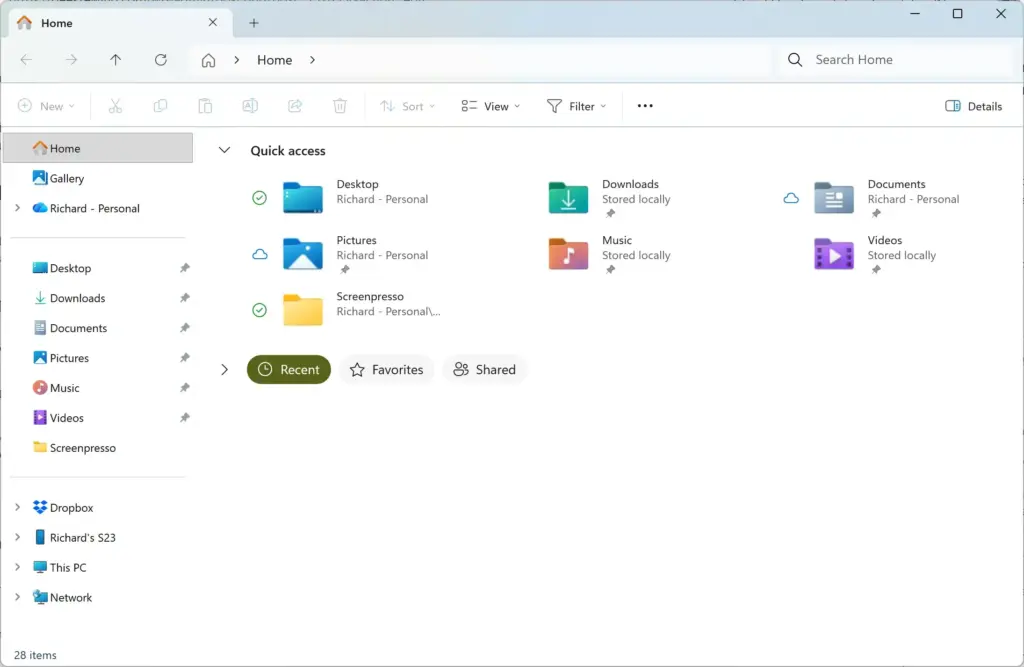
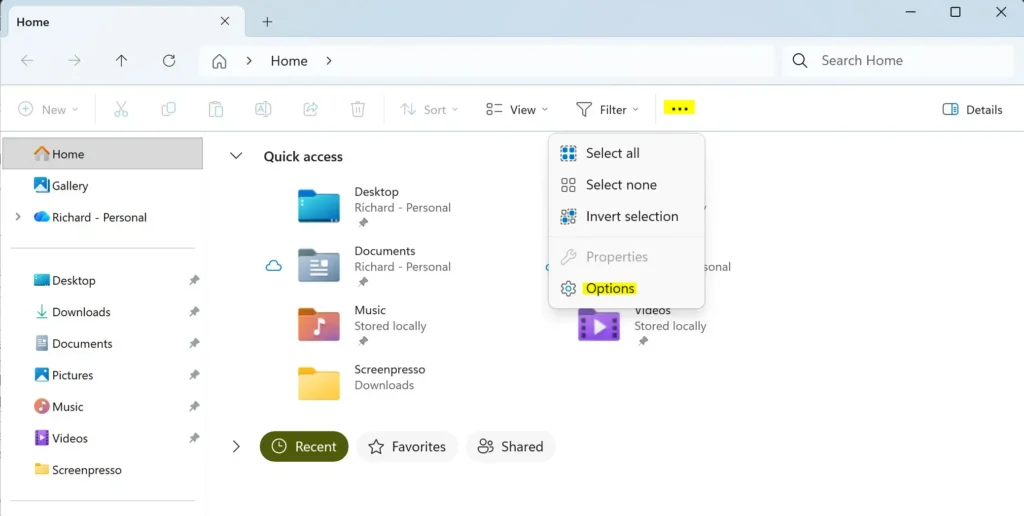
Windows 11 File Explorer showing Dropbox folder in sidebar. - Select See more. This is the three-dot button at the right end of the command bar, and a menu opens below it.
- Select Options. The File Explorer Options window opens with the General tab showing.
File Explorer - Find the Click items as follows section. It sits in the middle of the General tab, below Browse folders.
- Select Single-click to open an item (point to select). The radio button fills in, and the two underline options below it stop being greyed out.
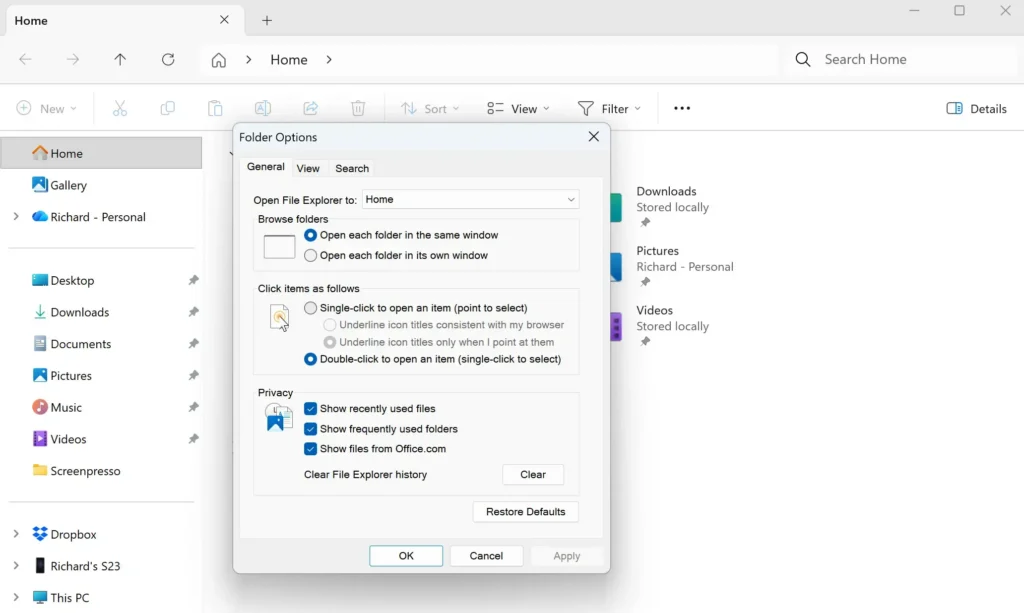
File Explorer - Choose an underline option if you want one. Select Underline icon titles consistent with my browser or Underline icon titles only when I point at them. The next section explains the difference.
- Select Apply. The change takes effect straight away in open File Explorer windows.
- Select OK. The File Explorer Options window closes.
- Point at a file or folder in File Explorer. The item highlights as soon as the pointer rests on it.
- Click the item once. A folder opens, or a file opens in its default app.
If you cannot see the three-dot button in step 2, the File Explorer window is probably too narrow, and Windows hides some command bar buttons. Drag the window wider or maximize it, and the button returns. You can also use one of the other routes below.
Other ways to open File Explorer Options
The window opens from places other than File Explorer. Use these if the command bar is missing or you want a faster route. The first route uses Start search. Follow these steps:
- Select Start. The Start menu opens with the search box ready.
- Type File Explorer Options. The matching result appears at the top of the list.
- Press Enter. The File Explorer Options window opens on the General tab.
The second route uses the Run box, a small window for typing commands. It helps on a PC where Start search is slow:
- Press Win+R to open the Run box.
- Type
control folders, then press Enter. The File Explorer Options window opens.
From either route, continue at step 4 of the main list above.
Choose how icon titles are underlined
When single-click is on, Windows offers two ways to underline file and folder names. The underline is a visual hint that an item opens with one click. It does not change what the click does.
- Underline icon titles consistent with my browser: Windows underlines every name, the same way a browser underlines links. The underline stays on all the time.
- Underline icon titles only when I point at them: Names are plain until the pointer rests on them, then the underline appears. This keeps folders with many files looking clean.
Both options stay greyed out until you select Single-click to open an item (point to select). If you cannot click them, check that the single-click radio button is selected first. With double-click mode on, Windows ignores the underline choice.
The underline setting affects the names under icons and in the list views. It does not change the font, size, or color of file names.
How to select files without opening them
- Point to select a single item. Rest the pointer on a file or folder, and Windows highlights it. You can then right-click it or press a keyboard shortcut such as Ctrl+C.
- Drag a selection box. Click an empty area of the folder, hold the button, and drag across the items you want. The box selects every item it touches.
- Turn on item check boxes. Select View on the command bar, choose Show, then select Item check boxes. A check box appears when you point at an item, and you can tick several without opening any.
- Select everything. Press Ctrl+A to select all items in the current folder.
Item check boxes are the most reliable method for picking scattered files. They also work with a touchscreen. If you copy and move files often in single-click mode, turn them on and leave them on.
To rename an item, point at it so it highlights, then press F2. You can also right-click the item and choose Rename. If the right-click menu has more or fewer entries than you want, see how to customize which items appear in the File Explorer right-click menu in Windows 11.
How single-click works with tabs and the navigation pane
Single-click mode combines well with File Explorer tabs. A middle-click (pressing the scroll wheel) on a folder still opens it in a new tab, and a single click opens the folder in the current tab. The page on middle-clicking to open a folder in a new tab in File Explorer covers that behavior. For another route, see how to open folders in new tabs in Windows 11 File Explorer.
Once you have several tabs open, switching between tabs in Windows 11 File Explorer saves time with the keyboard.
The navigation pane is separate from this setting. A click on a folder name there opens it either way. If you want the arrow beside a folder to expand it with one click, read how to turn Expand to open folder on or off in the navigation pane.
If the option is missing, greyed out, or does not stick
Most problems come down to one of a few causes. Check these in order.
- The underline options are greyed out. This is normal while double-click mode is selected. Select Single-click to open an item (point to select) and they become available.
- The three-dot button is missing. Widen the File Explorer window, or open the options from Start search or the Run box as described above.
- The setting reverts after you close the window. You probably selected OK without choosing the radio button. You may also have closed the window with the X button. Reopen File Explorer Options, select the single-click option (the round circle beside it), then select Apply and OK.
- Your work or school PC may lock this choice. An administrator may manage File Explorer settings on that device. If the radio buttons do not respond, ask your IT department which policy applies.
- The setting is correct, but a different account still double-clicks. Each user account has its own click behavior. Sign in as that user and repeat the steps.
If File Explorer behaves oddly after the change, such as a window that does not refresh, close all File Explorer windows and open one again. A restart of Windows is not required for this setting.
How to switch back to double-click
The change is fully reversible, and no files or folders are affected. Use these steps to return to the default behavior:
- Open File Explorer. Press Win+E.
- Select See more. This is the three-dot button on the command bar.
- Select Options. The File Explorer Options window opens on the General tab.
- Select Double-click to open an item (single-click to select). This radio button sits in the Click items as follows section.
- Select Apply, then select OK. A click selects an item again, and a double-click opens it.
The underline options turn grey again once double-click mode is selected. Your earlier underline choice may still be saved, so it applies if you switch back to single-click later.
What to do next
Single-click works best when you also control where File Explorer starts. Read how to change the File Explorer default folder to open in Windows 11 to set that. If you use cloud storage, making File Explorer open to OneDrive is the closest related change. To adjust the General tab further, return to the File Explorer Options window and review the Browse folders choices.
Have a question about this guide?
Answered by AI from this guide. Good questions may be added to this page — please don't include personal details.
Did this guide fix your problem?

About the Author
Richard
Tech Writer, IT Professional
Richard is a writer at Geek Rewind who turns complex IT tasks into clear, step-by-step guides. He draws on years of hands-on experience in system administration and enterprise IT operations, focusing on Windows, Linux and WordPress: the problems people actually run into, and the fixes that work. His server and WordPress guides come from systems he runs himself. Richard builds and maintains the platform behind Geek Rewind, from its Ubuntu servers and Nginx configuration to its custom WordPress plugins. Many new tutorials start with readers' questions, and he's always glad to answer them in the comments.
No comments yet — be the first to share your thoughts!