How to Make Each File Explorer Window Run Separately in Windows 11

Running each File Explorer window separately in Windows 11 treats every folder window like its own standalone program, so a single crash does not freeze your whole desktop. By default, all your folder windows share one process. If one hangs, the others often hang with it. This built-in setting separates them, which helps when you keep several folders open at once.
You can turn it on by checking Launch folder windows in a separate process in the File Explorer Options dialog. The setting is available in both Windows 11 Home and Pro, and it is off by default. Once it is on, you can keep working in other windows while one stops responding. The trade-off is that each window uses a bit more memory.
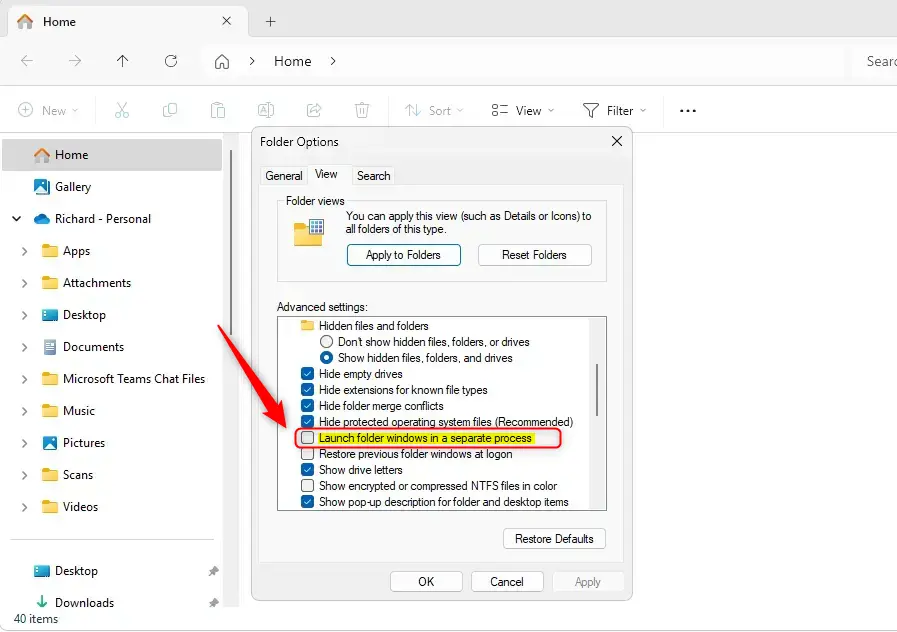
Open File Explorer , click the three-dot menu, select Options, go to the View tab, and check Launch folder windows in a separate process. Each folder window afterward runs independently, so a crash in one window won’t freeze the others.
Why Use Separate Processes for File Explorer?
- Better Stability: If one window crashes, the others keep working, so you do not lose your place in every open folder.
- Easy to Fix: You can close just the problem window without losing everything. This helps most during a long file copy or when a network folder hangs.
- Simple to Turn On or Off: You can choose how you want it to work, and you can switch it back at any time. The only cost is slightly higher memory use with many windows open.
How to Turn On Separate Processes Using File Explorer Settings
The simplest way is through File Explorer ’s own settings. Open File Explorer, click the three-dot menu at the top, open Options, go to the View tab, and check the box that says Launch folder windows in a separate process. Each folder window you open after that runs in its own process. The steps below walk through it.
- Open File Explorer by clicking the folder icon on your taskbar or pressing
Windows + Eon your keyboard. A File Explorer window should open. - Click the three dots (See more) button in the command bar at the top, then select Options. The Folder Options window opens. In some builds the dialog is titled File Explorer Options, but it is the same dialog.
- In the Folder Options window, click the View tab. You will see a long list under Advanced settings.
- Scroll through the Advanced settings list until you find Launch folder windows in a separate process, and put a checkmark in the box next to it. The list is long, so you may need to scroll a fair way down.
- Click OK to save your changes. Close any File Explorer windows that are already open and open new ones, so the new windows start under the new setting. If you want to undo this later, come back to the same box, clear the checkmark, and click OK.
How to Turn On Separate Processes Using the Windows Registry (Advanced)
This is useful if you manage several PCs or want to script the change. Registry Editor works the same way in Home and Pro.
This method requires opening Registry Editor, going to 🗝️HKEY_CURRENT_USER\
- Press
Windows + R, typeregedit, and press Enter to open the Registry Editor. Approve the User Account Control prompt if it appears. Before you change anything, you can use File then Export to save a backup copy. - Navigate to this folder path:
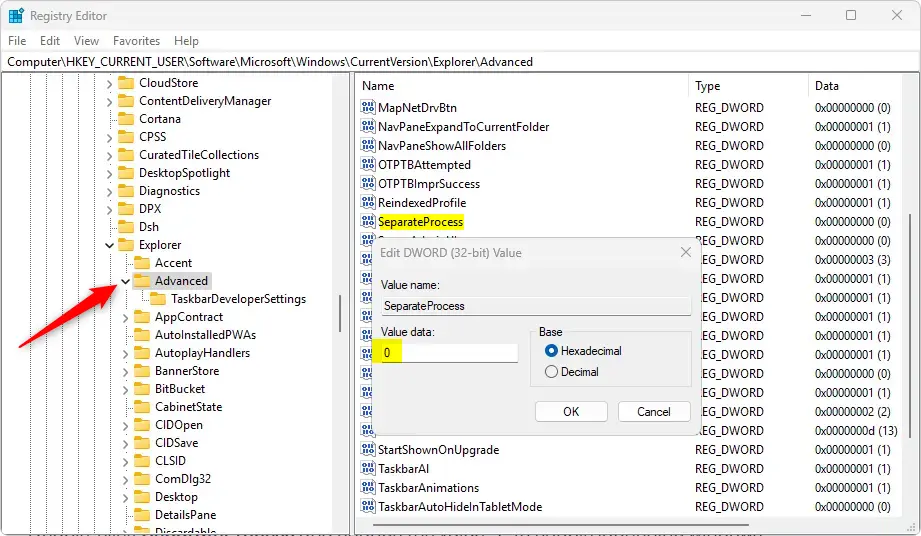
HKEY_CURRENT_USER\Software\Microsoft\Windows\CurrentVersion\Explorer\Advanced. You can paste it into the address bar at the top of Registry Editor, or expand the folders in the left panel one by one. - Right-click the Advanced folder in the left panel, choose New, then DWORD (32-bit) Value. A new entry appears in the right panel with its name ready to edit. If a SeparateProcess entry already exists in the right panel, skip this step and the next one and double-click that entry instead.
- Name the new value
SeparateProcessand press Enter. Spell and capitalize it exactly as shown. - Double-click the SeparateProcess entry. In the Value data box, enter
1to turn the feature on, or0to turn it off. - Click OK and close the Registry Editor. The entry in the right panel should now show the value you entered.
- Restart your computer to apply the changes. After the restart, open the View tab in Folder Options as described above. The Launch folder windows in a separate process box should now match the value you set.
Summary
- Turning on separate processes helps keep File Explorer windows from crashing all at once. Each new folder window runs on its own.
- You can easily enable this in File Explorer ’s Folder Options, on the View tab, or by editing the Registry.
- Always back up your system, or at least export the Registry key, before changing the Registry.
- This setting makes your file browsing more stable and responsive, at the cost of a little extra memory per window.
- You might need to restart your PC for the setting to work, especially after a Registry change. To reverse it, clear the checkbox or set the value back to the “off” number.
Running each File Explorer window as a separate process stops one frozen folder window from taking down your entire desktop. You can turn it on quickly using the built-in Folder Options, or with a short change in the Windows Registry. Either way you get a more stable PC, and you can undo it just as easily.
Have a question about this guide?
Answered by AI from this guide. Good questions may be added to this page — please don't include personal details.
Did this guide fix your problem?

About the Author
Richard
Tech Writer, IT Professional
Richard is a writer at Geek Rewind who turns complex IT tasks into clear, step-by-step guides. He draws on years of hands-on experience in system administration and enterprise IT operations, focusing on Windows, Linux and WordPress: the problems people actually run into, and the fixes that work. His server and WordPress guides come from systems he runs himself. Richard builds and maintains the platform behind Geek Rewind, from its Ubuntu servers and Nginx configuration to its custom WordPress plugins. Many new tutorials start with readers' questions, and he's always glad to answer them in the comments.
No comments yet — be the first to share your thoughts!