How to Use Google Drive Files Offline on Windows 11

Google Drive offline access on Windows 11 lets you open, edit, and save your cloud files even when your PC has no internet connection. The Google Drive for Desktop app keeps local copies of the files and folders you choose on your hard drive, so you can keep working anywhere.
Changes you make while offline sync back to your cloud storage once your PC reconnects to the internet. Mark the files you need as available offline in File Explorer before you leave home. Files you have not marked will not open without a connection.
Install and open Google Drive for Desktop, then open File Explorer and navigate to Google Drive in the left sidebar. Right-click the file or folder you want to access offline, select Show more options, then click Offline access Available offline A green check mark appears when the file downloads to your PC, and you can open it without an internet connection.
What is Google Drive?
Google Drive is a cloud storage service (online server space) for saving files securely. Its collaboration tools also let teams share documents and edit spreadsheets together in real time. Offline access is the part that makes it usable when you are away from a network.
Why Use Google Drive Offline?
- Work anywhere: You can open and edit your files even without internet. This is great for flights, commutes, or places with a poor connection.
- Save internet data: Once a file is stored on your PC, you do not need to download it again and again. This helps on a metered or mobile hotspot connection.
- Stay productive: Keep working without interruptions from slow or lost internet. Your edits upload in the background later.
How to Access Google Drive Files Offline on 🪟 Windows 11
To set up Google Drive offline access on Windows, you need the Google Drive for Desktop app. It must be installed and signed in to your Google account. Open File Explorer by pressing the Win plus E on your keyboard. Then find your Google Drive in the left sidebar. From there you choose which files and folders to keep on your computer for times when you have no internet connection.
One thing to check first: the Available offline option only appears when the app is set to stream files. If you set it to mirror files instead, everything is already stored on your PC and the option is not shown. You can see which mode you use under the Google Drive icon Settings Preferences
- Open File Explorer . Click the folder icon on your taskbar or press
Windows + Eon your keyboard. A File Explorer window opens with a list of locations on the left. - Find Google Drive. In the left sidebar of File Explorer , click Google Drive. It may be listed on its own, under Quick Access, or under This PC with a drive letter. Open the My Drive folder to see your files. If you cannot find Google Drive at all, check that the app is running and that you are signed in.
- Choose a file or folder. Find the file or folder you want to use offline. Picking a whole folder is quicker if you need everything inside it.
- Right-click the file or folder. On the menu that appears, click Show more options if you see the short Windows 11 menu. You can also press Shift+F10 with the item selected. The full classic menu now opens.
- In the full menu, go to Offline access Available offline The file or folder starts downloading to your PC. When it finishes, a green check mark appears on its icon to show it is stored locally.
Both the taskbar folder icon and the Win+E shortcut open File Explorer . Google Drive sits in the left sidebar alongside your local storage, so you can browse cloud content the same way you browse folders on your PC.
If you do not see Offline access in the full menu, you probably right-clicked something outside the Google Drive folder. Another cause is that the app is in mirror mode, as described above.
Large folders can take a while, so stay online until the check marks appear on the files you need.
Google Docs, Sheets, and Slides files are a special case. They are stored as shortcuts that open in your browser. To edit them offline you also need Google's Docs Offline browser extension, and offline mode must be turned on in your Google Drive settings in the browser.
While you are offline, changes to your documents save locally on your PC. When you reconnect to the internet, the app syncs them to the cloud in the background automatically. You do not need to do anything. If the same file was changed somewhere else in the meantime, Drive may keep both versions, so check the file names after you reconnect.
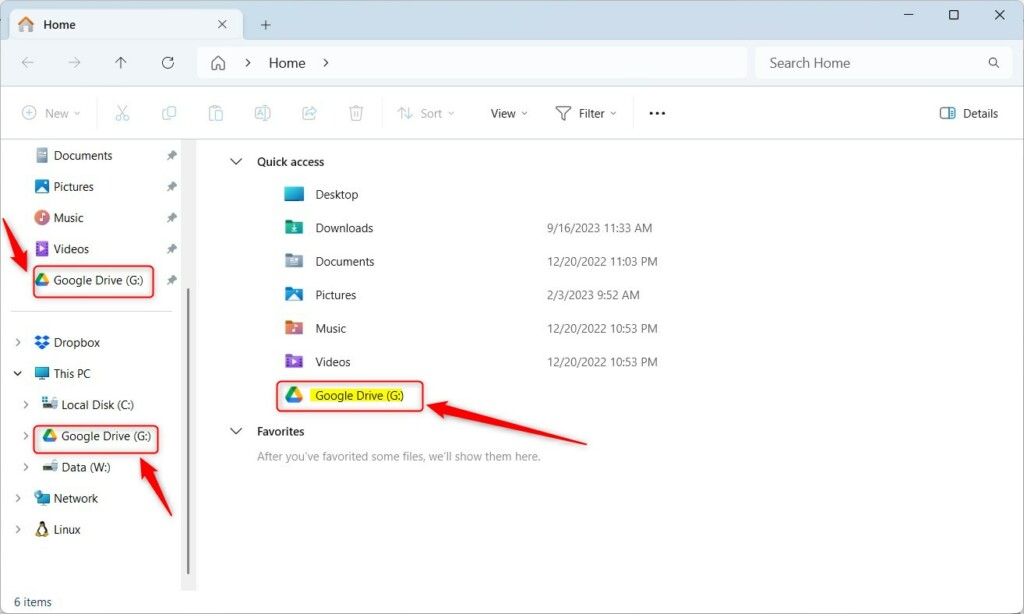
Google Drive folder inside File Explorer on Windows 11
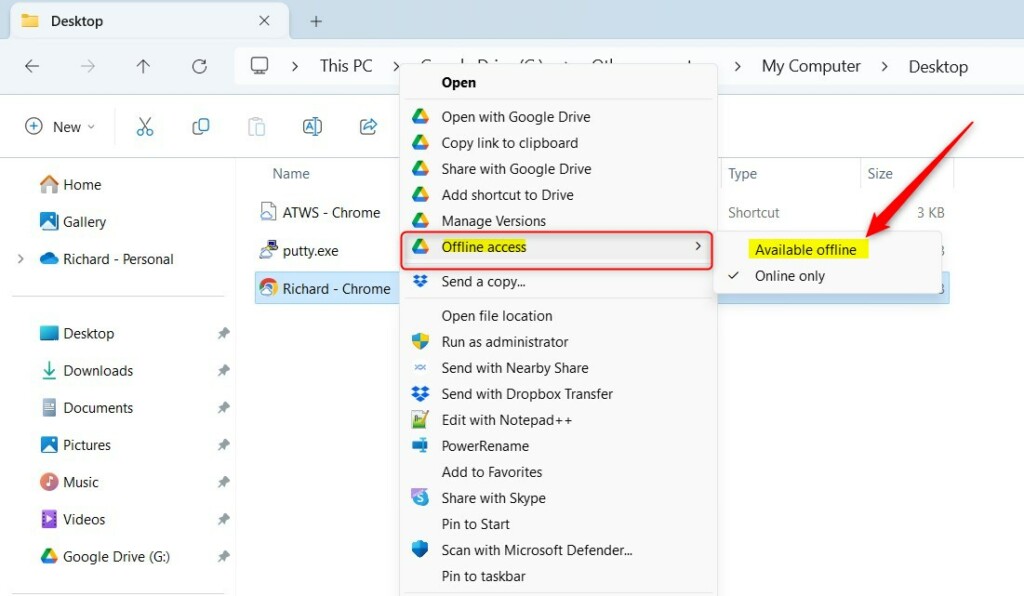
Select "Offline access" > "Available offline" from the menu
How to See Your Offline Files
You can check which files are saved for offline use from the Google Drive icon in your taskbar near the clock. The app's window changes from time to time, so the exact labels may differ slightly depending on your version. This view shows what is stored on your local hard drive, so you know what you can open without an internet connection.
You can also check in File Explorer. Files stored on your PC show a green check mark. Files that exist only in the cloud show a cloud icon.
- Click the Google Drive icon in your taskbar's hidden icons area (near the clock). If you do not see it, click the small up arrow first. A small Drive panel opens.
- Choose Settings. This is usually the gear icon at the top of the panel. A menu opens, and Preferences is one of its options.
- Go to Offline files to see and manage your offline files. If your version does not show that entry, use the File Explorer check marks to see what is stored locally.
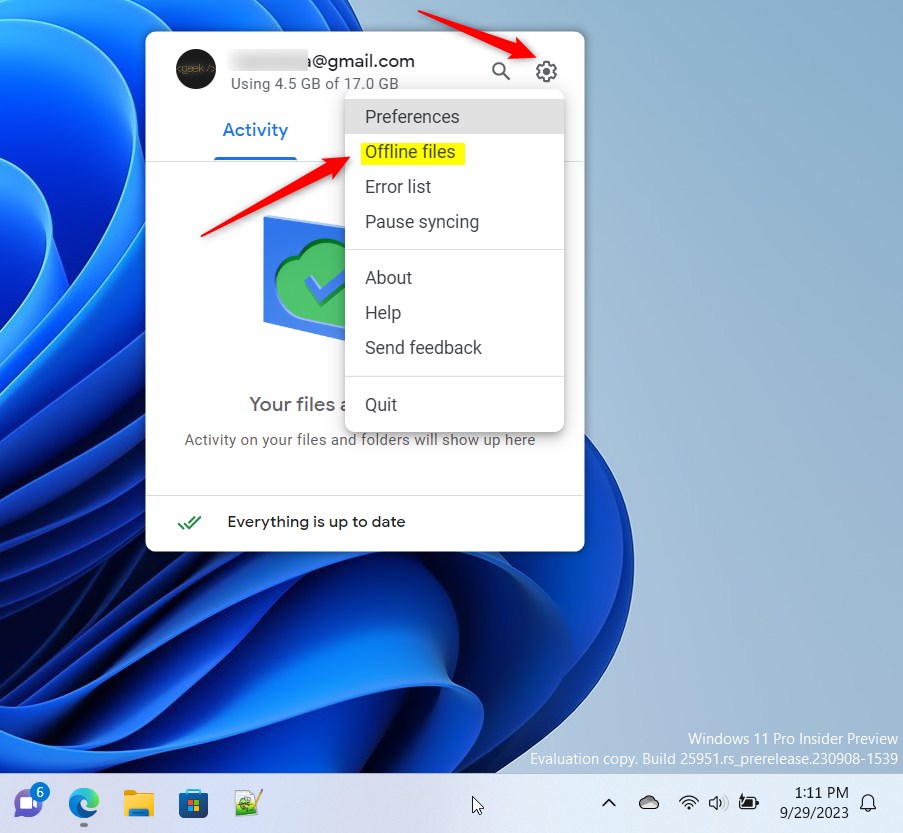
Manage your offline files from Google Drive settings
Tips to Save Space
This matters most on laptops with small SSDs. To check how much room you have left, open Settings System Storage in Windows 11. These steps help you get space back:
- Remove offline access from files you don't need offline anymore. Right-click the file, click Show more options if needed, go to Offline access, and click Not available offline. The file stays safe in your cloud storage, and the local copy is removed. You can turn offline access back on whenever you like.
- Clear Google Drive's cache in its settings. The location of this option depends on your app version, so look through the Preferences window. Let any pending uploads finish first, because unsynced changes could be lost.
Summary
- You can work on Google Drive files without internet by setting them to be available offline, using the Google Drive for Desktop app.
- This is helpful when traveling or when your internet is slow or not working. Set up your files before you lose your connection.
- Changes made offline will automatically sync once you're back online.
- Keep an eye on your storage space and remove offline files you don't need.
Using Google Drive offline lets you keep working on your documents when your internet drops or you are traveling. Any changes you make while offline update in the cloud automatically as soon as your computer reconnects. Watch your hard drive space so you do not run out of room, and remove offline access from files you no longer need.
Was this guide helpful?

About the Author
Richard
Tech Writer, IT Professional
Richard is a writer at Geek Rewind who turns complex IT tasks into clear, step-by-step guides. He draws on years of hands-on experience in system administration and enterprise IT operations, focusing on Windows, Linux and WordPress: the problems people actually run into, and the fixes that work. His server and WordPress guides come from systems he runs himself. Richard builds and maintains the platform behind Geek Rewind, from its Ubuntu servers and Nginx configuration to its custom WordPress plugins. Many new tutorials start with readers' questions, and he's always glad to answer them in the comments.



No comments yet — be the first to share your thoughts!