How to Enable or Disable Delete Prompts for Cloud Files

Turn the confirmation prompt on or off when deleting online-only cloud files in File Explorer in Windows 11.
To turn off the delete prompt for cloud files in Windows 11, open File Explorer , delete an online-only file, and check “Don’t ask me again” in the confirmation dialog. To turn it back on, use the Registry Editor: go to Computer\🗝️HKEY_CURRENT_USER\
What is File Explorer?
File Explorer is Windows’ built-in file manager. You use it to view, move, copy, and delete files and folders.
Online-only files show up in File Explorer when you enable OneDrive or Dropbox in Windows 11. These files are stored on the internet, not on your computer. File Explorer shows a placeholder, and the content downloads only when you open it.
Why Would You Want This Prompt?
The prompt warns you that deleting an online-only file removes it from this device and from the cloud. You can’t restore it from the local Recycle Bin . You can only get it back from the cloud provider’s recycle bin , for example the OneDrive Recycle Bin .
You can keep the prompt so you see it every time you delete a cloud file. Or you can turn it off to speed up your workflow. The prompt is a confirmation dialog box that appears before the file is removed, so it helps you avoid accidental deletions. If you delete cloud files in bulk, the prompt can get in the way. If several people share your PC, or you sometimes delete by mistake, leave it on.
Method 1Enable or Disable the Delete File Prompt in File Explorer
You control the cloud file delete prompt directly from File Explorer . The setting decides whether you get a warning before deleting files that exist only online.
- Open File Explorer and go to a folder that syncs with your cloud storage.
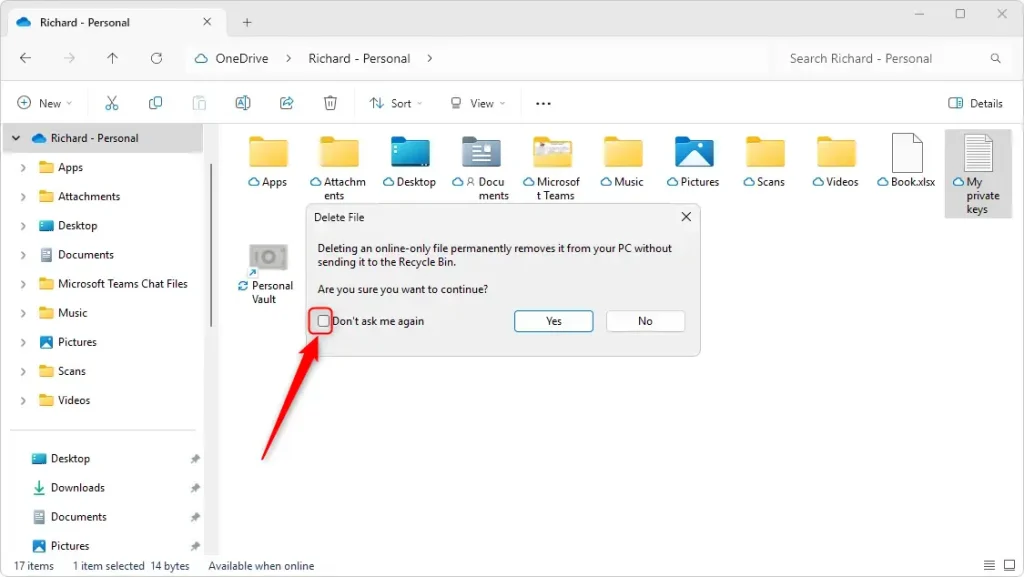
- Select an online-only file and press Delete. You should see a confirmation dialog warning that the file will be removed from this device and from the cloud.
- Look at the bottom of the dialog for a checkbox labeled Don't ask me again. The prompt setting lives here, in the delete confirmation dialog itself. There is no separate toggle for it in File Explorer's main menus.
- Choose what you want:
- To keep getting the prompt: Leave the box unchecked and confirm or cancel the deletion.
- To stop getting the prompt: Check the box, then confirm. Future deletions of online-only files won't ask you to confirm.
Be careful with that checkbox. Once you check it, the dialog no longer appears, so the checkbox isn't there to uncheck later. Checking it also doesn't stop the deletion you are confirming. That file is still deleted.
To get the prompt back after checking the box, use the registry method below. It lets you set the prompt behavior in either direction, so it also works as an undo. I haven't found a documented button in File Explorer that resets this dialog.
Method 2Enable or Disable Cloud File Deletion Prompts Using the Registry Editor
The Registry Editor is an advanced way to control the delete confirmation prompt for cloud files. Use it to turn the prompt back on after checking Don't ask me again, or to turn it off without going through the dialog. It works on both Windows 11 Home and Pro.
A wrong edit in the registry can cause problems that are hard to trace. If a change doesn't seem to take effect, sign out and back in, then test again with an online-only file.
Steps to Follow:
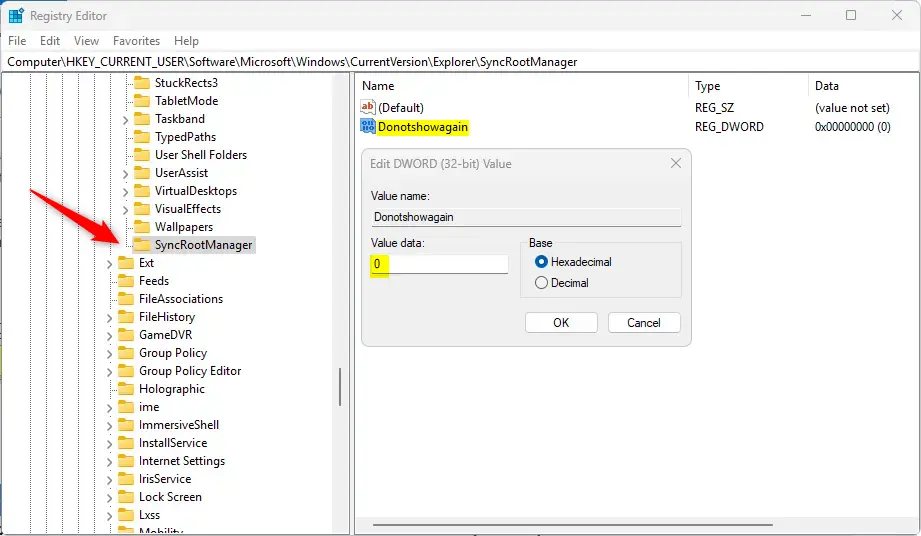
Follow these steps to modify the setting in the Windows Registry. You'll open the Registry Editor and go to a specific folder called SyncRootManager to adjust the settings for syncing files.- Open the Windows Registry and go to this folder path:
Computer\HKEY_LOCAL_MACHINE\SOFTWARE\Microsoft\Windows\CurrentVersion\Explorer\SyncRootManager - Right-click on
SyncRootManagerand selectNew>DWORD (32-bit) Value. - Name the new DWORD
Donotshowagain. - Double-click
Donotshowagainto edit it.- Enter 0: You will always get the cloud file deletion confirmation in File Explorer.
- Enter 1: The confirmation prompt will be disabled.
- ⚠️ ADMIN REQUIRED: You may need to restart your computer for the changes to take effect.
Summary
Managing the cloud file delete prompt in Windows 11 File Explorer gives you control over how you delete files stored only in the cloud. Choosing whether to keep the extra warning helps you protect your important data from accidental deletion.
- The delete confirmation prompt gives you extra protection. It stops you from accidentally deleting important files.
- Turning off the prompt makes your work faster if you delete files often and don't want to be asked each time.
- You can easily turn this feature on or off through File Explorer or the Windows Registry Editor.
- Always back up your registry and create a System Restore point before making registry changes. This protects you if something goes wrong.
- Whether you use prompts or not, knowing how to manage cloud file deletions helps you stay organized in Windows 11.
Did this guide fix your problem?

About the Author
Richard
Tech Writer, IT Professional
Richard is a writer at Geek Rewind who turns complex IT tasks into clear, step-by-step guides. He draws on years of hands-on experience in system administration and enterprise IT operations, focusing on Windows, Linux and WordPress: the problems people actually run into, and the fixes that work. His server and WordPress guides come from systems he runs himself. Richard builds and maintains the platform behind Geek Rewind, from its Ubuntu servers and Nginx configuration to its custom WordPress plugins. Many new tutorials start with readers' questions, and he's always glad to answer them in the comments.
No comments yet — be the first to share your thoughts!