How to Get Notifications on File Changes in OneDrive on Windows 11


OneDrive notifications on Windows 11 pop up when someone edits, renames, or shares a file in your cloud storage. These alerts track changes across your synced folders, so you see updates on shared documents without opening the OneDrive website.
You can turn the pop-ups on or off in the OneDrive app settings or in the Windows 11 notification settings. This guide covers both, plus a registry method for when the app options do not work. Pick the one that fits. Most people only need the first.
Open the OneDrive app, click the cloud icon on your Taskbar , select the gear icon, go to Notifications, and toggle “Notify me when others share with me or edit my shared items” to On. The notifications appear immediately without restarting Windows.
Change settings in the OneDrive app
The OneDrive app has its own notification switches. Using them means you do not have to go through the main Windows Settings app. Which switches you see depends on your OneDrive version, so the labels below may differ slightly on your PC.
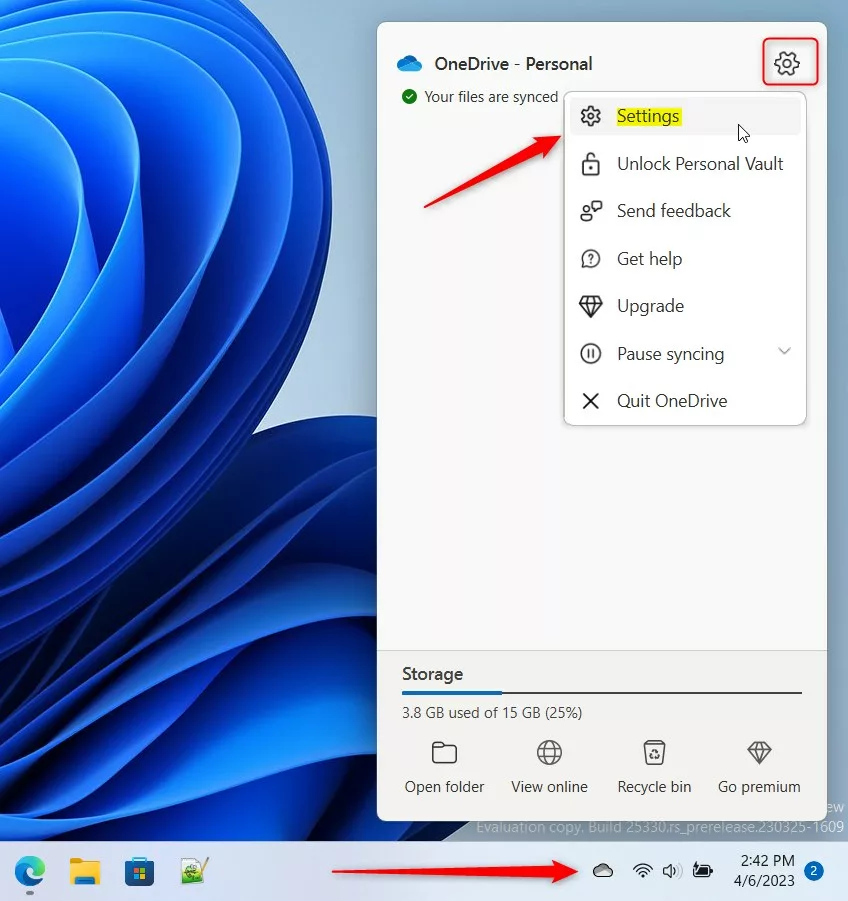
- Click the OneDrive cloud icon on your Taskbar (Taskbar overflow). If you do not see it, click the Show hidden icons arrow first. You should see a panel with your recent sync activity.
- Click the gear icon in the top right corner of the panel and select Settings. The OneDrive settings window opens.
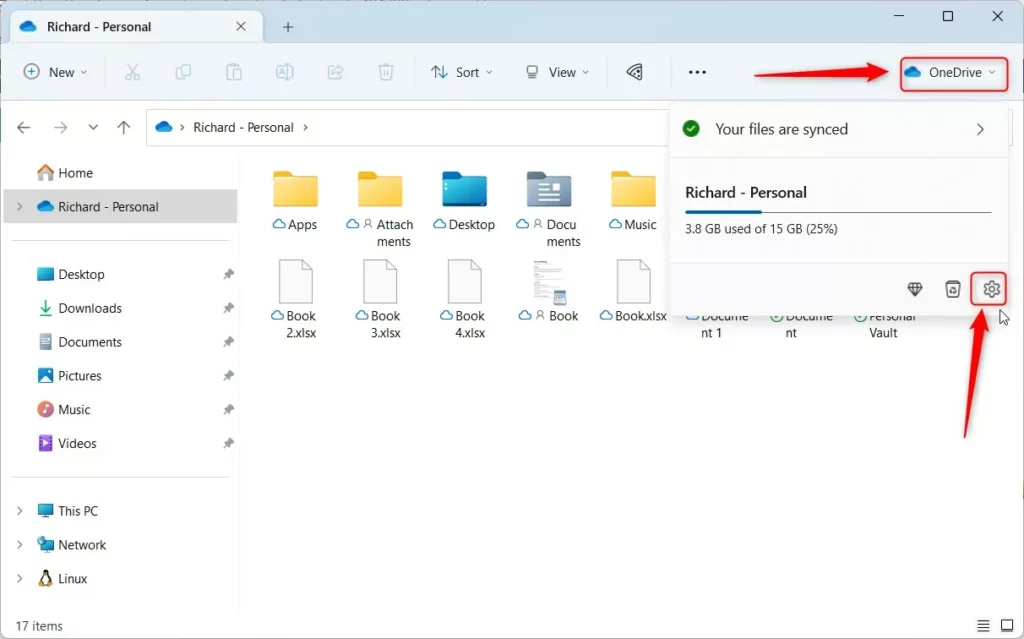
You can also reach the same window from File Explorer . Open your OneDrive folder, click the OneDrive button at the top, and select the Settings gear. This is useful when the Taskbar icon is missing or the panel will not open.
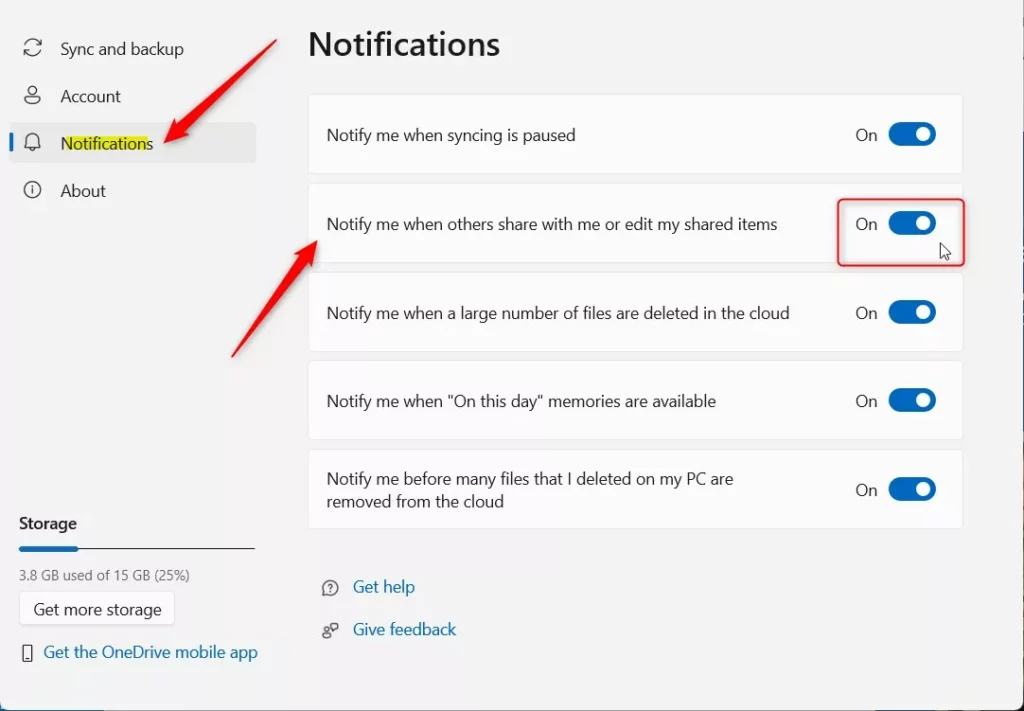
- In the settings window, click Notifications on the left.
- Find the switch for “Notify me when others share with me or edit my shared items.”
- Set it to On to get alerts, or Off to stop them. The change applies right away, with no restart needed.
To undo the change, come back to the same screen and flip the switch again. If you do not see a Notifications entry, make sure you are signed in to OneDrive. The app also needs to be up to date, so check for updates in the Microsoft Store if the option is still missing.
Managing OneDrive Memories and Sync Notifications
OneDrive also sends two other kinds of alerts: sync problems and photo memories. Sync alerts matter more, because they tell you when a file did not reach the cloud. You can control both from the main OneDrive settings by turning the matching notification checkboxes on or off. Open the settings as described above and look through the notification options for the sync and memories entries.
I suggest leaving these on. A file that never uploaded will not be there when you need it on another device. Photo memories are the "on this day" style highlights. They are safe to turn off if you do not want them.
🪟 Windows 11 Notification Center Integration
OneDrive also uses the Windows 11 notification system, so you can manage its pop-up alerts from the Windows Settings app. This works well when you want to silence OneDrive without touching its own settings.
- Open Settings System Notifications
- Scroll down to the list of apps and find OneDrive.
- Click it, then turn the toggle On or Off. If you want OneDrive alerts but fewer interruptions, adjust the banner and sound options here instead of turning it off.
If Do not disturb is on, or Focus is running, Windows hides all pop-ups, including OneDrive's. Check that before you decide that the OneDrive settings are broken.
Change settings using the Registry
This is for advanced users. A wrong edit can cause problems, so export the key first (right-click it in Registry Editor and choose Export) so you have a backup to restore. Sign in with an administrator account before you start.
- Open the Windows Registry.
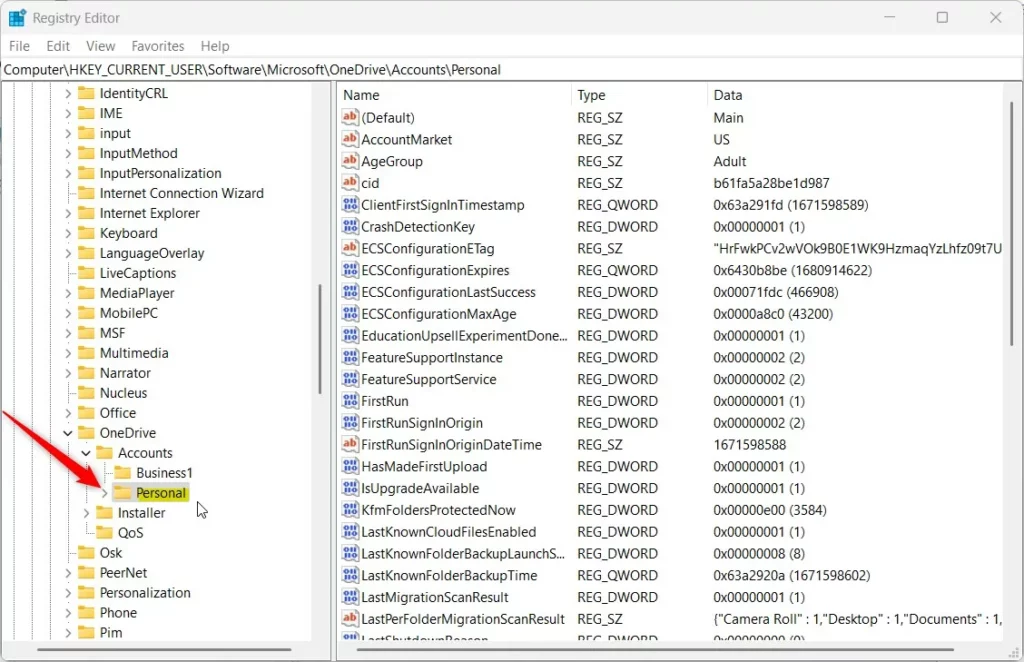
- Go to this path:
HKEY_CURRENT_USER\Software\Microsoft\OneDrive\Accounts\Personal
If the Personal folder is not visible, right-click the Accounts folder, select New, then create a subkey named Personal. Make sure the name is spelled exactly like that.
- Right-click in the empty space on the right side and select New DWORD (32-bit) Value.
- Name the new item
ShareNotificationDisabled. - Double-click the item. Set the Base to Decimal.
- Set the Value data to
0to enable notifications, or1to disable them. Click OK.
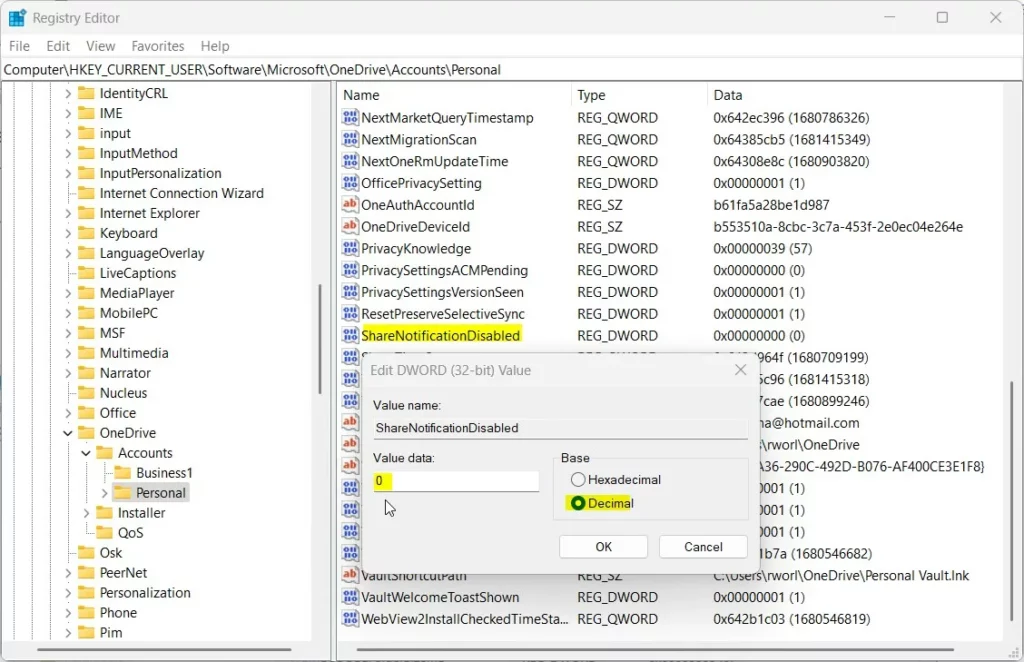
Close Registry Editor and restart your computer for the change to take effect. To undo it, return to the same item and change the value, or delete the item to go back to the default behavior. You can also double-click the .reg file you exported earlier to restore the key as it was.
Summary
You can control OneDrive alerts from the app settings, the Windows 11 notification settings, or the Windows Registry. Start with the app settings. Use the Windows notification page if you want to silence the app as a whole, and keep the registry for when the other two fail. Whether you want to stop photo memories or keep sync alerts, these steps let you choose.
Did this guide fix your problem?

About the Author
Richard
Tech Writer, IT Professional
Richard is a writer at Geek Rewind who turns complex IT tasks into clear, step-by-step guides. He draws on years of hands-on experience in system administration and enterprise IT operations, focusing on Windows, Linux and WordPress: the problems people actually run into, and the fixes that work. His server and WordPress guides come from systems he runs himself. Richard builds and maintains the platform behind Geek Rewind, from its Ubuntu servers and Nginx configuration to its custom WordPress plugins. Many new tutorials start with readers' questions, and he's always glad to answer them in the comments.
No comments yet — be the first to share your thoughts!