How to Restore Deleted Files or Folders from OneDrive Online

Restoring deleted files or folders from OneDrive online brings back data you removed from your cloud storage within the last 30 days. OneDrive keeps its own online Recycle Bin , separate from the one on your PC. Items stay there for a month, even if you already emptied the Recycle Bin on your Windows computer.
You do this from the OneDrive website in a browser, so it works from any device. You do not need the OneDrive app on the PC where the file was deleted.
Why Restore Deleted Files?
After that, the service deletes them permanently and you cannot get them back from this page.
The 30 days applies to personal Microsoft accounts. Work or school accounts often keep deleted items longer, and the exact period is set by your administrator. If your organization uses a work or school account and the file is not in the Recycle Bin , ask your IT team whether they can recover it.
What Happens When You Restore Files?
Restoring puts the file back exactly where it was before you deleted it. If a file was in your Documents folder, it returns to the Documents folder. This works for anything deleted within the last 30 days.
If the OneDrive app is running on your PC, a restored item also syncs back down to your computer after a short wait. That can take a few minutes for large files or folders.
Step 1Go to the OneDrive Website
- Open a web browser and go to onedrive.live.com.
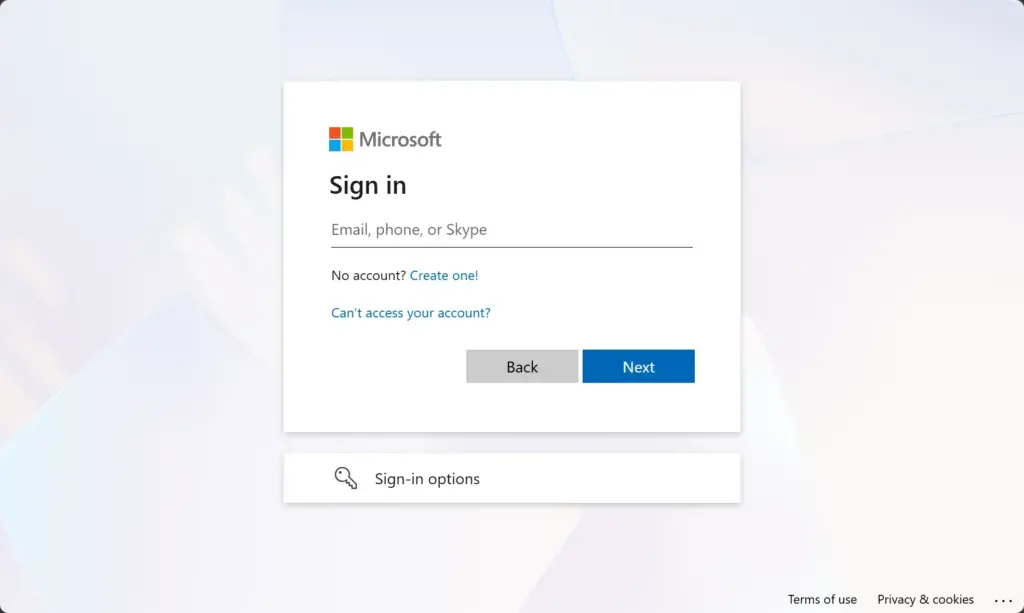
- Sign in with your Microsoft account, or with your work or school account if that is where the files were stored.
You should now see your OneDrive files. Make sure you signed in with the same account that held the deleted files. Using the wrong one is the most common reason people think a file is gone.
Step 2Find the Recycle Bin
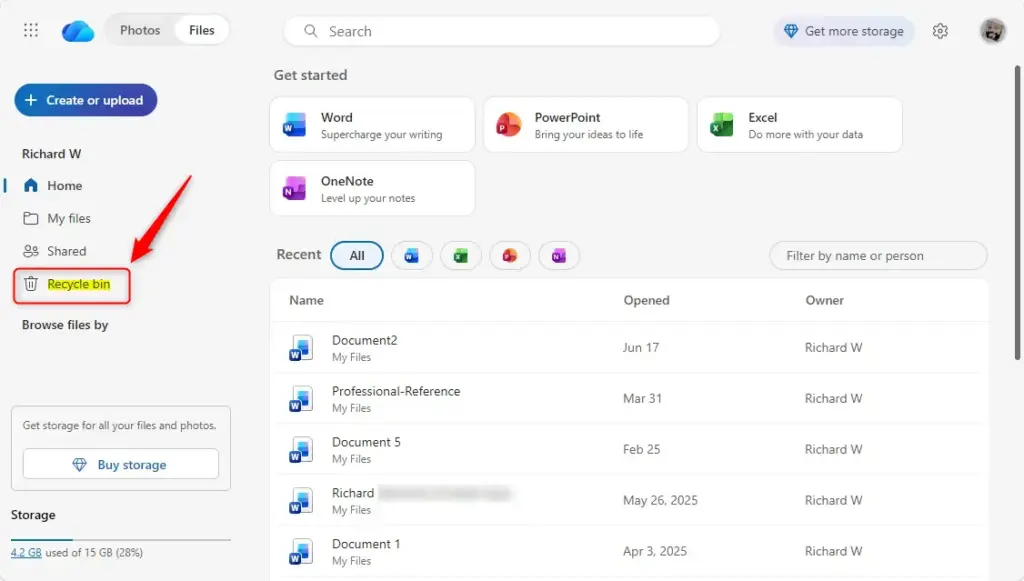
- Click Recycle bin in the navigation pane on the left side of the screen.
The page lists everything you recently deleted from OneDrive, along with where each item was and when you deleted it. If you cannot see the left pane, your browser window may be too narrow. Widen it or use the menu icon at the top left.
Step 3Choose What to Restore
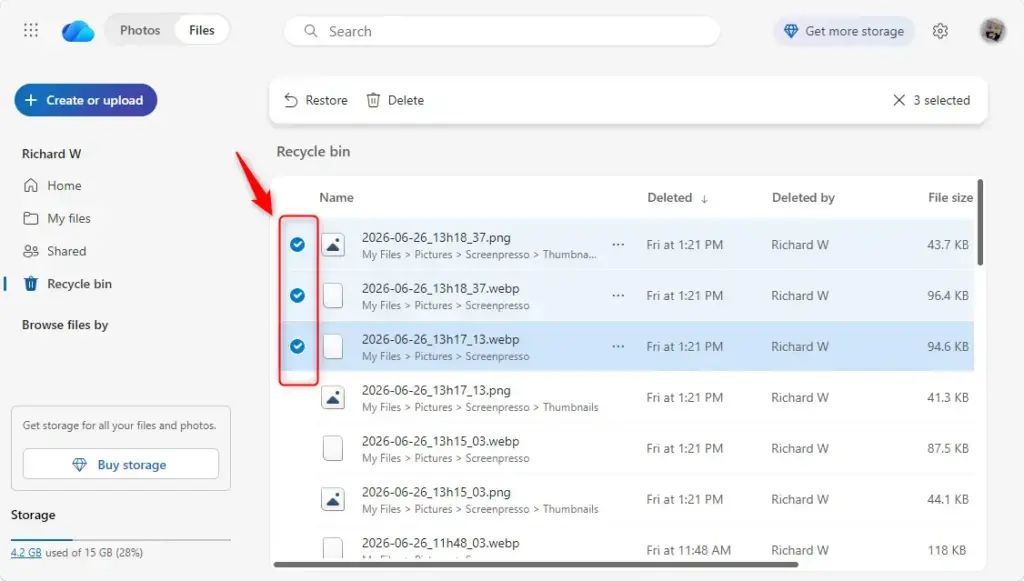
- Find the files or folders you want back. Use the deletion date and original location shown in the list to spot the right ones.
- Select the check box next to each item. You can select several files and folders at once.
- To recover everything in the list, click Select all at the top of the list instead.
Be careful with Select all if the bin holds old items you do not want back, because they will all return to your OneDrive and use up storage.
Step 4Start the Restore Process
- With your items selected, click Restore at the top of the page.
The items disappear from the Recycle Bin and go back to their original folder. If that folder no longer exists, OneDrive puts them in your main OneDrive folder instead. Do not click Delete by mistake. That removes the item permanently.
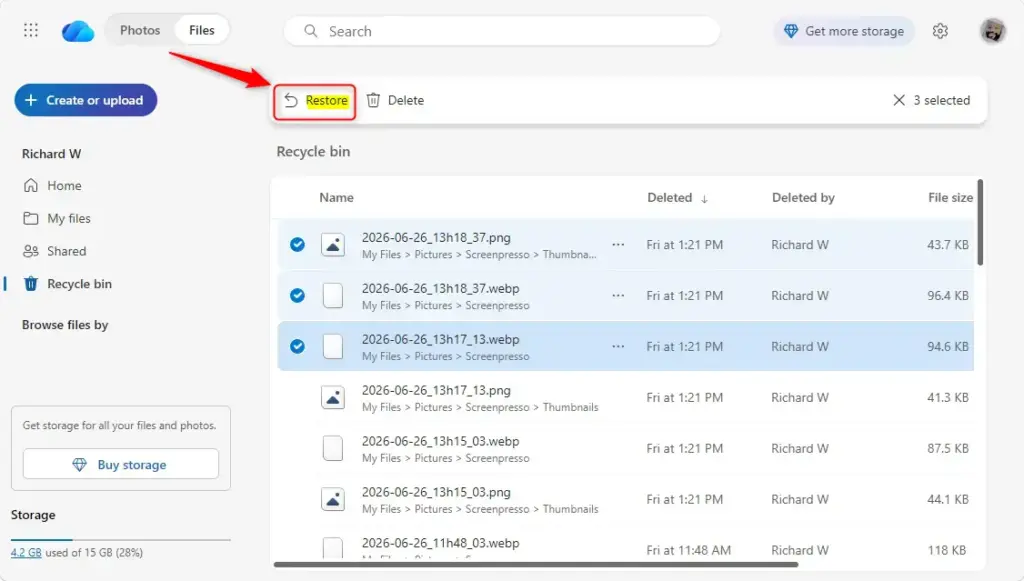
Restored files return to their original folder location. If the original folder is gone, OneDrive creates a new one. Alternatively, the recovered file might appear in the main OneDrive folder. Check both locations if you cannot see the file right away.
If you still cannot find it, use the search box in OneDrive and type the file name. Also check that you are looking in the right account, and confirm that the file was deleted less than 30 days ago.
Reference:
https://support.microsoft.com/en-US/onedrive/restore-deleted-files-or-folders-in-onedrive
Summary
The OneDrive Recycle Bin is your safety net for deleted files and folders. It temporarily stores items removed from your OneDrive account so a mistake does not cause permanent data loss. You can restore deleted items from it for up to 30 days, so check it as soon as you notice something is missing.
Have a question about this guide?
Answered by AI from this guide. Good questions may be added to this page — please don't include personal details.
Did this guide fix your problem?

About the Author
Richard
Tech Writer, IT Professional
Richard is a writer at Geek Rewind who turns complex IT tasks into clear, step-by-step guides. He draws on years of hands-on experience in system administration and enterprise IT operations, focusing on Windows, Linux and WordPress: the problems people actually run into, and the fixes that work. His server and WordPress guides come from systems he runs himself. Richard builds and maintains the platform behind Geek Rewind, from its Ubuntu servers and Nginx configuration to its custom WordPress plugins. Many new tutorials start with readers' questions, and he's always glad to answer them in the comments.
No comments yet — be the first to share your thoughts!