OneDrive Sync and Backup in Windows 11: Setup and Fixes

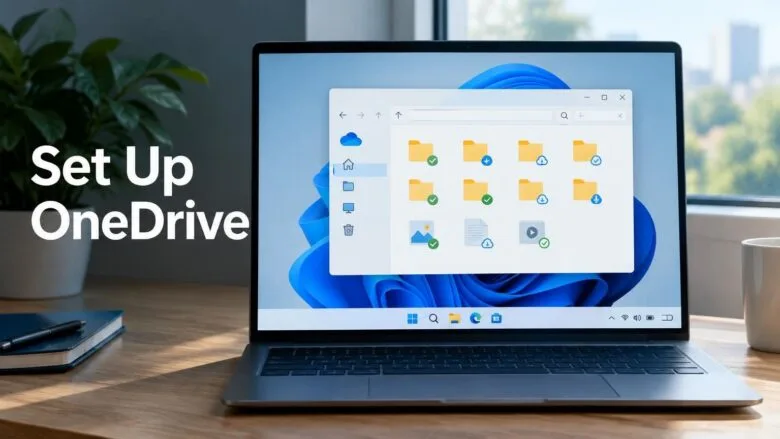
OneDrive is Microsoft’s cloud storage service, built into Windows 11, that keeps your files in step between your PC and the cloud. It trips people up because a file can be a full copy on your disk, a placeholder that downloads when you open it, or a backup that only covers certain folders. This guide sorts the 12 related guides by the job you are trying to do, so you can find the setting, fix or recovery step you need. Start with Files On-Demand if you are setting OneDrive up for the first time.
OneDrive sync and backup in Windows 11 is set up from the OneDrive app in the notification area: turn on Files On-Demand to keep files in the cloud and save disk space, then choose folders to protect under Back up your folders in Settings. Version history recovers earlier copies of files stored in OneDrive, and Dropbox can run alongside it.
Decide what syncs and how files appear on your PC
Back up your folders and choose what gets protected
Use these guides when you want your Desktop, Documents and Pictures folders saved to OneDrive, or when you want certain file types kept out of the backup. Windows Backup preferences also sit here, because they decide what is remembered when you set up a new PC.

Keep sync running on laptops and limited connections

Organise and manage the files OneDrive holds
Once sync is working, you may want to tidy your synced folders or manage the photos that OneDrive stores. The guides here cover changing how folders look and managing photos through the Photos app.

Recover old or deleted files from OneDrive
Use this guide when a file has been overwritten, changed the wrong way or deleted from your PC and you need an earlier copy. Version history works only for files stored in OneDrive, so check the file’s location before you begin.
Run Dropbox alongside OneDrive
Some people keep a second cloud service for work or for sharing with others. This guide covers installing Dropbox on Windows 11, which you can do without removing OneDrive.

Frequently asked questions
How to sync OneDrive?
Open the OneDrive app and sign in with your Microsoft account. Then decide how your files should appear on your PC. Start with Files On-Demand, which controls whether files take up space on your disk or stay in the cloud until you open them. Sync then keeps your PC and the cloud matched.
What is OneDrive Windows 11?
OneDrive is Microsoft's cloud storage service, built into Windows 11. It keeps your files in step between your PC and the cloud. It can also back up your Desktop, Documents and Pictures folders, so copies stay safe if your PC is lost or damaged.
How do I sync OneDrive?
Sign in to OneDrive with your Microsoft account, then choose which files to keep on your PC. Keep sync running while you work. If you use a laptop on battery or a limited mobile hotspot, sync may slow or pause, so check those settings before a long upload.
How to get OneDrive to sync?
Check whether OneDrive is paused. Sync can also be throttled on battery or a mobile hotspot with a data cap. Make sure you are on a stable connection and that the file is not stuck in a placeholder state. Restart OneDrive if files still won't update.
How to sync files to OneDrive?
Move or save files into your OneDrive folder, or turn on folder backup for your Desktop, Documents and Pictures folders. OneDrive then copies those files to the cloud. Files-On-Demand controls whether they also use space on your disk.
Still have a question?
Answered by AI from this guide. Good questions may be added to this page — please don't include personal details.
Did this guide fix your problem?

About the Author
Richard
Tech Writer, IT Professional
Richard is a writer at Geek Rewind who turns complex IT tasks into clear, step-by-step guides. He draws on years of hands-on experience in system administration and enterprise IT operations, focusing on Windows, Linux and WordPress: the problems people actually run into, and the fixes that work. His server and WordPress guides come from systems he runs himself. Richard builds and maintains the platform behind Geek Rewind, from its Ubuntu servers and Nginx configuration to its custom WordPress plugins. Many new tutorials start with readers' questions, and he's always glad to answer them in the comments.
No comments yet — be the first to share your thoughts!