How to Enable OneDrive Sync On Metered Networks in Windows 11

OneDrive sync on metered networks controls how Microsoft’s cloud storage behaves on limited data connections, such as a cellular hotspot, phone tethering, or a data-capped home connection. Windows 11 flags cellular connections as metered by default, and you can set any connection as metered yourself. OneDrive pauses sync on metered connections to avoid large background transfers and protect your data allowance. If you have plenty of data and need your files kept current while you are away from home, you can change that setting so sync continues.
Right-click the OneDrive cloud icon in the taskbar , select Help & Settings then Settings, go to the Settings or Sync and backup tab, and uncheck the box labeled Automatically pause sync when this device is on a metered network. OneDrive will now sync files even on metered connections.
Understanding OneDrive Sync on Metered Networks
Windows and OneDrive pause sync on a metered network to help you avoid extra charges on plans with data limits. Nothing is wrong when this happens. The OneDrive icon shows that syncing is paused, and your files stay as they were until you connect to an unmetered network or change the setting.
Why change these settings?
The default is right for most people, but there are good reasons to change it. If you have a generous data plan, or you travel and work from a hotspot, a paused sync means the files on your other devices go stale. The change below keeps critical files updated when you are away from home.
What happens when you are done?
This uses your data allowance. A large folder, a photo library or a first-time backup can use a lot of data quickly.
Before You Start: Data Usage Warning
Check your current network status and your remaining data before you turn sync on for a metered connection. If you are unsure, test with a small folder first. You can reverse the change at any time.
How to Control OneDrive Sync via Settings
The OneDrive setting lets you stop files from downloading or uploading over limited connections. You reach it through the OneDrive icon in the taskbar . Right-click the cloud icon, open its settings, and look for the metered connection option. On recent builds this sits on the Sync and backup tab. The steps below walk through it.
- Look for the blue cloud icon in the notification area at the right end of the taskbar.
- Right-click the cloud icon. The OneDrive activity panel or menu opens.

If the blue cloud icon is hidden, click the upward-pointing arrow in the system tray to show the extra icons. If it is not there either, type OneDrive into the Start menu and open the app. That starts OneDrive and puts the icon back in the tray.
- In the OneDrive app, click Help & Settings, then choose Settings. The OneDrive settings window opens.
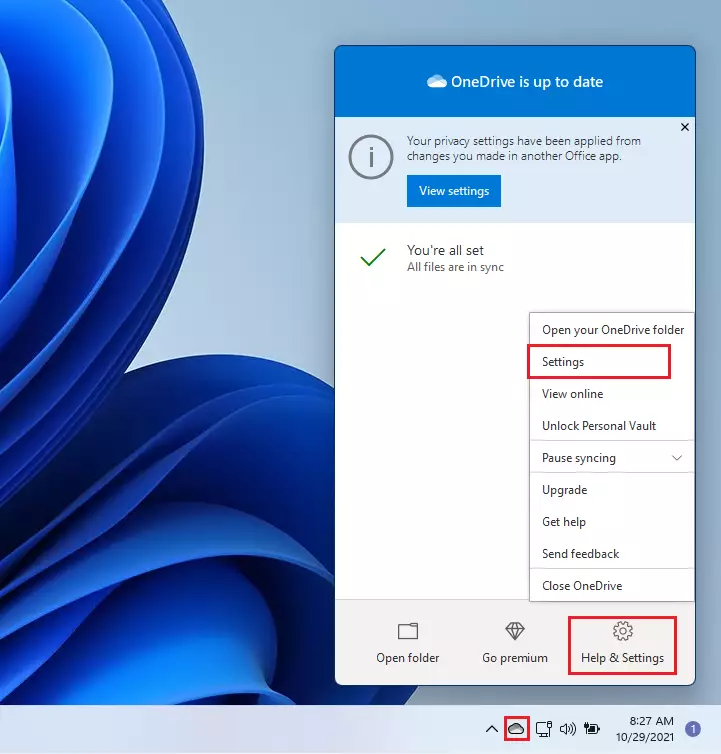
- Go to the Settings tab. Find the box labeled Automatically pause sync when this device is on a metered network.
Newer OneDrive builds move some options around. If you do not see this box on the first tab, check Sync and backup, then Advanced settings. The label may also be worded slightly differently there.

This setting controls whether OneDrive syncs on networks that charge by data usage. When the box is checked, OneDrive pauses on metered networks. When it is cleared, OneDrive keeps syncing on them.
- Clear the checkbox to allow sync on metered networks. Check it again if you want to pause sync there.
- Click OK to save your change. The settings window closes and the new behavior applies right away.
To undo the change, open the same setting, check the box again, and click OK. The setting belongs to the device, so you have to repeat it on each PC you use.

Verifying Network Status via PowerShell
How OneDrive behaves depends on how Windows classifies your current connection. Before you change any app settings, you can check whether Windows treats your connection as metered. A quick PowerShell command shows the network details, so you will know whether a sync pause comes from the metered setting or from something else.
- Right-click the Start button and select Terminal (Admin). Approve the User Account Control prompt if it appears. A Terminal window opens.
- Type the following command and press Enter:
Get-NetConnectionProfile
- Look for the
NetworkCategoryandInterfaceAliasin the output. If the network is set to metered, you will see it listed in the connection profile details.
If the connection is not shown as metered but OneDrive is still paused, the cause is something else, such as battery saver or a manual pause in OneDrive.
Advanced Configuration: Group Policy and Registry
IT administrators who manage several machines can enforce the sync behavior with the Registry Editor or with Group Policy (GPO). The registry method works on any edition of Windows 11, including Home. Group Policy is only available on Pro, Enterprise and Education.
Using Registry Editor (Admin Required)
Back up the registry before you edit it. In Registry Editor, use File Export to save a copy you can restore. A wrong value can cause problems, so follow the steps exactly.
- Press
Win + R, typeregedit, and press Enter. Approve the User Account Control prompt. Registry Editor opens. - Navigate to:
HKEY_CURRENT_USER\Software\Microsoft\OneDrive - Create a new DWORD (32-bit) value named
DisableMeteredNetworkFileSyncand set its value to0to allow syncing.
Sign out and back in, or restart the PC, so OneDrive picks up the new value. To undo it, delete the value you created or restore the registry export.
Using Group Policy (Admin Required)
The Group Policy method needs a Pro, Enterprise or Education edition. The Local Group Policy Editor does not exist on Home. The OneDrive policy only shows up if the OneDrive policy templates are available on the PC. If you cannot find it, use the registry method above.
- Open
gpedit.msc. The Local Group Policy Editor opens. - Navigate to
Computer Configuration\Administrative Templates\OneDrive. - Enable the policy Allow syncing on metered networks.
Policy names can differ slightly between OneDrive versions. To undo it, set the policy back to Not Configured.
Summary
- OneDrive syncs your files across all your devices.
- Windows pauses syncing on metered networks by default to save your data.
- You can toggle this setting in the OneDrive Settings menu.
- Changes are specific to each device you own.
- Always verify your data plan before enabling sync on metered connections.
Have a question about this guide?
Answered by AI from this guide. Good questions may be added to this page — please don't include personal details.
Did this guide fix your problem?

About the Author
Richard
Tech Writer, IT Professional
Richard is a writer at Geek Rewind who turns complex IT tasks into clear, step-by-step guides. He draws on years of hands-on experience in system administration and enterprise IT operations, focusing on Windows, Linux and WordPress: the problems people actually run into, and the fixes that work. His server and WordPress guides come from systems he runs himself. Richard builds and maintains the platform behind Geek Rewind, from its Ubuntu servers and Nginx configuration to its custom WordPress plugins. Many new tutorials start with readers' questions, and he's always glad to answer them in the comments.
No comments yet — be the first to share your thoughts!