How to Enable Thumbnail Previews in Windows 11

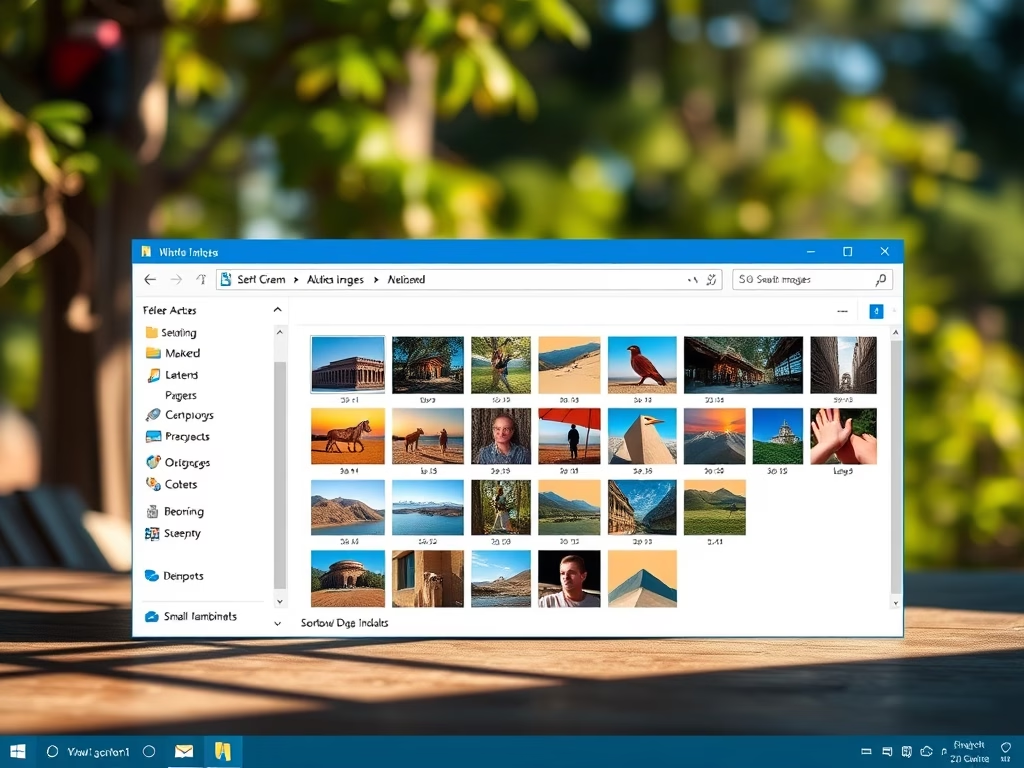
Thumbnail previews in Windows 11 show miniature pictures of your files directly in File Explorer , so you can check photos, videos, and many documents without opening them.
These previews replace the standard file type icons with actual visual snapshots. That makes it much faster to find what you want when a folder holds dozens of items. If your thumbnails are missing, you can usually turn them back on through the File Explorer Options window in a few clicks. If that does not work, this guide also covers clearing the thumbnail cache, checking one registry value, and dealing with file types that never show previews.
Open File Explorer , click the three dots in the toolbar, select Options, click the View tab, uncheck Always show icons, never thumbnails, click Apply then OK, and switch to an icon view like Medium icons or Large icons. Your file previews appear immediately.
What happens when you fix thumbnail previews?
Once thumbnails work again, your files show their actual content instead of a generic icon. You spend less time opening the wrong file, and folders full of photos, videos, and documents are much easier to scan.
Work through the fixes in order. The first one solves most cases, and each later one is only needed if the one before it did not help.
Basic Troubleshooting: Always show icons, never thumbnails
Thumbnails usually disappear because a folder view setting got turned on by mistake, often while someone was changing other options or following another tutorial. The setting is Always show icons, never thumbnails. While it is checked, Windows shows generic file icons everywhere. Unchecking it makes Windows show real picture and document previews again.
- Open File Explorer (press Win+E).
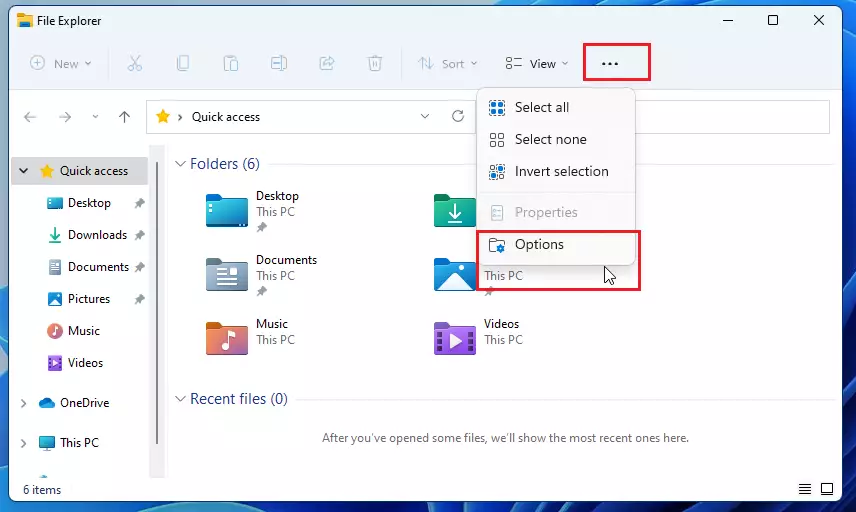
- Click the three dots (ellipsis) in the top toolbar. You should see a drop-down menu.
- Select Options. The Folder Options window opens.
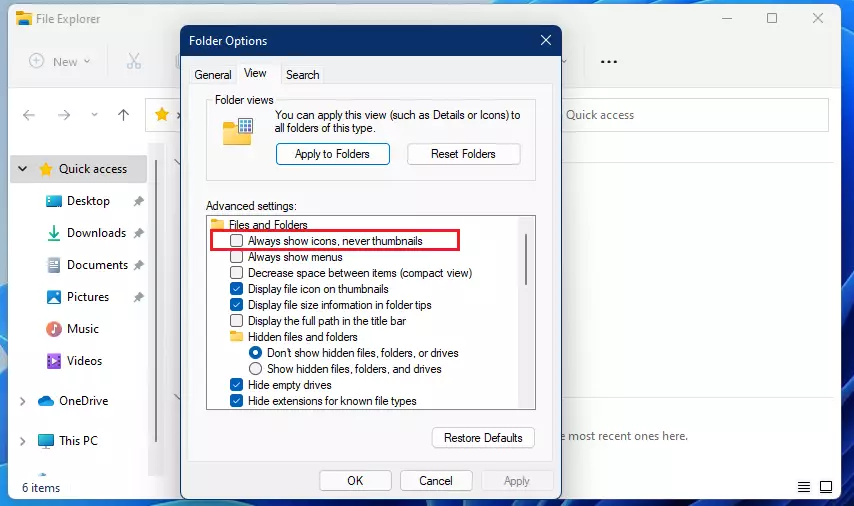
- Click the View tab.
- In the Advanced settings list, find Always show icons, never thumbnails and make sure the box is unchecked.
- Click Apply, then OK.
Go back to a folder with pictures. The generic icons should now be replaced by small previews. If you still see icons, check the folder’s view. Thumbnails only appear in the icon views, such as Medium icons, Large icons, and Extra large icons, and not in the Details or List views. Open the View menu in the File Explorer toolbar and pick one of the icon sizes.
To undo the change, tick the box again in the same window. This setting applies to your user account and does not need a restart.
The thumbnail cache is a temporary storage area where Windows keeps the preview images it has already created. If those stored images get damaged, Windows keeps showing the broken ones.
Also check one more setting. Open System Properties, go to the Advanced tab, click Settings under Performance, and make sure Show thumbnails instead of icons is ticked. Some "performance tweak" tools turn this off.
How to reset the thumbnail cache in 🪟 Windows 11
Corrupted preview data is a common reason for Windows 11 thumbnails that refuse to load properly. The fix is to clear the old image data with the built-in Disk Cleanup tool. Windows then builds a fresh thumbnail cache from scratch. Nothing you own is deleted. Only the cached preview images are removed.
[Requires Admin Privileges]- Open the Start menu and search for Disk Cleanup, then open it.
- Select your main drive (usually C:) and click OK. Disk Cleanup scans the drive for a moment, then shows a list of file types.
- In the Files to delete list, check the box for Thumbnails. You may need to scroll down to find it. You can uncheck everything else if you only want to reset the previews.
- Click OK and confirm the deletion.
This works on both Windows 11 Home and Pro. If the Thumbnails entry is missing from the list, the cache is probably already empty.
Windows rebuilds the thumbnail cache automatically as you open folders. The cache holds small previews of your files so that images and videos show up quickly without being opened one by one. Rebuilding takes up to 30 seconds, depending on how many files are in the folder. Large folders of photos or videos may fill in gradually, so give them a moment before you decide it did not work. If thumbnails still look wrong, sign out and back in, or restart the PC, and open the folder again.
Fixing missing thumbnails via Registry Editor
The registry is the database where Windows stores its configuration settings. You will look at a single value that controls whether Explorer shows icons only. Be careful here. Changing the wrong value can cause problems, so consider creating a restore point first, and change only the value named below.
[Requires Admin Privileges]- Press Windows Key + R, type regedit, and press Enter. Approve the User Account Control prompt if it appears. The Registry Editor opens.
- Go to the key HKEY_CURRENT_USER\Software\Microsoft\Windows\CurrentVersion\Explorer\Advanced. You can paste this path into the address bar at the top of the Registry Editor.
- In the right pane, find the value named IconsOnly.
- Double-click IconsOnly, set the Value data to 0, and click OK. A value of 1 forces icons only, and 0 lets Explorer show thumbnails.
- Restart your computer to apply the change.
To undo this, set the value back to its previous number. If you cannot find IconsOnly, the registry is not what is blocking your previews, so go back to the earlier fixes.
Handling specific file formats like .skp or .psd
If thumbnails are missing only for certain file types, such as .skp or .psd files, the problem is not Windows itself. Windows has no built-in way to draw those formats. It relies on the program that created them, or on an add-on from that program, to supply the preview. Usually the program is not installed, was installed without its preview component, or is not set as the default app for that file type. Install or repair the program, or check its settings for a thumbnail or Explorer preview option. After that, clear the thumbnail cache as described above so Windows creates the previews again.
Summary
Windows 11 thumbnail previews show a small picture of a file's content before you open it. Turning them on helps you find documents, images, and videos faster, because you can identify files at a glance instead of opening each one.
In short: uncheck Always show icons, never thumbnails and use an icon view, clear the cached thumbnails with Disk Cleanup if the previews are broken, check the IconsOnly registry value as a last step, and for specific file types make sure the program that creates them is installed correctly.
Was this guide helpful?

About the Author
Richard
Tech Writer, IT Professional
Richard is a writer at Geek Rewind who turns complex IT tasks into clear, step-by-step guides. He draws on years of hands-on experience in system administration and enterprise IT operations, focusing on Windows, Linux and WordPress: the problems people actually run into, and the fixes that work. His server and WordPress guides come from systems he runs himself. Richard builds and maintains the platform behind Geek Rewind, from its Ubuntu servers and Nginx configuration to its custom WordPress plugins. Many new tutorials start with readers' questions, and he's always glad to answer them in the comments.



didn’t fix it. 3/4 of the jpg files are shown as thumbnails 1/4 just icons. and yes, always show icons box is not checked
Exact same result here. Most jpg files appear as ICONS with 1 appearing as a jpeg. Can’t get anyone to answer Customer Support no. 800-642-7676. Very frustrating. HELP PLEASE!!!
Did not work at all. And yes, always show icons box is not checked.
Worthless. I need the FOLDERS to show thumbnails of the contents, just like Windows has been doing FOR 20+ YEARS!
Same here.
me too.. I need the FOLDERS TO SHOW THUMBNAILS.
Didn’t work for me either.
This article is simply wrong and it’s clear the author doesn’t know what he’s talking about. Thumbnail view is NOT available in Windows 11. This is a deliberate (if little mentioned) choice by Microsoft and none of these ‘tips (which are for Windows 10) will work to change it.
As I have thousands of photos in hundreds of folders which I access daily, so for me Windows 11 is not viable and so I will now roll back to 10
I’m not following this, although I’m having the same problem. Some of my files show as thumbnails and i’m using Window 11. I have adobe 9 pro, and when i open that app i can see the PDF thumbnail previews as expected, but when i save a pdf to a file on my desktop. The PDF’s do not show a preview thumbnail, however everything else does save and display as a thumbnail. If Microsoft doesn’t have this feature any longer in windows 11, how is it some of my files saved to my desktop do show a thumbnail preview? So confusing!…lol
I agree with you and this is super frustrating. I need my thumbnails. I have thousands of photos and images I need for work.
Been trying to figure out why it does this, removes the thumbnails
what they said ^
how to view thumbnail preview on folders
how to view thumbnail preview on folders in windows 11
This did not work for me. I have a Dell laptop and for some reason have never been able to get the pics to show in the folder. In my HP that was never an issue. Please help. Thank you
The thumbnails do not update when I edit a picture. So if I have two versions I cannot see with one look which picture is the one I edited of two by looking at the thumbnail :'(
I can only fix it by having all thumbnails deleted and remade, but I can’t keep doing that for every single edit I do. I handle hundreds of pictures!
The folder thumbnails are still not there AND the default new folder icons barely show the difference between an empty and full folder. The disorientation they caused with their DOWNgrade is absolutely terrible!!!
Found this does not work. still icons not thumbnails
I have unchecked always show icons not thumbnails and I still do not get to view the thumbnails. Except for on very smaill jpg file less than 1 mb.
I want to see the thumbnails in my Music Folder, like I did in Wind. 10. and mr. Richard sleep well for the next 2 century’s. If you still don’t know what’s the problem we’re al waiting for to solve it than you’re a big idiot
Doesn’t work for me either!
The photos flick up and then turn to a blank thumbnail.
Will this be fixed?
Very frustrating!! I have TONS of photos and too many to sift through!! I want to see the photos – NOT the icons!! Someone PLEASE help us!
Updated to Windows 11 Dec. 26/2021 and experiencing the same frustrations (anger) as all the comments posted here.
Like many others here I want/need thumbnails on the all the folders. The different thumbnails on the folders help to find content visually so much easier and faster then scanning some hundred ‘like’ folder images.
Followed all the steps that I’ve found on several different sites to get thumbnails to show on the folders with the same results only to find that it was NFG. All the posts dealing with thumbnails will only provide thumbnails on ‘FILES’ but not ‘FOLDERS’.
Seems that thumbnails on FOLDERS on Windows 11 is not available and so like at least one other poster here. I’m rolling back to Windows 10 until such time that Windows 11 fixes this cluster F*** or Windows xx addresses this issue.
When I first downloaded windows 11 back in October it did in fact show the thumbnail images in file explorer but right after both my computer’s updated last month in December my files wont show thumbnails. I have been using windows 10 since it first came out and I had the same problem. Windows sent me an update that glitched the file explorer but after a few months windows sent me an update to the file explorer that fixed the problem. Windows 11 is a brand new software so you can expect a few bugs and glitches in the first year of it’s release just like with windows 10. I am a very intelligent computer nerd. I use high tech and very expensive hardware in both my laptop and my desktop. So I have no problems finding my files and I have 1000s upon 1000s of files. So just be patient people’s while Microsoft works out the bugs and glitches in windows 11 just like they did with windows 10!!! Sincerely Mr. Jared A. Baldwin
Yep. Did not work. As a photographer, I find this very irritating.
Oh My Gosh, it didn’t work. This is so frustrating when you
find something that works, and then you have people behind the desk always
messing things up. Can you please get an update for this? This
is very frustrating. Thank You Sirs…
Windows 11 isn’t showing folder content previews in extra large icons. Many are upset including myself. I am visually oriented. My computer isn’t giving me the option to revert to win 10.
Thank you very much 🙂
The solution for this problem is first go to options, a ‘folder options’ window will open, go in view, in advance setting UNCHECK the ‘always show icons, never thumbnails’ and then apply and OK. After this you can follow the above process of view>large icons.
Do you see your thumbnails now? If so, how did you correct it? I work with history and post many old pictures. It is difficult if I can’t see the thumbnail.
If you go to Folder….properties, customize, at bottom Folder Icons it states:
If you change the icon….it will no longer show…preview of folder contents.
Interesting since I never went anywhere near where it asked if I wanted to change the folder Icon since there no longer was a preview of the contents without me doing anything. I thought when 11 was first installed the problem wasn’t there. A few updates later and it is as well as other problems that were not here on the original install. Fixing something perhaps that is messing up something else. I still cannot use Chrome except upon first startup and leave it open.