How to Rotate Images in Windows 11’s File Explorer

Rotating images in Windows 11’s File Explorer lets you fix sideways or upside-down photos without opening any extra software. The built-in tools turn a picture 90 degrees clockwise or counterclockwise, using either the top menu or the right-click menu . This tutorial covers those two File Explorer methods and then two backups, the Photos app and Paint, for when you want a bigger view or a different save option.
You can select several pictures at once and rotate them together, which saves time when a whole batch came off your phone or scanner sideways.
Right-click the image in File Explorer , select Rotate right or Rotate left, and the picture turns 90 degrees clockwise or counterclockwise. The rotation saves to the file itself. If those options don’t appear, click Show more options to access the classic context menu .
What is File Explorer?
File Explorer is the default file manager built into Windows for organizing documents and photos. It is the window that opens when you click the folder icon on the taskbar or press the Win and E together. Everything in the first two methods happens inside it, so you never have to launch another program.
How to Rotate Images in File Explorer
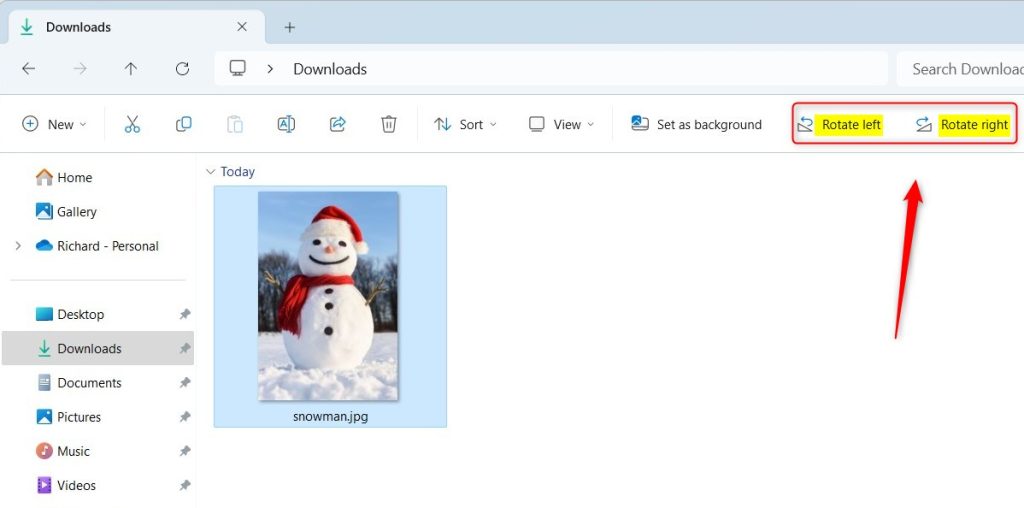
File Explorer lets you rotate images in Windows 11 without installing any extra software. You can turn pictures 90 degrees clockwise or counterclockwise from the top of the window without opening the file. This is the fastest option when you spot a sideways photo while browsing a folder.
The rotation is saved to the file itself, so it applies everywhere that file appears, not just in File Explorer .
- Open File Explorer and browse to the folder that holds the picture file you want to rotate.
- Click once on the picture to select it. The file is now highlighted. To rotate several pictures at once, hold Ctrl and click each one, or drag a box around them.
- Look at the top of the File Explorer window for Rotate right and Rotate left. They only appear when an image is selected. If your window is narrow, they may be tucked inside the three-dot See more menu at the end of the toolbar, so open that menu if you don't see them.
- Click Rotate right to turn the picture 90 degrees clockwise. The thumbnail should flip to the new orientation. If it looks unchanged, give it a second or press F5 to refresh the folder.
- Click Rotate left to turn the picture 90 degrees counterclockwise. If you went too far, click the opposite button to undo it. Four turns in the same direction bring the picture back to where it started.
If the rotate buttons are missing or greyed out, check that you selected an image file and not a folder or a mix of file types. They can also be unavailable for read-only files, for files on a location you don't have permission to change, and for formats Windows can't rotate directly. In those cases, use the Photos or Paint method below.
Another Quick Way
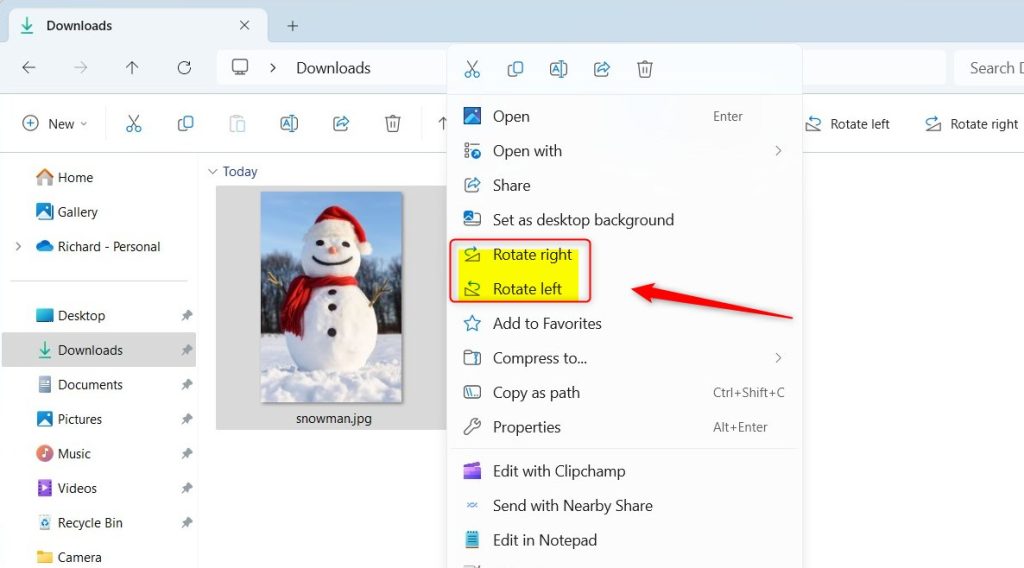
The right-click menu offers the same rotation commands as the top toolbar. Some people find it quicker because your hand is already on the mouse and pointing at the file.
- Right-click on the picture file in File Explorer. A context menu opens next to your pointer. You can also select several pictures first and right-click any one of them to rotate them all.
- From the menu that appears, choose Rotate right or Rotate left. The thumbnail should turn right away. If you don't see these entries, click Show more options at the bottom of the menu to open the classic menu, where they are also listed.
To undo a rotation, right-click the file again and choose the opposite direction. There is no restart or setting to change.
Rotate Images Using the Photos App
Microsoft Photos (the default app for viewing pictures) lets you rotate image files quickly in Windows 11. When you open a picture, you click a button to turn it 90 degrees, then save it in the correct orientation. This method works well if you want a larger view of the picture while you fix it, or if you want to keep the original file and save a rotated copy.
The Photos app is updated through the Microsoft Store, so button positions can differ slightly between versions. The steps below follow the layout described in the original tutorial. If your toolbar looks different, hover over the icons to read their labels.
- Double-click your image to open it in the Photos app. If a different program opens, right-click the file and choose Open with Photos.
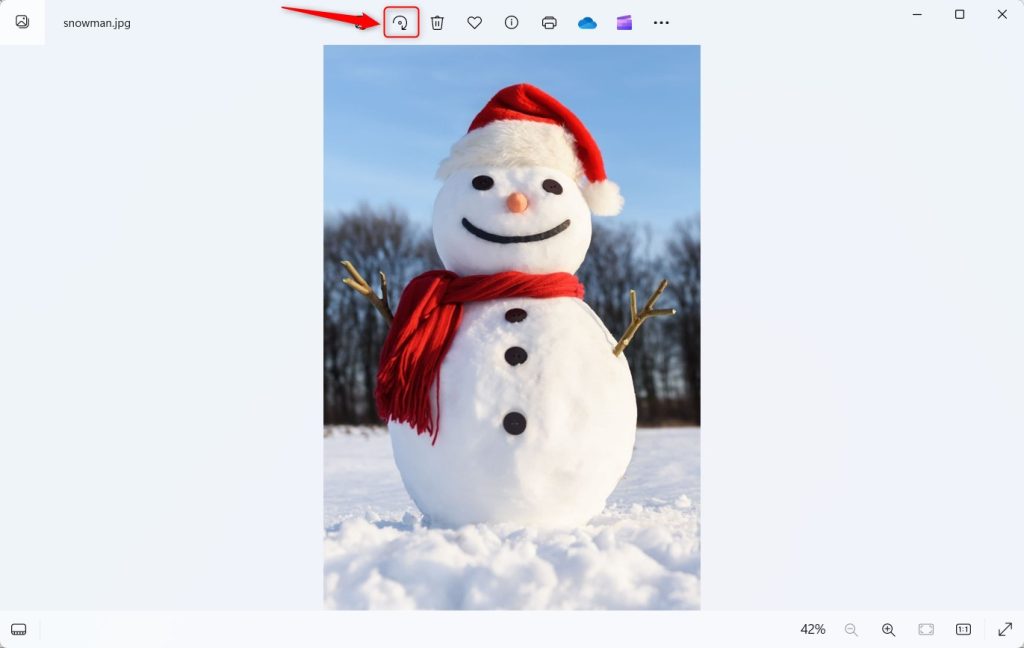
- Click the Rotate button at the top (it looks like a curved arrow), or press
CTRL + Ron your keyboard. The picture should turn on screen. - Each click or shortcut press turns the image 90 degrees clockwise. If you overshoot, keep rotating until it comes full circle at four turns. There is no counterclockwise button here, so for a quarter turn the other way, rotate three times.
- When finished, click the three dots (More options) in the top right corner, and select Save as to save your rotated image. A file save window opens.
- Choose where you want to save the image and click Save. To keep the original untouched, give the copy a new file name. To replace the original, save to the same folder with the same name and confirm the overwrite prompt.
If you close the picture without saving, the file stays as it was. Rotating in Photos on its own does not change the file until you save.
Rotate Images Using the Paint App
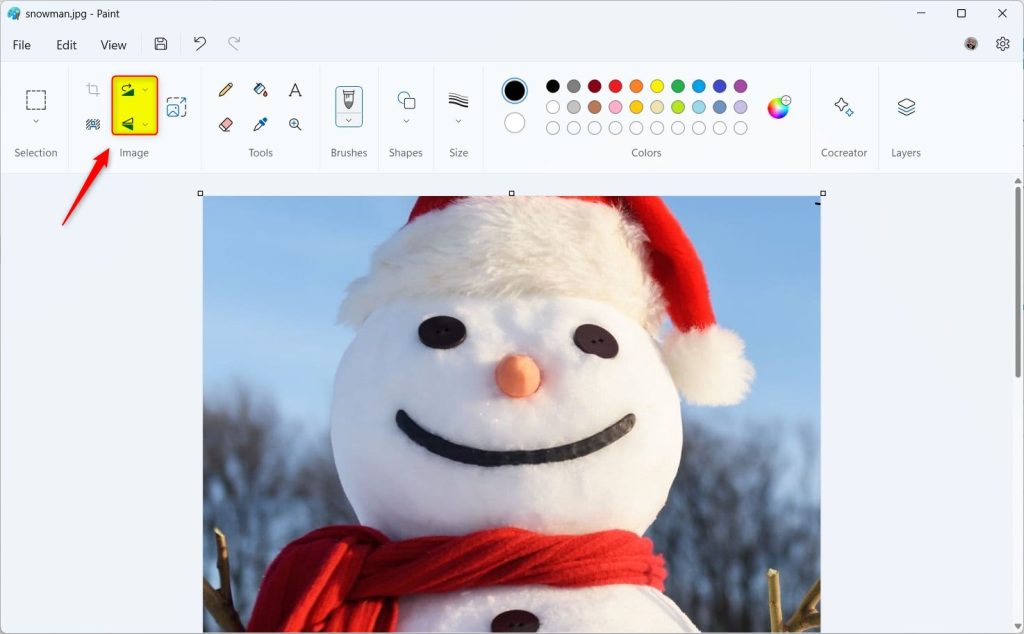
Paint (the built-in drawing and editing program) gives you another simple way to rotate images in Windows 11. You open your picture from the right-click menu and use the rotation tools on the top toolbar to turn the canvas left or right. It is a handy backup if your default photo viewer is not working, and it gives you control over the file format when you save.
- Right-click the image file, choose Open with Paint. The picture opens on the Paint canvas. If Paint isn't listed, click Choose another app and pick it from the list.
- In Paint, find the Rotate controls on the top toolbar. They sit in the image tools area on the Home tab. In current versions of Paint, the Rotate button opens a small menu rather than showing two separate buttons.
- Click Rotate right or Rotate left to turn the image 90 degrees. The canvas should change at once. Press the same command again for another quarter turn.
- When done, click File Save or Save as to keep your changes. Save overwrites the original. Save as lets you pick a new name or a different format, such as JPEG or PNG, so the original stays safe.
Be aware that saving a photo as a JPEG in Paint re-compresses it, which can slightly lower quality.
Summary
Windows 11 gives you several built-in ways to rotate images without downloading third-party software. Whether you use File Explorer, the Photos app, or Paint, you can fix sideways pictures in just a couple of clicks. For a quick fix or a whole batch, use File Explorer. For a bigger view or a saved copy, use Photos or Paint. Pick whichever tool suits the job.
The Photos app and Paint app also let users rotate and save pictures. Choose the method that works best to fix orientation. File Explorer is the quickest, Photos is good for a larger preview, and Paint gives you the most say over how the file is saved.
Test this out the next time a picture requires orientation fixes. Try it on a copy of the file first if you want to see how each method behaves before using it on photos you care about.
Have a question about this guide?
Answered by AI from this guide. Good questions may be added to this page — please don't include personal details.
Did this guide fix your problem?

About the Author
Richard
Tech Writer, IT Professional
Richard is a writer at Geek Rewind who turns complex IT tasks into clear, step-by-step guides. He draws on years of hands-on experience in system administration and enterprise IT operations, focusing on Windows, Linux and WordPress: the problems people actually run into, and the fixes that work. His server and WordPress guides come from systems he runs himself. Richard builds and maintains the platform behind Geek Rewind, from its Ubuntu servers and Nginx configuration to its custom WordPress plugins. Many new tutorials start with readers' questions, and he's always glad to answer them in the comments.
No comments yet — be the first to share your thoughts!