Using Cloud Rebuild with Windows 11


Cloud Rebuild in Windows 11 lets you reinstall your operating system using fresh files downloaded straight from the internet. This built-in recovery tool gives your computer a clean start without requiring a USB flash drive or local installation media.
Available on Windows Insider builds 26300.8772 and newer, the feature downloads the latest version of Windows and all required drivers directly from Windows Update. You can run it to fix a PC that refuses to boot or simply to wipe away old system clutter.
Because this is an Insider feature, screens and labels may change from build to build. If the Cloud rebuild option does not appear on your PC, check that you are on build 26300.8772 or newer. Older builds and the regular release channel do not have it.
Cloud Rebuild in Windows 11 reinstalls your operating system by downloading fresh system files directly from Windows Update through the Windows Recovery Environment. Access it via Settings System Recovery Restart now, then select Troubleshoot Cloud rebuild. The feature is available on Insider build 26300.8772 and newer.
How to Use Cloud Rebuild
Cloud rebuild reinstalls Windows 11 by downloading fresh system files from Microsoft’s servers. It is meant for serious problems, such as a PC that will not start properly or a system that is badly out of shape. You run it from the Windows Recovery Environment (WinRE), which is reached through the Advanced Startup menu.
Before you start, do these things:
- Back up any files that are not already in a cloud service such as OneDrive. The rebuild erases the system drive.
- Plug the PC into mains power. A laptop that dies halfway through can fail to start afterwards.
- Make sure you can get online. A wired Ethernet connection is the easiest. On Wi-Fi, have the network name and password ready.
- Make a note of any account passwords and software license keys you will need after the reinstall.
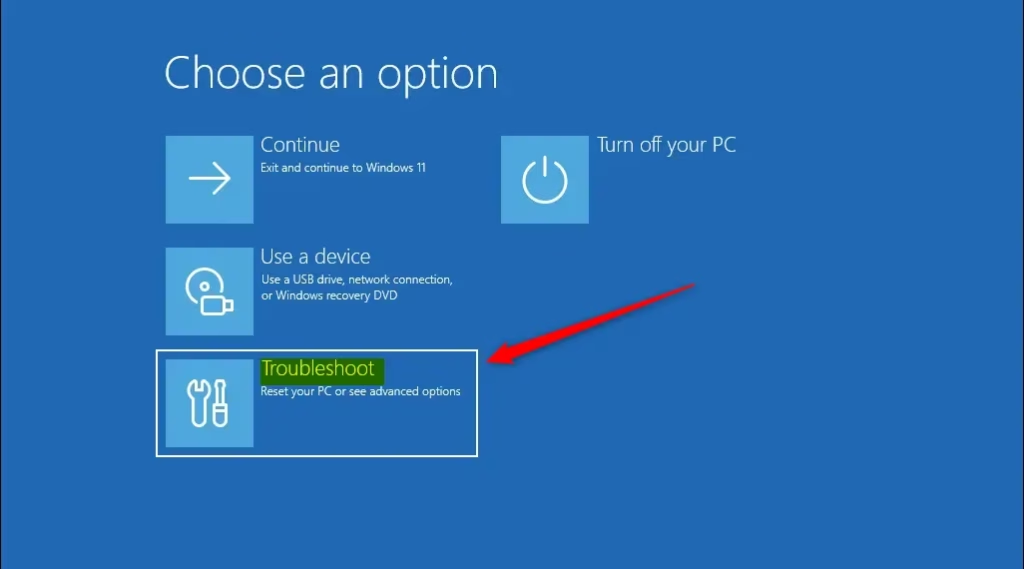
Boot into WinRE through the Advanced Startup menu. If Windows still starts, go to Settings System Recovery, click Restart now next to Advanced startup, and wait for the blue recovery screen. If Windows will not start, repeated failed boots normally bring up the recovery screen on their own. You should see a screen with several options, including Troubleshoot.
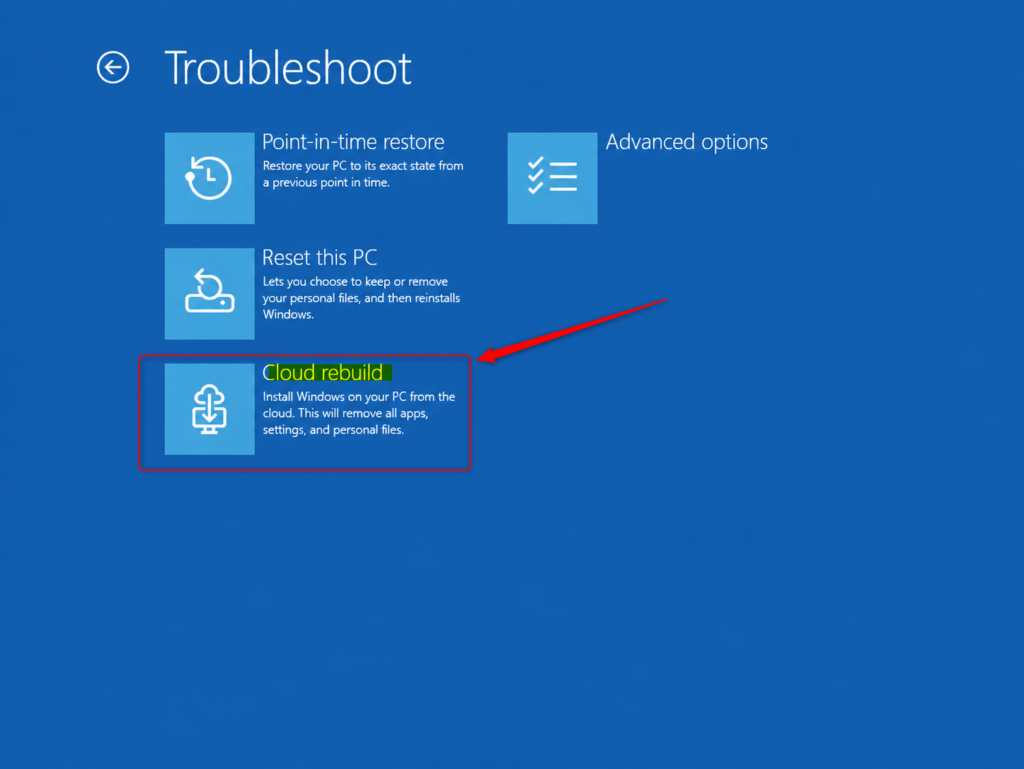
Once in WinRE, click on Troubleshoot. You should see the list of recovery and advanced options.
Next, select Cloud rebuild. If you do not see it, your build probably does not include the feature yet.
Wait while your computer tries to connect to the internet. If you are using a wired Ethernet connection, it should connect automatically. If you are using Wi-Fi, you will need to choose your network and enter the password when asked.
Let Cloud rebuild check Windows Update. It looks for the correct Windows 11 version and downloads the network drivers your computer needs to stay connected. This makes sure you get the right operating system version and the drivers required for a stable internet connection. It uses an automated update mechanism first introduced in Windows 10 version 1507. Wait for the check to finish before moving on.
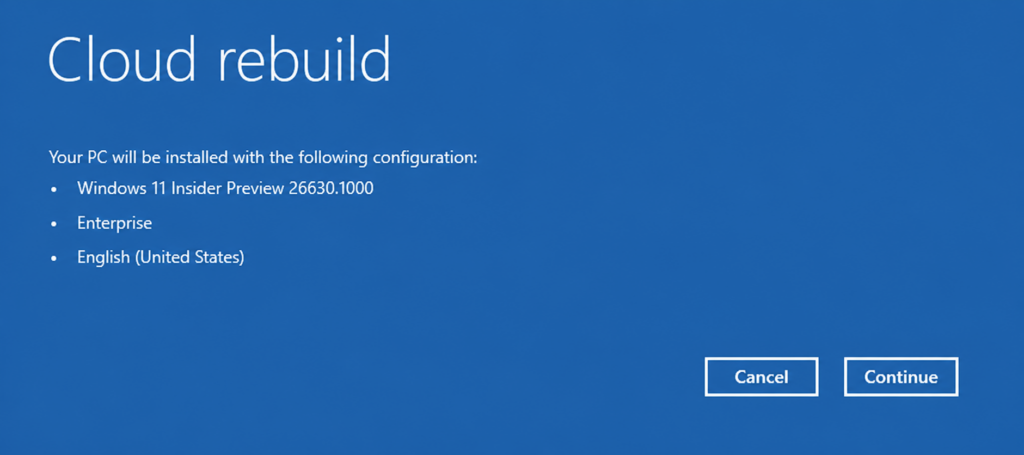
- ⚠️WarningRead the summary of what will be installed. Make sure the Windows version, edition, and language shown are what you expect. Click Continue if everything looks correct. If something is wrong, stop here and do not go on, because the next steps lead to erasing the drive.
Click Install to begin the Cloud rebuild process.
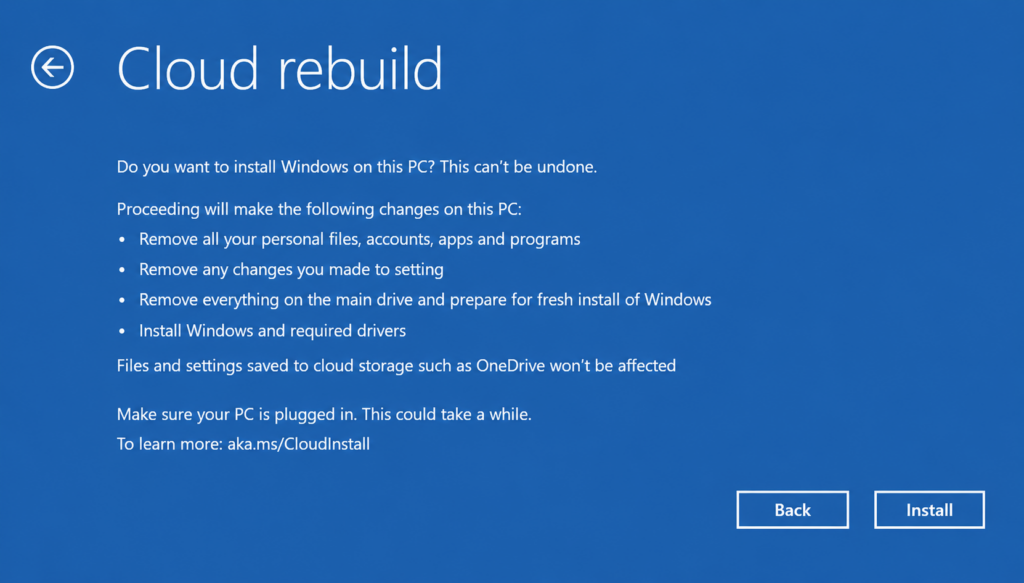
Let Cloud rebuild prepare, download, and install Windows 11. Your computer might restart a few times during this process, which is normal. Make sure your computer stays plugged into power until it’s finished. Do not restart or turn off your computer while it’s preparing, downloading, or installing Windows, as this could prevent it from starting up again.
This process can take a significant amount of time. The speed of your internet connection is a large part of that, so be patient.
Wait for Cloud rebuild to finish. Your computer will start up to the initial Windows 11 setup screen (the Out-of-Box Experience or OOBE). You can then follow the steps to set up your computer as if it were new. You can continue with the setup process from step 13 in the guide mentioned here: Cloud rebuild (Preview)

References:
https://learn.microsoft.com/en-us/windows/configuration/cloud-rebuild
Summary
Cloud rebuild offers a simple way to get a clean installation of Windows 11 by downloading everything needed from the internet. It’s a good option if your computer isn’t working right or if you want a fresh start, and it doesn’t require any external media like USB drives. Back up first, keep the PC on power, and give the download time to finish.
Have a question about this guide?
Answered by AI from this guide. Good questions may be added to this page — please don't include personal details.
Did this guide fix your problem?

About the Author
Richard
Tech Writer, IT Professional
Richard is a writer at Geek Rewind who turns complex IT tasks into clear, step-by-step guides. He draws on years of hands-on experience in system administration and enterprise IT operations, focusing on Windows, Linux and WordPress: the problems people actually run into, and the fixes that work. His server and WordPress guides come from systems he runs himself. Richard builds and maintains the platform behind Geek Rewind, from its Ubuntu servers and Nginx configuration to its custom WordPress plugins. Many new tutorials start with readers' questions, and he's always glad to answer them in the comments.
No comments yet — be the first to share your thoughts!