How to Manage Microsoft Teams Mic Sensitivity Automatically

Automatic microphone sensitivity in Microsoft Teams adjusts your input volume for you during calls. It helps keep your voice at a steady level and reduces background noise. Recent versions of Microsoft Teams on Windows 10 and 11 turn this audio feature on by default, so your voice stays clear when people type or pets bark nearby.
If meetings cut off your voice or you sound too quiet, the setting is worth checking. Teams keeps it in the audio settings, and the steps below show where. The setting is a simple on/off toggle. If you turn it off, Teams stops adjusting the level and your input volume comes from Windows instead.
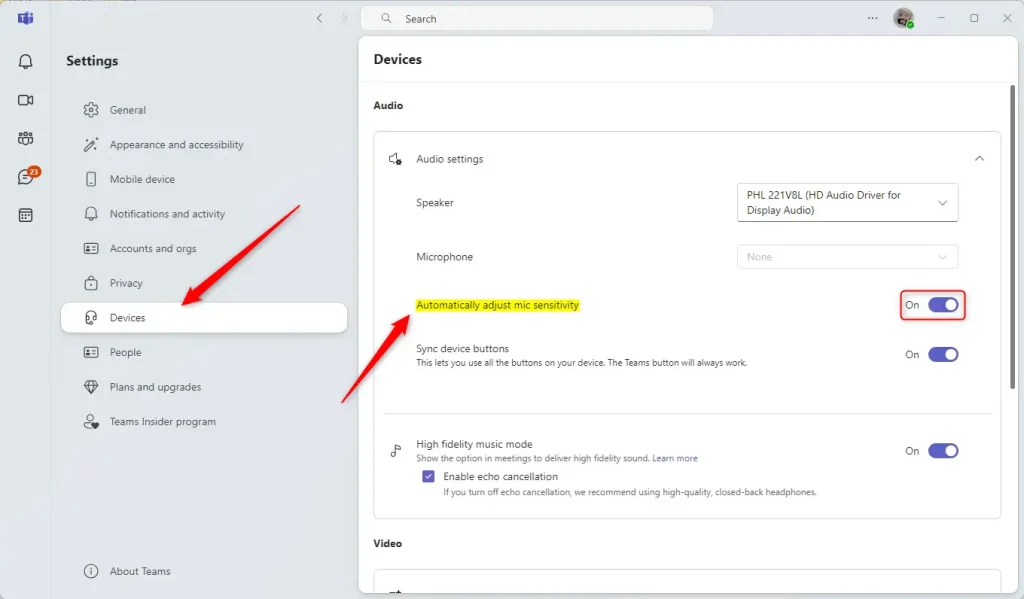
Open Microsoft Teams, click the Settings and more (…) button next to your profile picture, then select Settings and open the Devices tab. Under Audio, switch on “Automatically adjust mic sensitivity.” The change applies immediately, and no restart is needed. Switch the same toggle off to set your input level yourself in Windows.
Adjust mic sensitivity automatically in Teams
When you let Teams manage your microphone input levels, it keeps your voice at a steady volume during calls and blocks out background sounds like typing or doors closing. You do not have to change settings by hand before every meeting. The setting applies to your Teams account on this PC, so you only need to set it once.
The steps below turn it on. The screens can look a little different between the classic Teams app and the newer Teams app, but the Settings menu and the Devices tab work the same way in both.
- Click the Start menu.
- Select All Apps in the top right corner of the Start menu .
- Scroll the list and click Microsoft Teams.
The Teams app should open and show your chats, calendar or Teams list. If you are not signed in yet, sign in with your work, school or personal account first.

Shortcuts on the Taskbar or the Taskbar overflow give you alternative launch points, so you do not have to dig through the All Apps list each time.

- In the full Teams window, find your profile picture at the top right.
- Click the Settings and more ( …) button next to your profile picture.
- Select Settings from the menu.
If you do not see the three-dot button, make sure you are in the main Teams window and not in a meeting window, which has a different toolbar.

- Click the Devices tab on the left side of the Settings page.
- Look at the Audio section on the right.
- Find the toggle labeled “Automatically adjust mic sensitivity” and switch it to the On position.
The toggle should show as on, and the change applies right away. You do not need to restart Teams or Windows.
To turn the feature off, switch the same toggle to the Off position. This is also how you undo the change if your voice sounds worse with automatic adjustment. With it off, you can set your input level yourself in Windows under Settings System Sound
If the toggle is missing or greyed out, check that a microphone is selected in the same Audio section. Also check that you are on a current version of Teams. Some headsets and conferencing devices use their own gain controls, and in a work or school account your organization may restrict some device settings.
That completes the setup.
Summary:
Letting Teams handle your input levels keeps meeting audio consistent without requiring manual tweaks before every call.
- Automatic AdjustmentEnabling automatic mic sensitivity provides optimal sound quality during meetings.
- Easy AccessThe settings can be easily accessed through the Teams app's Settings menu, on the Devices tab.
- User-Friendly ToggleTurning this feature on or off with a single toggle switch is simple, and it takes effect without a restart.
- Improved ClarityProper mic sensitivity can reduce background noise, ensuring clearer audio during discussions.
- Enhanced CollaborationAdjusting your mic settings enhances overall meeting collaboration and engagement.
Configuring these preferences protects conference calls from sudden acoustic interference and keyboard clatter. If you ever sound too quiet or get cut off, come back to the Devices tab and try the toggle in the other position.
Have a question about this guide?
Answered by AI from this guide. Good questions may be added to this page — please don't include personal details.
Did this guide fix your problem?

About the Author
Richard
Tech Writer, IT Professional
Richard is a writer at Geek Rewind who turns complex IT tasks into clear, step-by-step guides. He draws on years of hands-on experience in system administration and enterprise IT operations, focusing on Windows, Linux and WordPress: the problems people actually run into, and the fixes that work. His server and WordPress guides come from systems he runs himself. Richard builds and maintains the platform behind Geek Rewind, from its Ubuntu servers and Nginx configuration to its custom WordPress plugins. Many new tutorials start with readers' questions, and he's always glad to answer them in the comments.
[…] during calls, set default speakers, set default microphone, enable high fidelity sound, change mic sensitivity, set default camera, and […]