Hide Message Previews in Chat List on Microsoft Teams

Message previews in Microsoft Teams show the first line of your latest chats next to contact names in the chat list. That is handy, but it also exposes private chats to coworkers or strangers whenever you share your screen or work in a public spot.
Teams has a setting that turns these snippets off and keeps the text out of view. It takes less than a minute to change in the app settings, and you can switch it back on at any time.
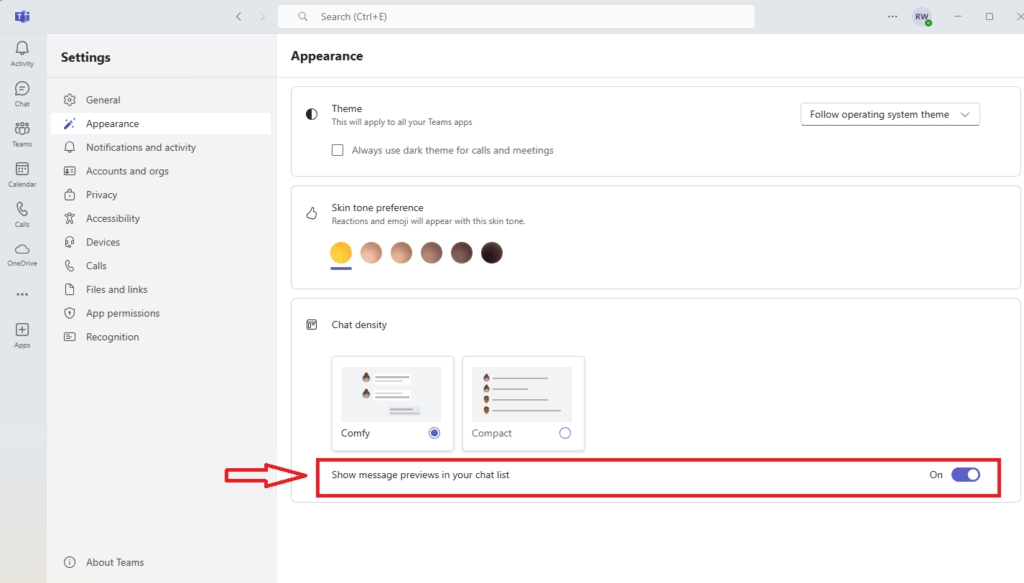
Go to Settings Appearance and toggle off “Show message preview in your chat list”. This hides message snippets from your chat list, keeping conversations private until opened.
Why hide message previews?
Preview text is easy to forget about. A message from your manager, a client or a friend can appear in the chat list while you present, and everyone who can see your screen can read it. The same goes for a colleague standing behind you in an open office.
With previews turned off, the chat list shows only names. Nobody can read the start of an incoming message unless you open the chat yourself.
How to hide message previews in New Teams vs. Classic Teams
The setting is in the main app settings in both New Teams and Classic Teams. Open Teams, click the three dots menu next to your profile picture, open Settings, and turn off the option that shows message previews in your chat list.
The steps below walk through it one click at a time. The menu labels can differ slightly between builds, but the layout is the same.
1. Launch the Microsoft Teams app from your Start menu or Taskbar. Wait for the main window to load. You should see your chat list and your profile picture in the top right corner.

2. Click the Settings and more (…) icon at the top right, next to your profile picture. A dropdown menu opens below it.

3. Select Settings from the dropdown menu. The Settings window opens, with a list of categories down the left side.
- Go to the Appearance tab in the left sidebar. The display options for the app appear on the right.
- Find the Chat density section. Set the switch for Show message preview in your chat list to Off.
The change applies right away, and you do not need to restart Teams. Go back to your chat list and check it. Each chat should now show only the contact name, with no line of message text under it.
To undo this, return to the same setting and switch it back to On.
Troubleshooting: Missing settings
If you cannot find the toggle, the usual cause is an outdated version of Teams. An older build may not have the option, or may place it somewhere else. Install any pending Teams updates, restart the app, and look in Appearance again.
On a work computer, your IT department may control Teams updates or restrict settings. In that case you may need an administrator to update the app or change a policy for you. If the option is missing even on a current version, ask your IT team whether it has been restricted.
Privacy in public spaces
Using Teams display settings to hide previews is good practice for anyone working in coffee shops, airports or open-plan offices. It also helps in screen-sharing sessions where you might forget to close the chat list. If you leave your computer unlocked for a moment, your private chats stay hidden from passersby.
Make it a habit to check this setting before you present. It only takes a few seconds, and you can turn previews back on afterwards.
Summary
- Hiding message previews protects your privacy during screen sharing and in shared spaces.
- The setting is found under Settings Appearance, in the Chat density section.
- This change does not affect your standard desktop notification banners. Those are managed separately from the chat list.
- If the setting is missing, check for app updates or consult your IT administrator.
For more information, visit the official Microsoft Support documentation.
Have a question about this guide?
Answered by AI from this guide. Good questions may be added to this page — please don't include personal details.
Did this guide fix your problem?

About the Author
Richard
Tech Writer, IT Professional
Richard is a writer at Geek Rewind who turns complex IT tasks into clear, step-by-step guides. He draws on years of hands-on experience in system administration and enterprise IT operations, focusing on Windows, Linux and WordPress: the problems people actually run into, and the fixes that work. His server and WordPress guides come from systems he runs himself. Richard builds and maintains the platform behind Geek Rewind, from its Ubuntu servers and Nginx configuration to its custom WordPress plugins. Many new tutorials start with readers' questions, and he's always glad to answer them in the comments.
No comments yet — be the first to share your thoughts!