Enable High Fidelity Sound in Microsoft Teams


High fidelity sound in Microsoft Teams is an audio setting that turns off the built-in compression to make music and voices sound clear instead of flat. This feature uses a 32kHz sampling rate and 128kbps bitrate to capture a much wider frequency range than standard calls.
Music lessons and live performances benefit the most from this mode because standard calls normally strip away subtle acoustic details. Turn on high fidelity sound in your audio settings before a meeting starts so your microphone captures every tone.
Turn on High fidelity music mode and Enable echo cancellation in Microsoft Teams. Go to Settings , then click Devices and toggle both options to On. This improves audio quality for music and voice calls.
How to enable high-fidelity sound
To enable high fidelity sound Teams users need to open the app settings and adjust the audio options in the Devices tab. This turns on High-Fidelity Music Mode so music and voices sound much clearer during your calls, giving you better audio quality than the standard settings provide.
- Open the Microsoft Teams app from your Start menu .

The app can also be opened from the Taskbar or Taskbar overflow.

- Click the Settings and more (three dots) button near your profile picture.
- Select Settings from the menu.

- Click the Devices tab on the left side of the window.
- Find the High fidelity music mode switch and turn it to On.
- Check the box for Enable echo cancellation to turn that feature on as well.
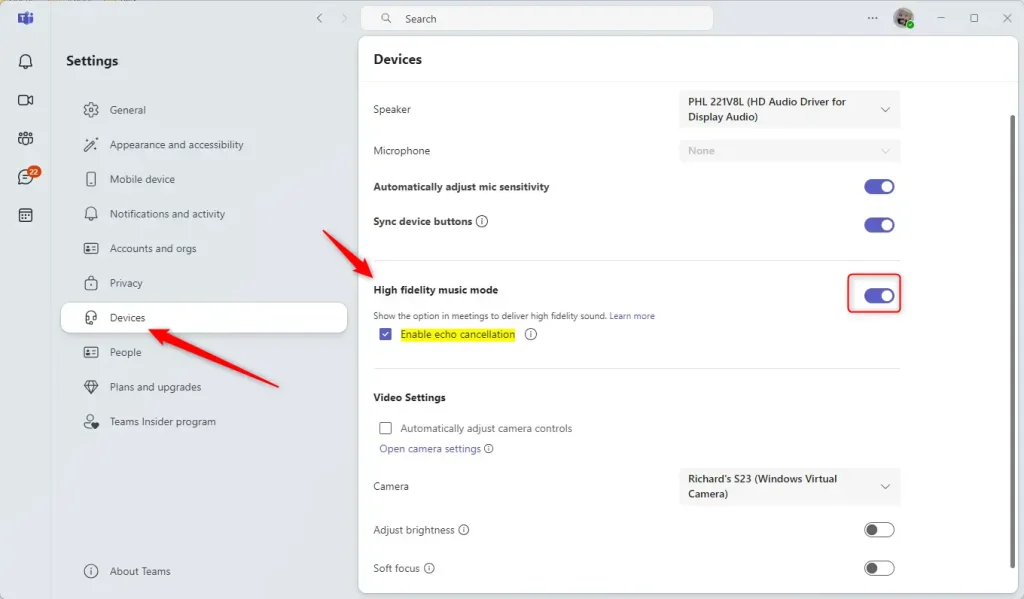
Standard user accounts can change these audio settings. Personal devices do not require administrator privileges to improve call quality.
Summary
High fidelity sound Teams features improve your calls and meetings by making music and voices sound sharper while cutting out background noise. Turning on High-Fidelity Music Mode and Echo Cancellation helps you hear and be heard much more clearly without distractions.- High-Fidelity Music Mode: Makes music and audio sound much better during your calls.
- Echo Cancellation: Removes distracting background noises and echoes.
- Simple Setup: You can find these options quickly within the Devices tab in your Teams settings.
- Better Meetings: Clearer audio helps everyone stay focused and engaged during your virtual meetings.
Was this guide helpful?

About the Author
Richard
Tech Writer, IT Professional
Richard is a writer at Geek Rewind who turns complex IT tasks into clear, step-by-step guides. He draws on years of hands-on experience in system administration and enterprise IT operations, focusing on Windows, Linux and WordPress: the problems people actually run into, and the fixes that work. His server and WordPress guides come from systems he runs himself. Richard builds and maintains the platform behind Geek Rewind, from its Ubuntu servers and Nginx configuration to its custom WordPress plugins. Many new tutorials start with readers' questions, and he's always glad to answer them in the comments.



[…] or off, manage teams notifications during calls, set default speakers, set default microphone, enable high fidelity sound, change mic sensitivity, set default camera, enable auto-brightness, and […]
[…] or off, manage teams notifications during calls, set default speakers, set default microphone, enable high fidelity sound, and […]