How to Adjust Copilot Voice Speed In Windows 11


Copilot voice speed changes how fast the built-in AI assistant reads answers aloud in Windows 11. Copilot is a desktop application built into Windows 11 that lets you change settings, write text, and ask questions using chat or voice.
Microsoft has removed or replaced this feature in Windows, so the instructions below can no longer be followed. They are kept here as a record of how it used to work.
The Copilot setting in this tutorial is no longer available.
Recent updates turn Copilot into a standard app window that you can resize and pin to your taskbar just like Microsoft Edge or Notepad. By default, the app reads its answers out loud at a standard pace when you speak to it, but you can slow down or speed up that voice to fit your listening comfort.
Open Copilot, click your profile picture, then Settings. Select the Voice option and use the Voice speed slider to adjust how fast Copilot speaks. Save your changes to apply the new speed.
Adjust "Read aloud" voice speed in Copilot
You can change Copilot voice speed in Windows 11 by opening the app settings and moving the speed slider. This lets you make the computer voice read responses aloud faster or slower depending on what sounds best to you.
Here's how to do it.
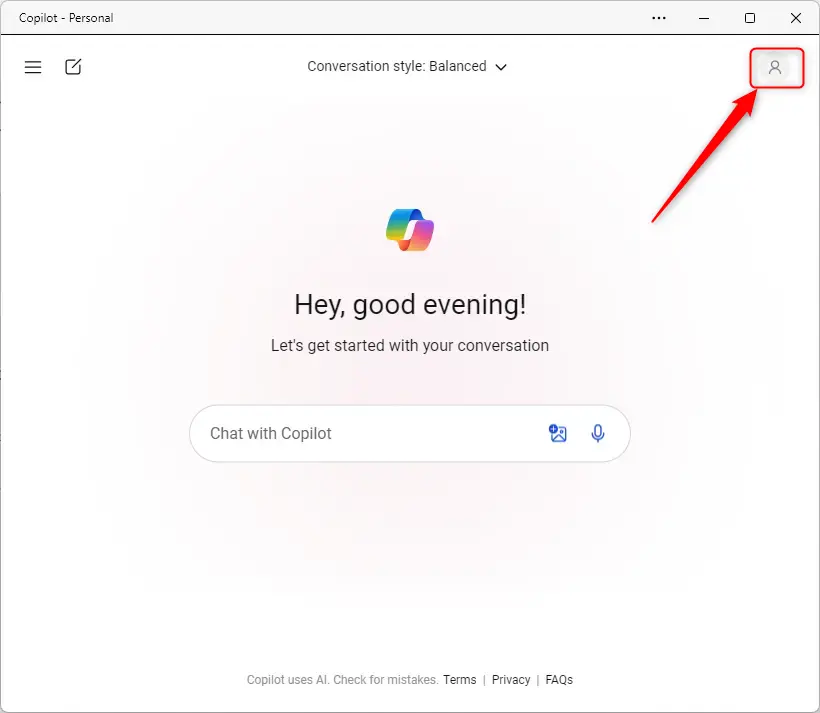
Launch the Copilot app and click your profile picture in the top-right corner.
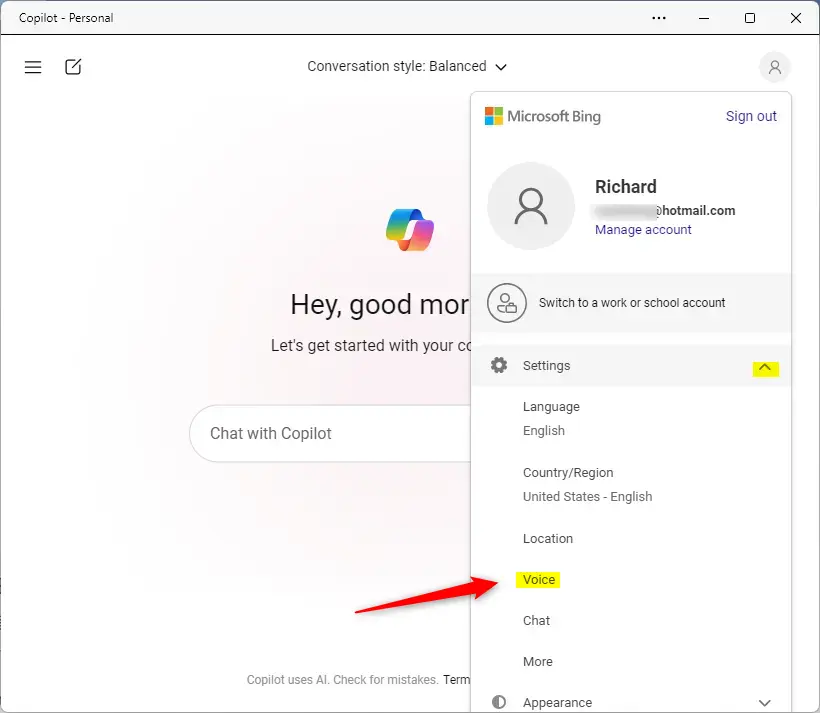
Choose Settings from the menu, then click Voice.
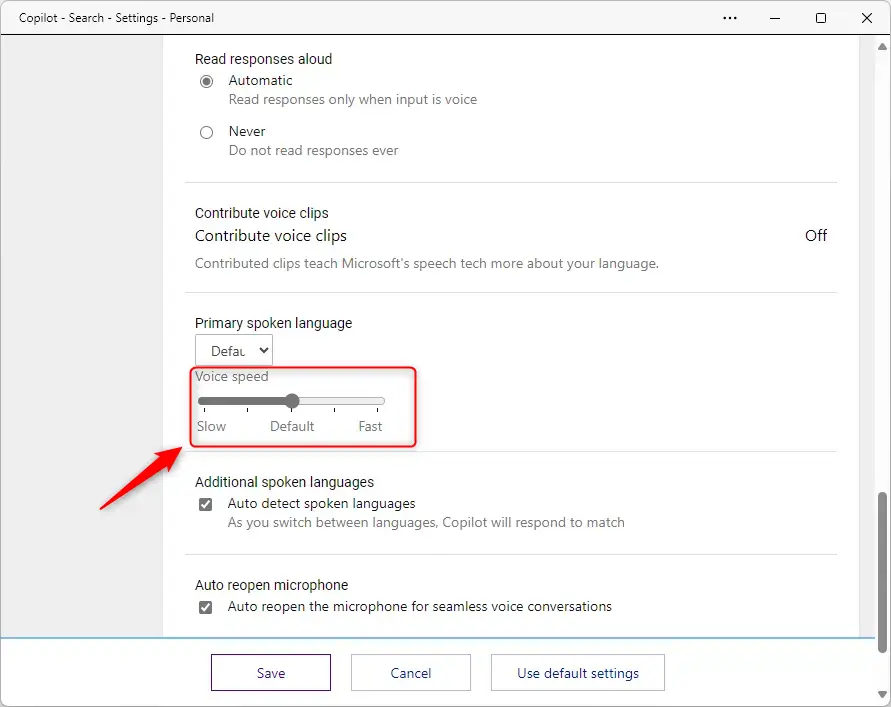
On the Settings page, under Voice, select and adjust the Voice speed slider to speak fast or slow.
Click the Save button when you're done to apply your changes.
That should do it!
Reference:
Conclusion:
- Copilot is a powerful generative AI assistance tool in Windows 11, designed to assist users with natural language interactions and system settings adjustment.
- The Read Aloud feature in Copilot automatically reads responses aloud, but users can adjust the voice speed to their preference for a better experience.
- Users can easily customize the voice speed by following simple steps within the Copilot app settings, enhancing their interaction with the AI tool.
- The redesigned Copilot app provides a seamless and customizable experience, akin to traditional Windows applications, with added flexibility in resizing and movement.
- With the ability to fine-tune voice speed and the convenience of a pinned taskbar button, Copilot offers a user-friendly and tailored interaction experience.
Was this guide helpful?

About the Author
Richard
Tech Writer, IT Professional
Richard is a writer at Geek Rewind who turns complex IT tasks into clear, step-by-step guides. He draws on years of hands-on experience in system administration and enterprise IT operations, focusing on Windows, Linux and WordPress: the problems people actually run into, and the fixes that work. His server and WordPress guides come from systems he runs himself. Richard builds and maintains the platform behind Geek Rewind, from its Ubuntu servers and Nginx configuration to its custom WordPress plugins. Many new tutorials start with readers' questions, and he's always glad to answer them in the comments.



No comments yet — be the first to share your thoughts!