How to Disable Pinning On Windows 11 Taskbar

Disabling pinning on the Windows 11 Taskbar locks your app layout in place so no one can add or remove shortcuts. Windows 11 normally lets anyone pin and unpin programs freely. Blocking that change keeps the Taskbar neat on shared family computers or public PCs.
You can set up this restriction in a few minutes. This guide covers three ways to do it: the Local Group Policy Editor (Windows 11 Pro and Enterprise), the Registry Editor (a built-in Windows tool that stores system settings, and the option for Home), and a command you run as an administrator. Locking the Taskbar prevents accidental mix-ups and keeps your favorite apps right where you put them.
You need an administrator account for every method. To check which edition you have, go to Settings System About and look under Windows specifications.
To disable pinning on the Windows 11 Taskbar, open Local Group Policy Editor (gpedit.msc) on Pro or Enterprise and set “Do not allow pinning programs to the Taskbar ” to Enabled under User Configuration Administrative Templates Start Menu and Taskbar. On Home, create a DWORD value named NoPinningToTaskbar set to 1 in 🗝️HKEY_CURRENT_USER\
What happens when you are done?
The icons on your Taskbar stay exactly where they are. Existing pinned items remain, but users cannot add new ones or remove current ones.
The change is easy to reverse. Each method below ends with a note on how to undo it. If you plan to edit the registry, create a restore point first so you have a way back if something goes wrong.
Using Group Policy Editor (Pro/Enterprise)
Windows 11 Pro and Enterprise users can disable Taskbar pinning by opening the Local Group Policy Editor with gpedit.msc and changing one policy setting. This stops you and other users from adding new apps to the Taskbar or changing existing pinned shortcuts, so the Taskbar stays locked the way you set it.
This method does not work on Windows 11 Home. Home does not include the Local Group Policy Editor, so typing the command there will do nothing useful. If you run Home, skip to the Registry Editor method below.
- Open the Local Group Policy Editor by pressing the Windows key, typing
gpedit.msc, and pressing Enter. If a User Account Control prompt appears, click Yes. The Local Group Policy Editor window should now be open. 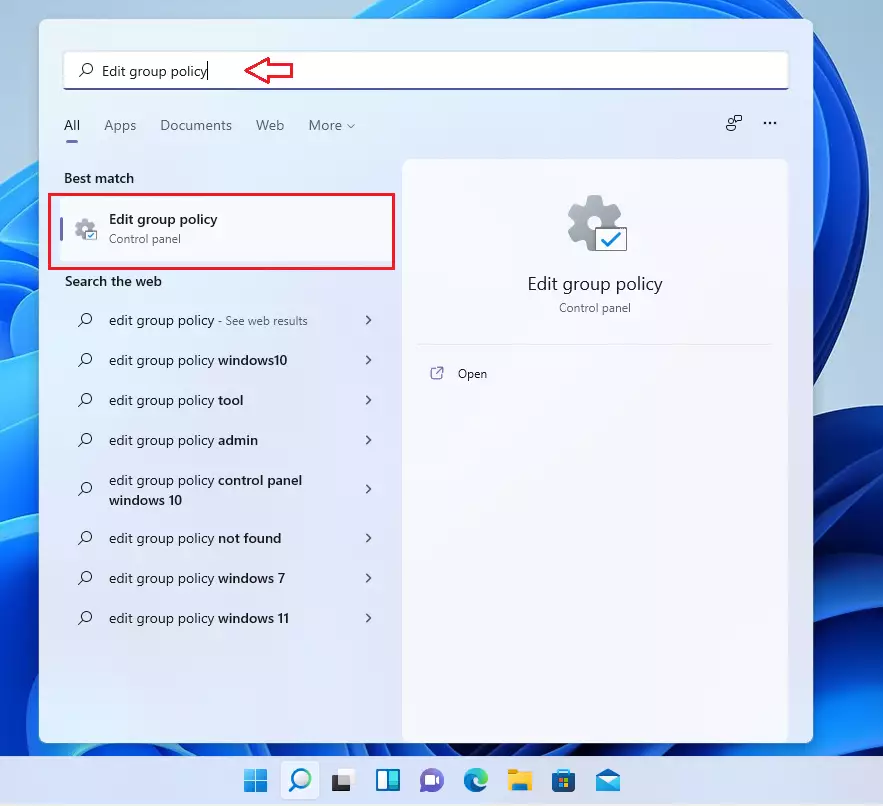
windows 11 edit group policy - In the menu on the left, click through these folders:
User Configuration\Administrative Templates\Start Menu and Taskbar. When you reach the last folder, its settings appear in the right-hand list. - Look for the setting named "Do not allow pinning programs to the Taskbar" in the right-hand list. Double-click it. The list can be long, so click the Setting column header to sort it by name if you have trouble finding it.
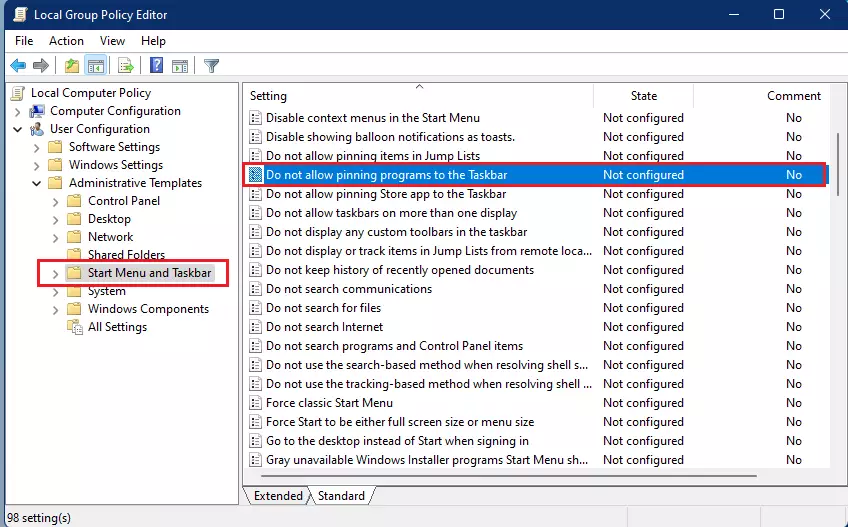
windows 11 do not allow pinnning programs to the taskbar - In the new window that appears, select Enabled. The other choices in that window are Not Configured and Disabled.
- Click OK to save your changes and close the window. The setting list should now show the policy as Enabled.
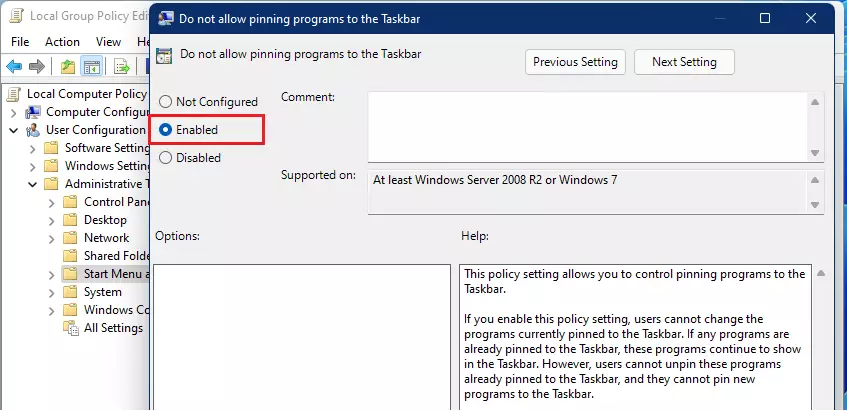
windows 11 enabled to disable pinning of app to taskbar
To undo this, open the same setting again and choose Not Configured, then click OK. If the pin options do not come back right away, sign out and sign back in, or restart the PC.
Using Registry Editor (Home Edition)
Windows 11 Home users can disable Taskbar pinning by opening the Registry Editor with regedit and creating a new DWORD value inside the Explorer key. This works on Home editions where the Group Policy Editor is missing, and it gives the same result as the policy above. Pro and Enterprise users can use it too.
Change only the key and value named below, and consider creating a restore point before you start.
- Press Windows + R, type
regedit, and press Enter. Click Yes if User Account Control asks for permission. The Registry Editor window opens. - Navigate to:
HKEY_CURRENT_USER\Software\Policies\Microsoft\Windows\Explorer. If the Explorer key does not exist, right-click the Windows folder, select New Key, and name itExplorer. The new key should appear under Windows and be selected. - Right-click an empty area in the right pane, then select New DWORD (32-bit) Value. A new entry appears in the list with its name ready to edit.
- Name it
NoPinningToTaskbarand press Enter. - Double-click it and set the Value data to
1. Click OK. The new value should now show that number in the Data column. - Restart your computer, or restart Windows Explorer via Task Manager. To do the second, press Ctrl + Shift + Esc, find Windows Explorer on the Processes tab, right-click it, and select Restart. The Taskbar goes blank for a moment and then comes back with the change applied.
To undo this, go back to the same key and delete the value you created, or set its Value data to 0. Then restart Windows Explorer or the PC again.
Automation with PowerShell
You can apply this setting using a simple command instead of clicking through a editor. This is handy if you need to set up more than one PC. Note: This process requires admin privileges.
To open an elevated window, press the Windows key, type Command Prompt, right-click the result, and select Run as administrator. Click Yes if User Account Control asks. Then run the command shown below. If you see an "Access is denied" message, the window was not opened as administrator.
New-ItemProperty -Path "HKCU:\Software\Policies\Microsoft\Windows\Explorer" -Name "NoPinningToTaskbar" -Value 1 -PropertyType DWORD -Force
Summary
Locking your Taskbar is a good way to keep your desktop organized and prevent unwanted changes. Use the Group Policy Editor if you have Pro or Enterprise, or the Registry Editor if you run Home. Either way, you get a consistent Taskbar for every user of the PC. If you ever need to pin or unpin an app again, reverse the setting with the undo steps above.
Have a question about this guide?
Answered by AI from this guide. Good questions may be added to this page — please don't include personal details.
Did this guide fix your problem?

About the Author
Richard
Tech Writer, IT Professional
Richard is a writer at Geek Rewind who turns complex IT tasks into clear, step-by-step guides. He draws on years of hands-on experience in system administration and enterprise IT operations, focusing on Windows, Linux and WordPress: the problems people actually run into, and the fixes that work. His server and WordPress guides come from systems he runs himself. Richard builds and maintains the platform behind Geek Rewind, from its Ubuntu servers and Nginx configuration to its custom WordPress plugins. Many new tutorials start with readers' questions, and he's always glad to answer them in the comments.
No comments yet — be the first to share your thoughts!