How to Pin Microsoft Store App to Taskbar in Windows 11

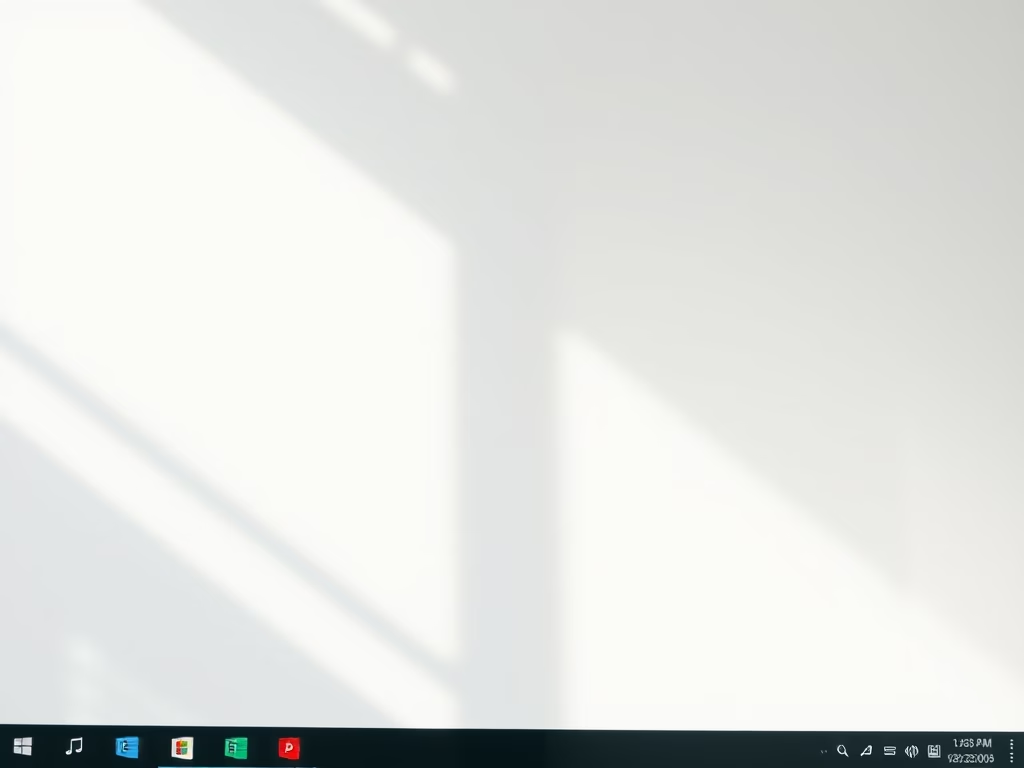
Pin the Microsoft Store to your taskbar to open it with a single click instead of searching the Start menu .
Search for Microsoft Store, right-click the app, and select “Pin to taskbar .” Alternatively, find the icon on your taskbar , right-click it, and select “Unpin from taskbar.
What is the Microsoft Store?
The Microsoft Store is the main place on Windows to find and download games, software, and other useful tools for your PC. If you use it often, it is worth keeping within reach.
Windows 11 normally puts the Microsoft Store icon on the taskbar by default after you sign in. If yours is missing, you or a cleanup tool may have unpinned it, or a profile reset may have removed it. Either way, pinning it back takes a few seconds.
What does “Pin to Taskbar” mean?
Pinning an app places its icon permanently on your Windows 11 taskbar. The icon stays there after restarts and sign-outs until you unpin it, so you can open the app with one click instead of searching the Start menu .
How to Pin or Unpin Microsoft Store on Your Taskbar
Pin Microsoft Store to Taskbar
- Click the Start button (the Windows icon) on the taskbar , or press the Win on your keyboard. The Start menu opens.
- Type Microsoft Store in the search box. You do not need to click anything first. Windows starts searching as soon as you type.
- When the Microsoft Store app appears in the results, right-click it. A context menu opens.
- Choose Pin to taskbar . The Microsoft Store icon now shows on the taskbar .
If the Store is already open, you can also right-click its icon on the taskbar and choose Pin to taskbar from there. If the search finds nothing or the option is missing, the pinning policy described later in this article may be turned on for your PC. This is common on work or school computers.
Unpin Microsoft Store from Taskbar
Unpinning only removes the shortcut from the taskbar . It does not uninstall the Microsoft Store, and you can pin it again at any time.
- Find the Microsoft Store icon on your taskbar.
- Right-click the icon. A small menu opens above it.
- Select Unpin from taskbar. The icon disappears from the taskbar right away.
For Advanced Users: How to Allow or Prevent Pinning Microsoft Store Using Settings
Managing multiple PCs requires stricter control over app shortcuts. Network administrators use one of two tools for this task. The Local Group Policy Editor is a built-in Windows console for configuring system settings. The Registry Editor is a database tool for low-level operating system configuration.
Both tools set the same restriction. Group Policy is the safer and easier route, but it is only available on some editions of Windows 11. The registry method works on every edition, including Home.
1Using Local Group Policy Editor
Windows 11 Pro, Enterprise, and Education editions include the Local Group Policy Editor. Administrators use this console to prevent standard users from pinning the Microsoft Store app to the taskbar. It is not included in Windows 11 Home, so Home users should use the registry method below.
This stops standard users from changing the setting. Sign in with an administrator account before you start.
- Press Windows + R to open the Run box.
- Type
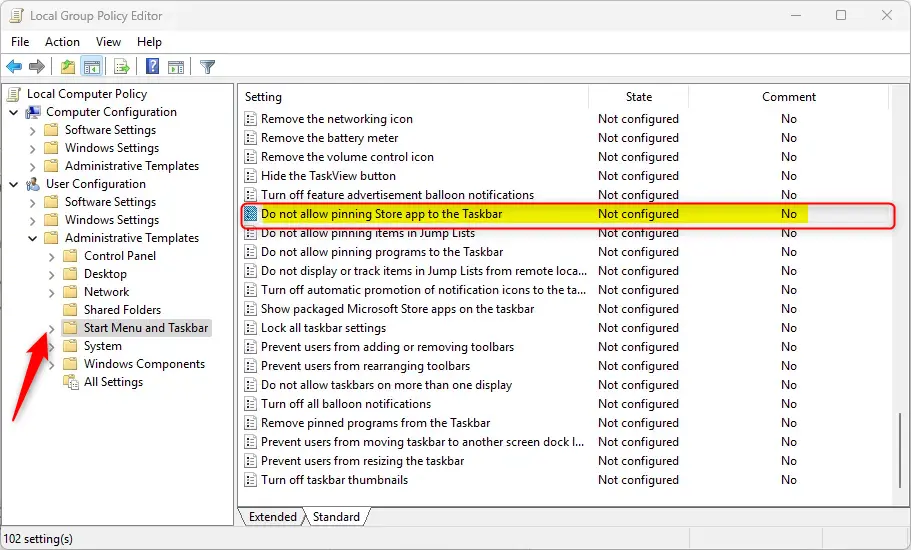
gpedit.mscand press Enter. The Local Group Policy Editor opens. If Windows asks for permission, click Yes. - In the left pane, go to User Configuration Administrative Templates Start Menu and Taskbar.
- On the right side, find Do not allow pinning Store app to the Taskbar and double-click it. The policy's settings window opens.
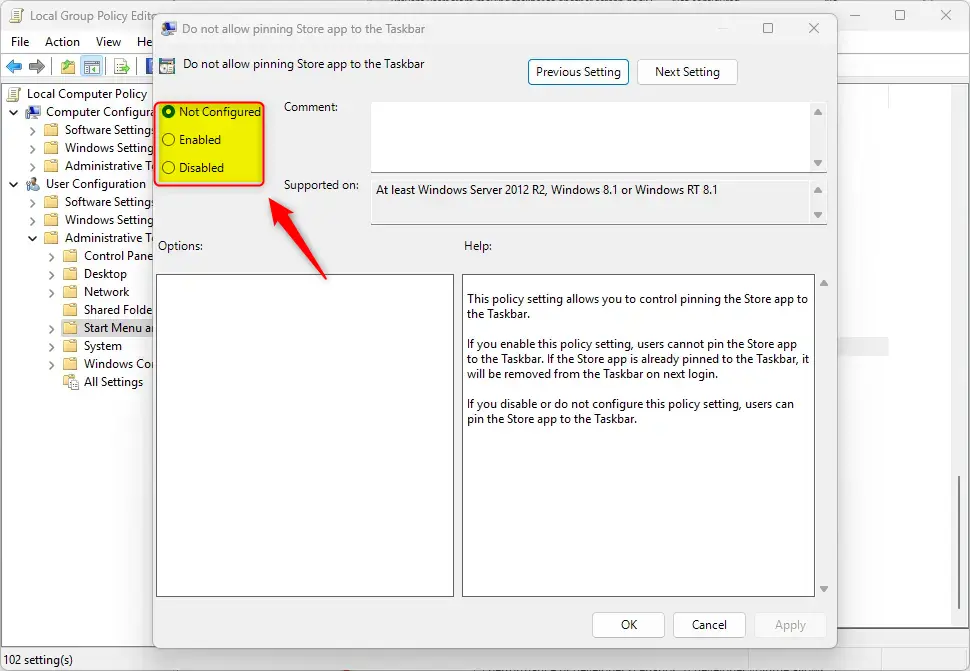
- Pick one of the three options:
- Not Configured – Default behavior (pinning allowed).
- Enabled – Prevents users from pinning the Microsoft Store app. It also removes the icon if it's already pinned.
- Disabled – Allows pinning the Microsoft Store app.
- Click OK to save the choice and close the window.
- Restart your PC to apply the change.
To undo the restriction later, open the same policy, set it back to Not Configured or Disabled, click OK, and restart.
2Using Windows Registry Editor
A registry change can also block users from pinning the Microsoft Store app to the taskbar. This is the method to use on Windows 11 Home. Be careful with it, because incorrect entries can cause system instability. Back up the registry before you make any changes. In the Registry Editor, select File Export and save a copy of the registry. You can double-click that file later to restore it.
Generating a backup beforehand prevents unrecoverable system errors.
- Press Windows + R, type
regedit, and press Enter to open the Registry Editor. If Windows asks for permission, click Yes. - Navigate to one of these locations, depending on who you want to affect:
HKEY_CURRENT_USER\SOFTWARE\Policies\Microsoft\Windows\Explorer(just your user account)- OR
HKEY_LOCAL_MACHINE\SOFTWARE\Policies\Microsoft\Windows\Explorer(all users on the PC)
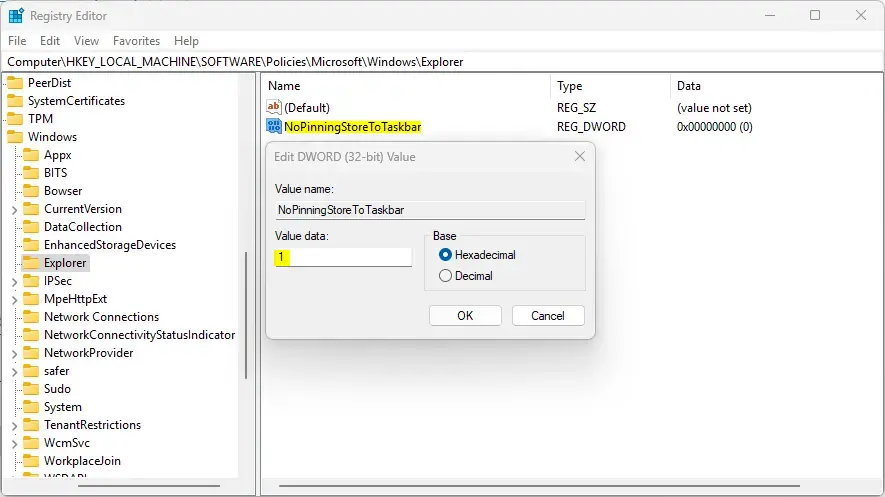
- Look for a value named NoPinningStoreToTaskbar on the right side.
- If it's not there, right-click the empty space and choose New DWORD (32-bit) Value. Name the new value NoPinningStoreToTaskbar.
- Double-click NoPinningStoreToTaskbar and set the value data to:
- 1 – Disable pinning the Microsoft Store app.
- 0 or delete the value – Allow pinning.
- Click OK, then close the Registry Editor.
- Restart your computer for the changes to take effect.
To undo the change, return to the same value, set it to 0 or delete it, and restart. The value under the machine-wide location needs an administrator account to edit.
Summary
Pinning the Microsoft Store to the taskbar cuts down on menu searching and speeds up daily work. Standard users can do it by right-clicking the app and selecting Pin to taskbar. Corporate IT staff can use the Group Policy Editor or the Registry Editor to enforce restrictions across networked machines.
Administrators use the Local Group Policy Editor on Pro, Enterprise, and Education, and the Registry Editor on any edition, to control who can pin the Store app. This allows central management of shortcut settings across office workstations.
Both methods give you control over how the Store appears on Windows 11 and make maintaining several devices easier. Both can be reversed by returning the setting to its default and restarting.
Have a question about this guide?
Answered by AI from this guide. Good questions may be added to this page — please don't include personal details.
Did this guide fix your problem?

About the Author
Richard
Tech Writer, IT Professional
Richard is a writer at Geek Rewind who turns complex IT tasks into clear, step-by-step guides. He draws on years of hands-on experience in system administration and enterprise IT operations, focusing on Windows, Linux and WordPress: the problems people actually run into, and the fixes that work. His server and WordPress guides come from systems he runs himself. Richard builds and maintains the platform behind Geek Rewind, from its Ubuntu servers and Nginx configuration to its custom WordPress plugins. Many new tutorials start with readers' questions, and he's always glad to answer them in the comments.
No comments yet — be the first to share your thoughts!