How to Change Hard Disk Idle Timeout in Windows 11

- 8 steps
- Needs administrator rights
Hard disk idle timeout is a power-saving feature in Windows 11. It turns off your mechanical hard drive after a set number of minutes of inactivity. This reduces power use and can extend laptop battery life. The trade-off is a short delay when you open a file on that drive, because the disk has to spin back up first.
You change the idle time in Power Options in the Control Panel. Pick a value that balances power savings against how quickly you need your files.
You change the hard disk idle timeout in Windows 11 through the Control Panel’s Power Options. Navigate to Hardware and Sound, then Power Options, select your active power plan, and adjust the “Turn off hard disk after” setting under advanced power options. This controls when your hard drive spins down to save energy.
What is Hard Disk Idle Timeout?
This is how long Windows waits, with no activity on the disk, before it turns the disk off. It only applies to traditional hard disk drives (HDDs). It does not affect SSDs or faster drives such as NVMe.
The setting is stored per power plan. If you switch to a different plan later, such as Balanced or Power saver, that plan has its own value. Change the plan you actually use, or change each plan separately.
Steps to Change Hard Disk Idle Timeout in 🪟 Windows 11
Open Control Panel. Click Start, type Control Panel, and open the app from the search results. The Control Panel window opens.
Go to Power Options. In Control Panel, click Hardware and Sound, then click Power Options. The path is Control Panel Hardware and Sound Power Options. You now see a list of your power plans.
Open your active plan. Find the plan marked as selected (the one with the filled radio button). Click the Change plan settings link next to it. The “Edit Plan Settings” page opens, with options for turning off the display and putting the PC to sleep.
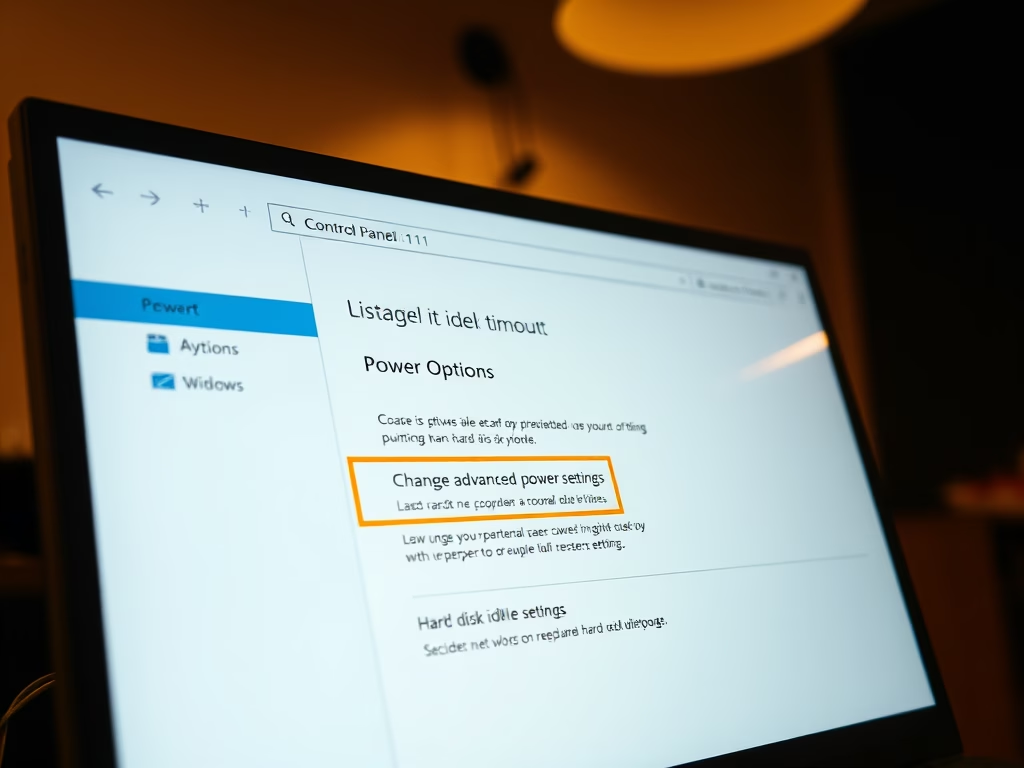
Open the advanced settings. Click Change advanced power settings. A small “Power Options” window opens with a list of settings you can expand. If a setting is greyed out, close the window and reopen it from an administrator account.
Expand Hard disk. Scroll down the list and click the plus sign (+) next to Hard disk. If you don’t see a Hard disk entry, the PC probably has no mechanical drive, or the manufacturer has hidden the setting.
Expand Turn off hard disk after. Click the plus sign (+) next to Turn off hard disk after. You now see the current value in minutes.
Set the time. Click the value next to On battery and type or choose the number of minutes. Do the same for Plugged in. For example, you could use 10 minutes on battery and 20 minutes plugged in. Desktop PCs have no battery, so they usually show only the Plugged in option. Setting the value to 0 means Never, so the disk is not turned off for being idle.
Save your changes. Click OK to save and close the window. You don’t need to restart, because the new timeout applies right away. You can now close the Control Panel.
To undo the change, go back to the advanced power settings and set the values again. You can also click Restore plan defaults in the same window to return that plan to its original settings. Note that this resets every setting in the plan, not just the hard disk timeout.
Important Notes
- This setting only works for traditional hard drives (HDD). It does not affect SSDs or NVMe drives.
- If you set the timeout too short, the disk may turn off too often. You will notice small pauses each time you open a file while it spins back up. Repeated spin-ups can also add a little wear to the drive.
- If you use the drive for long downloads, backups or media playback, choose a longer timeout, or use 0 (Never), so the disk doesn’t stop in the middle of a task.
- The setting belongs to the power plan you edited. If the change doesn’t seem to apply, check which plan is currently active.
Summary
- Windows 11 can turn off your hard disk after a set time to save power.
- You can change this timeout in Control Panel Hardware and Sound Power Options, using the advanced settings of your active plan.
- A longer timeout saves less power but avoids delays. A shorter timeout saves more power but means the disk wakes up more often.
The hard disk idle timeout lets you decide when your computer spins down its hard drive to save power and reduce noise. Adjusting it in your power plan helps you balance energy savings against the short delay when the disk wakes up. You can set different values for battery and plugged-in use, and you can restore the defaults at any time.
Have a question about this guide?
Answered by AI from this guide. Good questions may be added to this page — please don't include personal details.
Did this guide fix your problem?

About the Author
Richard
Tech Writer, IT Professional
Richard is a writer at Geek Rewind who turns complex IT tasks into clear, step-by-step guides. He draws on years of hands-on experience in system administration and enterprise IT operations, focusing on Windows, Linux and WordPress: the problems people actually run into, and the fixes that work. His server and WordPress guides come from systems he runs himself. Richard builds and maintains the platform behind Geek Rewind, from its Ubuntu servers and Nginx configuration to its custom WordPress plugins. Many new tutorials start with readers' questions, and he's always glad to answer them in the comments.
No comments yet — be the first to share your thoughts!