Check Hard Disk Drive Health in Windows 11

- 5 ways to do it
- Needs administrator rights
- Includes a restart or sign-out
A hard disk drive (HDD) stores Windows and your files on spinning platters. Here is how to check whether yours is failing, and which check to run first. The quickest way to check its health in Windows 11 is to open Settings System Storage Advanced storage settings Disks & volumes and read the status for the drive.
Settings gives a quick answer, but it does not show everything. This guide also covers Error checking in File Explorer, the CHKDSK command, PowerShell’s storage cmdlets (built-in commands for managing drives), and Event Viewer. Each one reports something different, so you may need more than one.
Every method works on Windows 11 Home and Pro. Some steps need administrator privileges, and the guide flags each one.
To check hard disk drive health in Windows 11, open Settings, select System, then Storage, expand Advanced storage settings, and select Disks & volumes. Choose your drive and select Properties to read its health status, which Windows takes from the drive’s built-in SMART monitoring. A Healthy status is not a guarantee, so back up important files.
What “Drive Health” Means in 🪟 Windows 11
A drive reports its own condition through SMART (Self-Monitoring, Analysis and Reporting Technology), a monitoring system built into almost every hard disk drive and SSD. The drive tracks things like read errors, reallocated sectors (damaged areas the drive has swapped for spare ones) and temperature. Windows reads that data and turns it into a status such as Healthy, Warning or Unhealthy.
A Healthy status is a good sign, not a guarantee. A hard disk drive has moving parts and can fail with little warning. Treat any health check as one clue, not proof. Keep a current backup of files you cannot replace.
Two separate things get checked in this guide. One is the physical drive: its SMART status, error counts and temperature. The other is the file system, which is the structure Windows uses to organise files on the drive.
Error checking and CHKDSK test the file system. PowerShell and Settings report on the hardware.
Before You Start
Health checks that only read data are safe, but a drive that is already failing can get worse under heavy use, and repair scans put extra load on it. Copy your key files to another drive or to OneDrive before you run a repair.
Decide which method fits your goal:
- Want a fast status? Use Method 1.
- Want to scan for file system errors? Use Method 2 or Method 3.
- Want detailed numbers such as error counts, temperature and power-on hours? Use Method 4.
- Want a history of disk problems Windows already logged? Use Method 5.
If you are not sure whether your drive is a hard disk drive or an SSD, see how to check whether your drive is an HDD or SSD in Windows 11. The type matters because SSDs report wear, and hard disk drives do not.
Method 1Check Drive Health in Settings
This method opens the Disks & volumes page in Settings, which shows the health status Windows reads from the drive. It needs no administrator rights.
- Open Settings . Press Win+I.

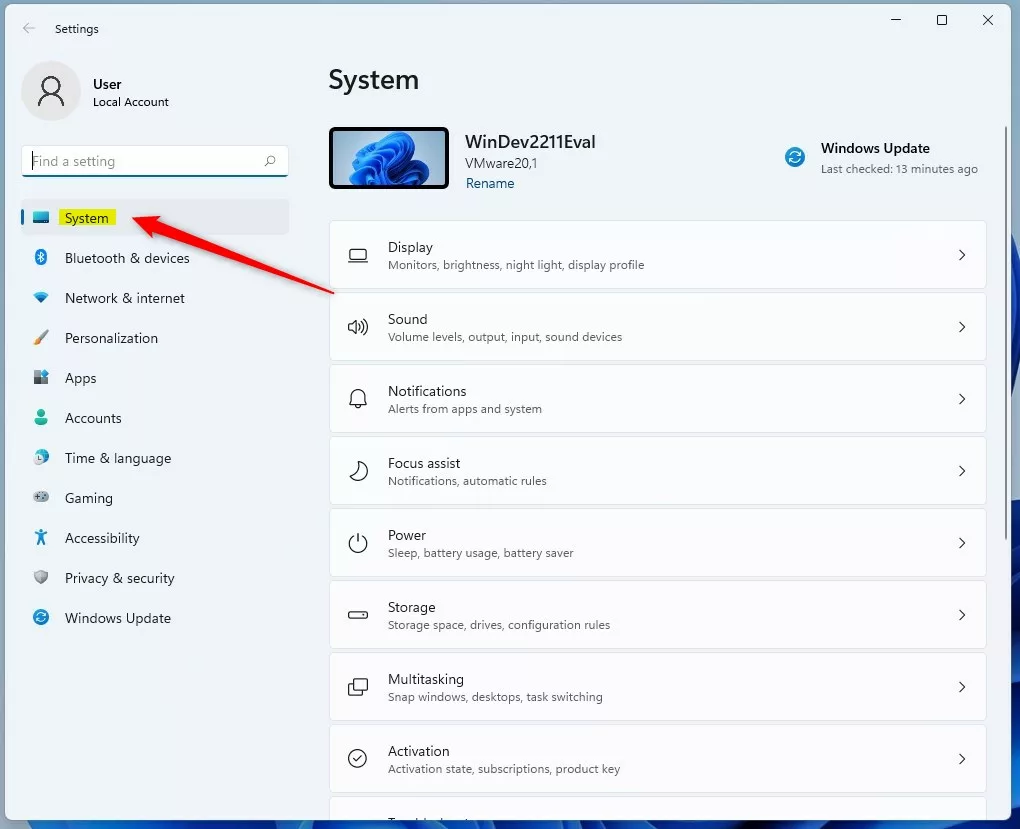
Start Menu - Select System. It is in the left pane.
system button in windows settings app - Select Storage. The page shows your drives and what uses space on them.
- Scroll down and expand Advanced storage settings. A short list of options opens below it.
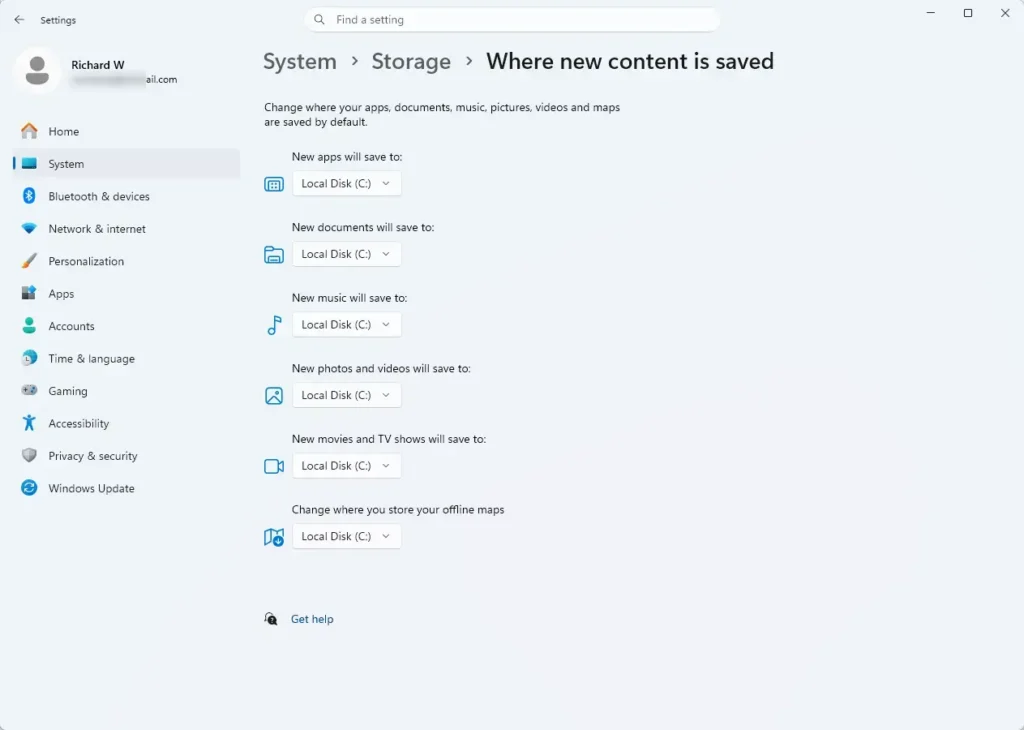
Settings > Storage > Where new content is saved - Select Disks & volumes. Each physical drive in the PC appears as a row, with its volumes (drive letters) underneath.
- Select your drive, then select Properties. A page opens with details about that drive.
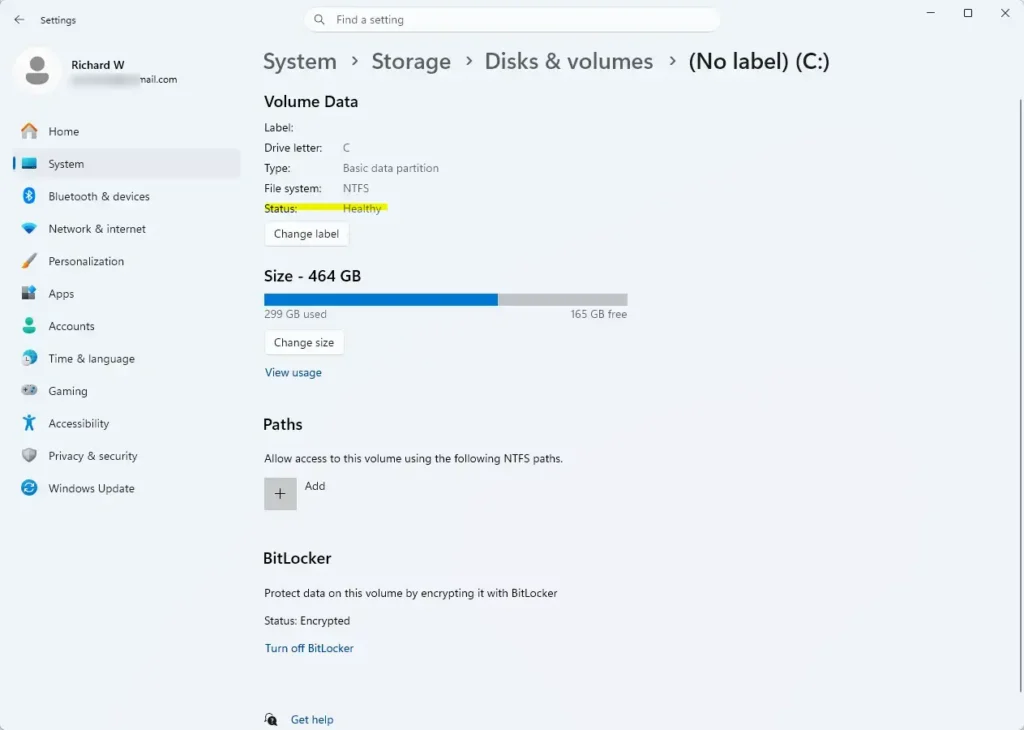
Settings > System > Storage - Read the health information on that page. A Healthy status means Windows sees no problem.
The details shown depend on the drive and your Windows 11 version. NVMe SSDs usually show extra items such as estimated remaining life and temperature. A hard disk drive may show less. If the page has no health section at all, use Method 4 instead.
To see how much space is left on the same drive, read how to check your drive’s storage space in Windows 11. A drive that is nearly full slows down, and that can look like a health problem when it is not.
Method 2Run Error Checking from File Explorer
Error checking scans the file system on one drive for errors and offers to repair them. It tests the file system, not the hardware, so a pass here does not clear the physical drive.
Windows asks for administrator approval when you start the scan.
- Open File Explorer . Press Win+E.

File Explorer - Select This PC. Your drives appear under Devices and drives.
- Right-click the drive, then select Properties. The Properties window opens.
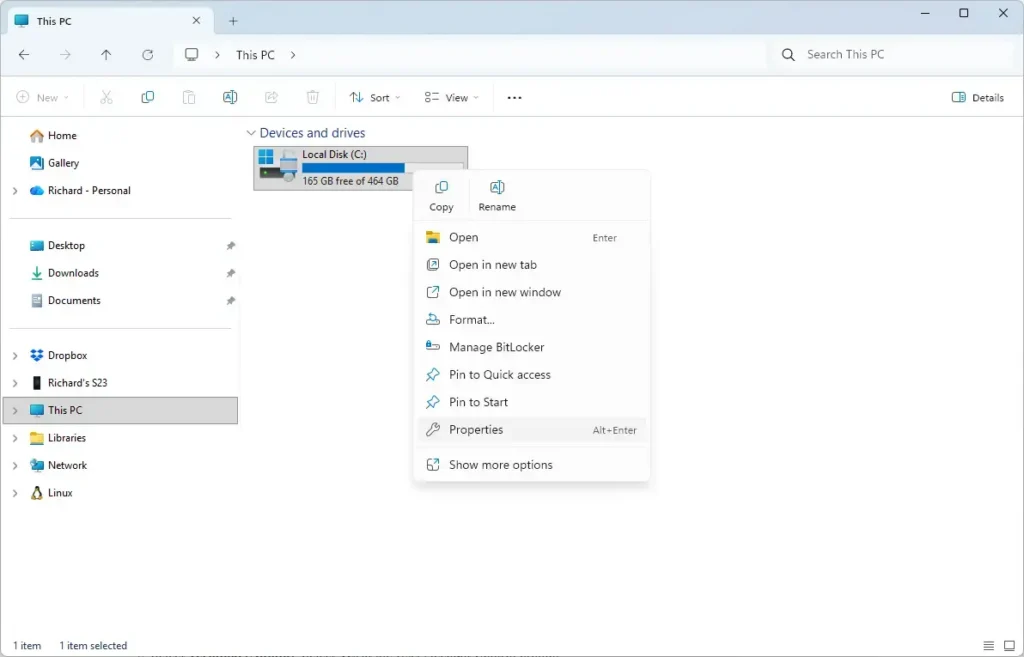
File Explorer - Open the Tools tab. The Error checking section is at the top.
- Select Check. A User Account Control prompt may appear. Select Yes to continue.
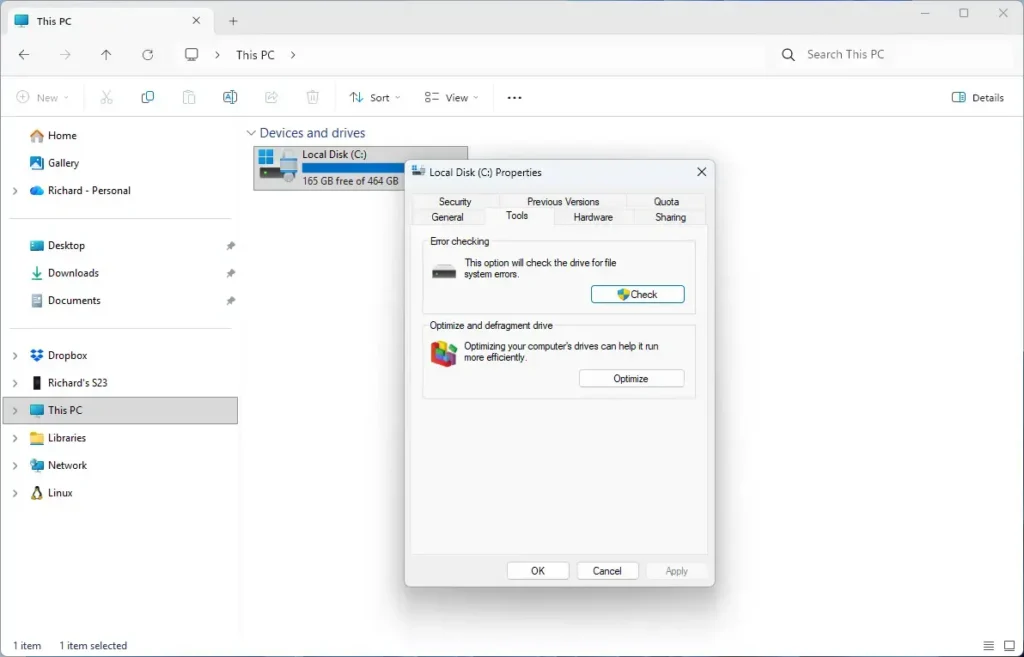
File Explorer - Select Scan drive. Windows may first say “You don’t need to scan this drive”. That means it found no errors recently, and you can still run the scan.
- Wait for the scan to finish. A message says Windows successfully scanned the drive, or that it found errors.
- Select Repair drive if the scan reports errors. Windows fixes what it can. It may ask you to restart if the drive holds Windows.
Select Show Details in the result window to open Event Viewer with the scan report. That is useful when you want to know exactly what Windows fixed.
Method 3Scan with CHKDSK
CHKDSK (short for “check disk”) is a command-line tool that checks a drive’s file system and, with the right options, its surface for bad sectors (damaged areas that can no longer store data reliably). It gives more control than the File Explorer button.
This method requires administrator privileges. If you open a normal Command Prompt, CHKDSK stops with an “Access Denied” message that tells you to run it in elevated mode (as administrator).
Run a read-only scan
A read-only scan reports problems but changes nothing, so it is the safe first step.
- Right-click the Start button. A menu opens.
- Select Terminal (Admin). Select Yes at the User Account Control prompt.
- Type the command below, replacing C: with your drive letter.
- Press Enter. The scan runs and shows its progress in stages.
- Read the final summary. “Windows has scanned the file system and found no problems” means the file system is intact.
chkdsk C:If your drive uses NTFS (the default Windows file system), you can run an online scan that works while the drive is in use:
chkdsk C: /scanRepair errors and bad sectors
Repair scans change data on the drive, and you cannot undo them. Back up first. The /f option fixes file system errors. The /r option also looks for bad sectors and tries to recover readable data, and it can take hours on a large hard disk drive.
- Open Terminal as administrator. Use the same steps as above.
- Type the repair command, then press Enter.
- Press Y if CHKDSK offers to schedule the scan. This happens when the drive is in use, which is always true for the Windows drive.
- Restart the PC. The scan runs before Windows loads, and the screen shows its progress.
chkdsk C: /rLeave the PC plugged in during a long scan on a laptop. Interrupting a repair mid-way can leave the drive in worse shape than before.
Method 4Read the Drive's Health Status with PowerShell
PowerShell shows the same health status as Settings, and it also reports error counts, temperature and power-on hours for drives that expose them. This is the best option when you want numbers.
Open Terminal as administrator for this method. The reliability counters need elevated rights.
Check the overall status
The first command lists each physical drive with its type and health status.
- Right-click the Start button, then select Terminal (Admin).
- Type the command below.
- Press Enter. A table lists your drives.
- Read the HealthStatus column. It shows Healthy, Warning or Unhealthy.
Get-PhysicalDisk | Select-Object FriendlyName, MediaType, HealthStatus, OperationalStatusThe MediaType column says HDD or SSD. Warning or Unhealthy means Windows has detected a problem with the drive itself. Back up your files right away, then read the section on warning signs below.
Read error counts, temperature and wear
The second command pulls the SMART-based counters for each drive.
- Stay in the elevated Terminal window.
- Type the command below.
- Press Enter. A table shows the counters for each drive.
- Check the ReadErrorsUncorrected and Temperature columns first.
Get-PhysicalDisk | Get-StorageReliabilityCounter | Select-Object DeviceId, Temperature, Wear, PowerOnHours, ReadErrorsTotal, ReadErrorsUncorrectedUncorrected read errors are reads the drive could not recover. A number that is above zero and keeps rising between checks is a bad sign. The Wear column applies to SSDs and is usually empty on a hard disk drive.
Some drives leave columns blank because they do not report that counter. Blank does not mean a problem.
Method 5Look for Disk Errors in Event Viewer
Event Viewer holds Windows' own log of problems. A drive that is starting to fail often leaves warnings here before anything else shows up. Use this method if the drive reports Healthy but the PC freezes or files fail to open.
- Open the Start menu and type Event Viewer.
- Select Event Viewer from the results. The main window opens.
- Expand Windows Logs in the left pane.
- Right-click System, then select Filter Current Log.
- Open the Event sources drop-down list.
- Tick disk and Ntfs. Select OK to close the list.
- Select OK again. The log now shows only drive-related events.
- Select an event to read its description in the lower pane.
Event ID 7 means Windows found a bad block on the device. Event ID 11 means the driver detected a controller error. Event ID 153 means Windows had to retry a read or write request to the drive.
One old event is not alarming. Repeated events from the same drive over a few days are a reason to worry.
If the filtered view shows no events, Windows logged no disk errors from those sources. That is a good result.
Why Disk Management Does Not Show Real Health
Disk Management lists each volume with a status such as Healthy (Primary Partition). That word describes the partition and its file system, not the hardware. A drive with failing hardware can still show Healthy there.
Disk Management is still the right place to see whether a drive shows as Offline, Unknown or Not Initialized, which points to a connection or setup problem. To open it, follow how to open Disk Management in Windows 11. If a drive shows as Not Initialized, the partition style guide explains the MBR and GPT options you will see. MBR is an older partition layout, and GPT is the newer one.
Warning Signs of a Failing Hard Disk Drive
Numbers are not the only evidence. These symptoms suggest a hard disk drive is in trouble, even when a status says Healthy:
- Repeated clicking, grinding or buzzing sounds from the drive.
- Files that disappear, will not open, or report as corrupt.
- Frequent freezes while the drive activity light stays on.
- Blue screens that mention the disk, or a SMART warning on the startup screen.
- Copy jobs that slow to a crawl or fail partway through.
When you see these, copy your files off the drive first and run checks second. A failing drive can stop working altogether during a long scan.
Why Health Information Is Missing or Blank
Several things stop Windows from showing health data. Knowing the cause saves time.
- External drive in a USB enclosure. Many enclosures do not pass SMART data to Windows, so Settings and PowerShell show nothing or a generic status. File system checks in Method 2 and Method 3 still work.
- Older Windows 11 build. The Disks & volumes page has fewer details on older builds. Install pending updates in Settings Windows Update and check again.
- The drive is a hard disk drive, not an NVMe SSD (a fast type of solid-state drive). Items like remaining life apply to SSDs. A hard disk drive normally shows a simpler status.
- Not running as administrator. PowerShell returns empty or partial results for the health counters without administrator rights.
- RAID or storage controller drivers. Drives behind a RAID controller (hardware that combines several disks into one array) may report only the array's status, not each disk's SMART data.
If Windows cannot read SMART data, the drive maker's own diagnostic tool or a SMART reader such as CrystalDiskInfo can sometimes read it directly. Use the tool from the manufacturer's site for your exact drive.
What to Do Next
If any method reports Warning, Unhealthy or rising uncorrected read errors, back up your files today and plan to replace the drive. When the new one arrives, set it up in Windows 11 and, if needed, create a partition before you copy your data over.
Formatting erases everything on the drive, so use it only as a last resort. If the drive checks out but you still see errors after a repair, formatting the drive can clear file system corruption. Run Method 1 or Method 4 again in a few weeks to see whether the numbers change.
Frequently asked questions
What is a hard drive?
A hard drive is the part of a computer that stores your operating system, apps, and files, even when the power is off. Most hard drives use spinning magnetic platters, though newer solid-state drives (SSDs) use flash memory instead. Windows lists each drive under This PC in File Explorer.
What is the definition of hard drive?
A hard drive is a storage device inside or attached to a computer. It keeps your files, apps, and Windows system after you shut down. It holds far more data than memory (RAM), which clears when the power is cut.
What is a hard disk drive?
A hard disk drive (HDD) is a type of hard drive that stores data on spinning magnetic platters, read by an arm that moves across them. HDDs usually cost less per gigabyte than SSDs. They run slower and can wear out mechanically, so checking their health matters.
How to check battery health in 🪟 Windows 11?
Open Command Prompt and run powercfg /batteryreport. Windows saves a report called battery-report.html in your user folder, usually C:\Users\YourName. Open that file in a web browser and compare Design Capacity with Full Charge Capacity. A full charge capacity well below the design capacity means the battery is wearing out. Desktop PCs have no battery to check.
Still have a question?
Answered by AI from this guide. Good questions may be added to this page — please don't include personal details.
Did this guide fix your problem?

About the Author
Richard
Tech Writer, IT Professional
Richard is a writer at Geek Rewind who turns complex IT tasks into clear, step-by-step guides. He draws on years of hands-on experience in system administration and enterprise IT operations, focusing on Windows, Linux and WordPress: the problems people actually run into, and the fixes that work. His server and WordPress guides come from systems he runs himself. Richard builds and maintains the platform behind Geek Rewind, from its Ubuntu servers and Nginx configuration to its custom WordPress plugins. Many new tutorials start with readers' questions, and he's always glad to answer them in the comments.
No comments yet — be the first to share your thoughts!