How to Use CHKDSK in Windows 11

CHKDSK is a built-in Windows 11 tool that scans your drive for file system errors and repairs them to stop data loss. Short for Check Disk, it works on both solid-state drives (SSDs) and traditional hard drives.
A basic scan takes a few minutes. A deep scan on a large 1TB or 2TB drive can take an hour or more, depending on your hardware. Run it whenever your PC acts strange, files refuse to open, or you suspect drive trouble.
Two things to know before you start. You need an administrator account, because Windows asks for permission before it scans or repairs. And if you think the drive is failing, copy your important files to another drive first. A repair pass can change or remove damaged data.
You can scan and repair your hard drive in Windows 11 using CHKDSK. Open Command Prompt as administrator and type ‘chkdsk C: /f’, replacing C: with your drive letter, or use the graphical method via File Explorer by right-clicking a drive, selecting Properties, then Tools, and clicking Check.
Run CHKDSK from File Explorer
Running CHKDSK from File Explorer lets you check a drive in a normal window instead of typing commands. It works on any drive in your PC, and you only need a few clicks from the drive’s properties window. It looks for file system problems and bad sectors without the Command Prompt.
- Open File Explorer , or press Win+E. You should see the File Explorer window with the folder list on the left.
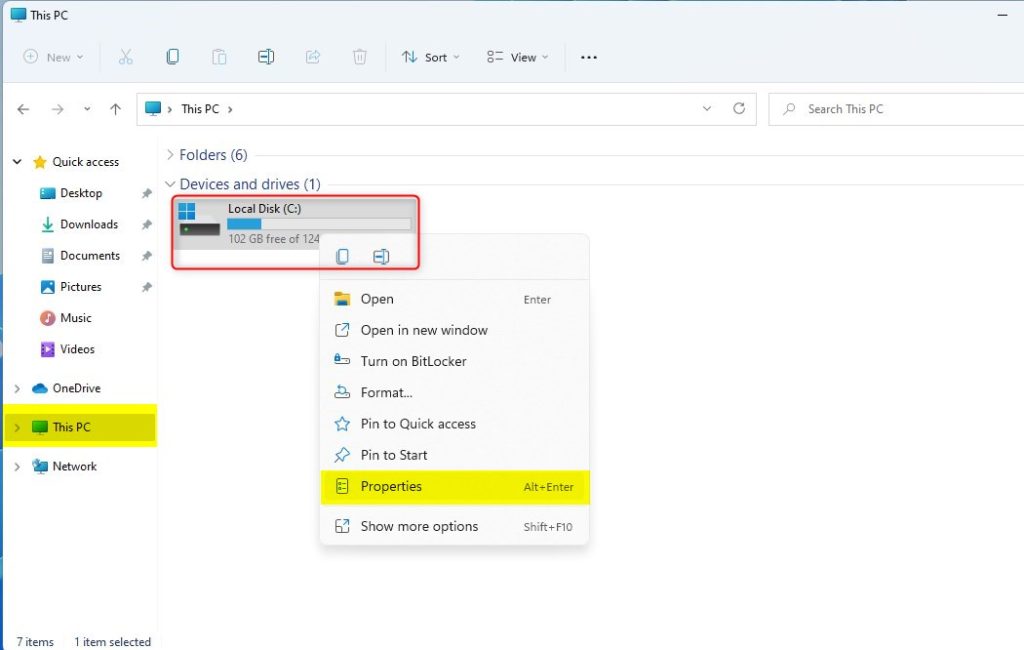
- Select This PC from the left sidebar. Your drives appear in the main pane.
- Right-click the drive you want to check and select Properties. The drive’s properties window opens.
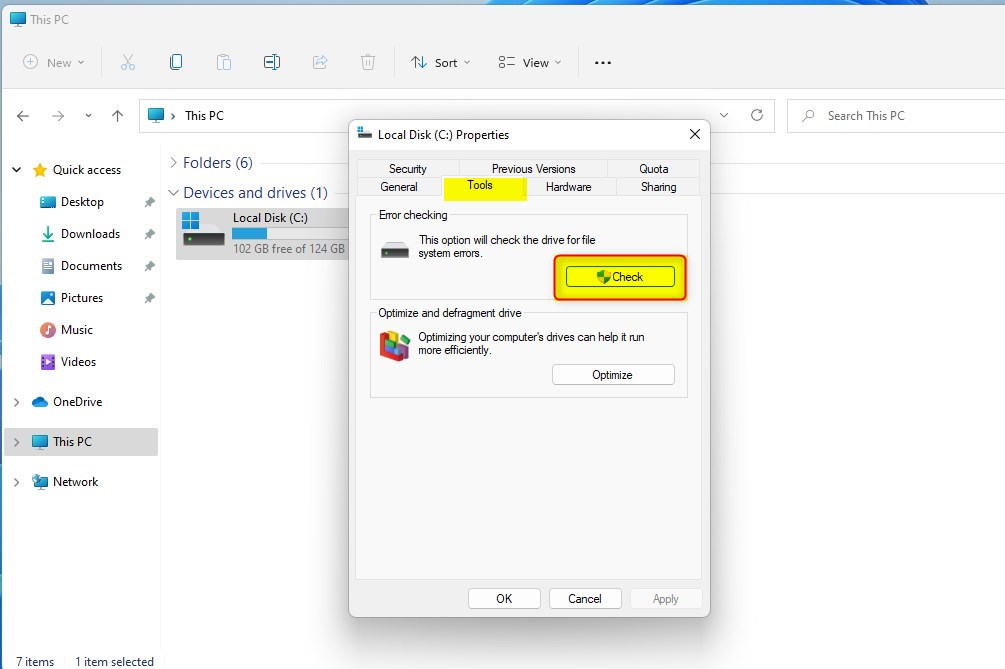
- Go to the Tools tab. The Error checking section is at the top.
- Click the Check button. If Windows asks for administrator permission, approve it.
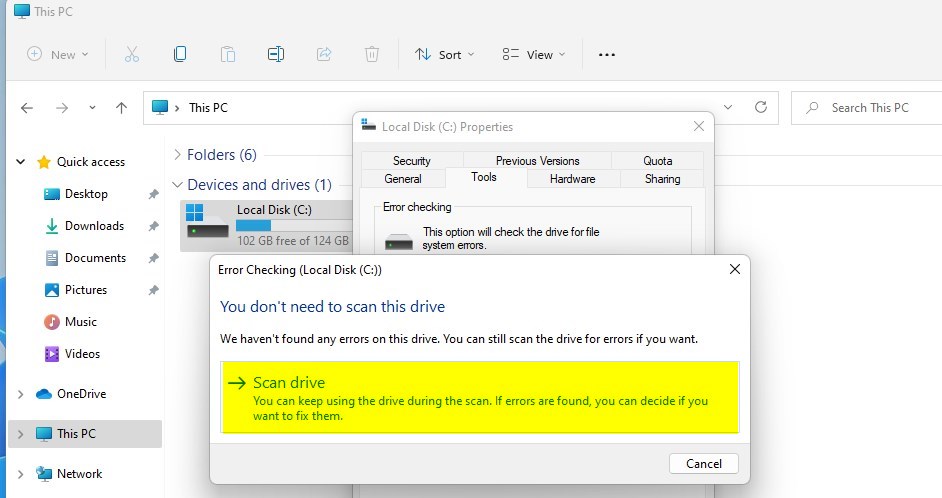
A confirmation window appears asking whether you want to scan the drive. Windows 11 may say You don’t need to scan this drive if it has found no errors. You can still choose Scan drive to run the check anyway.
Let the scan finish before you close the window. When it ends, Windows reports whether it found errors. If it found problems, it offers to repair them. On the drive Windows is running from, the repair may be scheduled for your next restart. That is normal, because Windows cannot fully lock a drive it is using.
Run CHKDSK from Command Prompt (Admin)
Running CHKDSK from Command Prompt as an administrator gives you full control over scanning and repair. The command line must be opened with admin rights. Without them, CHKDSK can only read the drive and cannot fix anything. You type one command, choose your options, and CHKDSK checks the drive and repairs what it can.
- Click the Start button and type
cmd. Command Prompt appears at the top of the results. - Right-click Command Prompt and select Run as administrator. Click Yes if User Account Control asks for permission. A black window opens with a title that includes Administrator.
- Type the following command to check and fix errors (replace
C:with your actual drive letter), then press Enter:
chkdsk C: /f
If you picked the drive Windows is running from, CHKDSK cannot lock it and asks whether to run the check the next time the PC restarts. Type Y and press Enter, then restart. The scan runs before Windows loads, and a large drive can take a long time. Let it finish and do not switch the PC off.
Understanding CHKDSK Parameters
The parameters are the extra switches you add to the command. They tell CHKDSK whether to only look for problems, repair them, or scan for physical bad sectors. Choosing the right one saves time and matches the scan to your problem. Without any switch, CHKDSK only reports problems and does not fix them.
/f: Fixes errors on the disk. The drive must be locked for this, so you may be asked to schedule it for the next restart./r: Locates bad sectors and recovers readable information. This includes the/ffunction. It reads the whole surface of the drive, so it takes much longer than a basic scan./x: Forces the volume to dismount first if necessary. Any open files on that drive stop working, so save your work before you use it./scan: Runs an online scan on NTFS drives. It works only on NTFS volumes, and the drive stays in use while it runs.
If you are unsure which to use, start with the plain command. Add the repair switch only if it reports problems. Save the bad sector scan for a drive that is slow, makes noise, or keeps throwing read errors. On an SSD, repeated bad sectors usually mean the drive is wearing out, so back it up and plan a replacement.
Troubleshooting and Logs
To review past scan results, open the Event Viewer utility. Search for it in the Start menu to find it. Then go to Windows Logs Application. Use Filter Current Log in the right pane and choose Chkdsk as the event source to see the historical scan data.
Scans that ran at startup are often logged under the source Wininit instead, so check there if you see no Chkdsk entries. Open an entry and read the text in the General tab. It shows whether CHKDSK found logical file system errors or physical bad sectors, and whether it fixed them. Logical errors are usually repairable. Bad sectors point to a drive that may be failing.
Summary
CHKDSK is a reliable utility in Windows 11 for diagnosing and resolving file system corruption. Use File Explorer for a quick check and Command Prompt when you need more control. Read the Event Viewer logs afterward to see what the scan found.
Have a question about this guide?
Answered by AI from this guide. Good questions may be added to this page — please don't include personal details.
Did this guide fix your problem?

About the Author
Richard
Tech Writer, IT Professional
Richard is a writer at Geek Rewind who turns complex IT tasks into clear, step-by-step guides. He draws on years of hands-on experience in system administration and enterprise IT operations, focusing on Windows, Linux and WordPress: the problems people actually run into, and the fixes that work. His server and WordPress guides come from systems he runs himself. Richard builds and maintains the platform behind Geek Rewind, from its Ubuntu servers and Nginx configuration to its custom WordPress plugins. Many new tutorials start with readers' questions, and he's always glad to answer them in the comments.
No comments yet — be the first to share your thoughts!