How to Format Drive in Windows 11

Formatting a drive in Windows 11 erases all data on a storage partition and sets up a clean file system so you can reuse it. Every file, photo and program on the drive is wiped. That makes it useful for fixing stubborn errors, preparing a brand-new solid-state drive (SSD), or wiping an old USB flash drive before you sell it or give it away.
Back up any important files to another location before you open Disk Management or File Explorer . You cannot reliably recover your data once the format finishes. This guide covers three methods (File Explorer , Disk Management and the Settings app), how to pick a file system, and what to do when the Format option is missing or greyed out.
Open Settings , navigate to System, then Storage, and Advanced storage settings. Select Disk & volume, choose your USB drive, click Properties, and then click Format. Confirm the action to erase and prepare the drive.
What Happens When You Format a Drive?
Formatting erases all existing files and creates a new file system, the structure Windows uses to organise data on the drive. After a format, the drive is empty and ready for new files. Because everything on it is deleted, check twice that you picked the right drive and that your backup is complete.
- Erases Data: All the files and folders currently on the drive are removed.
- Creates a File System: This is the organisational structure Windows uses to store, find and manage files. You choose which file system to use, and the common ones are explained below.
- Sets Up for Use: The drive can now be used for saving and opening files.
The format window shows a few options. Here is what each one means:
- Volume Label: The name you give the drive. It shows up in File Explorer , for example “My Photos” or “Backup Drive”. You can change it later without formatting again.
- File System: The most important choice. The common options for USB drives are:
- FAT32: Old but very compatible. It works with almost everything, including older devices and Macs. Its major limit is that you can’t store a single file larger than 4GB.
- exFAT: A modern replacement for FAT32. It has no 4GB file size limit and works with both Windows and macOS. It’s a good all-round choice for most USB drives.
- NTFS: The standard file system for Windows hard drives. It supports large files and features such as file permissions and encryption. Macs can usually only read NTFS drives, not write to them, unless you install extra software.
- Allocation Unit Size: How the drive is divided into small blocks for storing data. The default is fine for almost everyone.
Quick Format vs. Full Format:
- Quick Format: The fastest option. It deletes the table of contents for your files, so they become invisible and new data can be written over them. It doesn’t check the drive for errors, and the old data is not truly overwritten, so file-recovery tools may still be able to bring some of it back.
- Full Format: Takes much longer. It erases the data and also checks the whole drive for bad sectors, which are areas that can no longer store data reliably. Use it if you suspect the drive has problems, or if you’re preparing it for sale or disposal and want the data properly wiped.
Ready to give your drive a fresh start? Run through this short checklist first:
- Copy anything you want to keep to another drive or cloud storage, then open the copy and confirm the files are there.
- Note the drive letter and size of the drive you want to format, so you can pick the right one later.
- Leave the drive plugged in until the process finishes. Unplugging it mid-format can leave it unreadable.
Method 1Formatting in File Explorer (The Quickest Way)
File Explorer is the fastest way to format a USB drive in Windows 11, and you don't need any extra menus. Plug in the drive, open File Explorer and find the removable drive. You'll be at the format window in a few clicks.
- Connect your USB drive. Plug it into a free USB port. Windows should recognise it and assign a drive letter.
- Open File Explorer. Press the Windows key + E, or click the folder icon on the taskbar.
- Find your USB drive. Click This PC in the left-hand pane. Your drives are listed under Devices and drives. Find the USB drive, which will have a name and a drive letter such as D:, E: or F:. Compare the size shown with what you expect, so you don't pick the wrong drive.
- Open the format tool. You can do this in one of two ways:
- Right-click your USB drive icon and select Format... from the menu. If you don't see it, click Show more options first, or press Shift + F10 after selecting the drive.
- Or click the USB drive once to select it, click the three-dot button (...) in the toolbar at the top of the window, and choose Format... from the dropdown.
- Choose your formatting options. Go through the window from top to bottom:
- Capacity: You usually don't change this. It shows the total size of the drive.
- File system: Pick one from the dropdown. exFAT is a good choice for use with different devices. NTFS suits a drive you'll only use with Windows. Large drives may not list FAT32, because Windows' built-in tools limit it to smaller sizes.
- Allocation unit size: Leave it at the default unless you have a specific reason to change it.
- Volume label: Type a name for the drive.
- Quick Format: Tick this box for a quick format, which is right for most situations. Untick it for a full format, which takes longer but checks for errors.
- Click Start. The button is at the bottom of the window.
- Confirm and wait. Windows shows a last warning that formatting will erase all data on the disk. If you're certain, click OK. A progress bar appears. A quick format usually takes a few seconds to a minute. A full format can take much longer, depending on the size of the drive.
- Finish up. When it's done, a "Format Complete" message appears. Click OK, then click Close to shut the format window. Your USB drive is now formatted and ready to use.
If an error says the disk is write-protected, check the USB stick for a small physical lock switch and slide it to the unlocked position. If the drive doesn't appear in File Explorer at all, use Disk Management instead.
Method 2Formatting in Disk Management (For More Control)
Disk Management gives you more control, and it's the tool to use when File Explorer can't see or format the drive. It lists every connected disk and partition, including drives with no drive letter or an unreadable file system. You need administrator rights to use it.
- Open Disk Management. There are two ways:
- Press the Windows key + X, then click Disk Management in the menu.
- Or type "Create and format hard disk partitions" into the Windows search bar and select the result.
- Locate your USB drive. Look for the drive in the list. It's marked as Removable and shows its capacity and drive letter. In the lower pane, match the size to your drive, because disks are labelled Disk 0, Disk 1 and so on. Warning: Double-check that you've identified the correct drive. Formatting the wrong one can cause serious data loss.
- Start the format. Right-click the partition (the main block) of your USB drive and select Format.... If Format... is greyed out, the volume is probably in use, like your system drive C:, which can't be formatted while Windows is running from it. If the space shows as Unallocated, there is no volume to format yet. Right-click it and choose New Simple Volume... instead, which walks you through creating and formatting one.
- Choose your formatting options. A Format window appears. You can set:
- Volume label: Give your drive a name.
- File system: Choose between FAT32, exFAT, NTFS or ReFS. exFAT is often the best choice for USB drives. ReFS is not meant for USB flash drives, so leave it alone for removable storage.
- Allocation unit size: Leave this at Default.
- Perform a quick format: Tick this box for a fast format. Untick it for a slower full format that checks for errors.
- Enable file and folder compression: Only available for NTFS. It saves space by compressing files but can slow down access to them. For most USB drives, leave it unticked.
- Confirm and format. Click OK. A final warning about data loss appears. Click OK again to continue.
- Wait for completion. Disk Management shows the progress, and the status next to your drive changes while it works. When it's finished, the status shows Healthy again, and the drive appears in File Explorer with its new label. You can then close Disk Management.
Method 3Formatting in 🪟 Windows 11 Settings (A Modern Approach)
The Settings app offers a more modern way to format a drive in Windows 11. You find your drive through the storage settings and erase it without opening older tools. This method suits you if you prefer the Windows 11 design over the classic windows. The path is Settings System Storage Advanced storage settings Disks & volumes
- Open Settings. Press the Windows key + I, or click Start and select the Settings gear icon.
- Go to Storage. Click System in the left-hand menu, then click Storage on the right. The page shows how much space your drives are using.
- Open Advanced storage settings. Scroll down to the Storage management section and click Advanced storage settings to expand it.
- Open Disks & volumes. Click Disks & volumes. A list of all the drives connected to your PC appears.
- Select your USB drive. Find it in the list, using the size to be sure it's the right one, and click the Properties button next to it. If the drive shows several volumes, pick the one you want to erase.
- Click Format. In the properties page for the drive, click the Format button. If it's missing or greyed out, the volume may be a system or boot volume, or it may have no file system yet. In that case, use Disk Management.
- Set the formatting options. A format window appears. Set these options, or leave them at their defaults:
- Label: Enter a name for your drive.
- File system: Choose your preferred file system, such as exFAT or NTFS.
- Allocation unit size: Leave this at the default.
- Perform a quick format: Tick it for a quick format, or untick it for a full format.
- Enable file and folder compression: Mostly relevant for NTFS. You can usually leave it unticked for USB drives.
- Format the drive. Click the Format button. When the warning about erasing data appears, click OK if you're sure.
- Check that it finished. When the format is done, the properties page shows the drive with its new label and file system. You can then close the Settings app. Your drive is ready to use.
Choosing the Right File System for Your USB Drive
The file system you choose decides which computers and devices can use the drive. NTFS works best for Windows-only use. exFAT works on both Windows and Mac. Pick the one that matches where you plan to plug the drive in. If you change your mind later, you have to back up the files and format the drive again.
- FAT32: Best for maximum compatibility, such as very old devices, some gaming consoles, or frequent file sharing with macOS users who don't have special software. The big downside is the 4GB maximum file size.
- exFAT: Often the best choice for USB drives. It supports very large files and works with both Windows and macOS. It's the recommended choice for most modern USB flash drives and external hard drives.
- NTFS: A solid choice if the drive will only be used with Windows computers. It's robust and supports advanced features such as permissions and encryption. If you plug it into a Mac, you'll likely only be able to read files, not write new ones, unless you install extra software on the Mac.
Practical Tip: For a USB drive that you might plug into different computers (Windows, Mac, or even some TVs or car stereos), exFAT is usually your safest bet.
Summary
Formatting a drive clears old files and prepares the storage for new data. You can use File Explorer, Disk Management or the Settings app, whichever suits you. If one tool can't see the drive or the Format option is greyed out, try Disk Management. Whichever you use, pick the right file system and back up your files before erasing anything.
Have a question about this guide?
Answered by AI from this guide. Good questions may be added to this page — please don't include personal details.
Did this guide fix your problem?

About the Author
Richard
Tech Writer, IT Professional
Richard is a writer at Geek Rewind who turns complex IT tasks into clear, step-by-step guides. He draws on years of hands-on experience in system administration and enterprise IT operations, focusing on Windows, Linux and WordPress: the problems people actually run into, and the fixes that work. His server and WordPress guides come from systems he runs himself. Richard builds and maintains the platform behind Geek Rewind, from its Ubuntu servers and Nginx configuration to its custom WordPress plugins. Many new tutorials start with readers' questions, and he's always glad to answer them in the comments.
I tried this on my new PC with Windows 11 Home, but when I got the external drive selected and clicked on Properties, it opened but there wasn’t a Format option to select.
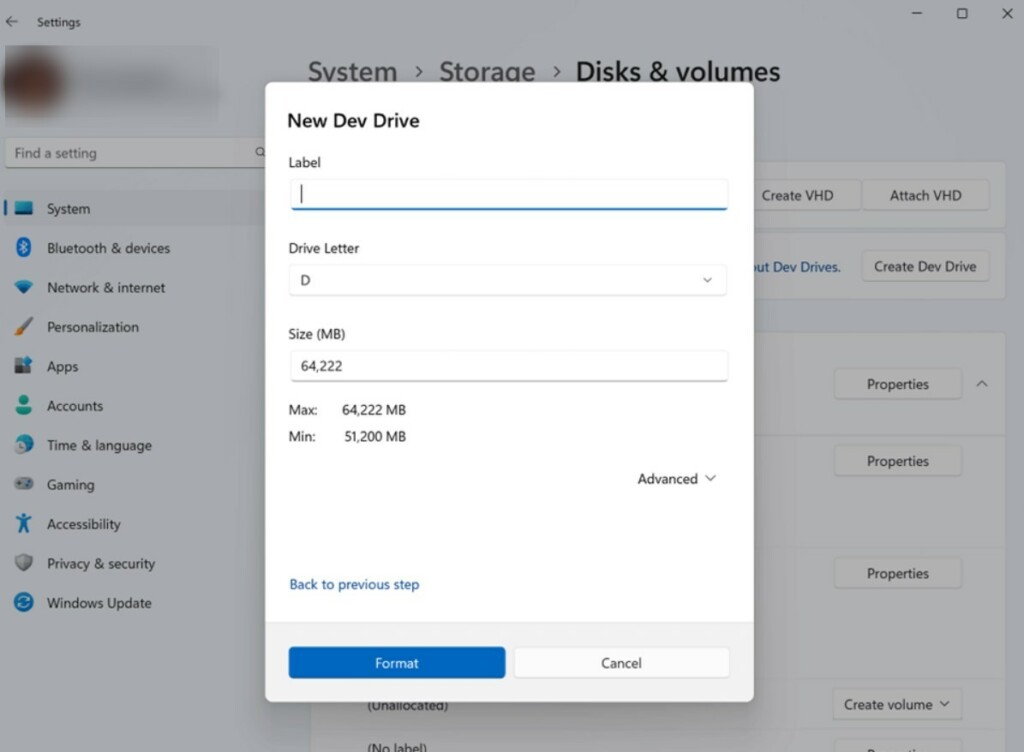
[…] On the next screen, enter the Label or name. Select a Drive Letter to assign to the Dev Drive, type in the drive size (at least 50GB), and click Format. […]