Enable or Disable Windows 11 Network Adapter

- 26 steps
- Needs administrator rights
- Includes a restart or sign-out
A Windows 11 network adapter is the hardware part that connects your PC to the internet or a local network, either over Wi-Fi or with an Ethernet cable. Turning an adapter off cuts the PC off from that connection. Turning it on again brings the connection back.
People usually disable an adapter to fix a bad connection, since an off-and-on cycle often clears a stuck adapter. Others do it to force Windows onto a different connection when the PC has more than one adapter, such as Wi-Fi and Ethernet together.
This guide covers four ways to do it: the Settings app, Control Panel, Device Manager, and Command Prompt. All four work the same on Windows 11 Home and Pro. None of them needs a restart of the PC. Each one needs administrator rights, so a standard account will be asked for an admin password.
To disable a network adapter in Windows 11, open Settings, go to Network & internet Advanced network settings, select the adapter in the Network adapters list, and click Disable. Click Enable to turn it back on. You need administrator rights, and no restart is required. Disabling the adapter you are currently using will drop your connection immediately.
How to disable or enable a network adapter in 🪟 Windows 11 via the Settings app
The Settings app is the easiest route. Go to Settings Network & internet Advanced network settings, then click Disable next to the connection. To turn it back on, follow the same steps and click Enable.
You use it to change system options, add users, and run Windows Update. If the Disable button does nothing or an admin prompt appears, you are on a standard account and need an administrator password. If your adapter is not listed at all, use the Device Manager method further down.
These steps turn an adapter off and on again, which is how you restart a network adapter in Windows 11.
- Open Settings . Press the Windows key + I, or click Start ==> Settings, as shown in the image below.

You can also click the search box on the taskbar, type Settings, and select the app from the results. The Settings window should look similar to the image below.
- Click the Network & internet tile. The Network & internet pane opens on the right.
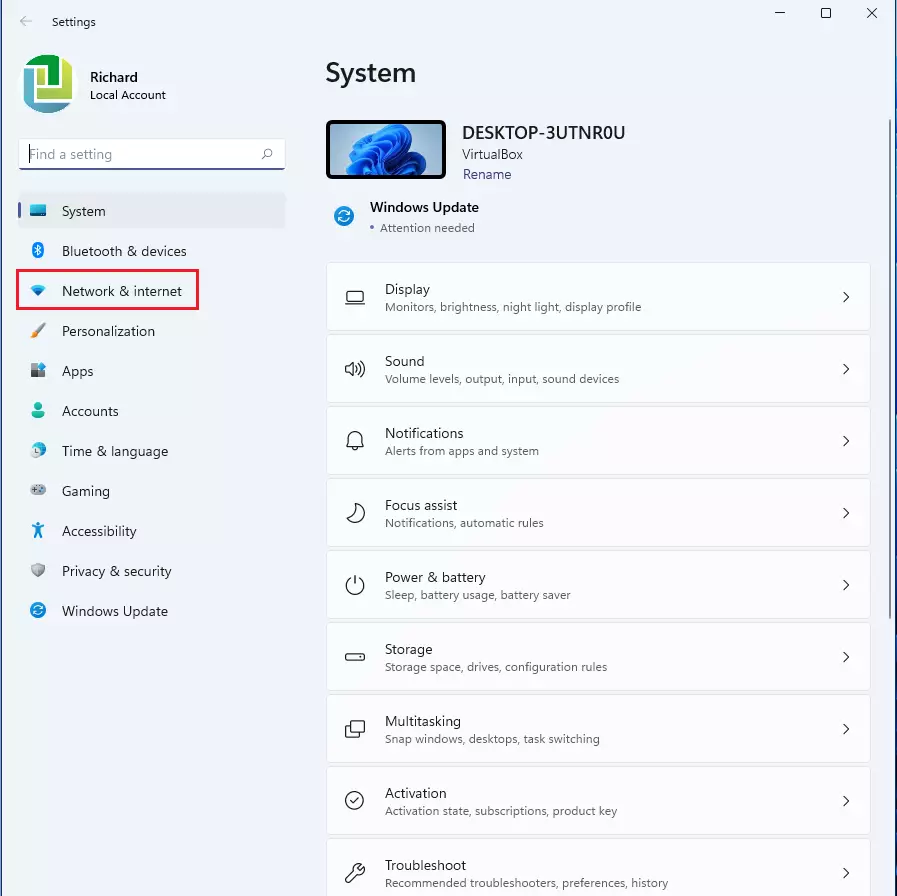
- Scroll down and select the Advanced network settings tile at the bottom. The pane that opens lists your adapters.
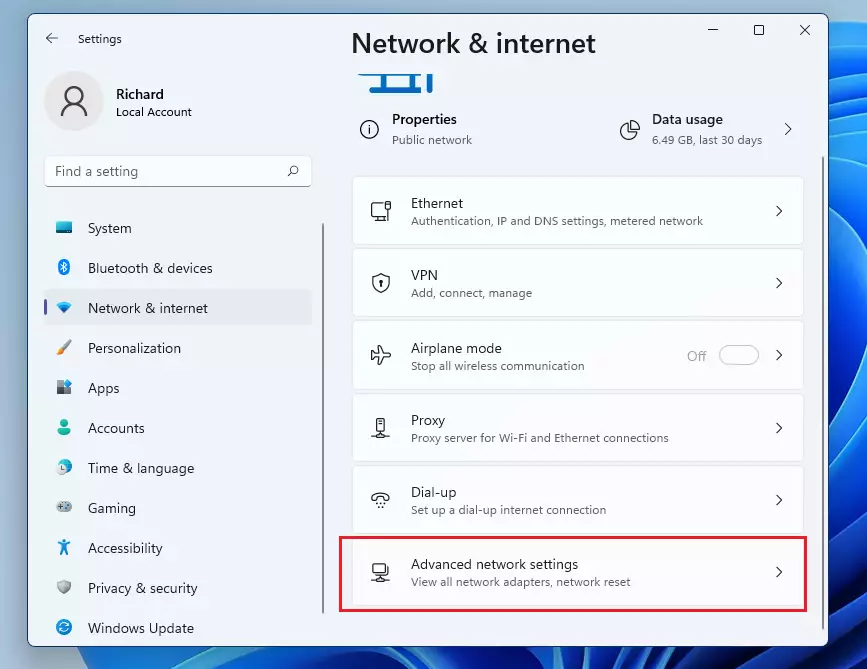
- Find the Network adapters list. It is on the Advanced network settings pane, and each adapter appears as a row with its name.
- Select the adapter you want to turn off. Pick carefully, because the row for your active connection will cut you off when disabled.
- Click the Disable button, as shown below. The adapter turns off, and the button changes to Enable. If it does not change, approve the administrator prompt first.
- Click Enable to turn the adapter back on. Skip this step if you only want the adapter to stay off. Give Wi-Fi a few seconds to reconnect.
- Repeat for every adapter you want to disable.
If you are working over a remote session, you may need physical access to the PC to get back in.
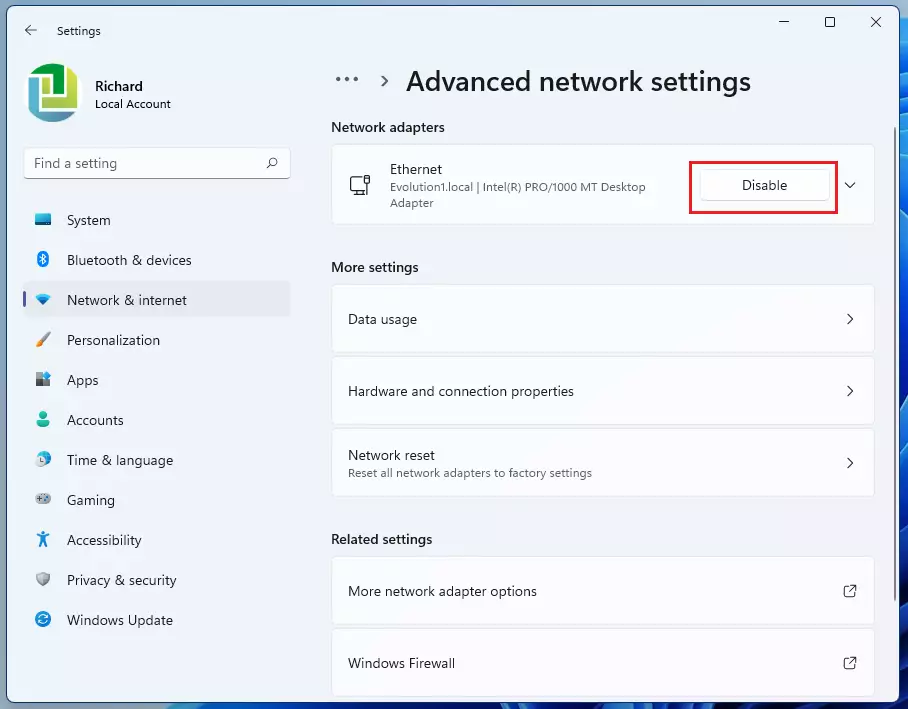
That should do it. You can now close the Settings app. To undo the change later, open the same pane, select the adapter, and click Enable.
How to disable or enable a network adapter in 🪟 Windows 11 via Control Panel
The classic Control Panel still works for this. Open Network and Sharing Center, click Change adapter settings, and right-click your connection to choose Disable. To turn it back on, right-click the same connection and choose Enable.
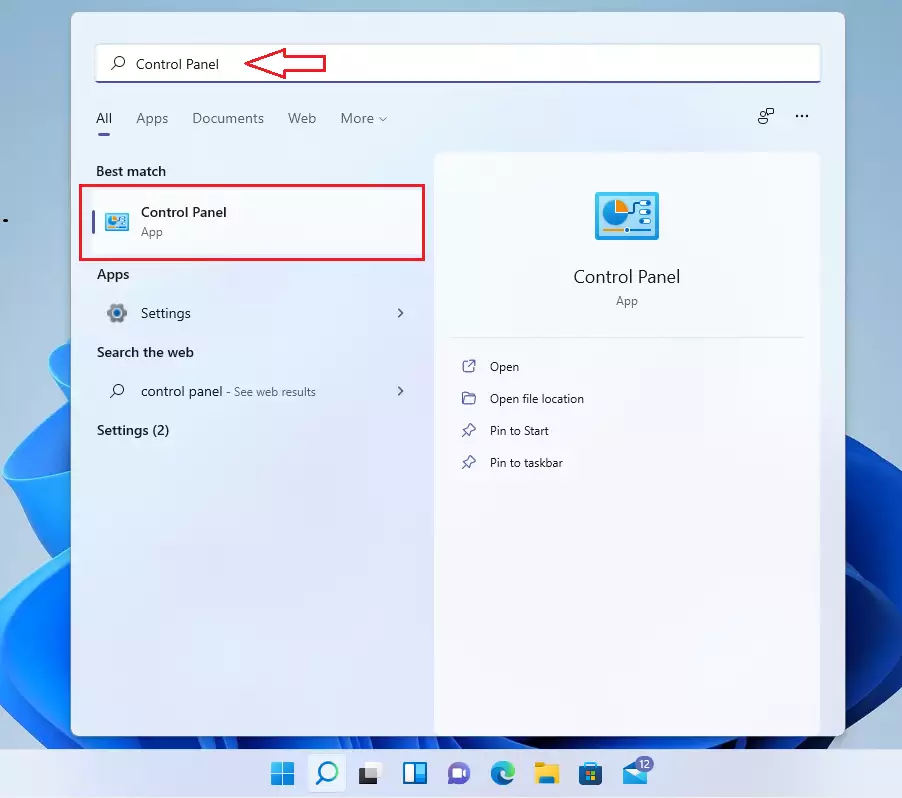
- Open Control Panel . Type Control Panel in the taskbar search box and select it from the results.
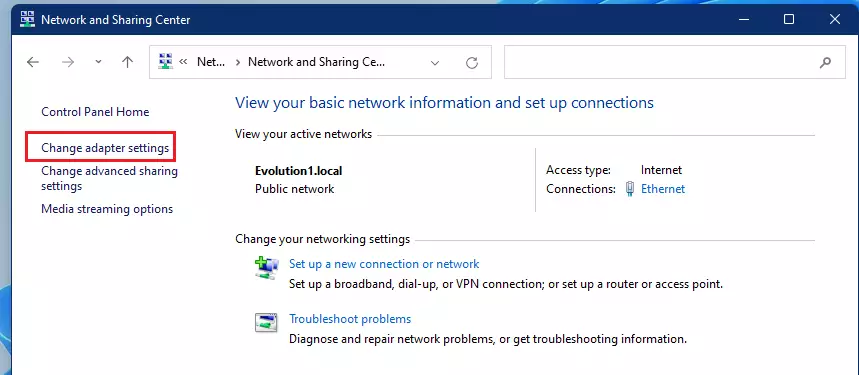
- Go to Network and Internet Network and Sharing Center Change adapter settings The Network Connections window opens with one icon for each adapter.
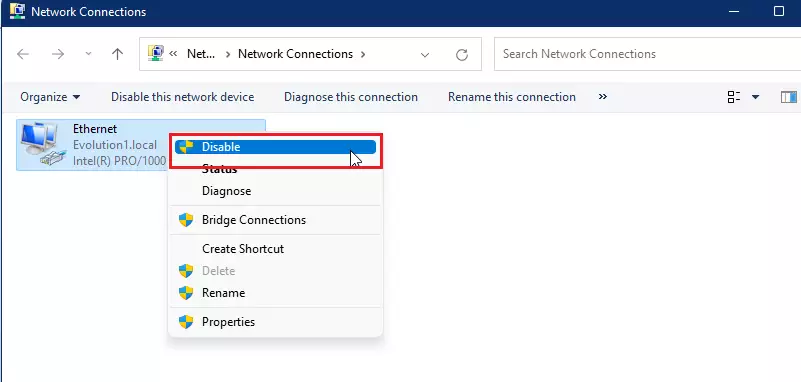
- Right-click the adapter you want to disable. Do this in the Network Connections window, and check the name first so you do not pick your active connection by mistake.
- Select Disable on the context menu . Approve the administrator prompt if Windows shows one. The icon turns grey and its status changes to Disabled.
- Right-click the same icon to turn the adapter back on. Skip this step and the next if you want it to stay off.
- Select Enable. The icon returns to colour and the connection comes back.
How to disable or enable a network adapter in 🪟 Windows 11 via Device Manager
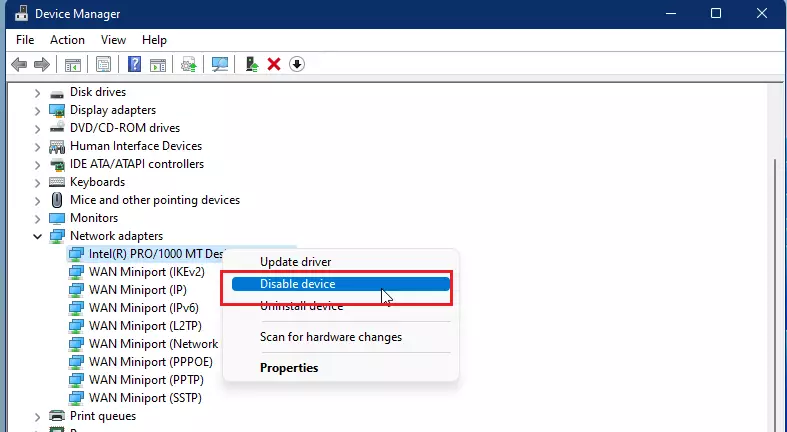
Device Manager works at the hardware level. Expand the Network adapters list, right-click your adapter, and select Disable device. To turn it back on, right-click the adapter again and select Enable device. This is a good choice when you want to switch off one specific piece of hardware, such as a Wi-Fi card, or when the other methods do not list the adapter.
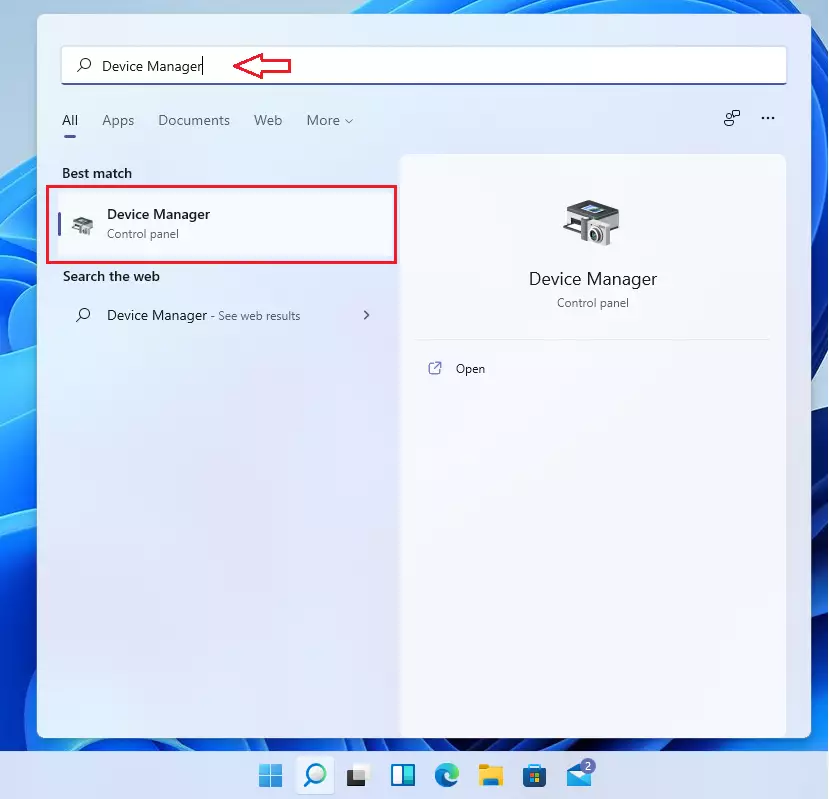
- Open Device Manager. Right-click the Start button and select Device Manager.
- Expand the Network adapters group. The adapters installed in your PC appear in the list.
- Right-click the adapter you want to turn off. Pick the one that matches your connection, such as your Wi-Fi or Ethernet card.
- Select Disable device. A confirmation box appears.
- Click Yes to confirm. The adapter now shows a small down-arrow icon, and the connection drops.
- Right-click the same adapter to turn it back on. Skip this step if you want it left off.
- Select Enable device. The arrow disappears and the connection returns.
How to disable or enable a network adapter in 🪟 Windows 11 via Command Prompt
If you prefer typing to clicking, you can use Command Prompt. Open it as an administrator and run the netsh interface commands. This is also the quickest way to switch adapters on many PCs, because you can put the commands in a script.
Without administrator rights, the commands fail with an access error, so open the window as an administrator first.
- Search for Command Prompt. Type cmd in the taskbar search box .
- Right-click Command Prompt and select Run as administrator. A User Account Control prompt appears.
- Click Yes on the prompt. A Command Prompt window opens with administrator rights.

- Check your adapter name in Network Connections. Use the exact name shown there, for example Wi-Fi or Ethernet.
- Run the commands below to turn the adapter off or on. Replace the adapter name in each command with your own, and press Enter after each one. If the name does not match, the command returns an error and nothing changes.
netsh interface set interface "Interface Name" disable
netsh interface set interface "Interface Name" enable
That should do it! The change takes effect right away, with no restart. To reverse it, run the enable version of the command.
Conclusion: Managing network adapters in Windows 11 works through any of these four interfaces.
- You can disable a network adapter in Windows 11 from the Settings app, Control Panel, Device Manager, or Command Prompt. The result is the same in each.
- Disabling an adapter is a quick way to troubleshoot a bad connection or to manage multiple connections.
- Check which adapter you are disabling first. Turning off the one you are connected through drops your internet access at once.
- If something stops working, enable the adapter again. If the problem continues, restart the PC.
- Knowing all four methods helps when one is unavailable. If Settings will not open, for example, Device Manager or Command Prompt will still work.
Have a question about this guide?
Answered by AI from this guide. Good questions may be added to this page — please don't include personal details.
Did this guide fix your problem?

About the Author
Richard
Tech Writer, IT Professional
Richard is a writer at Geek Rewind who turns complex IT tasks into clear, step-by-step guides. He draws on years of hands-on experience in system administration and enterprise IT operations, focusing on Windows, Linux and WordPress: the problems people actually run into, and the fixes that work. His server and WordPress guides come from systems he runs himself. Richard builds and maintains the platform behind Geek Rewind, from its Ubuntu servers and Nginx configuration to its custom WordPress plugins. Many new tutorials start with readers' questions, and he's always glad to answer them in the comments.
No comments yet — be the first to share your thoughts!