How to Enable or Disable Cellular Use in Windows 11


Cellular data in Windows 11 lets your laptop or tablet connect to mobile phone networks. It works with a physical SIM card or an eSIM (a digital SIM profile you download from your carrier). That mobile connection is a useful backup when Wi-Fi is down or out of reach.
Windows 11 can switch to your mobile network automatically if your Wi-Fi drops, so you stay online without a break. You can turn this on or off at any time in your network settings. This guide covers the hardware check, the Settings method, eSIM and plan setup, the registry method for when Settings is blocked or missing, and a few troubleshooting tips.
Open Settings , go to Network & internet, then Cellular. Toggle “Use cellular whenever Wi-Fi is poor” to On to enable or Off to disable. You may also need a mobile data plan and SIM or eSIM.
How to Check if Your PC Supports Cellular Data
Not all laptops include a built-in cellular modem. If yours doesn’t, the cellular options won’t appear in Settings at all, and no setting will add them. Check the hardware first:
Right-click the Start button and select Device Manager. Expand the Network adapters section. Look for a device labeled Mobile Broadband, LTE, or 5G. If you see one, your PC is ready for cellular. If you don’t, the device has no modem, and you would need an external USB modem or a phone hotspot instead.
Enable or Disable Cellular in Settings
The cellular controls live in the Settings app under Network & internet. You can turn the cellular connection on or off there. Turning it off stops your laptop from using mobile data when Wi-Fi is available, which helps you avoid unexpected charges on your phone bill. These steps are the same on Windows 11 Home and Pro, and you don’t need to restart afterward.
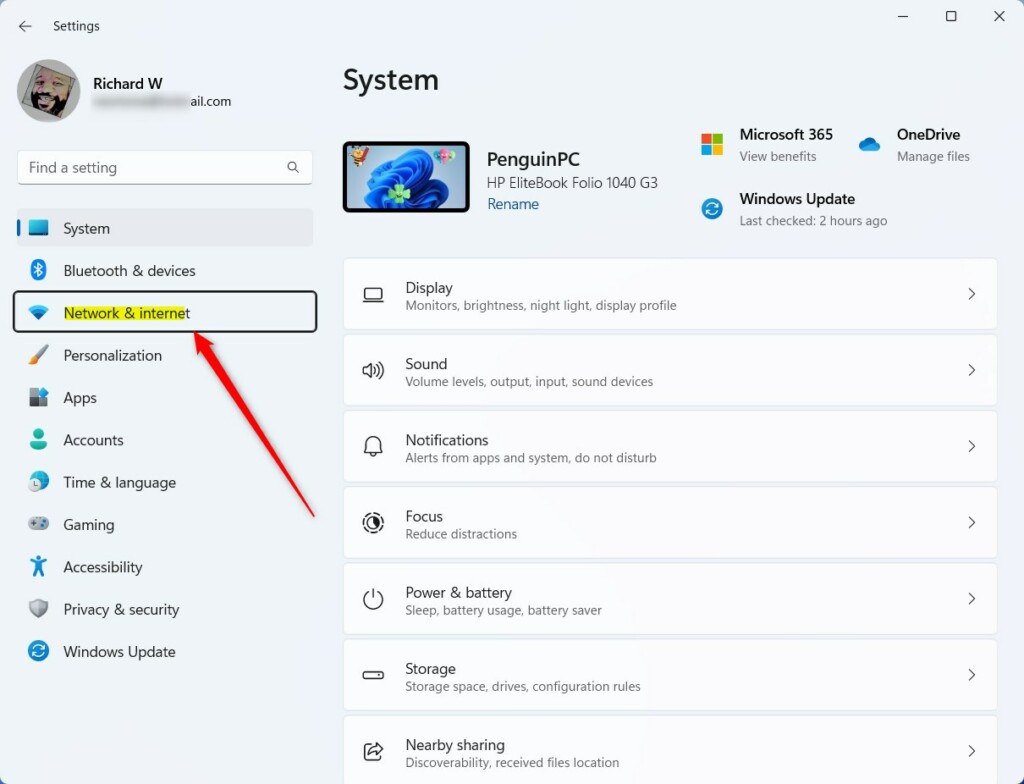
- Open the Windows Settings app by pressing the Win+I. The Settings window opens with a list of categories on the left.
- Click on Network & internet in the left-hand menu. The Wi-Fi , Ethernet and other connection options appear on the right.
- Click the Cellular tile on the right side of the screen. If you don’t see it, Windows has not detected a modem or SIM. Go back to the Device Manager check above and make sure the SIM card is seated properly. The cellular page then opens with your connection and its options.
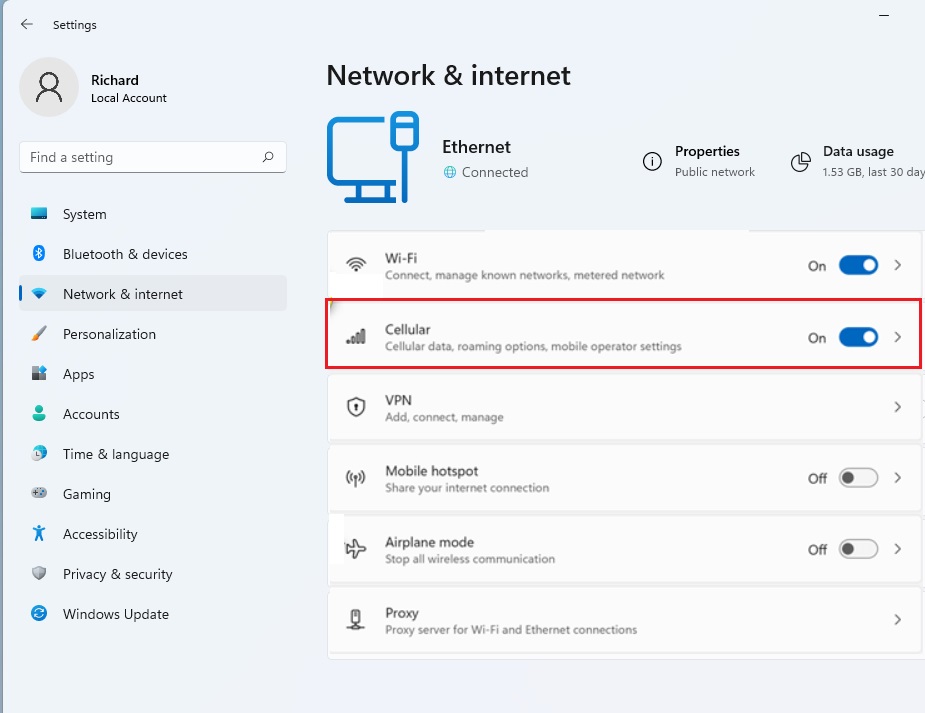
- Find the option labeled Use cellular whenever Wi-Fi is poor. It sits on the cellular page with the other connection options. If it is greyed out, the modem may not be ready or your SIM may not have an active plan yet.
- Toggle the switch to On to enable it, or Off to disable it. The change takes effect straight away. To undo it, come back to the same page and flip the switch the other way.
Setting Up Your Mobile Data Plan
A mobile data plan lets your laptop connect to cellular networks using either a physical SIM card or a digital eSIM profile from your carrier. Activate the plan with your mobile provider first. Carriers usually give you an activation code or QR code for an eSIM. Then add the profile details in your network settings, on the Cellular page, so your PC can get online anywhere.
If you use a physical SIM, switch the PC off before you insert or remove the card. Make sure the card is seated fully in its tray. Once the plan is active, the connection should show up on the Cellular page.
Enable or Disable via Registry Editor
The Registry Editor lets you turn cellular features on or off by changing system keys directly. This is an advanced method and it needs administrator privileges. It is useful if the main Settings page is blocked or missing on your computer, and it works on every edition, Home included. A wrong change in the registry can cause problems, so back it up first: in Registry Editor, choose File Export and save a copy before you edit anything.
- Press the Windows key, type
regedit, and press Enter. Click Yes if User Account Control asks for permission. Registry Editor opens. - Navigate to:
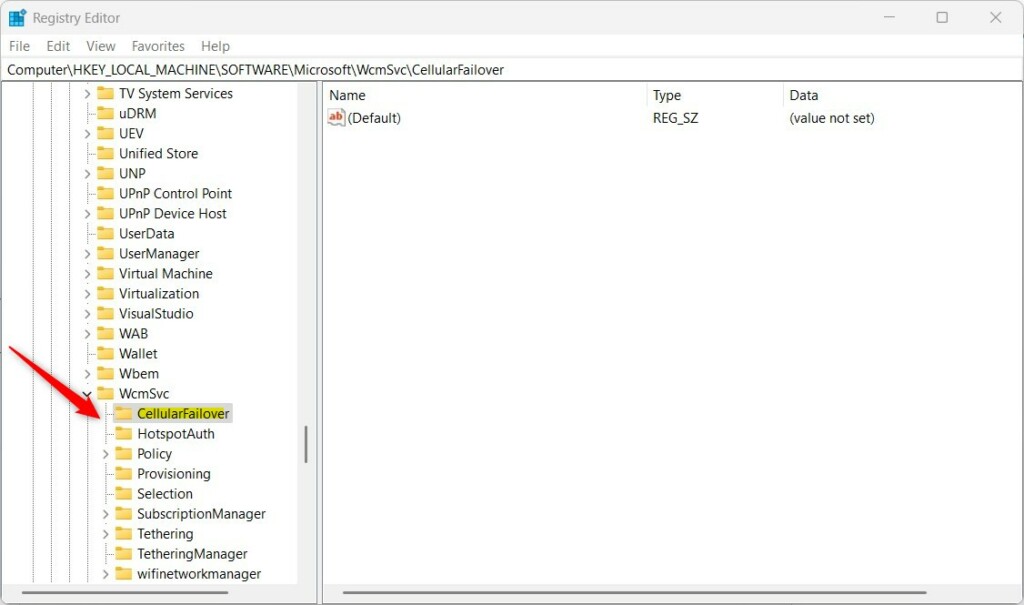
HKEY_LOCAL_MACHINE\SOFTWARE\Microsoft\WcmSvc\Tethering. You can expand the folders in the left pane one by one. - If the folder is missing, right-click
WcmSvc, select New Key, and name itCellularFailover. The new key appears in the left pane. Select it before you continue.
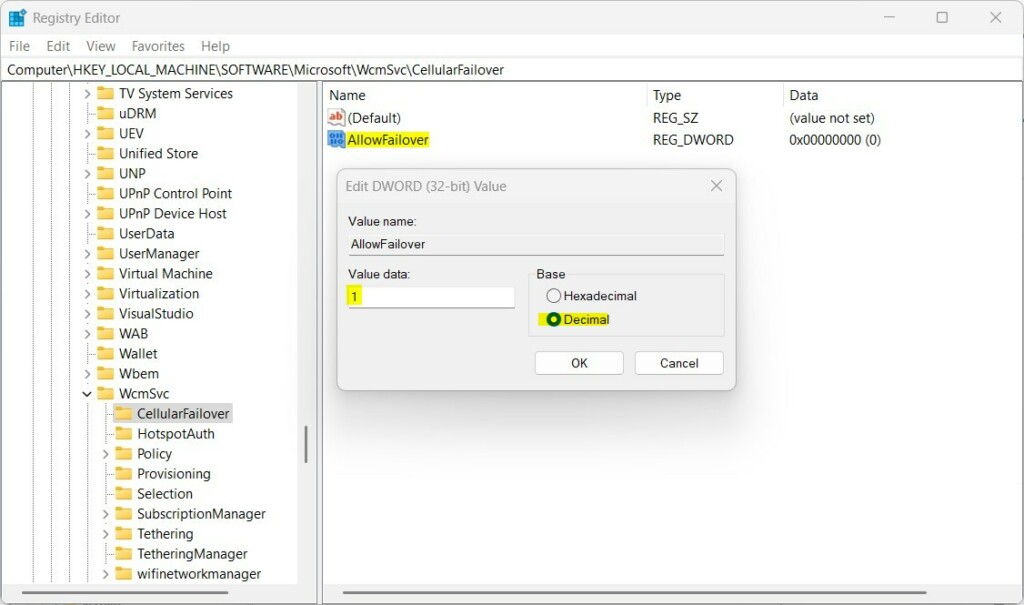
- Right-click in the empty space in the right pane, select New String Value, and name it
AllowFailover. The new value appears in the right pane. - Double-click
AllowFailoverand set the value to2to enable or0to disable. Click OK to save it. If the change doesn't show up in Settings, sign out and back in, or restart the PC. To undo it, set the value back or restore the registry backup you exported earlier.
Troubleshooting Connectivity
Hardware detection failures usually point to an incorrectly seated SIM card. Switch the PC off, remove the card, put it back firmly, and start the PC again. Then check your APN (Access Point Name, which tells your PC how to connect to your carrier) settings under Cellular Advanced options to verify what your carrier requires. If the modem still doesn't appear in Device Manager, check that Airplane mode is off and look for a driver update from the laptop maker. The official Microsoft cellular support page provides additional troubleshooting resources.
Summary
This guide covered hardware checks, the Settings toggle, eSIM and plan setup, and registry changes for enabling or disabling cellular data on Windows 11. Used together, these steps keep your device online during Wi-Fi outages and let you switch cellular off when you want to avoid mobile data charges.
Have a question about this guide?
Answered by AI from this guide. Good questions may be added to this page — please don't include personal details.
Did this guide fix your problem?

About the Author
Richard
Tech Writer, IT Professional
Richard is a writer at Geek Rewind who turns complex IT tasks into clear, step-by-step guides. He draws on years of hands-on experience in system administration and enterprise IT operations, focusing on Windows, Linux and WordPress: the problems people actually run into, and the fixes that work. His server and WordPress guides come from systems he runs himself. Richard builds and maintains the platform behind Geek Rewind, from its Ubuntu servers and Nginx configuration to its custom WordPress plugins. Many new tutorials start with readers' questions, and he's always glad to answer them in the comments.
No comments yet — be the first to share your thoughts!