How to Turn On or off Mobile Hotspot Power Saving in Windows 11


- 10 steps
- Needs administrator rights
Mobile hotspot power saving in Windows 11 turns off your wireless sharing connection when no devices are using it, to save battery. Windows waits about 5 minutes of zero device activity before it does this. If you want the hotspot to stay on while other devices remain connected, you can turn the feature off in the Settings app. You can turn it back on the same way. No restart is needed either way.
Open Settings, go to Network & internet, select Mobile hotspot, then toggle the Power saving switch On to enable battery saving or Off to keep the hotspot running. The change takes effect immediately without restarting.
How to Turn Mobile Hotspot Power Saving On or Off (Using Settings)
Follow these steps to change the setting. They work on both Windows 11 Home and Pro.
- Press Win+I on your keyboard. The Settings app opens.
- Click Network & internet in the left pane. The network options appear on the right.
- Click Mobile hotspot on the right side. You should see the hotspot on/off switch, the sharing options and the network name and password.
- Find the Power saving option and set the switch to On or Off, depending on what you want. Set it to Off if you want the hotspot to keep running. Set it to On if you want Windows to shut it down when it is idle.
- Close the Settings window when you’re done. The change is saved immediately, and to undo it you just come back and flip the switch again.
With power saving on, Windows turns the hotspot off by itself when no other devices are connected, which helps your laptop battery. You change this in the main Windows settings by opening Network & internet, selecting Mobile hotspot and moving the power saving switch to the position you prefer.
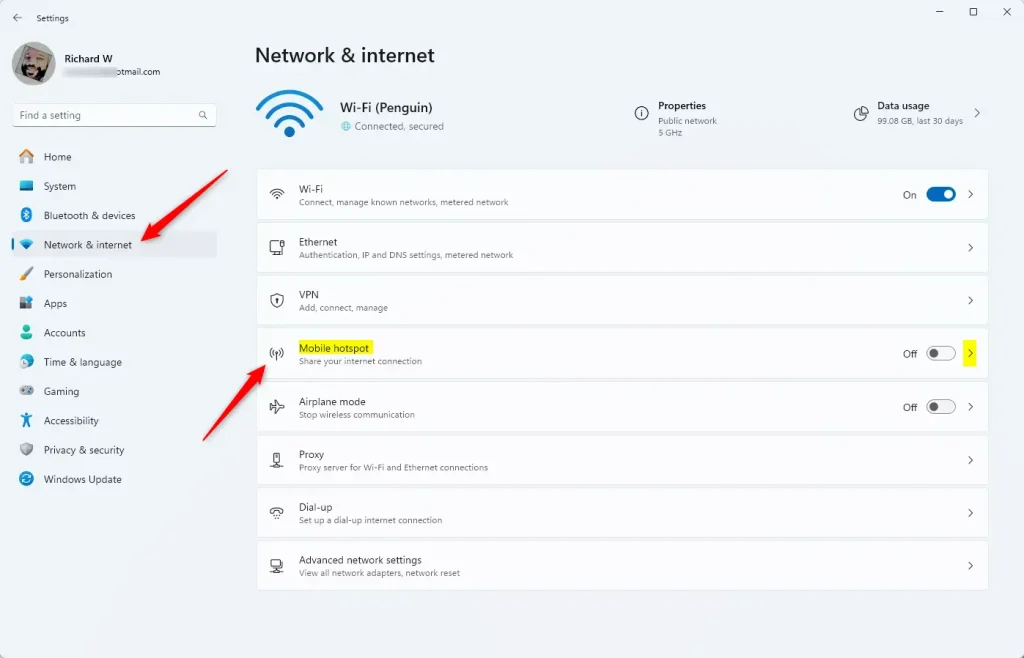
Step 3: Mobile hotspot settings in Windows 11

Step 4: Turn Power saving On or Off here
How to Turn Mobile Hotspot Power Saving On or Off (Using a BAT File)
Batch scripts let you turn this feature on or off quickly. This is handy if you do it often or want to apply it on more than one PC. You need administrator privileges to run them.
Turn ON Power Saving (default setting):
powershell -windowstyle hidden -command "Start-Process cmd -ArgumentList '/s,/c,net stop "icssvc" & REG ADD "HKLM\SYSTEM\CurrentControlSet\Services\icssvc\Settings" /V PeerlessTimeoutEnabled /T REG_DWORD /D 1 /F & net start "icssvc"' -Verb runAs"Turn OFF Power Saving:
powershell -windowstyle hidden -command "Start-Process cmd -ArgumentList '/s,/c,net stop "icssvc" & REG ADD "HKLM\SYSTEM\CurrentControlSet\Services\icssvc\Settings" /V PeerlessTimeoutEnabled /T REG_DWORD /D 0 /F & net start "icssvc"' -Verb runAs"Steps to use the BAT file:
A batch script lets you change your Windows 11 mobile hotspot power saving settings faster without clicking through the main menu. You create a simple text file with the right commands, save it with a specific extension, and run it with administrator rights to update your system settings instantly.- Open Notepad and copy the code you want (ON or OFF) into it.
- Save the file with a
.batextension, likePowerSavingOn.batorPowerSavingOff.bat. - ⚠️ Admin required: Right-click the saved file and choose Run as administrator.
- You will see a command window open briefly — it runs the commands and then closes automatically.
- You can delete the BAT file if you don’t need it anymore.
Summary
- Easy sharingMobile hotspot lets you share your internet quickly with other devices.
- Save batteryPower saving automatically turns off the hotspot when no one is connected, saving energy.
- Simple controlYou can change the power saving setting in the Settings app or by running a quick script.
- Admin powerAdvanced users with admin rights can use the BAT file method for faster changes.
Managing Windows 11 mobile hotspot power saving helps you keep your laptop battery from draining when you share your internet connection with other devices. You can control this feature through the standard Settings app or by running a quick script if you want to make changes faster.
Frequently asked questions
How to disable mobile hotspot in laptop?
Open Settings with Win+I, then go to Network & internet and click Mobile hotspot. Switch the hotspot toggle to Off. This stops your laptop from sharing its internet connection. Other devices will disconnect from the hotspot, and your Wi-Fi connection to your router will not be affected.
How do I turn off the battery saver on 🪟 Windows 11?
Open Settings, click System, then Power & battery. Click Battery saver and turn off the option for turning it on automatically. To turn it off right away, select Turn off battery saver until tomorrow if that option appears. Battery saver lowers performance to save power.
Why does my Wi-Fi turn off when I turn on my hotspot?
Many laptops have one wireless adapter that can either connect to Wi-Fi or host a hotspot, but not both well. When you turn on the hotspot, the adapter may switch modes and drop your Wi-Fi. Updating the wireless driver or connecting to the internet with a cable can fix this.
How to always turn on personal hotspot?
Open Settings, go to Network & internet, and click Mobile hotspot. Turn off Power saving so Windows does not shut the hotspot down when no devices are connected. Then turn the hotspot on and leave it running. Windows does not start the hotspot automatically at sign-in by default.
Still have a question?
Answered by AI from this guide. Good questions may be added to this page — please don't include personal details.
Did this guide fix your problem?

About the Author
Richard
Tech Writer, IT Professional
Richard is a writer at Geek Rewind who turns complex IT tasks into clear, step-by-step guides. He draws on years of hands-on experience in system administration and enterprise IT operations, focusing on Windows, Linux and WordPress: the problems people actually run into, and the fixes that work. His server and WordPress guides come from systems he runs himself. Richard builds and maintains the platform behind Geek Rewind, from its Ubuntu servers and Nginx configuration to its custom WordPress plugins. Many new tutorials start with readers' questions, and he's always glad to answer them in the comments.
No comments yet — be the first to share your thoughts!