How to Turn On or off Mobile Hotspot in Windows 11

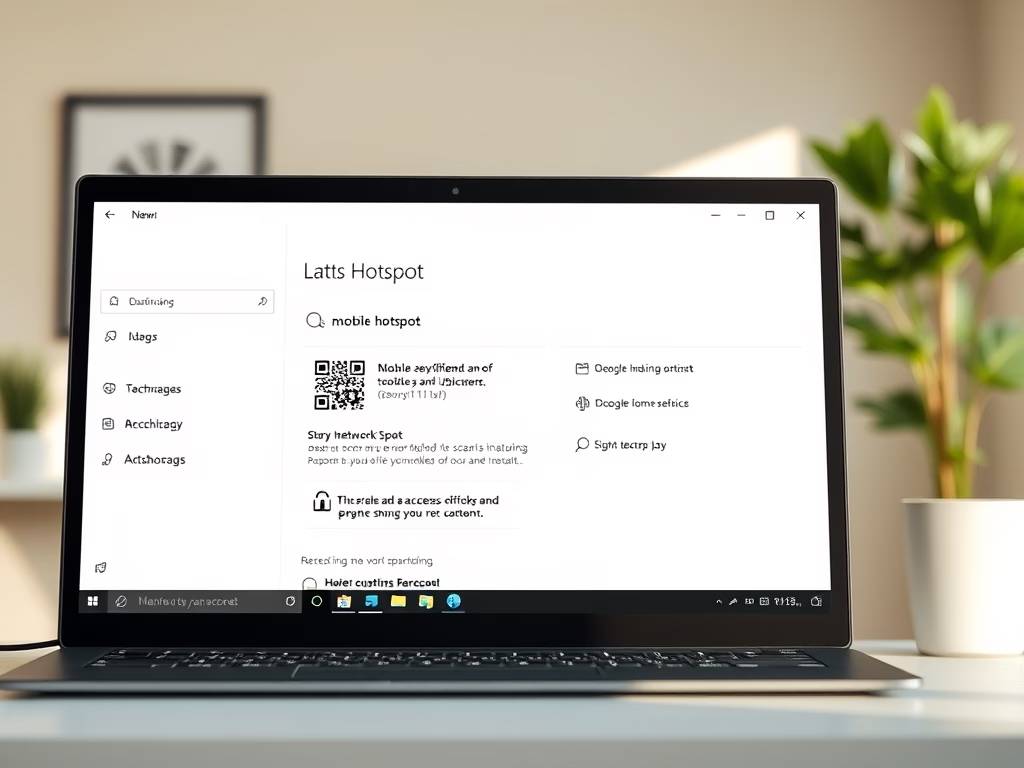
- 2 ways to do it
- Needs administrator rights
- Includes a restart or sign-out
Mobile hotspot in Windows 11 turns your PC into a portable Wi-Fi router. It shares your computer’s internet connection with up to 8 other devices at the same time. Phones, tablets, and other laptops can get online through your PC, whether it is connected by Ethernet cable, Wi-Fi, or cellular data.
Turn this feature on through the Windows Settings app whenever you need to share your connection on the go. Mobile hotspot works the same way on Windows 11 Home and Pro. Sharing cellular data uses up your mobile plan data, so keep an eye on your usage while other devices are connected. Some carriers also limit or block tethering on certain plans, so check your plan if the hotspot turns on but other devices get no internet.
Open Settings, go to Network & internet, and select Mobile hotspot. Toggle the switch on, choose your internet source from the dropdown, and set a network name and password. Other devices can then connect through Wi-Fi like any standard network.
How to Connect Other Devices to Your Hotspot
Once the hotspot is on, connect from the device that needs internet (a phone, a tablet, or another PC):
- Open the Wi-Fi settings on that device. You should see a list of nearby networks.
- Look for the network name (SSID) you set on your Windows PC’s hotspot. The hotspot is not hidden, so it appears in the list like any other network.
- Select it and enter the password you created.
- Connect. The device should show as connected, and you can open a web page to confirm it has internet access.
New Features in 🪟 Windows 11
Windows 11 added a few helpful features:
- Show a QR code for your hotspot password. Scan it with a phone camera to connect quickly instead of typing the password.
- Share your hotspot over the faster 6 GHz Wi-Fi band. This works only if your PC’s wireless adapter supports 6 GHz. If the option is missing, your adapter does not support it.
Quick Ways to Turn Mobile Hotspot On or Off
Option 1Using Quick Settings
This is the fastest way to switch the hotspot on or off once you have set it up.
- Press
Win + Ato open Quick Settings. A panel with tiles for Wi-Fi, Bluetooth, and other options appears above the taskbar. - Click the Mobile hotspot button to turn it on or off. The tile is highlighted while the hotspot is on.

Option 2Using Settings
- Press
Win + Ito open Settings. - Click Network & internet on the left menu.
- Click Mobile hotspot on the right side. The hotspot page opens with the on/off switch at the top.
- Toggle the switch to turn the hotspot on or off. No restart is needed. Turning the switch off again undoes the change.

How to Set Up Your Mobile Hotspot
You can set up your Windows 11 mobile hotspot to share your computer’s internet connection with phones, tablets, or other laptops. Open Settings by pressing the Win and I, go to Network & internet, and select Mobile hotspot. From there, pick the internet source you want to share and turn the switch on.
- Open Settings by pressing
Win + I. - Go to Network & internet Mobile hotspot.
- Choose the Internet connection you want to share from the dropdown menu (like Wi-Fi or Ethernet). If the list is empty or the switch is greyed out, the PC is not connected to anything it can share.

- Choose how you want to share your connection, via Wi-Fi or Bluetooth. Wi-Fi is the usual choice because it is faster.
- To change your hotspot name and password, click Edit. A panel with the network properties opens.
- Type a name for your hotspot network (SSID).
- Set a password (at least 8 characters).
- Choose the Wi-Fi band (6 GHz, 5 GHz, 2.4 GHz, or Any available). 2.4 GHz has the best range and works with older devices. 5 GHz and 6 GHz are faster but cover less distance. Only the bands your adapter supports are offered.
- Click Save. The panel closes and the new name and password show on the page.
- Turn on the Mobile hotspot switch if it’s not already on.
You can now share your hotspot network name and password with friends or other devices. If you would rather not type them, use the QR code option to let a phone scan the details.
Extra Tips
- Your hotspot network will show up openly in Wi-Fi lists on other devices (not hidden).
- If you shut down or restart your PC, the hotspot will turn off automatically. Turn the switch back on after you sign in.
- Before using hotspot, make sure your PC’s wireless adapter supports this feature. To check, open Command Prompt [admin privileges required] and type:
Your Windows 11 mobile hotspot turns off automatically when you restart your computer, and it shows up openly in nearby Wi-Fi lists. Before you try to share your connection, make sure your computer's wireless adapter supports this feature by checking your network settings or running a quick command.netsh wlan set hostednetwork mode=allow
And disable it with:
netsh wlan set hostednetwork mode=disallowMore Help
For more details, visit the official Microsoft guide: Use your Windows device as a mobile hotspot - Microsoft Support
Summary
- You can easily share your Internet with other devices using Mobile Hotspot on Windows 11.
- Share Internet from Wi-Fi, Ethernet, or cellular data.
- Use Quick Settings or Settings to turn the hotspot on or off.
- Customize your hotspot's name, password, and Wi-Fi band.
- New Windows 11 features include QR codes to share your hotspot quickly.
- Hotspot turns off automatically when you restart or shut down your PC.
The Windows 11 mobile hotspot lets you share your Wi-Fi, Ethernet, or cellular data with nearby devices using either Quick Settings or the main settings menu. You can change your network name, view a QR code for quick connections, and manage your shared internet without needing extra software.
Have a question about this guide?
Answered by AI from this guide. Good questions may be added to this page — please don't include personal details.
Did this guide fix your problem?

About the Author
Richard
Tech Writer, IT Professional
Richard is a writer at Geek Rewind who turns complex IT tasks into clear, step-by-step guides. He draws on years of hands-on experience in system administration and enterprise IT operations, focusing on Windows, Linux and WordPress: the problems people actually run into, and the fixes that work. His server and WordPress guides come from systems he runs himself. Richard builds and maintains the platform behind Geek Rewind, from its Ubuntu servers and Nginx configuration to its custom WordPress plugins. Many new tutorials start with readers' questions, and he's always glad to answer them in the comments.
No comments yet — be the first to share your thoughts!