How to Enable or Disable Adaptive Color in Windows 11

- 4 steps
- Needs administrator rights
- Includes a restart or sign-out
Adaptive Color in Windows 11 shifts your screen’s color warmth to match the lighting in your room, so your eyes tire less during long work or gaming sessions. It reads the light around you through a hardware ambient light sensor, or through your PC webcam where the device supports that, and adjusts the colors to keep them looking natural day and night.
You can turn Adaptive Color on or off in a few clicks in the Settings app. The feature depends on your hardware, so you may not see the option on every PC. The steps below cover that case.
Navigate to Settings, then Display. Under the “Brightness & color” section, toggle the Adaptive color switch to On or Off. This feature adjusts screen color temperature based on ambient light for viewing comfort.
What is Adaptive Color?
Adaptive Color is a built-in display feature. It changes how your screen looks, mainly its color tone and, on some devices, its brightness, to suit the light in the room. It relies on a light sensor to do this, and the result is a more natural picture that is easier on the eyes during long working or reading sessions.
Because it needs a sensor, it shows up mostly on laptops, tablets and 2-in-1 devices. A desktop PC with a basic external monitor often has nothing for Windows to read, so the setting may not appear at all.
Adaptive Color adjusts the display output to the conditions around you. In a dim room the screen looks warmer, with a softer, yellower tone. In bright daylight it looks cooler and crisper. These changes make the display easier to read when the light keeps shifting, and your eyes feel less fatigued.
It is not the same thing as Night light. Night light follows a schedule or the time of day, while Adaptive Color reacts to the actual light in the room. If you use both, expect the two to affect the color tone together.
Why Use Adaptive Color?
- Comfortable ViewingYour screen colors change to match the light around you, so your eyes don’t get tired as quickly. This is most noticeable when you move between a bright room and a dim one.
- Less Eye StrainIt’s like reading a book under the right light. Your screen won’t be too bright or too harsh, even late in the evening.
- Better FocusWhen your screen adjusts to your environment, you can work or read longer without feeling tired or squinting at the display.
- Smart ScreenIt works quietly in the background. You get a comfortable picture without having to change settings by hand every time the lighting changes.
Adaptive Color reduces eye strain and makes the screen more comfortable to look at for long periods. It matches the display output to the lighting in your room, so the screen doesn’t look too harsh or too bright, and you can stay focused while you work.
If you prefer fixed, predictable colors, for example for photo editing or any color-critical work, turn it off. Automatic shifts in color tone can make it hard to judge colors accurately.
How to Turn On or Off Adaptive Color in 🪟 Windows 11
You can turn Adaptive Color on or off at any time in the Settings app. Open the display settings and use the toggle for the ambient light adjustment. The change applies straight away, and you can reverse it later with the same switch. You don’t need administrator rights to change it for your own account.
- Open the Settings app. Click the Start button and select Settings, or press Win+I to open it directly. The Settings window should appear with a list of categories on the left.
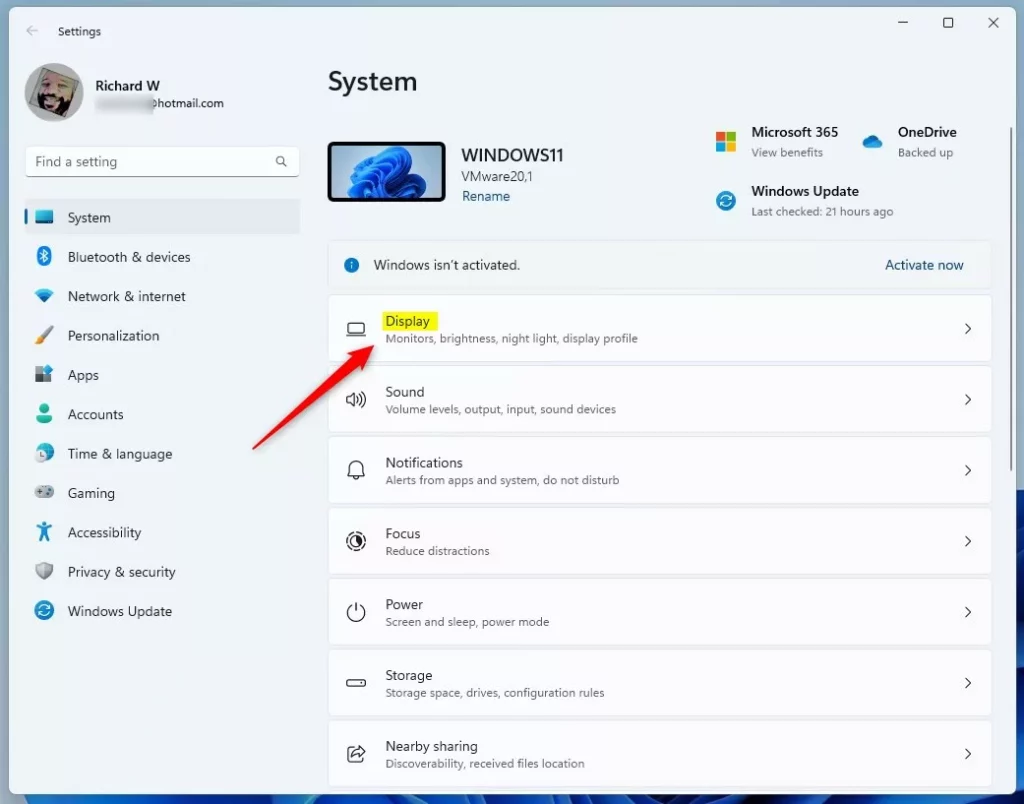
- Select System in the left menu if it isn’t already highlighted, then click Display in the right pane. You should now see your monitor settings, including brightness and color options.
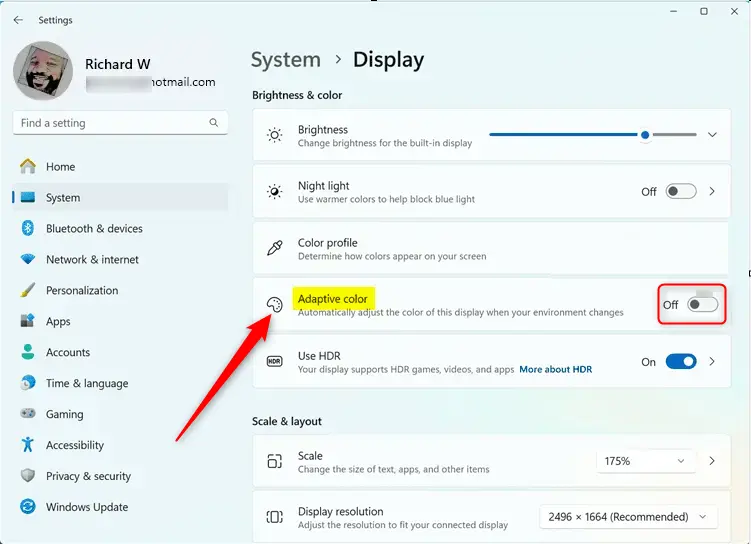
- Find the Adaptive color option, which is usually in the Brightness & color section. Expand that section if it is collapsed. The exact wording and position can differ slightly between Windows 11 versions. If you can’t find it, your PC probably has no compatible light sensor. Check that Windows is fully updated and that the display drivers are current.
- Click the toggle switch to On to enable Adaptive Color, or to Off to disable it. The screen tone may change a moment later, depending on the light in your room. If the toggle is greyed out, the sensor may be unavailable, or another power or display setting may be controlling it. On a laptop, plugging in the charger or checking the power mode can help.
What Happens Behind the Scenes?
Windows writes to the registry automatically whenever you change the Adaptive Color setting, and it stores your choice in a specific location. You don’t need to edit the registry to use the feature. This section is for reference, for example if you want to check what state the setting is in.
HKEY_LOCAL_MACHINE\SYSTEM\CurrentControlSet\Services\DisplayEnhancementService\StateUniqueDisplayIDThe UniqueDisplayID (a specific registry value assigned to your monitor hardware) stores this preference. Each display has its own ID, so the setting is kept per monitor.
Values:
- 0 = Adaptive Color is Off
- 1 = Adaptive Color is On
Summary
- Adaptive Color changes your screen colors based on the light around you.
- This makes viewing easier and more comfortable, especially when the lighting changes during the day.
- It helps reduce eye strain, so you can work comfortably for longer periods.
- You can turn it on or off at any time in Settings System Display. If you don’t see the option, your PC may not have a compatible light sensor.
- Sometimes you need to restart your PC for the changes to work properly.
Adaptive Color changes your screen colors based on room lighting to keep your eyes from getting tired. You can turn it on or off in the Display section of the Settings app whenever you need to adjust your viewing setup. To undo any change, go back to the same toggle and switch it the other way.
More info: Visit Microsoft’s Adaptive Color page for technical details.

Have a question about this guide?
Answered by AI from this guide. Good questions may be added to this page — please don't include personal details.
Did this guide fix your problem?

About the Author
Richard
Tech Writer, IT Professional
Richard is a writer at Geek Rewind who turns complex IT tasks into clear, step-by-step guides. He draws on years of hands-on experience in system administration and enterprise IT operations, focusing on Windows, Linux and WordPress: the problems people actually run into, and the fixes that work. His server and WordPress guides come from systems he runs himself. Richard builds and maintains the platform behind Geek Rewind, from its Ubuntu servers and Nginx configuration to its custom WordPress plugins. Many new tutorials start with readers' questions, and he's always glad to answer them in the comments.
No comments yet — be the first to share your thoughts!