How to Rotate Your Monitor to Portrait Orientation in Windows 11

- 24 steps
- Needs administrator rights
- Includes a restart or sign-out
Rotating your monitor to portrait orientation in Windows 11 takes just a few clicks in Settings. Open Settings System Display, pick your monitor from the list, then change Display orientation to Portrait. Your screen flips right away, and Windows asks you to confirm.
This works on Windows 11 version 23H2 and 24H2. If you have more than one monitor, you’ll need to make sure you’re changing the right one. The setting might be missing or greyed out if your graphics card or monitor doesn’t support rotation, and we cover fixes for that too.
The steps below also show how to fix your mouse cursor if it doesn’t track properly between screens after rotation, and what to do if the orientation option won’t budge.
Open Settings System Display, click the monitor you want to rotate in the diagram, scroll to Scale & layout, set Display orientation to Portrait, and click Keep changes. The screen rotates immediately and Windows confirms the change.
Before You Rotate: Check the Monitor Can Turn
Windows rotates the picture, not the monitor. If you want to use the screen in portrait, the monitor has to physically turn too. Many monitor stands only tilt and swivel and cannot pivot into portrait. Check for these before you change any setting:
- Pivot standSome monitors turn 90 degrees on their stand. Raise the screen to its highest point first so the corners clear the base.
- VESA mountIf your monitor has four screw holes on the back, a VESA arm or wall mount lets you turn it to portrait. Check the hole spacing against the arm before you buy.
- Cable slackMake sure the power and video cables have enough slack to survive a quarter turn.
You can change the orientation in Windows first and turn the monitor afterward. Doing it in that order saves you from reading a sideways screen while you work.
How to Change Monitor Orientation in Settings
This is the main method and works on every edition of Windows 11, Home and Pro. It does not need a restart.
- Right-click an empty area of the desktop and select Display settings. You can also press Win+I to open Settings , then go to System Display.
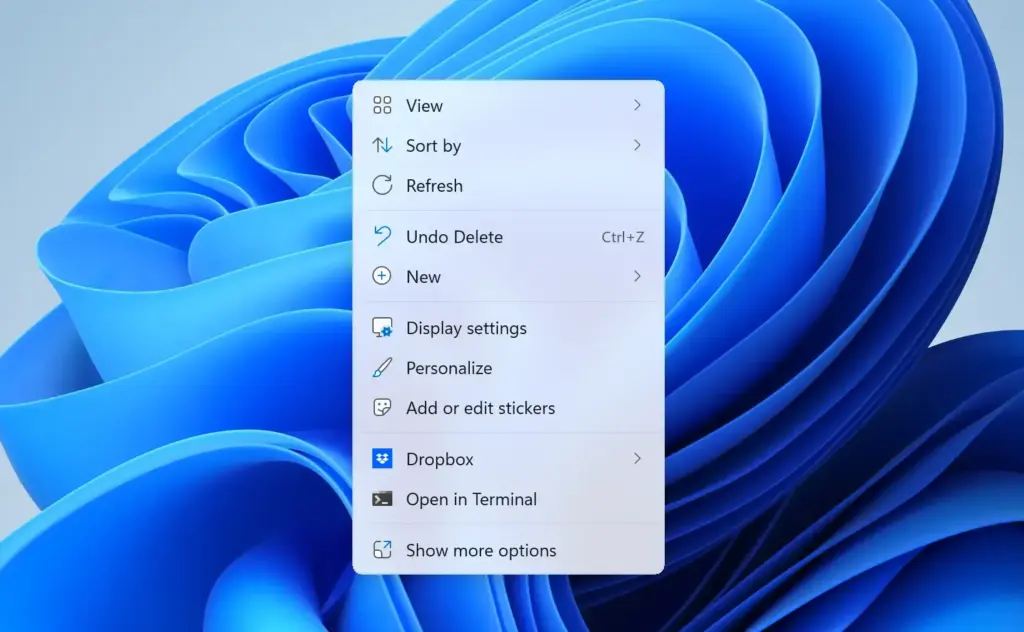
You should now see the Display page with a diagram of your monitors at the top. - Click the monitor you want to rotate in the diagram. The selected monitor has a highlighted border. If you only have one monitor, skip this step.
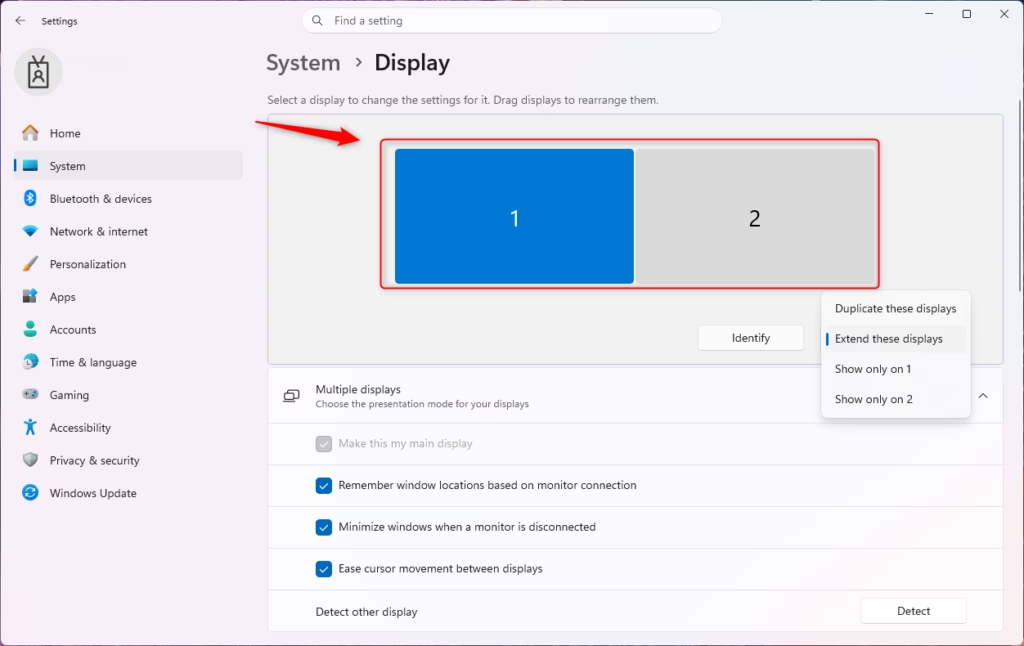
Windows 11 multiple displays settings showing arrangement options. - Scroll down to the Scale & layout section.
Settings › System › Display › Scale - Open the Display orientation drop-down. It lists four choices: Landscape, Portrait, Landscape (flipped) and Portrait (flipped).
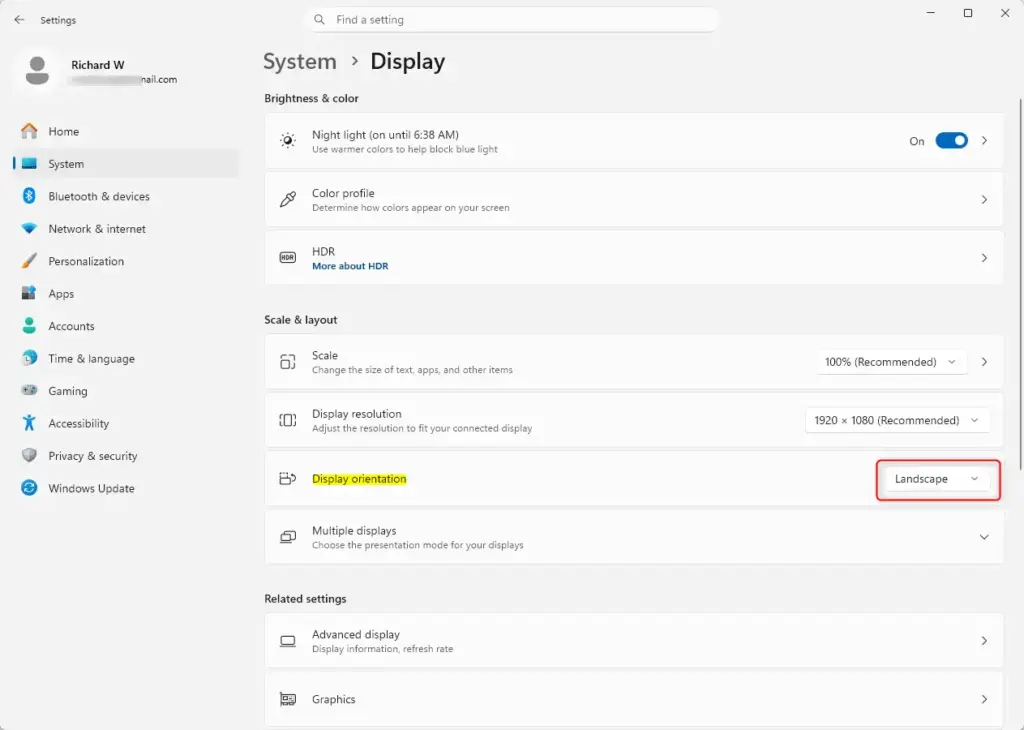
Settings › System › Display › Display orientation - Select Portrait.
The screen goes dark for a moment and comes back rotated. A small box appears asking whether you want to keep the changes. - Click Keep changes to confirm.
The box closes and the new monitor orientation stays in place.
This is a safety net for the case where the rotated picture is unreadable or the screen goes blank. If your screen turns black after step 5, wait for the countdown to finish and Windows switches back on its own.
Portrait vs Portrait (Flipped): Which One to Pick
Both options give you a tall screen. They differ in which way the picture is turned. Portrait and Portrait (flipped) are 180 degrees apart. Which one looks right depends on which direction you physically turned the monitor.
Choose Portrait first. If the desktop looks upside down once the monitor is in position, return to the Display orientation drop-down and choose Portrait (flipped). You do not need to turn the monitor back. The same applies to Landscape (flipped), which turns the picture upside down while keeping it wide. That option suits a monitor mounted upside down under a shelf or on a ceiling arm.
Rotate One Monitor on a Multi-Monitor Setup
With more than one monitor, Windows applies orientation to the screen you selected, not to all of them. This is the usual setup for a vertical monitor beside a landscape one.
- Open Settings System Display.
- Click Identify under the monitor diagram if you cannot tell which numbered box matches which physical screen.
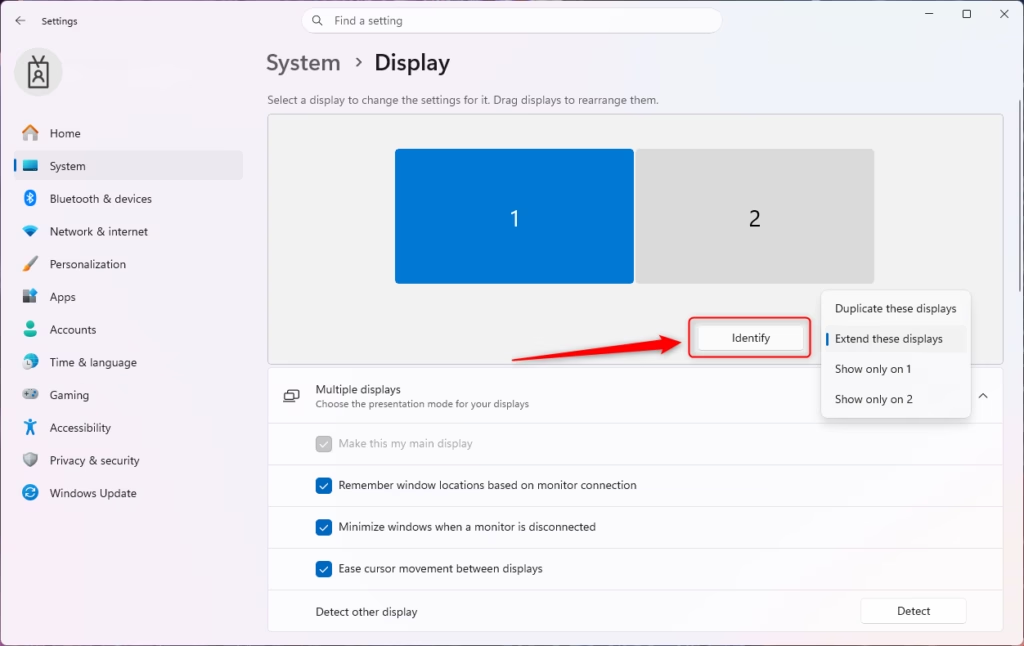
Windows 11 multiple displays identify screen numbers.
A large number appears in the corner of each screen. Match that number to the box in the diagram. - Click the box that matches the monitor you want in portrait.
- Scroll to Scale & layout and set Display orientation to Portrait.
Settings › System › Display › Display orientation - Click Keep changes.
Only the selected monitor rotates. The others stay as they were.
If your other monitors stay in landscape, check that the Multiple displays section is set to Extend these displays. If it is set to a duplicate option, Windows mirrors the same picture on every screen and portrait works poorly. Mirroring also limits the choices to a resolution that every screen supports.
Fix the Layout After You Rotate
Rotation sometimes creates small problems, especially on multi-monitor desks. These are the ones you are most likely to hit.
Fix the Mouse Path Between Monitors
After rotation, your pointer may jump to the wrong place when you move between screens, or it may stop at a spot where there is no gap on screen. Windows tracks how the monitors sit relative to each other. A rotated monitor is now taller than it is wide, and the old arrangement no longer matches your desk. Rearrange the boxes to match what you see:
- Open Settings System Display.
- Drag each numbered box in the diagram so that the layout matches the physical arrangement of your monitors. For example, put the portrait monitor to the right of the landscape monitor if that is where it sits on your desk.
- Line up the edges of the boxes the way the screens sit side by side. For the smoothest movement, align the tops of the boxes or set them to meet in the middle, whichever matches your desk.
- Click Apply.
The Apply button appears once you move a box. Move the pointer across the gap between monitors to test it.
Check Text Sharpness and Scaling
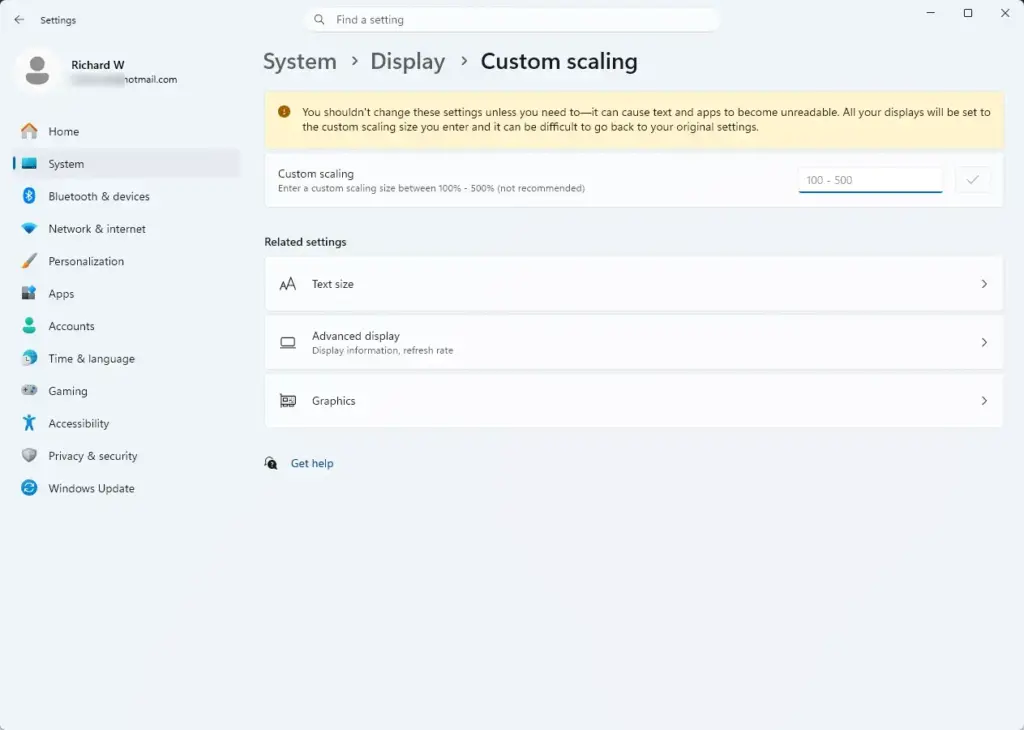
Windows keeps the scale setting you had before. That is usually fine, but if text looks too small or too large on the tall screen, change Scale in the same Scale & layout section. Pick a percentage from the drop-down and look at the result straight away. Changing it does not need a restart, though some open apps ask you to close and reopen them to redraw at the new size.
If text looks fuzzy after rotation, search the Start menu for Adjust ClearType text and run the short wizard. ClearType is the Windows technique that smooths text on LCD screens, and the wizard recalibrates it for the monitor’s new orientation.
Check the Wallpaper
A landscape wallpaper gets cropped or stretched on a portrait screen. Open Settings Personalization Background and use the Choose a fit for your desktop image drop-down to pick how the image fills the screen. On a multi-monitor setup, a tall image designed for the portrait screen usually looks better than any fit option.
Other Ways to Rotate the Screen
Use Your Graphics Control Panel
Your graphics card manufacturer includes its own control app with the driver, and it has the same rotation option. This is useful if the Settings page is behaving oddly, or if you prefer to control all display options in one place.
- NVIDIAOpen the NVIDIA Control Panel, go to Display Rotate display, select your monitor, and choose Portrait.
- AMDOpen AMD Software: Adrenalin Edition and look in the display settings for a rotation option. The exact label depends on the driver version, so I do not give a fixed menu path here.
- IntelOpen the Intel Graphics Command Center, which you may need to install from the Microsoft Store, and look under its display settings for rotation.
If the picture looks wrong after using both, set it back to Landscape in one tool and then apply your choice from that same tool only.
Use the Keyboard Shortcut (Some Intel PCs Only)
Older Intel graphics drivers allowed Ctrl + Alt + an arrow key to rotate the screen. Ctrl+Alt+↑ Arrow returned to landscape, and the other arrows chose the other directions. On many current PCs this shortcut is disabled or missing. If pressing it does nothing, that is normal. Use Settings instead. Avoid pressing it by accident, because it can turn your screen without warning on the machines where it still works. In that case, press Ctrl+Alt+↑ Arrow to return to landscape, or reset it in Settings.
Rotate a Laptop or Tablet Screen
On a 2-in-1 laptop or a tablet with an orientation sensor, Windows 11 rotates the screen on its own when you turn the device. To stop that, turn on Rotation lock. You can find it in Quick Settings, which opens when you click the network, volume and battery icons at the right end of the taskbar. It also appears in Settings System Display under Scale & layout. The option only appears on devices with an orientation sensor. A desktop PC does not show it.
Turn Rotation lock on if you want the screen to stay put while you hold the device at an angle. Turn it off if you want the screen to follow the device. If the lock is switched on and greyed out, the device may be in laptop mode with the keyboard attached, which disables auto-rotation on many models.
Display Orientation Is Missing or Greyed Out
If the Display orientation drop-down is not there, or you cannot click it, one of these is usually the cause. Work through them in order.
- Check you are not in a Remote Desktop session. Orientation is a setting for the physical display. If you are connected to another PC over Remote Desktop, you cannot rotate the screen from inside the session. Change it on the local machine.
- Check that the right monitor is selected. With several monitors, make sure you clicked a monitor box in the diagram. If a monitor is disconnected or turned off, its options may be unavailable.
- Look for the Microsoft Basic Display Adapter. If Windows loaded a generic display driver instead of your graphics card driver, many display options are missing or limited. To check, right-click Start, open Device Manager, and expand Display adapters. If you see Microsoft Basic Display Adapter, the proper driver is not installed.
- Install or update the graphics driver. A graphics driver is the software that lets Windows control your graphics card. Download the latest version from your PC maker or from NVIDIA, AMD or Intel. Installing a driver requires administrator privileges. Restart the PC if the installer asks you to, then check Settings again.
- Check the environment. A virtual machine can limit display options depending on the virtualization software and its display adapter. If this is a virtual machine, rotation may not be available at all. In that case, rotate the screen on the host computer instead.
If the orientation option appears but the monitor ignores it, try a different cable or port. Disconnect and reconnect the monitor, then check the Display orientation setting again.
How to Go Back to Landscape
The change is fully reversible, and you do not lose any windows or files.
- Open Settings System Display.
- Select the monitor you rotated.
- Set Display orientation to Landscape.
- Click Keep changes.
The screen returns to its normal wide layout. Turn the physical monitor back to match.
Your window positions may shift after each rotation, because Windows tries to fit open apps into the new screen shape. Drag them back to where you want them.
What to Do Next
Windows remembers the orientation for each monitor, so the portrait setting normally survives restarts. It can reset if you update or reinstall the graphics driver, or if you plug the monitor into a different port. If that happens, repeat the steps above on the monitor that has changed. If you set up a second screen only to use it in portrait, the next thing to check is the arrangement in Settings System Display so the mouse crosses between screens where you expect.
Frequently asked questions
What does "your" mean in English?
"Your" is a possessive pronoun that shows something belongs to or is connected to the person you're talking to. Example: "Your monitor" means the monitor that belongs to you.
What type of word is "your"?
"Your" is a possessive pronoun. It's used as an adjective to indicate that something belongs to or is associated with the person being addressed.
What does the word "our" mean?
"Our" is a possessive pronoun that shows something belongs to or is shared by a group that includes the speaker. Example: "Our team" means the team that includes me and others.
What is the meaning of "my"?
"My" is a possessive pronoun that shows something belongs to or is connected to the speaker. Example: "My computer" means the computer that belongs to me.
Still have a question?
Answered by AI from this guide. Good questions may be added to this page — please don't include personal details.
Did this guide fix your problem?

About the Author
Richard
Tech Writer, IT Professional
Richard is a writer at Geek Rewind who turns complex IT tasks into clear, step-by-step guides. He draws on years of hands-on experience in system administration and enterprise IT operations, focusing on Windows, Linux and WordPress: the problems people actually run into, and the fixes that work. His server and WordPress guides come from systems he runs himself. Richard builds and maintains the platform behind Geek Rewind, from its Ubuntu servers and Nginx configuration to its custom WordPress plugins. Many new tutorials start with readers' questions, and he's always glad to answer them in the comments.
No comments yet — be the first to share your thoughts!