How to Enable or Disable AI Actions in Windows 11 Context Menu

- 7 steps
- Includes a restart or sign-out
AI actions in the right-click menu add shortcuts to Microsoft Copilot and other AI tools for files and folders on Windows 11 version 24H2 and newer builds. These buttons let you send a file straight to an AI assistant. If you want a faster, cleaner menu with only the standard options such as copy and paste, you can turn them off. This guide shows where the setting is and how to switch it on or off.
Open Settings, go to Apps Actions, then toggle each app on or off to enable or disable AI Actions. Changes take effect immediately; close and reopen File Explorer to see the updated right-click menu.
What Are AI Actions?
AI Actions in Windows 11 are shortcuts that appear in the right-click menu when you select a file in File Explorer. They cover quick jobs such as editing a photo or summarizing a document, so you don’t have to open the main app first. The file goes straight to the AI tool you choose.
Why would you want this? It saves time. If you often send files to AI tools, one right-click is quicker than opening the app, finding the file and loading it.
What happens when you enable it? New options appear when you right-click a supported file. The AI-powered tasks start from File Explorer, and the app you picked handles the file.
What happens when you disable it? The AI entries disappear from the menu. Your files are not touched, and the standard options stay as they were.
The feature is tied to Windows 11 build 26220.7344, and not every PC has it yet. If AI Actions are not available on your PC, or not turned on, the AI Actions section will not appear in the right-click menu. In that case the settings below may be missing or have nothing to change. Check your build number first (Settings System About) if you can’t find them.
How to Enable or Disable AI Actions
Step 1Open the Settings App
You can reach it in two ways.
- Click the Start button, then click the gear icon (Settings).
- Or press
Windows key + Ion your keyboard (Win+I).
Either way, the Settings window should open with a list of categories on the left.
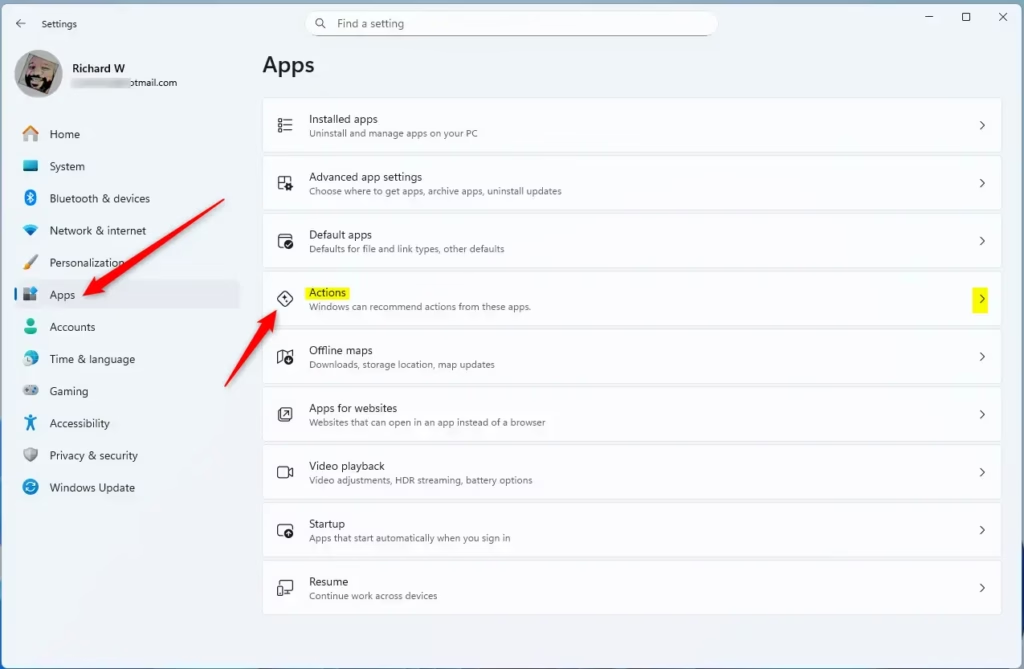
Step 2Go to Apps > Actions
- In the Settings window, click Apps in the left-hand list.
- On the right, select the Actions tile to expand it.
If you don’t see an Actions tile, your PC doesn’t have the AI Actions feature yet. See the build note above. Settings can’t add it for you.
Step 3Toggle Actions On or Off
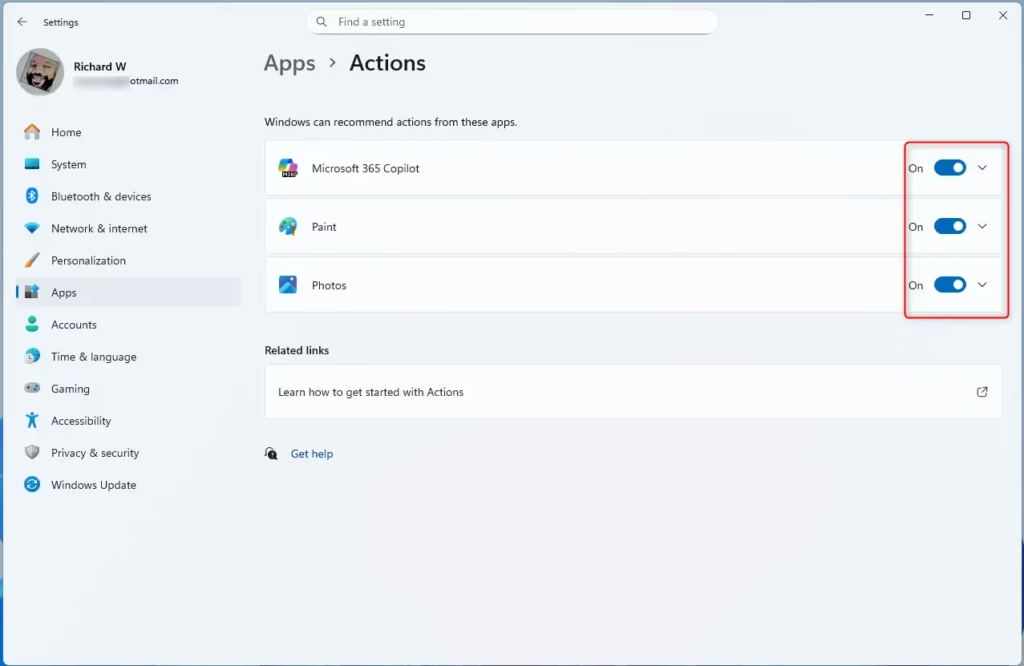
The Apps Actions page lets you choose which apps can perform AI actions. Each app has its own toggle. Here is how to use it.
- Find the app you want to change in the list.
- Click its toggle to switch it On or Off. The toggle changes position right away to show the new state.
- Repeat for any other apps you want to change.
To undo a change, come back to this page and flip the toggle again. Nothing is uninstalled, so you can switch an app on and off as often as you like.
To check the result, right-click a file in File Explorer. This is how it looks in the context menu:
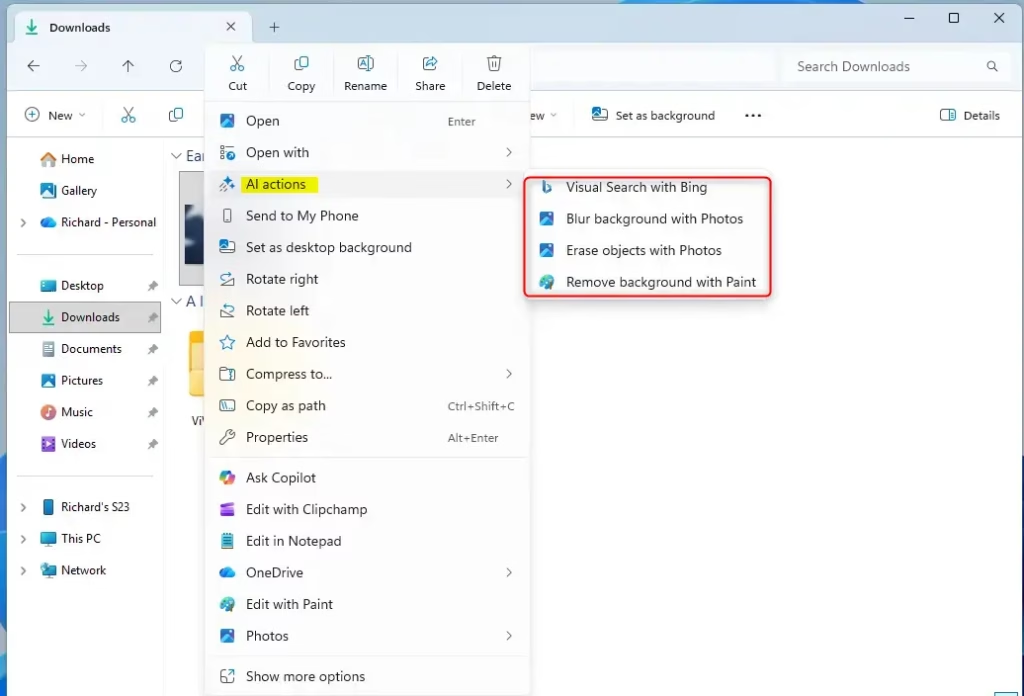
If the menu still shows the old entries, close and reopen File Explorer, then right-click again. If it still hasn't updated, sign out and back in, or restart the PC. That is the configuration done.
Summary
Turning AI Actions on or off in Windows 11 lets you control which smart shortcuts appear when you right-click your files. You can manage these settings directly inside the Windows Settings app to fit your personal workflow. This gives you full control over how your computer handles tasks using built-in artificial intelligence features.- AI Actions are small tasks that help you interact with files in Windows 11
- This feature is rolling out with the latest Windows 11 builds and may not be available to all users yet
- You can enable or disable AI Actions easily through the Settings app
- Go to Apps Actions to manage which apps have AI Actions available
- You can customize which apps use AI Actions to match your preferences
- Keep your Windows updated to access the latest features related to AI Actions
Have a question about this guide?
Answered by AI from this guide. Good questions may be added to this page — please don't include personal details.
Did this guide fix your problem?

About the Author
Richard
Tech Writer, IT Professional
Richard is a writer at Geek Rewind who turns complex IT tasks into clear, step-by-step guides. He draws on years of hands-on experience in system administration and enterprise IT operations, focusing on Windows, Linux and WordPress: the problems people actually run into, and the fixes that work. His server and WordPress guides come from systems he runs himself. Richard builds and maintains the platform behind Geek Rewind, from its Ubuntu servers and Nginx configuration to its custom WordPress plugins. Many new tutorials start with readers' questions, and he's always glad to answer them in the comments.
No comments yet — be the first to share your thoughts!