Where Are My Documents Saved in Windows 11

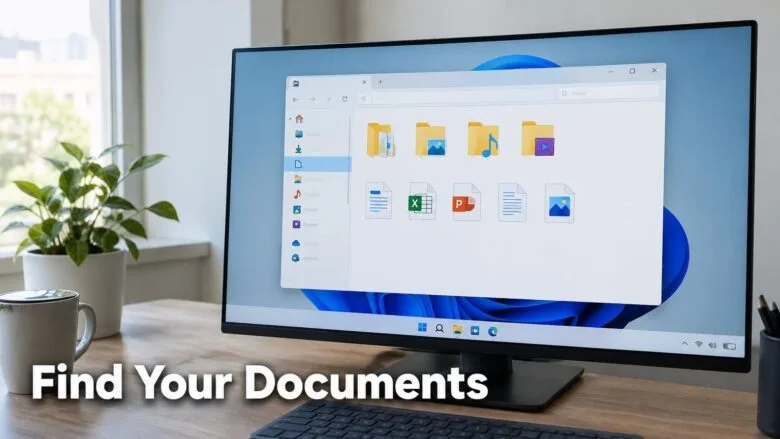
The Documents folder is where Windows 11 saves most of your files by default. It sits in your user profile at 📁C:\
To find it, press Win+E to open File Explorer , the app that shows your files and folders. Then click Documents in the left pane.
If OneDrive is set up on your PC, the Documents folder may be inside your OneDrive folder instead. Some apps also save files to their own default location, so a file can end up somewhere you did not expect.
Windows 11 saves your documents to the Documents folder in your user profile, at 📁C:\
Open the Documents folder in File Explorer
This is the quickest way to see what you have saved. File Explorer (the Windows file manager) lists the Documents folder in its left pane by default.
- Press Win+E. File Explorer opens, usually on the Home page.

File Explorer - Click Documents in the left pane. The right pane lists the files and folders you have saved there.
If Documents is missing from the left pane, click This PC instead. Then double-click your user folder, which is named after your account, and open Documents from there. You can also type C:\Users\USERNAME\Documents into the address bar, replacing USERNAME with your own account name.
Check the exact path of your Documents folder
The path tells you whether your files are stored on this PC or in OneDrive. It is also the path to give to a backup tool or an app.
- Open the Documents folder as described above.
- Click an empty space in the address bar at the top of the window. The breadcrumb view (the clickable folder names) changes to a plain-text path.
- Read the path. Press Ctrl + C to copy it if you need it elsewhere.
You now see one of the paths in the next section. You can also right-click the Documents folder in the left pane and select Properties. The Location tab shows the full path.
The default locations for your documents
The path you see depends on how your account is set up. These are the common cases:
- Local account, no OneDrive backup: C:\Users\USERNAME\Documents. The files exist only on this PC's drive.
- Personal Microsoft account with OneDrive folder backup turned on: C:\Users\USERNAME\OneDrive\Documents. OneDrive's folder backup (a feature that syncs Desktop, Documents and Pictures to the cloud) keeps a copy online. The folder still appears as Documents in File Explorer.
- Work or school account: a path such as C:\Users\USERNAME\OneDrive - Company Name\Documents. The text after "OneDrive -" is your organisation's name.
- Shared documents on the PC: C:\Users\Public\Documents. Windows keeps this folder for files that every account on the PC can reach. You rarely save to it by accident.
Windows 11 sets up OneDrive folder backup during first-run setup on many new PCs. If you moved through the setup screens fast, folder backup may have turned on without you noticing. This is the most common reason people can't find a document in the folder they expect.
Why the Documents folder looks empty on a PC that had files
Four causes account for most "my documents disappeared" cases:
- You signed in with a different account. Each Windows account has its own Documents folder. Files saved under one account do not appear under another. Sign back in with the original account to see them.
- OneDrive moved the folder. If you turned on folder backup, your files moved to C:\Users\USERNAME\OneDrive\Documents. Check there.
- The files are cloud-only. OneDrive's Files On-Demand (a feature that shows a file's name without storing the full file on your PC) marks these files with a cloud icon. They are listed but are not on this PC's drive until you open them. Right-click a file and select Always keep on this device to store it locally.
- The PC was reset or reinstalled. A reset that removes personal files deletes the old profile. If Windows kept a copy, look for a C:\Windows.old folder. Open
C:\Windows.old\Users\USERNAME\Documentsto check.
Find where an app saved a specific document
Apps do not always use the Documents folder. Browsers save to Downloads, and some apps save to their own folders or to the cloud. These methods find a file when you don't know where it went.
Use the Recent list in File Explorer
The Recent list shows files you opened lately, whatever folder they sit in. It is the fastest route to a file you worked on today.
- Press Windows key + E to open File Explorer.
File Explorer - Click Home in the left pane if it is not already selected.
- Scroll down to the Recent section. It lists recently opened files, newest first.
- Right-click the file and select Open file location. File Explorer opens the folder that holds the file.
If Open file location does not appear in the shortened right-click menu, select Show more options first. In the Home view, the Recent section can be empty if recent-file tracking is turned off, or if you cleared the history. In that case, use the search method below.
Search by file name
Search finds files by name, and by contents in indexed locations. Windows keeps a search index (a list of file names and contents that speeds up searches) for your user folders, so documents in the Documents, Desktop and Downloads folders are searched quickly. Other drives search more slowly.
- Open File Explorer and click This PC in the left pane. This makes the search cover all your drives, not one folder.
- Click the search box at the top right of the window.
- Type part of the file name, or a file extension such as
.docx, then press Enter. Results appear as they are found. - Right-click a result and select Open file location to see its folder.
If the search finds nothing, the file may be in a cloud-only location. It may also have been saved under a different user account. Search from This PC again after signing in with the other account.
Check the app's own save location
Microsoft 365 apps often save to OneDrive by default, particularly when AutoSave (the feature that saves changes continuously to the cloud) is turned on. In Word, you can check and change the local default:
- Open Word and select File Options.
- Select Save in the left pane.
- Look at the Default local file location box. This is the folder Word opens when you save to your PC.
- Look at the AutoRecover file location box. This is where Word keeps temporary recovery copies of unsaved documents.
Menu labels differ slightly between versions of Microsoft 365, Office 2021 and older Office releases. Excel and PowerPoint have the same Save page under File Options. For other programs, look in the program's own Settings or Options menu for a save or default folder setting.
Recover a document you never saved
An unsaved Word document is not in the Documents folder. Word keeps a temporary copy in its AutoRecover location, which you can open from within Word:
- Open Word.
- Select File Info.
- Select Manage Document, then Recover Unsaved Documents. A file dialog opens on the folder where Word stores its temporary copies.
- Select the file and click Open. Then select Save As to store it somewhere permanent.
If the list is empty, Word has no recovery copy. Word removes these copies after you save or close a document in the normal way.
Find another user's documents
Each account on the PC has its own folder under C:\Users. Opening another account's folder requires administrator privileges.
- Sign in with an administrator account.
- Open File Explorer and go to
C:\Users. - Double-click the other account's folder. Windows shows a message that you do not have permission to access it.
- Click Continue. Windows asks for administrator approval through User Account Control (the prompt that asks whether to allow a change). Approve it.
You may see an error saying access is denied, even as an administrator. This happens when the folder's permissions block your account. Avoid changing who owns the folder (the account that controls it) unless you have to. Changing ownership of a profile folder can break that user's account. Ask the user to sign in and copy the files to a shared location instead.
Move the Documents folder to another location
Moving the folder to another drive helps when your C: drive is short on space, or when you want documents on a separate data drive. This step changes where Windows saves documents for your account from now on. You can undo it, as the last step below explains.
These steps apply when OneDrive folder backup is off for Documents. If it is on, use the OneDrive method in the next section.
- Create the folder you want to use. For example, create D:\Documents on a second drive. Use a dedicated folder, not the top level of a drive (the main list of folders on it).
- Open File Explorer, right-click Documents in the left pane, and select Properties.
- Select the Location tab. The box shows the current path.
- Click Move. A folder picker opens.
- Browse to the new folder, select it, and click Select Folder. The new path appears in the box on the Location tab.
- Click Apply. Windows asks whether you want to move all the files from the old location to the new one.
- Click Yes to move your existing files. Click No if you want to leave them where they are and use the new folder only for new files.
- Click OK. The Documents entry in File Explorer now opens the new location.
If you see a message that the location is not valid, or that you do not have permission, check that the target drive is connected and that your account can write to the folder. Avoid a drive you unplug, such as a USB drive. Documents becomes unavailable whenever that drive is removed. Use a drive that stays attached.
Windows stores these folder locations in the registry (the settings database Windows uses), under the key HKEY_CURRENT_USER\Software\Microsoft\Windows\CurrentVersion\Explorer\User Shell Folders. Use the Location tab instead of editing that key by hand. A wrong value there can leave File Explorer unable to find the folder.
Undo the move
- Right-click Documents in the left pane and select Properties.
- Select the Location tab.
- Click Restore Default. The box returns to the standard path under C:\Users\USERNAME.
- Click Apply. If Windows offers to move the files back, click Yes.
Windows moves the files only if you say Yes. Without that, your documents stay in the new location and the default folder is empty.
Control whether OneDrive holds your Documents folder
OneDrive folder backup decides whether Documents lives under your OneDrive folder. Turning it off does not delete your files, but where they end up needs care.
- Click the OneDrive cloud icon in the notification area at the right of the taskbar. If you don't see it, click the up arrow to show hidden icons.
- Click the Settings gear icon, then select Settings.
- Select Sync and backup.
- Click Manage backup. A window lists Documents, Pictures and Desktop with a switch for each.
- Turn the Documents switch off to stop backing up the folder. Windows asks you to confirm.
When you stop backing up Documents, the files already in OneDrive stay in your OneDrive folder. The Documents folder on your PC becomes a new, empty folder. To get your files back in it, open C:\Users\USERNAME\OneDrive\Documents, select the files, and move them into the new Documents folder. Do this before you delete anything from OneDrive. Files that are cloud-only need to be downloaded first, using Always keep on this device.
If you can't find Sync and backup, your OneDrive app may be an older version. Update OneDrive from the Microsoft Store, or from the OneDrive download page, and check again. Work or school accounts can also have folder backup set by an administrator, in which case you can't turn it off. The switch may be greyed out or the setting hidden.
Other folders people mistake for Documents
These folders are separate from Documents. Files you can't find in Documents are often in one of them:
- Downloads: C:\Users\USERNAME\Downloads. Browsers save files here by default.
- Desktop: C:\Users\USERNAME\Desktop. Anything you drop on the desktop is stored in this folder. With OneDrive backup of Desktop enabled, the path moves under your OneDrive folder.
- Pictures: C:\Users\USERNAME\Pictures. Screenshots saved with Windows key + Print Screen go to a Screenshots folder inside it.
What to do next
If a file still doesn't turn up, sign in to onedrive.com with the same account and search there. The file may have saved to the cloud only. If you plan to move Documents to a new drive, set up a backup for that drive first, since the files no longer sit on the system drive. A Windows reset, or a new user account, creates a fresh profile with its own default Documents folder, so check the path again after either.
Have a question about this guide?
Answered by AI from this guide. Good questions may be added to this page — please don't include personal details.
Did this guide fix your problem?

About the Author
Richard
Tech Writer, IT Professional
Richard is a writer at Geek Rewind who turns complex IT tasks into clear, step-by-step guides. He draws on years of hands-on experience in system administration and enterprise IT operations, focusing on Windows, Linux and WordPress: the problems people actually run into, and the fixes that work. His server and WordPress guides come from systems he runs himself. Richard builds and maintains the platform behind Geek Rewind, from its Ubuntu servers and Nginx configuration to its custom WordPress plugins. Many new tutorials start with readers' questions, and he's always glad to answer them in the comments.
No comments yet — be the first to share your thoughts!