Adjust Display Scaling Settings Without Blurry Text in Windows 11

- 4 ways to do it
- Needs administrator rights
- Includes a restart or sign-out
Adjusting display scaling settings in Windows 11 changes how large text, apps and icons look without changing your screen’s resolution. Open Settings System Display, pick a percentage from the Scale drop-down, and sign out if Windows asks.
Scaling is a multiplier. At 100%, an item draws at its normal size. At 150%, Windows draws everything 1.5 times its normal size.
Text often turns blurry after this change because the resolution is wrong, an older app ignores the new scale, or ClearType (Windows’ text-smoothing technology) needs tuning. This guide covers the change and each of those fixes.
To adjust display scaling in Windows 11, open Settings, go to System Display, and choose a percentage from the Scale drop-down under Scale & layout. Check that Display resolution is set to the entry marked (Recommended) first, since a wrong resolution is the most common cause of blurry text. Sign out if Windows asks you to.
Why Text Turns Blurry After You Change Scaling
Every screen has a native resolution, the exact pixel grid the panel was built with, such as 1920 x 1080. When Windows runs at any other resolution, it stretches the image to fit. Stretched text looks soft, and no scaling percentage fixes that.
The second cause is apps. Modern apps redraw themselves at the new scale and stay sharp. Some older desktop apps cannot do this, so Windows enlarges their finished window like a photo.
The result is fuzzy edges on text and icons. The scale itself is fine in that case, and the fix applies to that one app.
The third cause is ClearType, which smooths the edges of letters on LCD screens. If it is off or poorly tuned, text looks ragged or faint at any scale.
Before You Start
Three details save time later.
- Administrator rightsChanging the scale does not need them. Any account can change it for its own sign-in. One per-app step later in this guide, for all users, does need an administrator, and it is flagged there.
- Sign-outWindows applies most scale changes instantly. Some apps only pick up the new size after you close and reopen them. Custom scaling always needs a sign-out. Save your work before you change the scale, because some changes sign you out.
- EditionThe Scale setting works the same on Windows 11 Home, Pro, Enterprise and Education.
How to Adjust Display Scaling Settings in 🪟 Windows 11
These steps cover adjusting display scaling settings from start to finish, including a resolution check so the text stays sharp.
- Open Settings . Press Win+I, or select Start and then Settings. The Settings window opens.

Start Menu - Click System in the left menu. The System pages appear on the right.
- Click Display. The path is Settings System Display. You see a preview of your screens at the top and settings below.
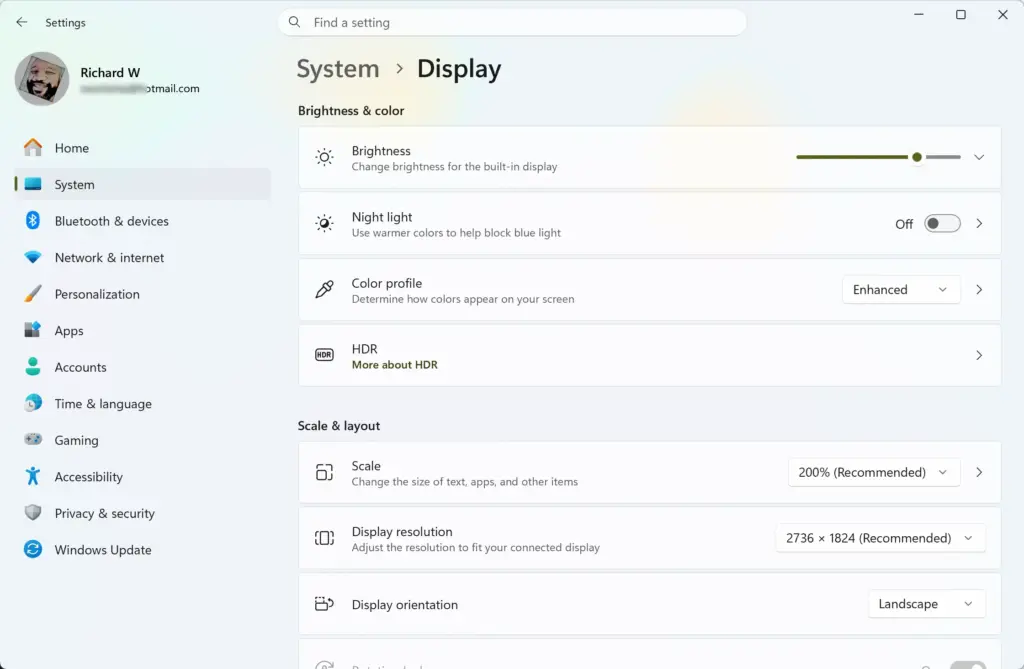
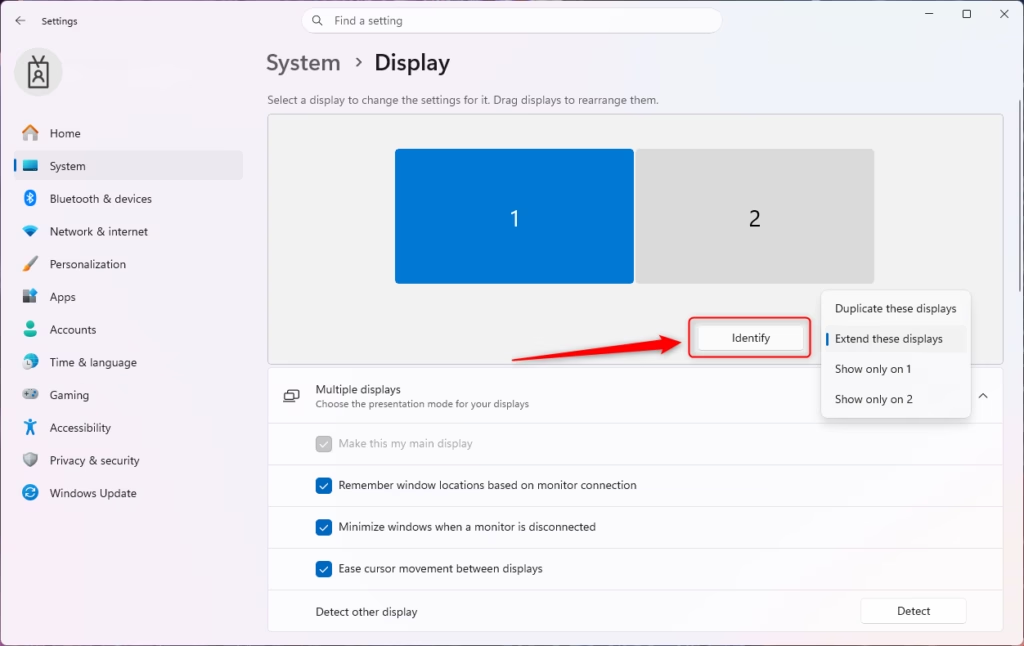
Settings › System › Display - Select the display you want to change. With more than one screen, click its numbered rectangle in the preview. Click Identify if you cannot tell which is which. A number flashes on each real screen.
Windows 11 multiple displays identify screen numbers. - Scroll to the Scale & layout section. The Scale and Display resolution drop-downs sit here.
- Check Display resolution first. Open the drop-down and choose the entry marked (Recommended). That is the native resolution. If it was already selected, leave it.
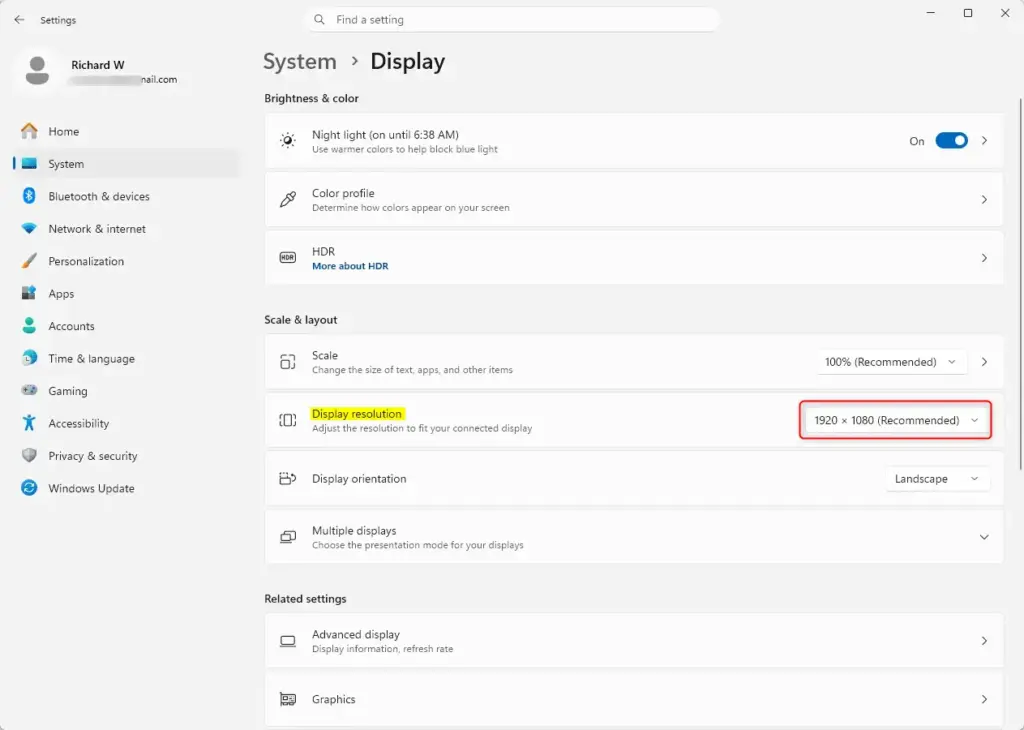
Settings › System › Display › Display resolution - Open the Scale drop-down. A list of percentages appears, such as 100%, 125%, 150% and 175%. The options depend on your screen and graphics driver. Windows marks one as recommended.
Settings › System › Display › Scale - Select a percentage. The screen redraws at once. Text, taskbar icons and open windows grow or shrink.
- Open a text-heavy app, such as a browser or Notepad, and read a paragraph. If the text is sharp and a comfortable size, you are done.
- Sign out if Windows asks you to. Press Win+L, or select Start, your account picture, then Sign out. Sign back in to apply the change everywhere.
If the text looks fuzzy in some windows but not others, go to the blur fixes below. If the size is wrong but the text is sharp, try the next percentage up or down.
Choose a Custom Scale
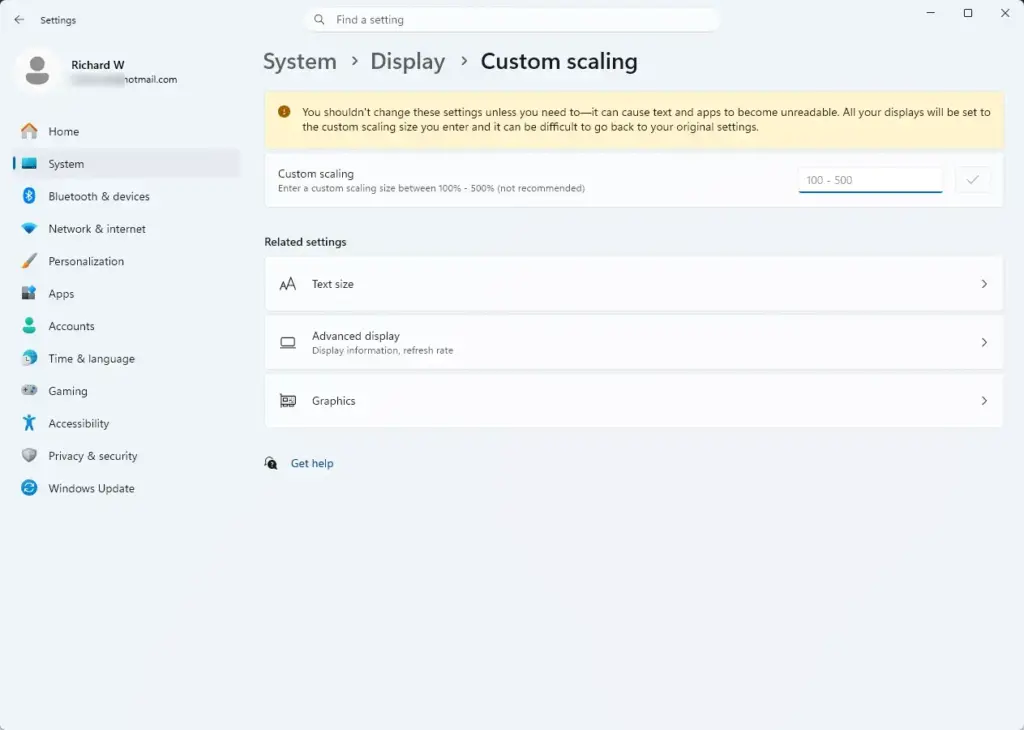
Custom scaling lets you type a value between those steps. Be careful here: Microsoft warns that a custom value can make text and apps unreadable on some screens, and Windows signs you out to apply it.
- Open Settings System Display. Select the display you want to change.
- Click the arrow next to Scale. A Scale page opens with a Custom scaling box.
- Type a number in the Custom scaling box. Windows accepts values from 100 to 500. Try small changes, such as 110 or 135, before anything large.
- Click the check mark beside the box. Windows signs you out to apply the value.
- Sign back in and check how the screen looks.
If the result is unreadable, sign in, return to the same Scale page, and select the option to turn off custom scaling. Windows signs you out again and goes back to a standard percentage.
It sits under Settings Accessibility Text size and leaves the rest of the interface alone. The guide to changing text scaling independently of display resolution walks through it.
Set Different Scales on Each Monitor
Windows 11 stores a separate scale for each connected display. A laptop’s 15-inch panel and an external 27-inch monitor rarely want the same percentage. Select each display on the Display page and set its own Scale value.
Dragging a window between screens with different scales can make it blur for a moment, or permanently in an older app. The fix is the per-app override in Method 4 below. The guide to arranging multiple displays shows how to place screens so the mouse moves smoothly between them. The multiple monitor configuration guide covers the rest of the setup.
Fix Blurry Text After Changing Scale
Work through these in order. The first two take under a minute and fix most cases.
Method 1Set the Recommended Resolution
A non-native resolution makes everything soft, including the desktop. This is the most common cause on external monitors that Windows detected incorrectly.
- Open Settings System Display. Select the blurry screen.
- Open the Display resolution drop-down.
- Select the entry marked (Recommended). The screen flickers and redraws.
- Click Keep changes in the confirmation box. If you do nothing, Windows reverts after a few seconds.
If no entry says (Recommended), or the list holds only a few low options, the graphics driver is probably missing. Open Device Manager and look for Microsoft Basic Display Adapter under Display adapters. If it is there, install the driver from your PC or graphics card maker. Running Windows Update can also bring one in.
Method 2Let Windows Fix Blurry Apps
Some Windows 11 builds include a Fix scaling for apps toggle, which lets Windows redraw blurry desktop apps at the correct size. It is not present on every build. Its exact location varies between Windows 11 builds, so look for it on the Display page first.
- Open Settings System Display.
- Click the arrow next to Scale.
- Look for Fix scaling for apps or Advanced scaling settings. If you see it, turn it on.
- Sign out and back in. Open the app that was blurry and check it.
If the toggle does not appear on your build, skip to Method 3 or Method 4. Your PC is working as designed. Newer and older Windows 11 builds handle this setting differently.
Method 3Turn On and Tune ClearType
ClearType makes letters look smoother on LCD (flat-panel) screens, which most monitors and laptops use. Windows normally enables it, but a driver change or a new monitor can leave it off or poorly matched. The tuning wizard shows you samples and you pick the best-looking one.
- Open the Start menu and type ClearType. Choose Adjust ClearType text from the results.
- Check Turn on ClearType if it is not checked. Click Next.
- Confirm your monitor is set to its native resolution if Windows asks. Click Next.
- Choose the sample that looks clearest on each of the next four screens. Click Next after each one.
- Click Finish. New text rendering applies right away in most apps, though some need a restart.
With several monitors, Windows may ask which one to tune. Run the wizard once for each screen.
Method 4Override High DPI Scaling for One App
If one program stays fuzzy while everything else looks sharp, change how that program handles scaling. DPI (dots per inch) is the measure Windows uses to decide how big to draw things. The override tells Windows who does the scaling: the app, or Windows itself.
- Close the blurry app first. Windows applies the change the next time you open it.
- Right-click the app's shortcut or
.exefile and choose Properties. If you do not see it, click Show more options first. - Click the Compatibility tab. It sits near the top of the Properties window.
- Click Change high DPI settings. A new window opens.
- Check Override high DPI scaling behavior. The drop-down below it becomes active.
- Open the Scaling performed by drop-down. Choose Application first. The app draws itself and Windows stays out of the way.
- Click OK, then OK again to close Properties.
- Open the app and look at the text. Try another option if it is still wrong.
The drop-down has three options. Application works best for most apps. System has Windows stretch the window, which can blur text but keeps sizes consistent. System (Enhanced) improves text sharpness in some older apps, though it does not suit every program.
Administrator step: the Change high DPI settings window also has a Change settings for all users button. It needs an administrator account and a User Account Control prompt. Skip it if you only need the fix for your own sign-in.
To reverse the override, clear the Override high DPI scaling behavior check box and click OK.
Why the Scale Option Is Missing or Greyed Out
The Scale drop-down can be greyed out or limited for a few reasons, and each has a different fix.
- Basic display driverWith Microsoft Basic Display Adapter in use, the scale options are limited. Install the proper graphics driver.
- Remote sessionIn a Remote Desktop session, the host often controls the display settings. Change them on the local computer or in the remote client's options.
- Managed PCA work or school PC may have display settings locked by policy. Ask your IT team if the options stay greyed out, because a work or school policy may lock them.
- Wrong display selectedOn a multi-monitor setup, settings may look different or unavailable for a disconnected or duplicated screen. Select a single active screen in the preview and try again.
If the list shows only 100% on a high-resolution screen, the driver is the first thing to check. Update it from the maker's site, then restart.
How to Undo a Scaling Change
Return to Settings System Display, select the screen, and choose the Scale value marked (Recommended). That restores the default for that screen. If you used custom scaling, open the Scale page through the arrow and turn custom scaling off first.
Per-app overrides are separate. Clear the Override high DPI scaling behavior check box in the app's Properties to remove them. Resetting the scale in Settings does not undo them.
What to Do Next
Windows assigns a new monitor its own scale and resolution when you plug it in, so check Settings System Display after connecting one. A graphics driver reinstall can also reset the scale to the default. If you want more control over the size of text and icons, read how to scale text and icons larger or smaller. For colour and refresh rate settings on the same page, see how to choose a display mode.
Frequently asked questions
How to adjust power and sleep settings in 🪟 Windows 11?
Open Settings, then go to System, then Power & battery. Under Screen and sleep, choose how long Windows waits before it turns off the display, and how long before the PC goes to sleep. Pick a time from each drop-down. Changes take effect right away and you don't need to restart.
How to calibrate display color in 🪟 Windows 11?
Open the Start menu, search for Calibrate display color, and press Enter. Follow the wizard, which adjusts gamma, brightness, contrast and color balance. Gamma controls how bright the midtones appear. Each step shows a sample, so you can compare before and after. Save the profile when done.
How to adjust display settings in 🪟 Windows 11?
Open Settings, then go to System, then Display. Here you change the Scale percentage, resolution, orientation and brightness. Choose the resolution listed as Recommended for the best sharpness. If you have more than one monitor, select each one at the top first. Some changes need you to sign out before they apply.
Still have a question?
Answered by AI from this guide. Good questions may be added to this page — please don't include personal details.
Did this guide fix your problem?

About the Author
Richard
Tech Writer, IT Professional
Richard is a writer at Geek Rewind who turns complex IT tasks into clear, step-by-step guides. He draws on years of hands-on experience in system administration and enterprise IT operations, focusing on Windows, Linux and WordPress: the problems people actually run into, and the fixes that work. His server and WordPress guides come from systems he runs himself. Richard builds and maintains the platform behind Geek Rewind, from its Ubuntu servers and Nginx configuration to its custom WordPress plugins. Many new tutorials start with readers' questions, and he's always glad to answer them in the comments.
No comments yet — be the first to share your thoughts!