How to Select Accessibility Tools to Automatically Start at or After Sign-in on Windows 11

Accessibility tools in Windows 11 include built-in helpers like Narrator, Magnifier, and the On-Screen Keyboard. They can start automatically the moment you turn on your PC or sign in. If you set them to open at the sign-in screen, or a few moments after you sign in, you no longer have to turn them on by hand every time you use the computer.
Open Control Panel , switch to Small icons view, click Ease of Access Center, then Change sign-in settings. Check the boxes next to tools like Narrator, Magnifier, or On-Screen Keyboard under Assistive Technology, select At sign-in or After sign-in, and click OK. The tools start automatically on your next restart.
These are the tools you can work with. Each one is described briefly so you can decide which ones you want at startup:
- On-Screen Keyboard: Type without a physical keyboard by using a keyboard on your screen.
- Sticky Keys: Press keyboard shortcuts one key at a time instead of all at once.
- Filter Keys: Ignore repeated or accidental key presses.
- Mouse Keys: Use the number pad to move your mouse pointer around the screen.
- Toggle Keys: Hear a sound when you press Caps⇩, Num Lock, or Scroll Lock.
- Color Filters: Change screen colors for better visibility.
- Cursor Indicator: Highlight the mouse pointer to find it easily.
- Live Captions: Show captions for audio and video.
- Voice Access: A newer way to control your PC with your voice.
[Administrator Privilege Required] Changing these startup settings requires administrator privileges. You must be signed in with an administrator account. If you are on a standard account, you may be asked for an administrator password, or some options may be greyed out or fail to save. System-wide settings are protected this way against unauthorized changes.
How to Set Accessibility Tools to Start Automatically
The settings live in the classic Control Panel , which is still present in both Windows 11 Home and Windows 11 Pro. Follow these steps to reach them:
- Click the Start button (the Windows icon), type
Control Panel, and press Enter. The Control Panel window opens. - Switch the view to Small icons or Large icons using the View by menu in the top-right corner. Do not use Category view, because the Ease of Access Center is easy to miss there.
- Click Ease of Access Center. The Ease of Access Center window opens.
- On the left side, click Change sign-in settings. If Windows asks for permission, approve it with your administrator account.
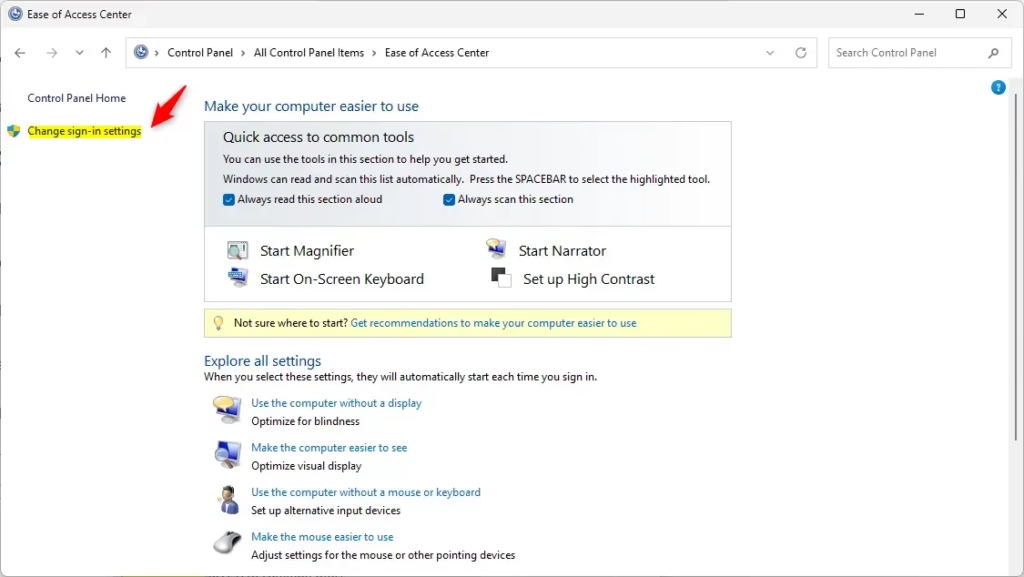
You change a few settings in the Control Panel , and you do not need to turn on your screen reader, magnifier, or keyboard tools manually after every restart. In short: open the Control Panel, go to the Ease of Access Center, and choose which tools start at the sign-in screen for all users.
Once the sign-in settings are open, choose the tools you want:
- Look under Assistive Technology. This is the list of tools you can start automatically.
- Check or uncheck the boxes next to the tools you want. Choose At sign-in to start a tool at the sign-in screen, and/or After sign-in to start it once you have signed in. You can pick both for the same tool.
- Click OK to save your settings. The window closes and your choices are stored.
Sign out or restart the PC to see the tools start on their own. To undo a choice later, return to the same screen, clear the box, and click OK again.
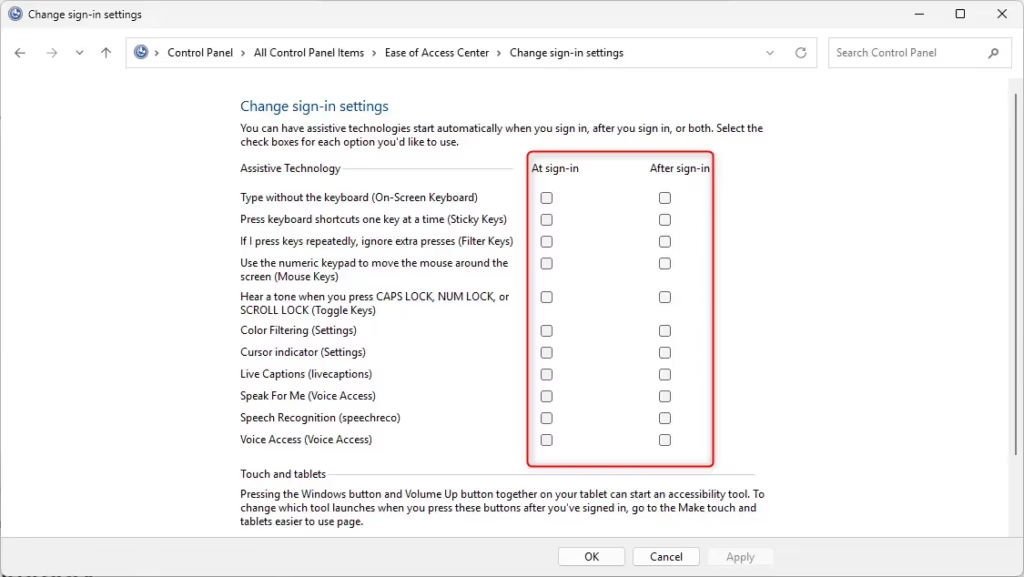
This ensures your essential tools run without manual intervention. Personalizing the workspace accommodates different functional requirements right at startup. If a tool does not start the way you expected, check that you ticked the right option (At sign-in or After sign-in), and confirm that you saved with OK.
Summary
Windows 11 accessibility tools help make your computer easier to use for anyone who needs visual, hearing, or physical assistance. Setting up these features to start at sign-in ensures the computer is ready right away. You can update these choices anytime in the Control Panel if your needs change or if multiple people share the same PC.
- Turn on or off different accessibility tools for everyone who uses the computer.
- Make it easier for people with different needs to use Windows 11.
- Keep your settings up to date if needs change over time.
These modifications help create a computer environment that functions well for every user.
For more about Windows accessibility features, visit Microsoft Accessibility Features.
Have a question about this guide?
Answered by AI from this guide. Good questions may be added to this page — please don't include personal details.
Did this guide fix your problem?

About the Author
Richard
Tech Writer, IT Professional
Richard is a writer at Geek Rewind who turns complex IT tasks into clear, step-by-step guides. He draws on years of hands-on experience in system administration and enterprise IT operations, focusing on Windows, Linux and WordPress: the problems people actually run into, and the fixes that work. His server and WordPress guides come from systems he runs himself. Richard builds and maintains the platform behind Geek Rewind, from its Ubuntu servers and Nginx configuration to its custom WordPress plugins. Many new tutorials start with readers' questions, and he's always glad to answer them in the comments.
No comments yet — be the first to share your thoughts!